


6 Ways to Transfer Contacts from Android to Android Effortlessly

You have bought a new phone and want to transfer contacts from your old Android phone to the new one? Don't want to waste time on data migration? This guide will show you 6 effortless ways to share contacts Android to Android at once. No matter which Android brand you use, you'll find a solution fits you best!
PAGE CONTENT:
- Part 1: Quick Comparison of Android Contacts Transfer Methods
- Part 2: How to Transfer Contacts Android to Android Using MobieTrans (Easiest)
- Part 3: How to Send Contacts Android to Android via Nearby Share
- Part 4: How to Sync Contacts Android to Android via Google Account
- Part 5: How to Share Contacts Android to Android with Smart Switch (Samsung)
- Part 6: How to Copy Contacts Android to Android with a SIM Card
- Part 7: How to Move Contacts Android to Android via a VCF File
Part 1: Quick Comparison of Android Contacts Transfer Methods
Before we jump into step-by-step instructions, here's a comparison table to help you quickly overview the most popular Android contact transfer methods!
| Method | Requires PC? | Requires Internet? | Ease of Use | Limitations |
| MobieTrans | Yes | Yes | Very Easy | Requires a computer and network. |
| Nearby Share | No | No | Easy | Devices must be close together; not for large contact lists. |
| Google Account Sync | No | Yes | Very Easy | Requires a Google account. |
| Samsung Smart Switch | No | Yes | Easy | May not be compatible with non-Samsung phones. |
| SIM Card | No | No | Moderate | Limited storage; may not save all contact details. |
| MobieTrans | No | No | Moderate | You need to export and import contacts manually. |
Part 2: How to Transfer Contacts Android to Android Using MobieTrans (Easiest)
Apeaksoft MobieTrans is your all-in-one solution to transfer data from Android to Android, from iOS to iOS, or between iOS and Android. What's more, it also can export data from mobile devices to your PC. MobieTrans is your reliable data manager that you can add, delete, transfer, edit the info of phone files and de-duplicate phone contacts conveniently.

Downloaded by over 1,000,000 users
- Transfer data freely between your iOS device, Android, and Windows PC.
- Sync all your important data to your new phone within clicks
- Move various types of data, like contacts, photos, videos, messages, and more.
- Support all iOS & Android versions and Windows 11/10/8.1/8/7/Vista/XP.
Secure Download
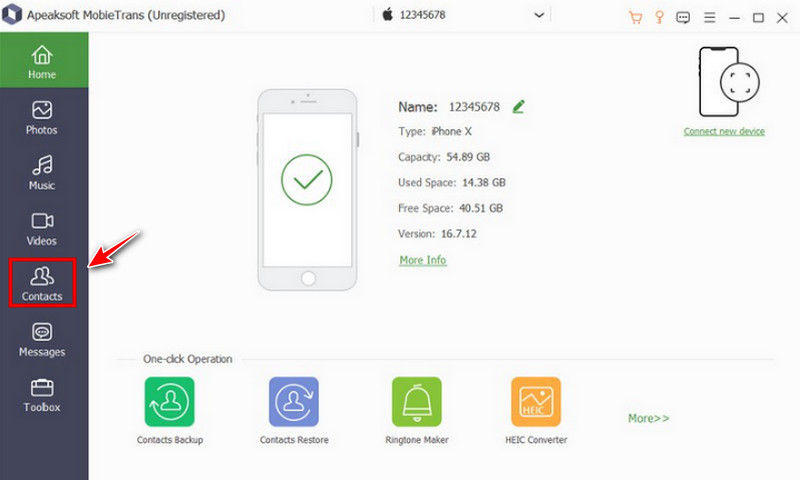
Step 1. Open the software and connect your Android devices to the PC. Then click the Contacts option on the left bar.
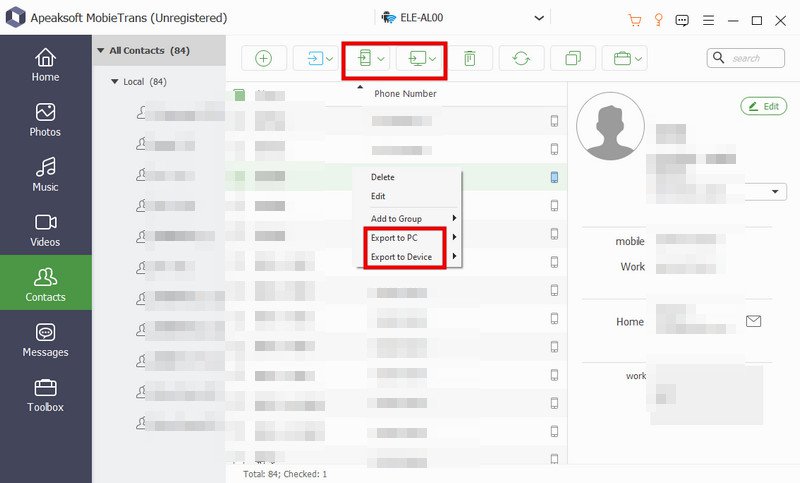
Step 2. You can see all your contacts on your device. Choose the contacts you want to transfer.
Step 3. Click the Phone button on the top bar, choose Export to Device, and select the other device to import contacts Android to Android. Wait for a few seconds, your contacts will be moved successfully.
Part 3: How to Send Contacts Android to Android via Nearby Share
If you're looking for a quick and offline method to transfer contacts, you can use the built-in Nearby Share feature. Before starting, you need to turn on Bluetooth and enable location service on both Android phones.
Step 1. Open the Contacts app on your Android, and tap the three-dot menu to access contacts settings.
Step 2. Tap Import/Export > Share contacts, then select the contacts you want to copy or tap Select all.
Step 3. Tap Share, then choose Nearby Share (it shows Quick Share on Samsung).
Step 4. Select the destination Android from the device list. You'll need to tap Accept on your destination device to receive the contacts.
Part 4: How to Sync Contacts Android to Android via Google Account
Many Android users already have a Google account. If so, syncing contacts through your Google account is one of the easiest ways to transfer contacts Android to Android.
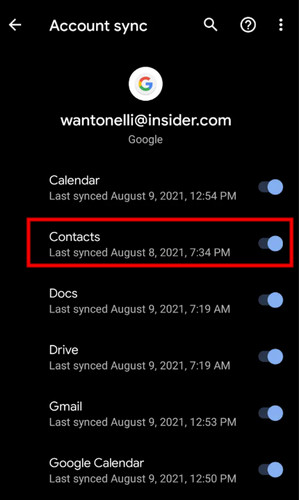
Step 1. Open Settings, scroll down and tap Accounts or Accounts and Backup. Tap Google and select your Google account.
Step 2. Make sure Contacts sync is enabled. Then select Sync now on the top right corner.
Step 3. On your destination phone, sign in to the same Google account, then go to Settings > Accounts > Google and select your account. Enable the Contacts sync, then your contacts will automatically appear on the new device.
Part 5: How to Share Contacts Android to Android with Smart Switch (Samsung)
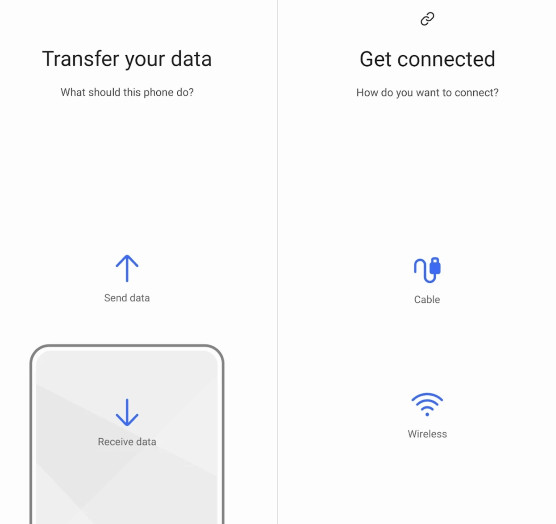
For Samsung phone users, you can use Smart Switch to transfer contacts between Androids seamlessly. This feature is only designed for Samsung phones. It may not be compatible with other brands.
Step 1. Open the Contacts app on the source Android, tap the three-dot menu and find Manage Contacts.
Step 2. Tap Export Contacts and select a SIM card. Your contacts will be copied to the SIM card.
Step 3. Power off the phone and remove the SIM card. Insert it into the destination Android.
Step 4. Open the Contacts app on the destination Android, go to Menu > Manage Contacts > Import Contacts, then select Import from SIM Card.
Part 6: How to Copy Contacts Android to Android with a SIM Card
If your Android phone uses a removable SIM card, you can copy your contacts to it, then insert the SIM into another phone and import the contacts. But SIM cards have limited storage, and they can only hold 250-500 contacts. If you have more contacts, consider using a VCF file to move contacts Android to Android.
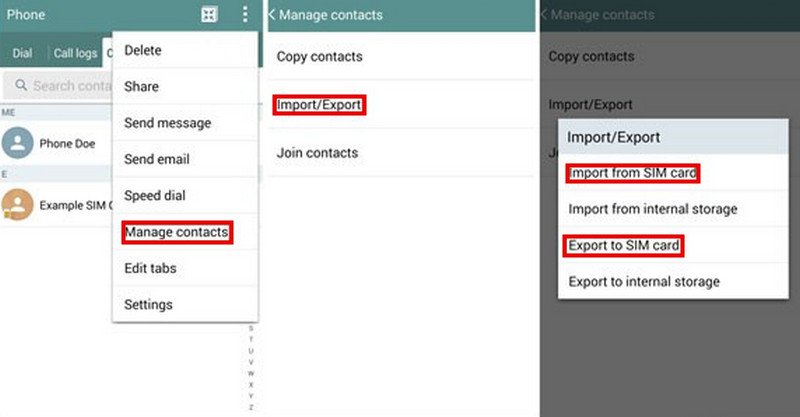
Step 1. Open the Contacts app on the source Android, tap the three-dot menu, and find Manage Contacts.
Step 2. Tap Export Contacts and select a SIM card. Your contacts will be copied to the SIM card.
Step 3. Power off the phone and remove the SIM card. Insert it into the destination Android.
Step 4. Open the Contacts app on the destination Android, go to Menu > Manage Contacts > Import Contacts, then select Import from SIM Card.
Part 7: How to Move Contacts Android to Android via a VCF File
A VCF file can store contacts, names, phone numbers, email addresses, and other information. You can export your contacts as a VCF file, send it via email, and then import it on your new Android phone manually.
Step 1. Open the Contacts app, tap the three-dot menu, and find Manage Contacts.
Step 2. Tap Export Contacts and select a folder to save it. Your contacts will be saved as a VCF file.
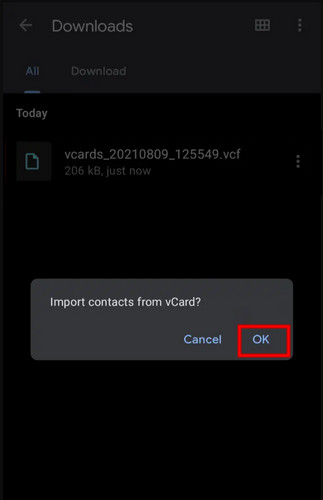
Step 3. Navigate to the folder, find the exported VCF file, then tap Share. You can select the Gmail app to send your contracts as an attachment.
Step 4. Log in to your Gmail account on another Android phone and download the VCF file.
Step 5. Open the Contacts app, and go to Menu > Manage Contacts > Import Contacts, then select the VCF file to import your contacts.
Conclusion
You've learned 6 different ways to transfer your contacts Android to Android. The next time you switch to a new phone, you won't have to add the contacts one by one manually! With these effective methods, you can also move WhatsApp messages, photos, music and everything else you need to your new Android without hassle!

Related Articles




