

What Is iMazing and How to Transfer Data with iMazing

This article will review one of the popular data transferring tools for iOS, iMazing. While Apple has released iTunes for iOS data transferring and management on a computer, the application has become unstable and complex. Therefore, users are looking for a third-party data transferring solution. iMazing is a standout option; however, you may have a few questions about it, such as what it can do, its security, and more. Therefore, we review this tool based on our lab test and users' reports.
PAGE CONTENT:
Part 1: iMazing Review
According to the official website, iMazing is the most trusted tool for data management on iPhones and iPad devices. It is geared toward business. The top-tier subscription can work for 1,000 devices.
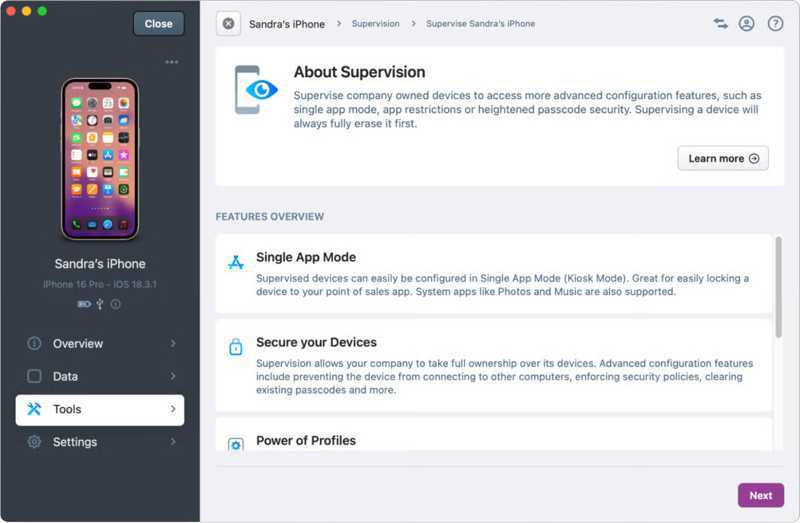
Main Features of the iMazing Application
- Back up all data on your iPhone or iPad to a computer.
- Restore the backup to an iOS device.
- Encrypt iPhone backup with a password.
- Preview photos, music, messages, notes, and more.
- Work for media files, SMS, iMessage, contacts, etc.
- Play videos, music, voice memos, and more on a computer.
- Transfer data from one iOS device to another.
- Add files to your iOS device from a computer.
- Export messages, contacts, notes, and calendars as PDFs.
Review of iMazing for iPhone
- It supports a wide range of data types, from photos to videos, from messages to notes.
- The built-in Quick Actions transfer files from Mac to iOS or create a new backup.
- iMazing allows you to get a detailed overview of your iOS device.
- It can export messages and attachments separately.
- It includes advanced device control features.
- The backup feature can be slow.
- Ordinary users can feel overwhelmed by the advanced features.
- The free features are limited, and users must buy a license to get the full version.
Is iMazing Free?
iMazing does integrate free basic features. If you want to get the full version of iMazing, the cost is different, depending on your subscription. For personal users, the individual subscription starts at $29.99 per year per device. The family subscription costs $89.99 per year for up to 20 devices. For business users, the subscription starts at $89 per year for 2 devices. It also provides a custom license for organizations with more than 1,000 devices.
Is iMazing Safe?
Yes, iMazing fully adheres to Apple's security protocols. According to the developer, it won't collect your data or risk accounts. Your backups are encrypted and safe.
Part 2: How to Use iMazing for iPhone
How to Transfer Files to iPhone from PC/Mac with Quick Transfer
Step 1. Install iMazing on your PC or Mac, and launch it.
Step 2. Connect your iPhone or iPad to your computer with a USB cable.
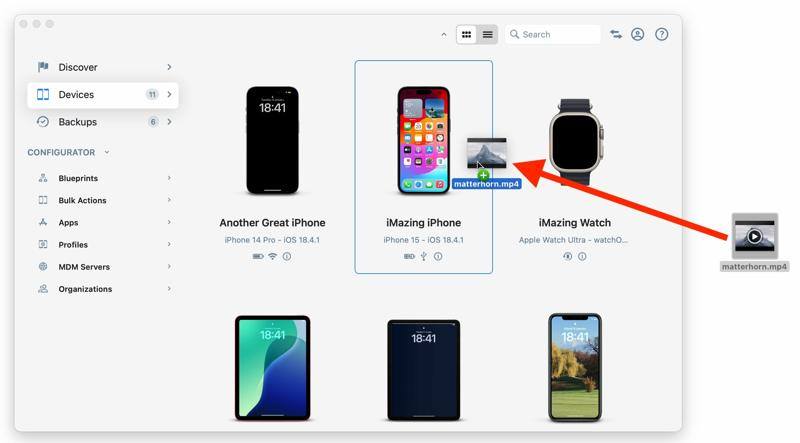
Step 3. Go to the Devices tab, and you will see the connected device.
Step 4. Click a file you want to transfer, drag it, and drop the file on your iPhone.
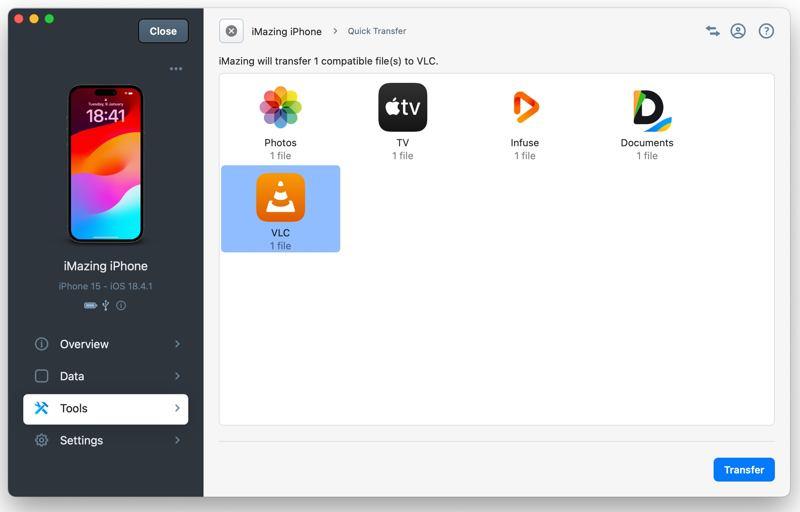
Step 5. Next, select the target app and click Transfer.
How to Manage and Transfer Data on iPhone
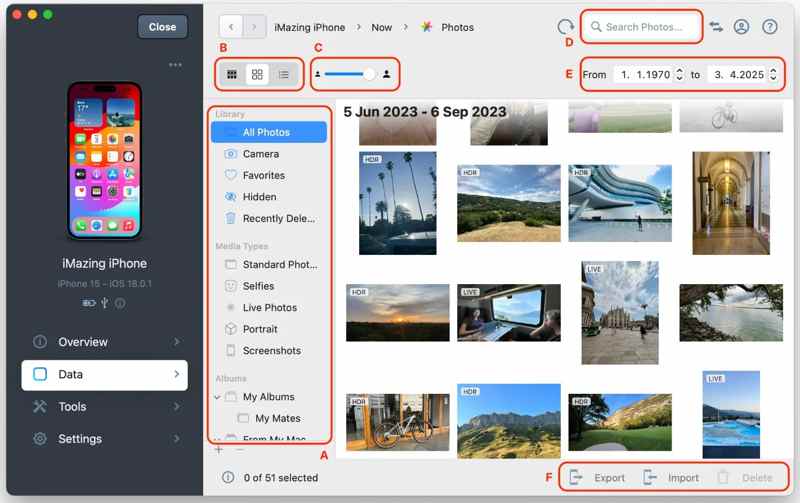
Step 1. Open iMazing after downloading it to your PC or Mac.
Step 2. Plug one end of the USB cable into your iPhone and the other end into your computer.
Step 3. Go to the Data tab on the sidebar once your device is recognized.
Step 4. Click the data type you want to view. For example, click the Photos button to load all photos on your iPhone.
Step 5. Hold the Ctrl or Command key on your keyboard and select the desired photos.
Step 6. Click the Export button, set the options, and click Next.
Step 7. Select a destination folder and confirm data transfer.
Note: If you want to add photos to your iPhone, click the Import button, select the desired files, and add them.
Further Reading
Part 3: A Great Alternative to iMazing
iMazing is not always working. Some users complained that iMazing doesn't recognize their iOS devices or cannot transfer anything. If you are looking for an alternative tool, Apeaksoft iPhone Transfer is a good option. It is able to migrate data between an iPhone and a computer, or an iPhone and iPhone quickly.
A Compact Alternative to iMazing for iPhone
- Transfer data on an iPhone to a computer or vice versa.
- Sync data from one iPhone to another iOS device.
- Support almost all data types on iOS devices.
- Re-encode data based on the target device.
- Compatible with the latest models of iPhone and iPad.
Secure Download
Secure Download

How to Use the Alternative to iMazing
Step 1. Connect to your iPhone
Launch the alternative to iMazing after you install it on your PC. There is another version for Mac. Plug your iPhone into your PC with a Lightning cable. If prompted, tap Trust on your screen to trust this PC.
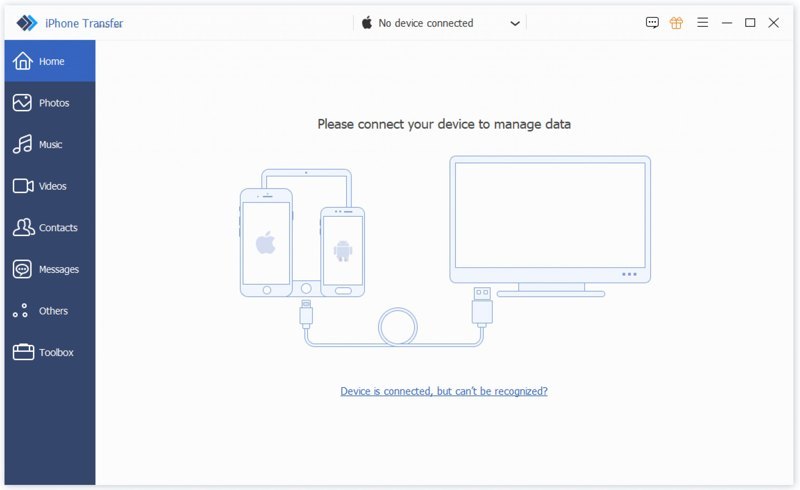
Tips: To transfer data between iOS devices, connect them to the same computer.
Step 2. Preview iPhone data
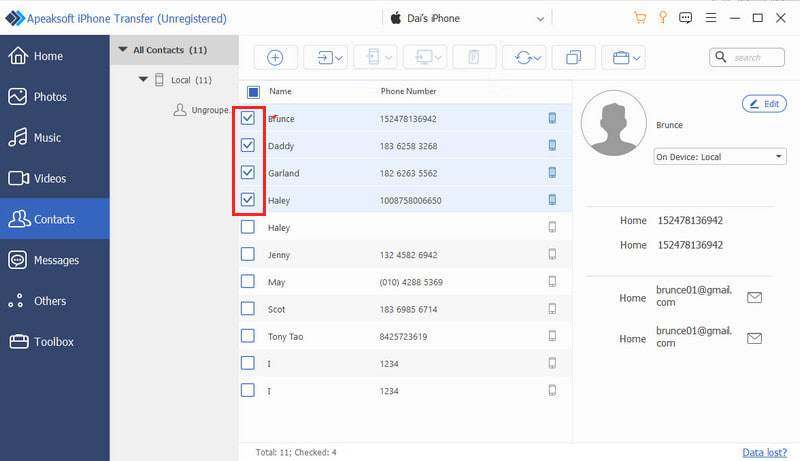
Choose the data type you want to transfer or manage on the sidebar, such as Contacts. Here you can view all contacts on your device and manage them, such as deleting unwanted items.
Step 3. Transfer data
Select all files and items that you want to transfer. Click the PC button and choose Export to PC. Select a folder and transfer data to your PC.
To transfer data to another iOS device, click the Phone button and pick the target device.If you wish to add data to your iPhone, click the Add button, select the files, and open them.
Conclusion
This article reviewed one of the best data transfer software for iPhone, iMazing app. Now, you should understand what it can do, its advantages and disadvantages, and other essential information. To help you make the best decision, we also recommend an alternative solution, Apeaksoft iPhone Transfer. It is not only easier to use, but also available to protect your data quality. Plus, it provides bonus features, like a ringtone maker.
Related Articles
You can learn four effective approaches to transfer contacts between an iPhone and an iPad with a USB cable or wirelessly.
To enjoy your favorite music across devices, you can learn multiple ways to transfer music between an iPad and an iPhone.
Here, you can learn multiple ways to export your contacts from iPhone to another iPhone, iPad, Android device, or computer.
Looking for ways to transfer notes from an iPhone to another iPhone? Here are five effective approaches for note migration.



