

How to Fix iPhone Calendar Not Syncing with iPad/PC/Mac

“I turned on iCloud Calendar on my iPhone, but my calendars didn’t appear in Calendar on my MacBook. Any suggestions?” Apple introduced a few services for its users. The Calendar app, for example, is able to sync events and schedules across all Apple devices. However, the app is not perfect, and sometimes it stops syncing your events. This tutorial discusses what you can do if iPhone Calendar is not syncing with iPad, computer, or Google Calendar.
PAGE CONTENT:
Part 1: Why iPhone Calendar Is Not Syncing
iPhone Calendar must sync with an account or a physical connection. However, many factors can lead to the iPhone Calendar not syncing. Before walking through the solutions, let’s identify the main causes:
- 1.Poor connection, like cellular data, Wi-Fi, or a physical connection.
- 2.Improper settings, such as logging in with different accounts on two devices.
- 3.Your device gets stuck.
- 4.Your cloud storage or target device lacks storage space.
- 5.Software glitches.
Part 2: How to Fix Calendar Not Syncing between iPhone and iPad
If the iPhone and iPad Calendar is not syncing, you can follow the solutions below to get rid of the problem on your own. Then, you can access your schedules across your iPhone and iPad associated with the same iCloud account.
Solution 1: Check Your Network
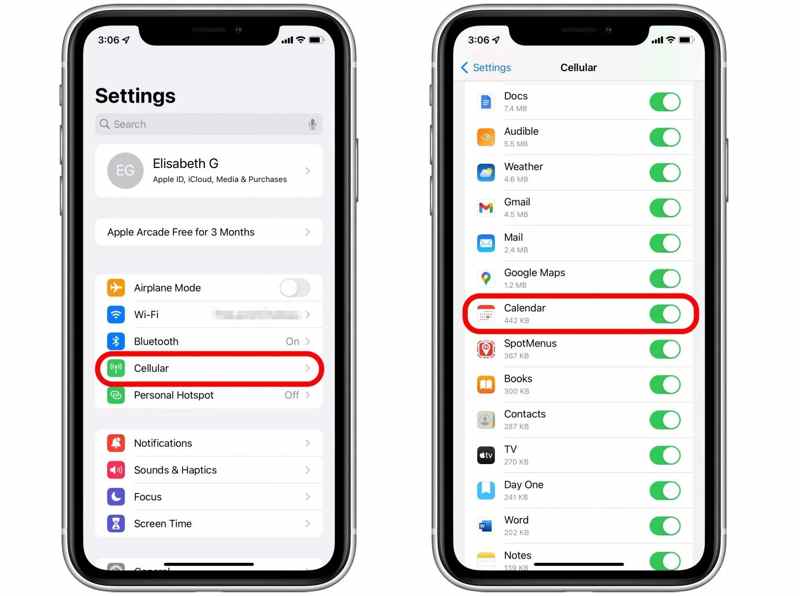
Step 1. Look at the strength of the network signal on the top of your screen.
Step 2. If you are using cellular data, run the Settings app.
Step 3. Choose Cellular.
Step 4. Scroll down and make sure Calendar is turned on.
Solution 2: Use One Apple ID
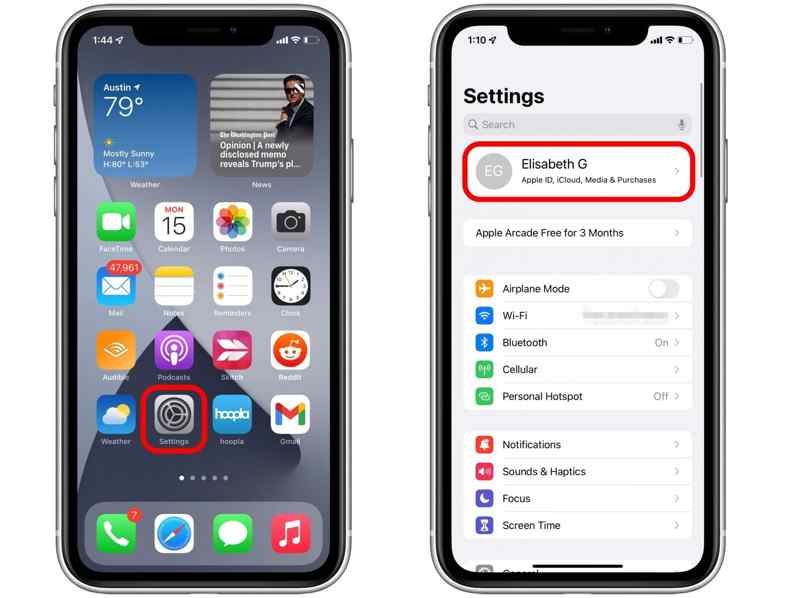
Step 1. Open the Settings app on both the iPhone and iPad.
Step 2. Tap on the profile and check the Apple ID.
Step 3. If they are different, tap Sign Out on one device.
Step 4. Enter the Apple ID credentials, and follow the instructions to sign out of the account.
Step 5. Next, run the Settings app.
Step 6. Tap Apple Account, and choose Sign in Manually.
Step 7. Enter the Apple ID and password associated with the other device.
Step 8. Then, check if the iPhone and iPad Calendar not syncing is resolved.
Solution 3: Restart iPhone and iPad
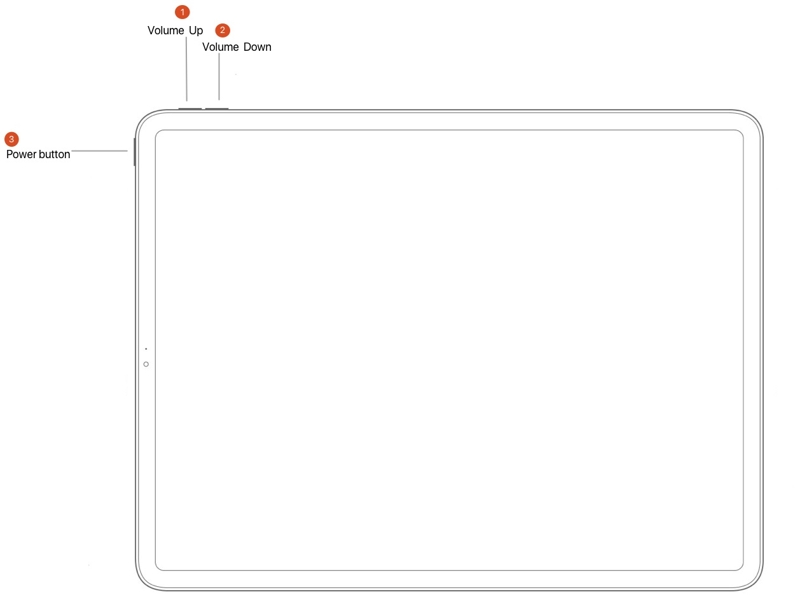
For iPhone X and later or iPad without a Home button
Press and hold either Volume button + Side or Top button together until the power-off screen appears.
For iPhone 8 and earlier or iPad with a Home button
Hold the Power button to trigger the power-off screen.
Move the slider to shut down both devices.
A few minutes later, hold down the Side, Top, or Power button until you see the Apple logo.
Then, sync the iPhone Calendar again.
Solution 4: Re-set up iCloud for Calendar
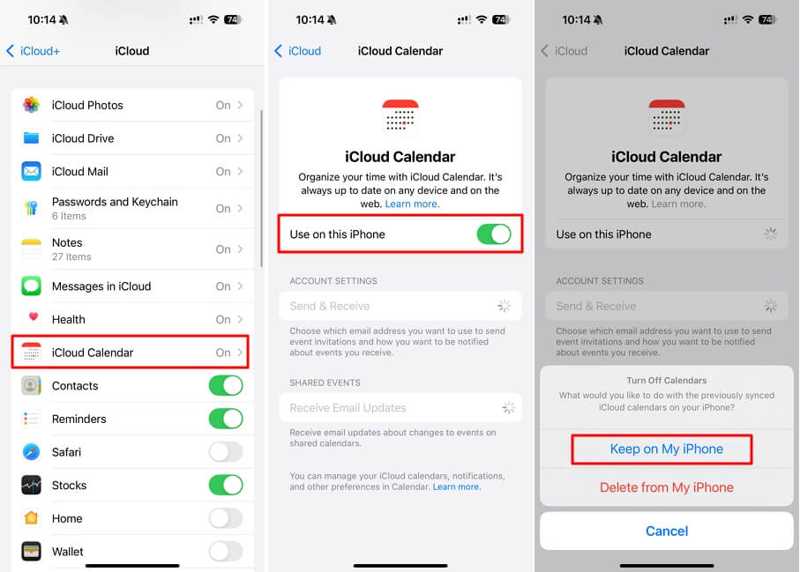
Step 1. Run the Settings app on both devices.
Step 2. Tap on your profile, go to iCloud, and choose iCloud Calendar.
Step 3. Toggle on Use on this iPhone or Use on this iPad.
Note: If iCloud Calendar is enabled, toggle it off, and then turn it back on.
Part 3: How to Fix iPhone Calendar Not Syncing with Google or Outlook
iPhone Calendar not syncing with Google Calendar or Outlook is usually due to the wrong account settings. You can delete the old account and add it again to get rid of the problem quickly.
Solution 1: Add Account Again
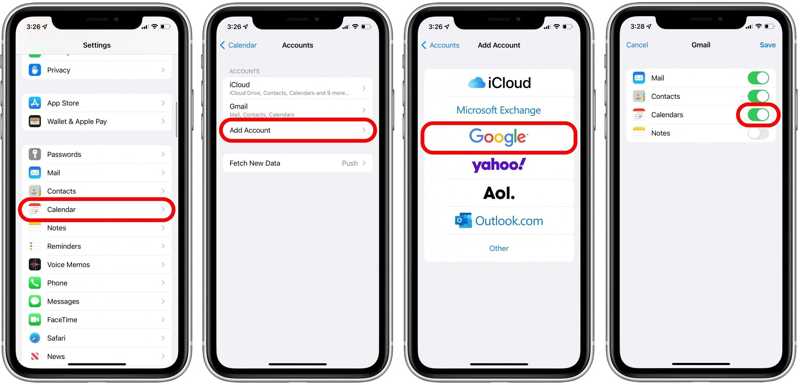
Step 1. Run the Settings app on your iPhone.
Step 2. Choose Calendar, and tap Accounts.
Step 3. Tap your Google or Outlook account and delete it.
Step 4. Next, hit Add Accounts and choose Google or Outlook.
Step 5. Add your credentials again.
Step 6. Then, toggle on Calendars to fix the iPhone Calendar that is not syncing with Google.
Solution 2: Check Cloud Space
If you have set up Google or Outlook for Calendar on iPhone but they still won’t sync, you’d better check the storage space of your account. Google, for instance, gives each account 15GB of free storage. You can remove backups and other data or subscribe to a plan to get more space.
Part 4: How to Fix iPhone Calendar Not Syncing with Computer
Sometimes, your iPhone Calendar is not syncing with your computer due to software glitches, connection errors, and more. Fortunately, you can resolve this problem on your own by following the solutions below.
Solution 1: Restart the Computer
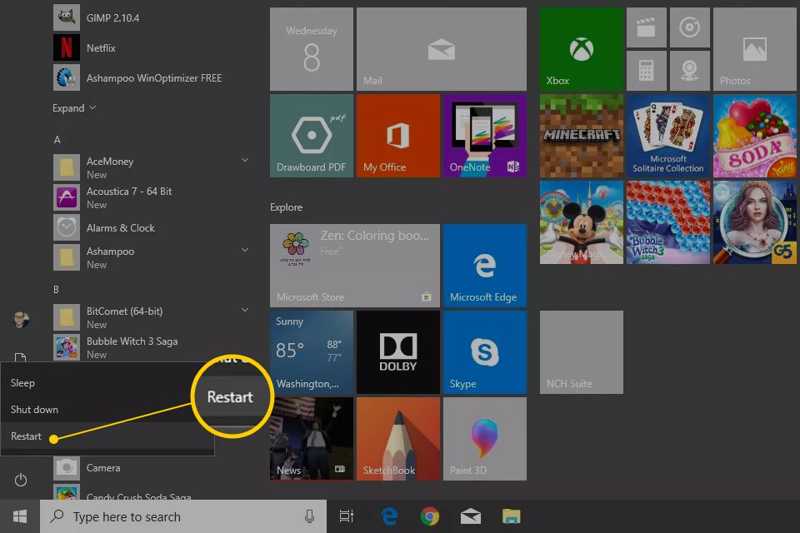
For PC, click the Start menu, choose the Power option, and click Restart. After your PC reboots, sync your iPhone Calendar with the latest version of iTunes or other methods again.
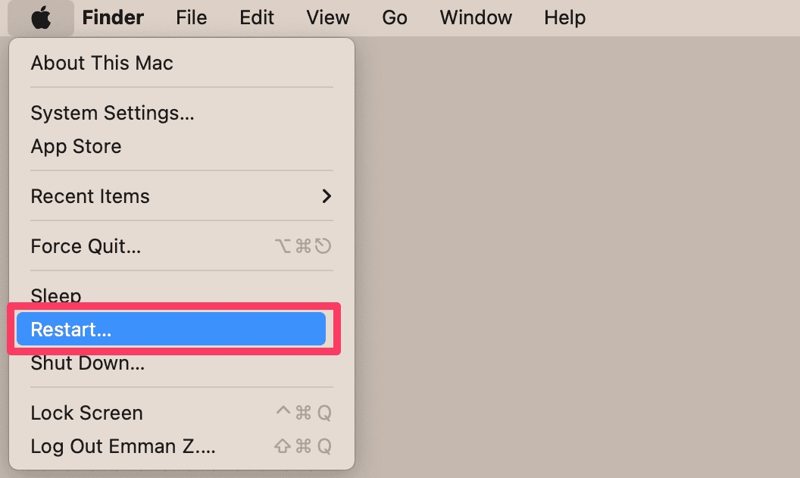
If iPhone Calendar is not syncing with Mac, click the Apple menu and choose Restart. Then, try syncing again.
Solution 2: Refresh Calendar on Mac
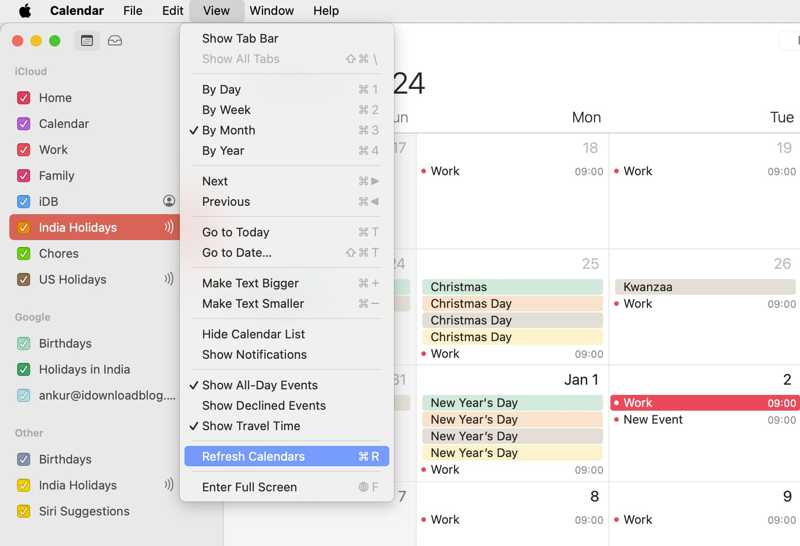
Step 1. Set up Calendar syncing.
Step 2. Open the Apple Calendar app on Mac.
Step 3. Go to the View menu and choose Refresh Calendars.
Further Reading
Part 5: One-stop Solution to Fix iPhone Calendar Not Syncing
If the solutions above are unavailable for you, Apeaksoft iPhone Transfer can help you fix the iPhone Calendar not syncing quickly. It is able to sync iPhone Calendar to iPad, another iPhone, Mac, or PC through a physical connection.
One-stop Solution to Fix iPhone Calendar Not Syncing
- Sync iPhone Calendar to any device quickly.
- Preview and manage iPhone Calendar on a computer.
- Compatible with a wide array of data types.
- Support the latest models of iPhone and iPad.
Secure Download
Secure Download

How to Sync iPhone Calendar with iPhone Transfer
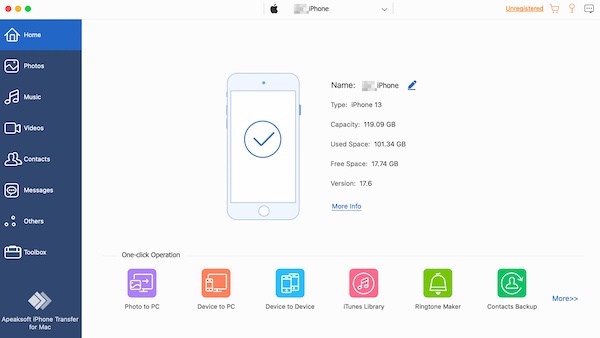
Step 1. Connect to your iPhone
Start iPhone Transfer after installing it on your Mac or PC. Connect your iPhone to your computer with a Lightning cable.
Step 2. View iPhone Calendar
Go to the Others tab, and choose Calendar. Now, view calendars on your iPhone.
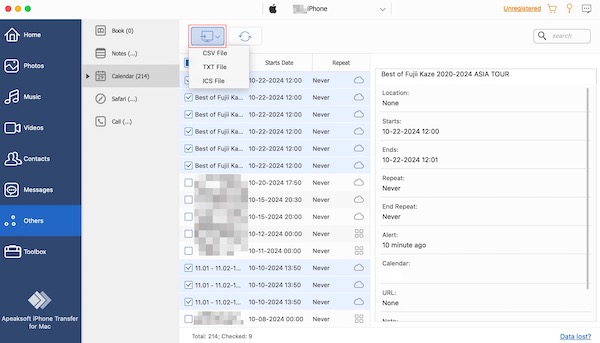
Step 3. Sync iPhone Calendar
Select the desired calendars, click the Export button, and choose ICS File or other format. Set an output folder and confirm it. Now, import the ICS file to your iPad or Mac.
Conclusion
This article explained what you can do if iPhone Calendar is not syncing with Outlook, Google Calendar, iPad, computer, or Mac. You can follow our solutions to get rid of the problem. Apeaksoft iPhone Transfer is an excellent way to sync your iPhone Calendar quickly.
Related Articles




