

What You Should Do If Your iPhone Notes Are Not Syncing

"I am using Notes on my iPhone 15 for handwriting during my classes. For some time now, I have noticed that my Notes app doesn't sync my notes across devices. How to fix this problem?" Apple's Notes is a useful feature for keeping something important. Moreover, it can be synced across all your Apple devices. If you find notes not syncing between your iPhone and Mac, or iPad, follow our article to resolve this problem.
PAGE CONTENT:
Part 1: Why iPhone Notes are Not Syncing
Once you turn on Notes for iCloud, your notes will go to all your Apple devices through your Apple ID account. Before walking through the solutions, let's discuss why iPhone notes are not syncing.
- 1.Your Notes get stuck on your iPhone.
- 2.Your network is poor.
- 3.You are using different Apple ID accounts.
- 4.Your iCloud has no storage space.
- 5.Software glitches.
Part 2: How to Fix iPhone Notes Not Syncing
Fix 1: Restart Your iPhone
If your iPhone or Notes app gets stuck, your notes won't sync between your iPhone and MacBook. The solution is simple: restarting your iPhone. The workflow is a little different, depending on your device model.
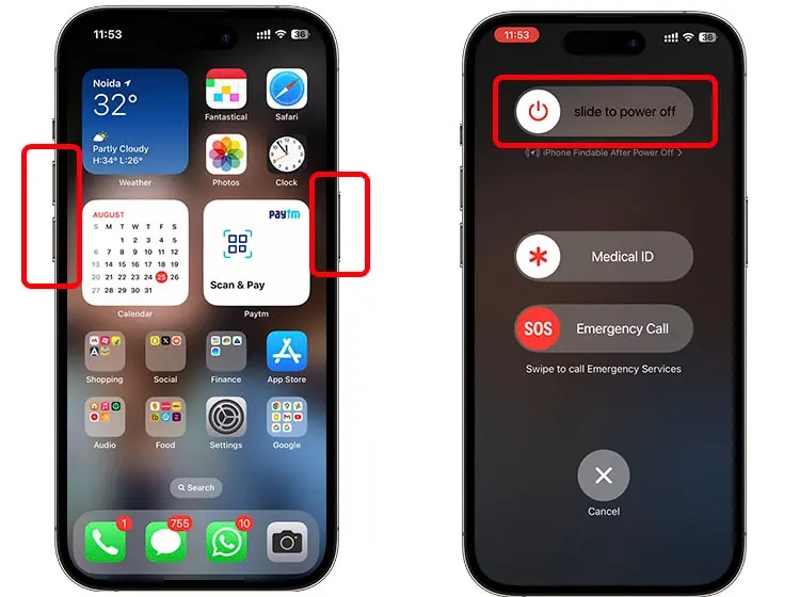
Step 1. On an iPhone with Face ID
Hold either the Volume button and the Side buttons together.
On an iPhone without Face ID
Long-press the Side or Sleep/Wake button.
Step 2. When the power-off screen appears, release the button or buttons.
Step 3. Move the slider and shut down your device.
Step 4. A few minutes later, hold the Side or Sleep/Wake button until you see the Apple logo.
Step 5. Sync your notes again.
Fix 2: Check Your Network
It is well known that notes are syncing between iPhone and iPad through an internet connection. If your network is unstable, you will encounter problems syncing iPhone and iPad. You'd better switch to another network.
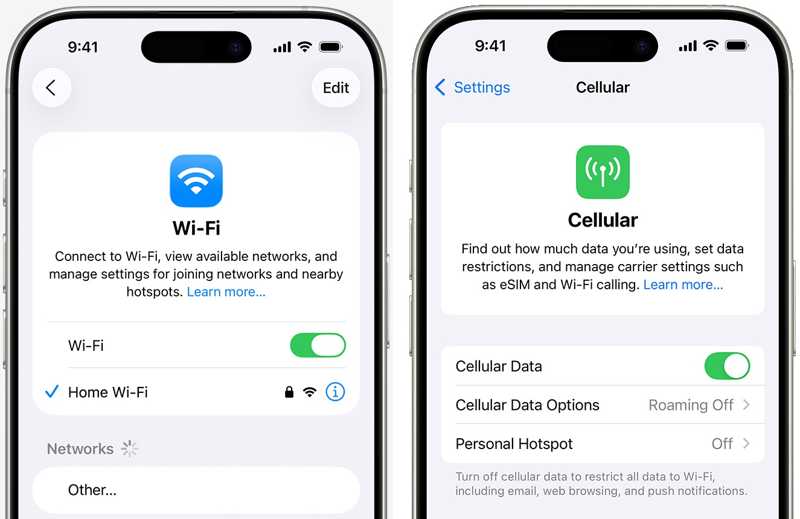
Run your Settings app, choose Wi-Fi, and check your network signal. If it is poor, switch to another Wi-Fi. Alternatively, turn on Cellular Data on your device, or vice versa.
Fix 3: Re-enable Notes on iCloud
Syncing data between iPhone and iPad is actually using iCloud sync. So, another solution to fix notes on Mac not syncing with iPhone is enabling Notes syncing. If you accidentally turn it off, your notes won't sync. If it is enabled, re-enable it to get rid of the problem.
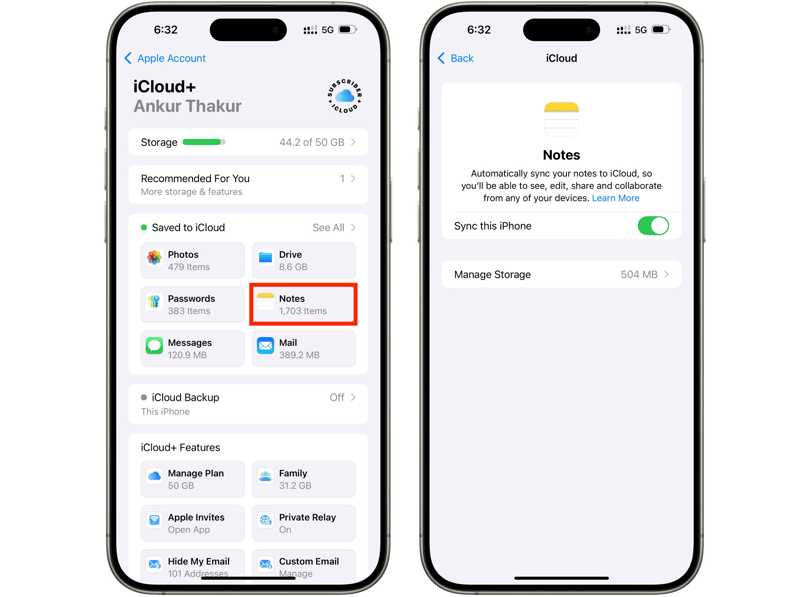
Step 1. Tap on your profile in the Settings app.
Step 2. Choose iCloud, and tap Notes under the Saved to iCloud section.
Step 3. Toggle on Sync this iPhone. If it is enabled, toggle it off and turn it back on.
Fix 4: Log in to the Same Account
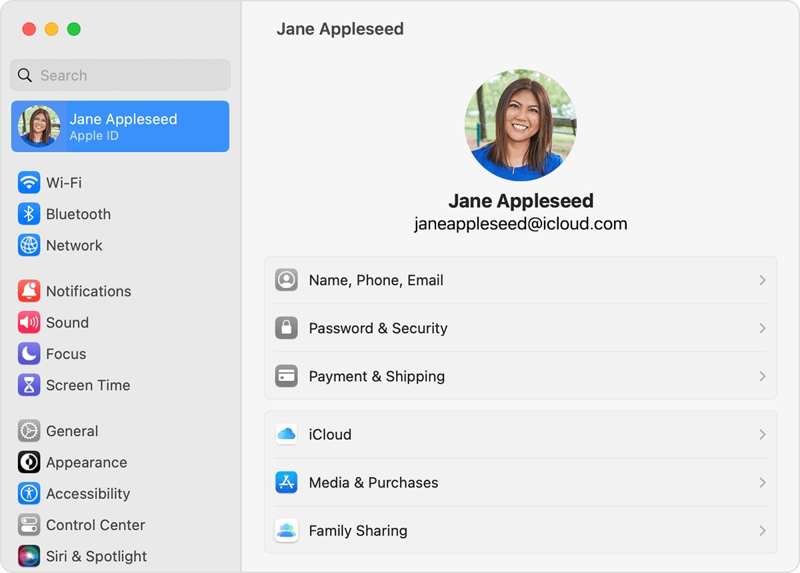
To fix notes not syncing between iPhone and MacBook, you must log in with the same Apple ID account on the devices. If you are using different accounts, sign out and sign in with the same one.
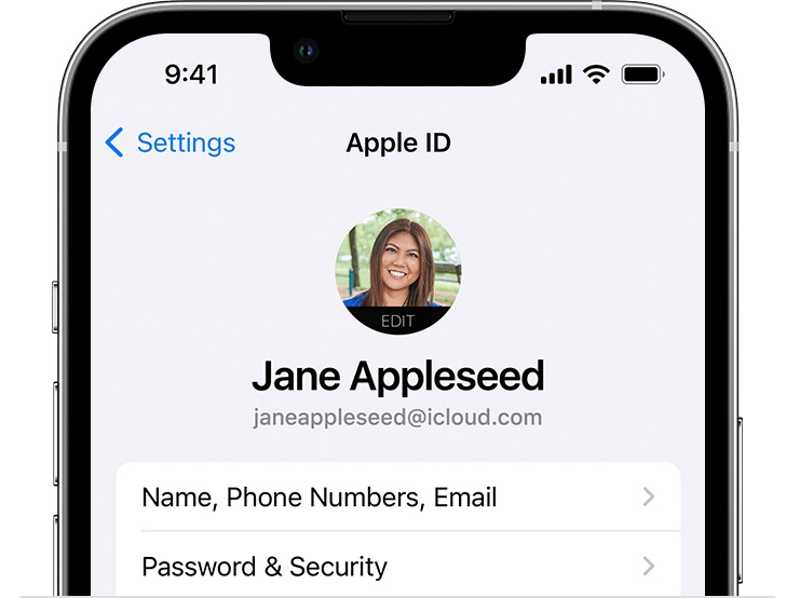
Go to the Settings app on your iPhone, and tap on your profile to check your Apple ID under your profile picture.
Click the Apple menu on your MacBook, choose System Settings or System Preferences, and click Apple ID to check your account.
Fix 5: Free up iCloud Space
Apple gives each account 5GB of free storage. If your iCloud doesn't have enough space, notes won't sync between iPhone and Mac or iPad. Therefore, you should delete unwanted iCloud backups to free up space.
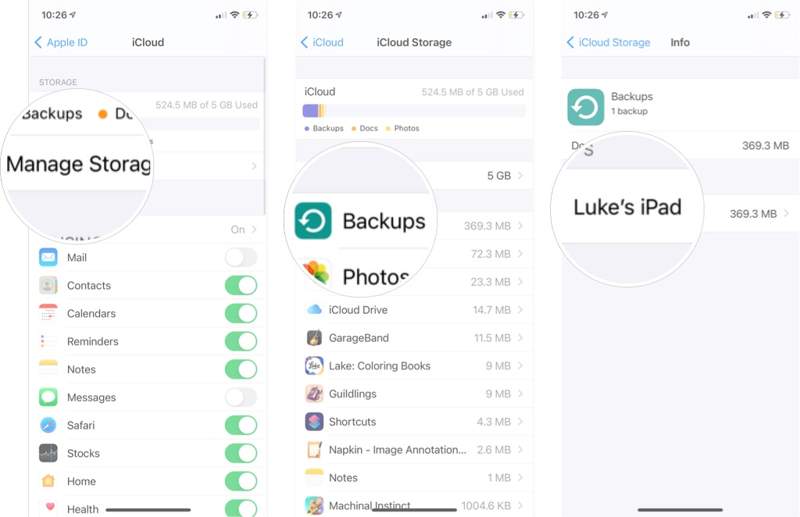
Step 1. Go to Settings and tap on your profile.
Step 2. Choose iCloud, tap Manage Storage, and hit Backups.
Step 3. Tap the useless device, and tap Delete Backup.
Step 4. When prompted, confirm the action.
Part 3: Ultimate Solution to Fix iPhone Notes Not Syncing
The alternative solution to fix iPhone notes not syncing is Apeaksoft iPhone Transfer. It enables you to sync notes between an iPhone and another digital device, like a computer or another iOS device. Furthermore, it doesn't require an internet connection.
Alternative Solution to Sync iPhone Notes Quickly
- Sync iPhone notes to a computer or another iOS device.
- Work through a physical connection quickly.
- Preview iPhone notes on a computer.
- Support the latest editions of iOS and iPadOS.
Secure Download
Secure Download

How to Sync Notes on Your iPhone
Step 1. Connect to your iPhone
Start the notes syncing tool after installing it on your computer. It is compatible with Windows and Mac. Connect your iPhone to your computer with a Lightning cable.
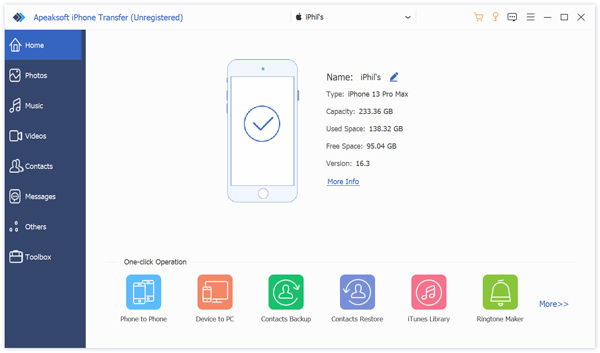
Tips: To sync notes between iPhone and iPad, connect the two devices to your computer.
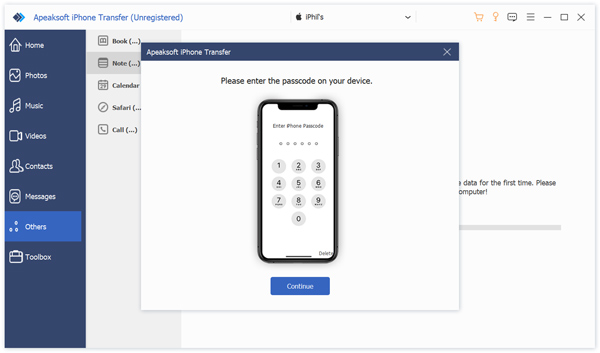
Step 2. Preview iPhone notes
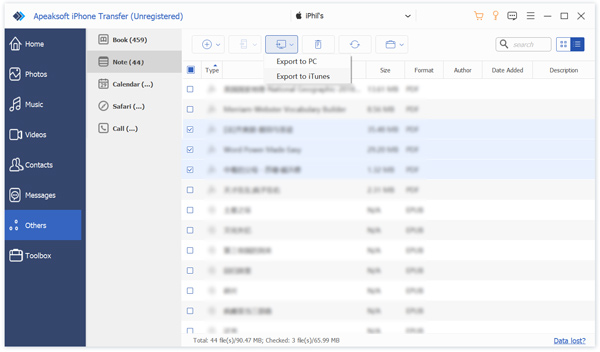
Go to the Others tab, and choose Note to view all notes on your iPhone.
Step 3. Sync notes on your iPhone
Select the desired notes, click the PC button on the top ribbon, and choose Export to PC or Export to Mac.
Conclusion
Following our solutions, you should get rid of the problem that notes are not syncing between the iPhone and iPad or Mac. The common solutions can fix basic software issues or incorrect settings. Apeaksoft iPhone Transfer is the alternative solution to sync your notes on iPhone to another digital device quickly.
Related Articles




