

How to Fix iTunes Sync Not Transferring Music on iPhone

"I updated my iPhone 12 with iOS 17. Then, I tried to sync it with iTunes to play new songs on my iPhone and back up. However, iTunes sync is not transferring music. How to fix this problem?" Although Apple has stopped iTunes on macOS Catalina and newer, it is still a useful tool to back up and manage an iPhone or iPad with a computer. If you encounter the same problem, here are the verified solutions to fix it.
PAGE CONTENT:
Part 1: Why iTunes Won't Sync
Currently, iTunes can sync your iPhone, like music, to a computer with a USB cable or wirelessly through a Wi-Fi network. The common reasons why your iPhone stopped syncing with iTunes include:
- 1.Your iTunes library is corrupted.
- 2.Outdated iTunes or iOS.
- 3.Your iPhone doesn’t have enough storage space.
- 4.Improper settings, such as you have disabled syncing on your iPhone or in iTunes.
- 5.Connection issues.
Part 2: How to Fix iPhone Won't Sync with iTunes
When your iPhone is not syncing with iTunes, disconnect your iPhone and free up your space by deleting useless apps and files. If the problem persists, try the solutions below to get rid of the issue.
Solution 1: Enable Sync Library
If you accidentally disable Sync Library on your iPhone, it will not sync with iTunes. That keeps the same library of songs across your devices. Follow the steps to enable Sync Library on your iPhone.
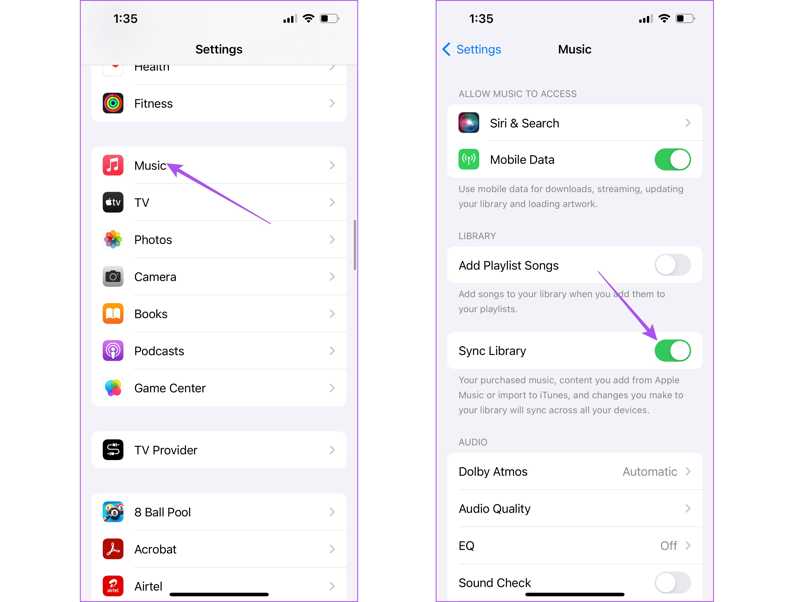
Step 1. Run the Settings app on your iPhone.
Step 2. Go to Music.
Step 3. Toggle on Sync Library.
Step 4. Now, connect your iPhone to your computer with a USB cable, and try syncing again.
Solution 2: Check Your Connection
iTunes can sync your iPhone with a USB cable or over Wi-Fi. If your iPhone stopped syncing with iTunes, you’d better check your connection. If you are using a physical connection, check the cable carefully or use another cable. Plus, you can try syncing iPhone over Wi-Fi.
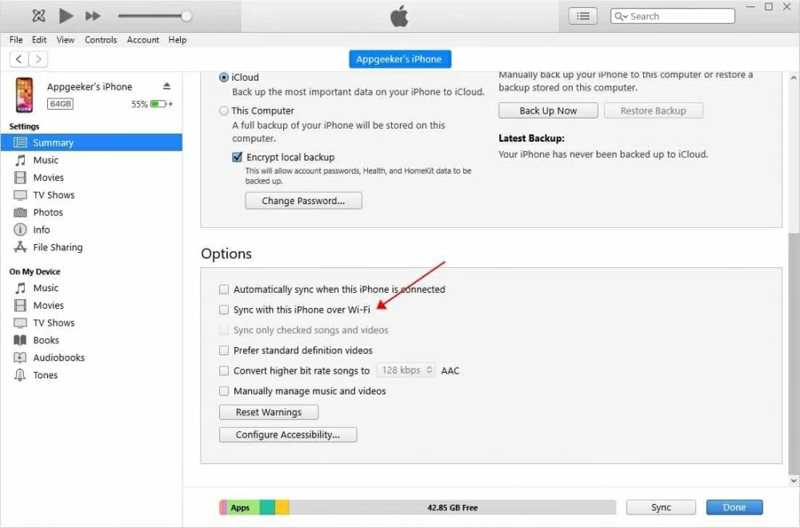
Step 1. Connect your iPhone to your computer with a USB cable.
Step 2. Open iTunes, and click the Phone button at the top left corner.
Step 3. Go to the Summary tab, and check Sync with this iPhone over Wi-Fi.
Step 4. Disconnect your iPhone.
Step 5. Connect both your iPhone and computer to the same Wi-Fi.
Step 6. Then, sync with iTunes again.
Solution 3: Authorize Your PC Again
If iTunes keeps crashing during sync with Reddit, you may not have authorized your PC to access content on your device. To fix this problem, authorize your computer in iTunes following the steps below:
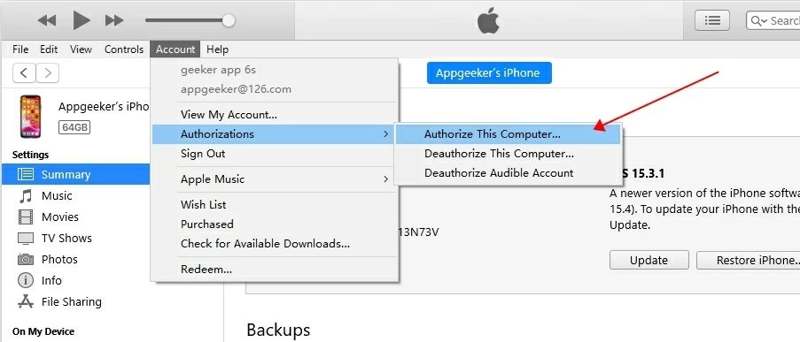
Step 1. Run iTunes.
Step 2. Go to the Account menu on Windows or Store on Mac.
Step 3. Choose Authorizations and pick Authorize This Computer.
Step 4. Next, sync your iPhone with iTunes.
Note: If your computer is authorized, choose Deauthorize This Computer. Then, re-authorize this computer.
Solution 4: Update iTunes and iOS
The outdated version of iTunes or iOS can lead to a variety of issues. Apple fixes bugs in each update. Therefore, you’d better keep your iTunes and iOS up to date if iTunes is not syncing music to your iPhone.
Update iTunes
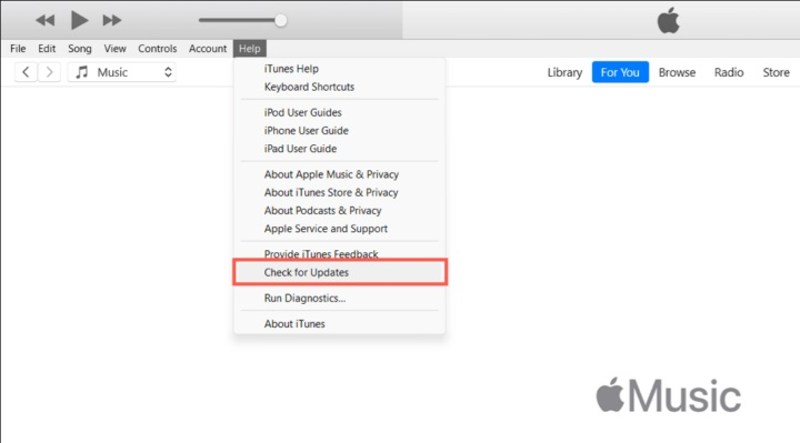
Step 1. Go to the Help menu in iTunes for PC or the iTunes menu in iTunes for Mac.
Step 2. Choose Check for Updates to search for updates.
Step 3. If an update is available, install it immediately.
Update iOS
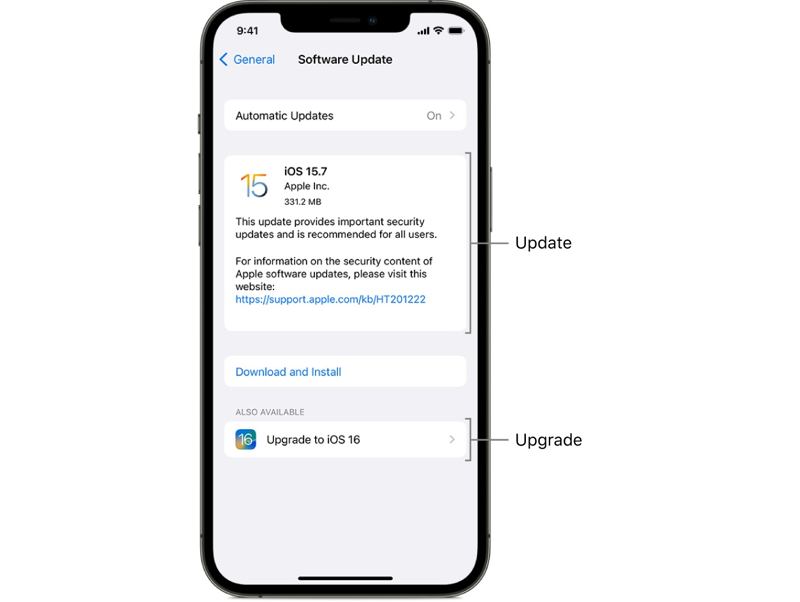
Step 1. Open the Settings app on your iPhone.
Step 2. Go to General and choose Software Update.
Step 3. Next, tap Download and Install if an update is found.
Solution 5: Manually Sync iPhone
Force syncing is another solution to fix iPhone not syncing with iTunes, especially when automatic sync does not start after you connect your iPhone to the computer. Here are the steps to fix this problem:
Step 1. Connect your iPhone and the computer with a cable or over Wi-Fi.
Step 2. Click the Phone menu and head to the Summary tab.
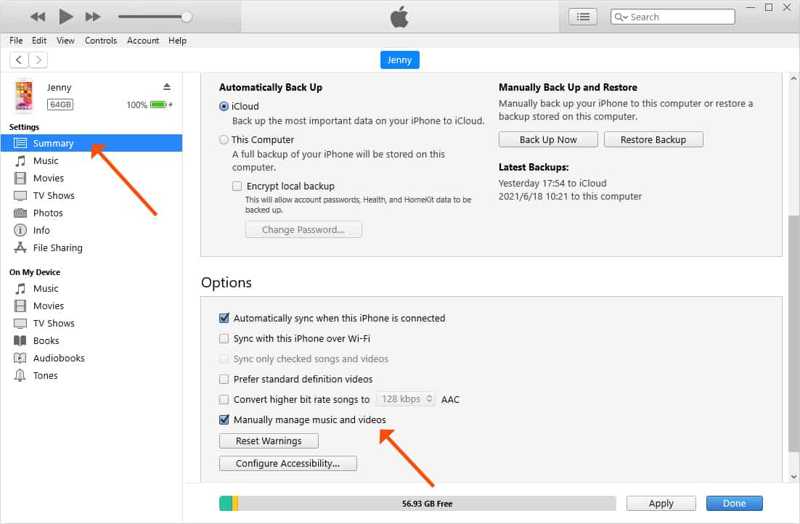
Step 3. Locate the Options section.
Step 4. Uncheck Automatically sync with when this iPhone is connected, and check Manually manage music and videos.
Step 5. Click the Apply button.
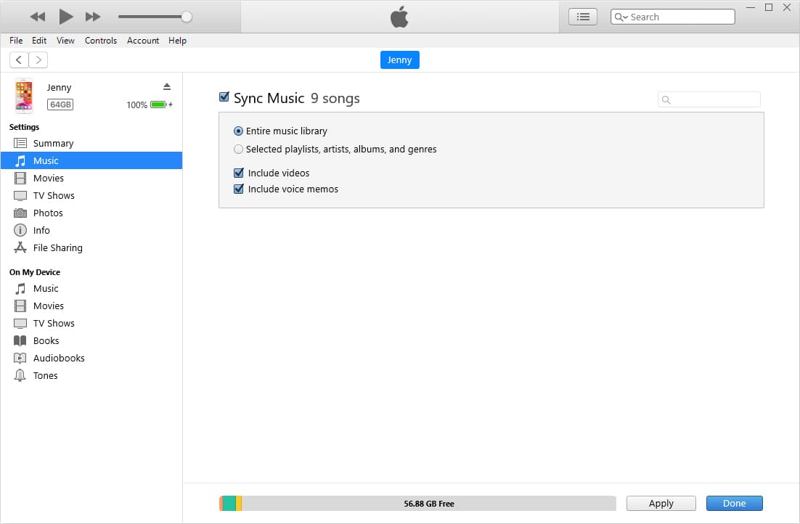
Step 6. Then, go to the Music tab under Settings.
Step 7. Check Sync Music, and sync the entire music library or selected songs.
Step 8. Finally, click the Sync or Apply button.
Further Reading
Solution 6: Reset Sync History
A corrupted library can prevent your iPhone won't sync iTunes. Thankfully, iTunes allows you to clear sync history and rectify syncing issues. You can perform the steps below to reset sync history:
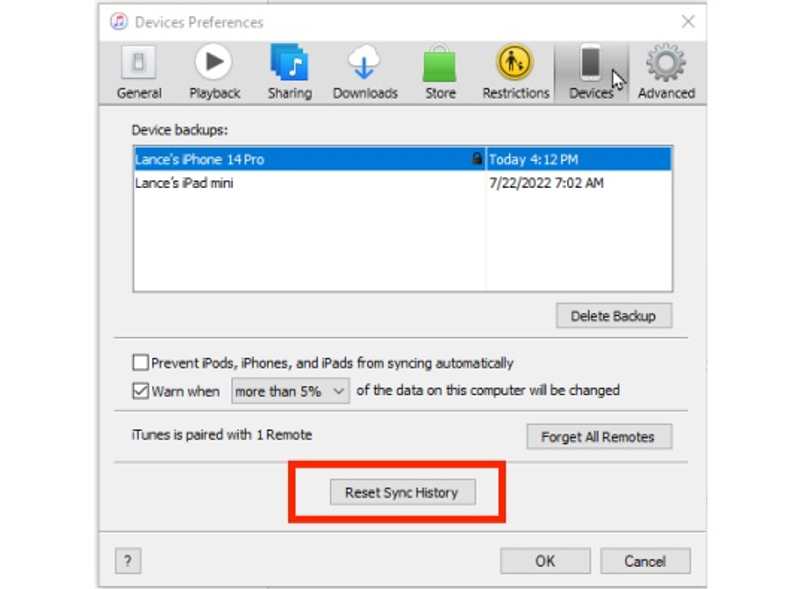
Step 1. Go to the Edit menu in iTunes.
Step 2. Choose Preferences and go to the Devices tab.
Step 3. Select your device in the Device backup box.
Step 4. Then, click the Reset Sync History button.
Part 3: One-stop Solution to Resolve iTunes Won't Sync
An ultimate solution to fix iPhone not syncing with iTunes is using an alternative tool, such as Apeaksoft iPhone Transfer. It is able to sync music, photos, and more between your iPhone and your PC.
A Fast Way to Sync iPhone If iTunes Won’t Sync Your Device
- Sync your iPhone data without iTunes.
- Work for photos, music, videos, and more.
- Preview the data on your iPhone for selective syncing.
- Support the latest versions of iOS and iPadOS.
Secure Download
Secure Download

How to Fix iTunes Won’t Sync iPhone Using an Alternative Tool
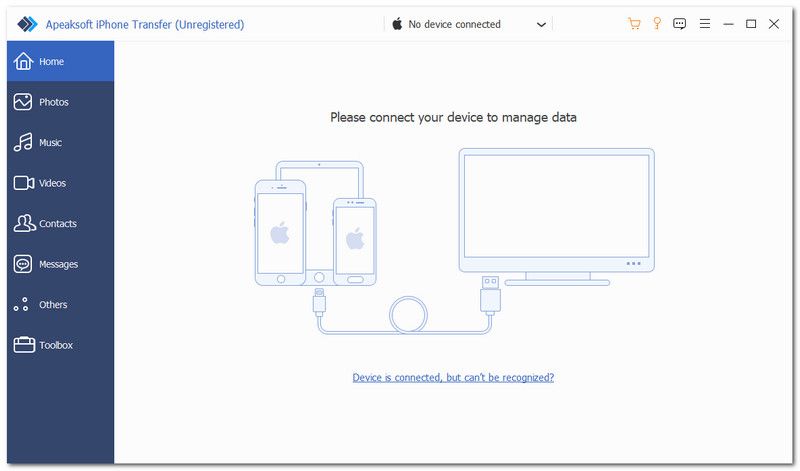
Step 1. Scan your iPhone
Launch the alternative to iTunes after installing it on your PC. Plug your iPhone into your PC with a Lightning cable. The software will detect your device immediately.
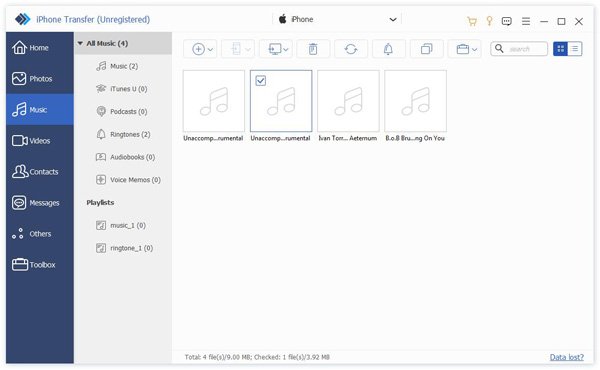
Step 2. Preview iPhone data
To sync music, go to the Music tab. Here, you can view all songs on your iPhone.
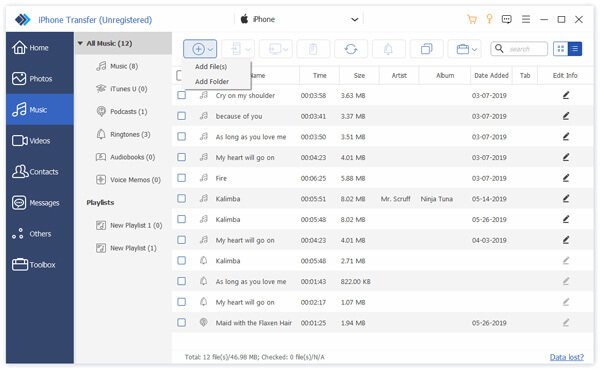
Step 3. Sync iPhone without iTunes
To sync iPhone music to PC, select the desired files, click the PC button, and choose Export to PC. If you want to sync music to your iPhone, click the Add button, select the songs, and add them.
Conclusion
This guide explained what you can do if iTunes sync is not transferring music. First of all, we explained why this problem occurs. More importantly, we shared the common solutions to get rid of the error. Apeaksoft iPhone Transfer is a good alternative way to sync your data between your iPhone and computer.
Related Articles




