

How to Quickly Transfer Music from One iPhone to Another

Transferring music from iPhone to iPhone is an important skill. When you upgrade to a new iOS device, you must wish to keep your music library and listen to it on the new device. Moreover, sharing your favorite songs and albums with friends and family is amazing. In fact, you have multiple ways to get the job done. This tutorial shares these proven ways and demonstrates the workflow with details.
PAGE CONTENT:
Part 1: A Fast Way to Transfer Music from iPhone to iPhone
Due to the serious copyright regulations, Apple devices don't allow users to download non-purchased music from iPhone to iPhone. Fortunately, Apeaksoft iPhone Transfer can help you resolve this problem. The user-friendly interface makes it smooth to navigate.
A Fast Way to Transfer Music from iPhone to iPhone
- Transfer music from iPhone to iPhone quickly.
- Preview iPhone songs for selectively moving.
- Support a wide range of audio formats.
- Offer bonus features, like a ringtone maker.
- Compatible with the latest models of iPhone.
Secure Download
Secure Download

How to Share Music from iPhone to iPhone
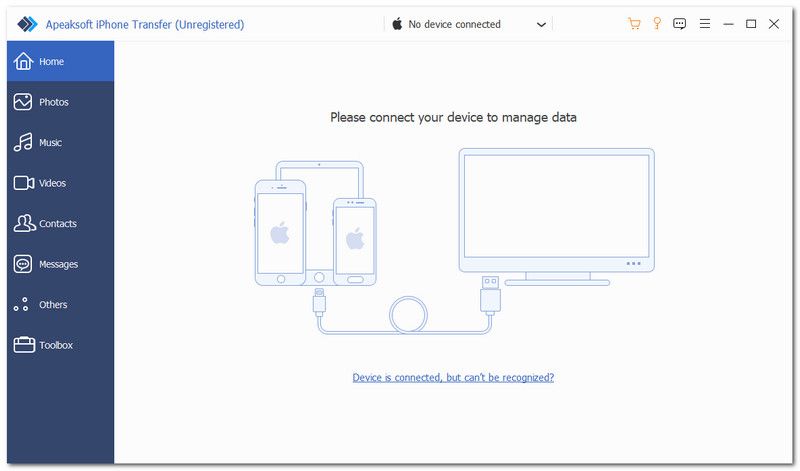
Step 1. Connect your iPhones
Launch the music transferring software after you install it on your PC. There is another version for Mac. Connect the two iPhones into your PC with Lightning cables. Make sure to trust this PC.
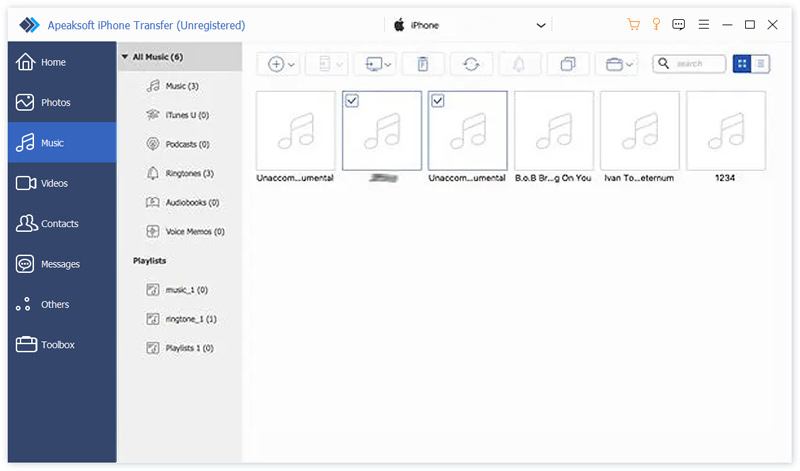
Step 2. Preview iPhone music
Choose the source iPhone from the top device option. Go to the Music tab, and preview all songs on your device.
Step 3. Share music from iPhone to iPhone
Select the songs you want to share, click the Phone button, and choose the target device. You can also transfer notes from iPhone to iPhone.
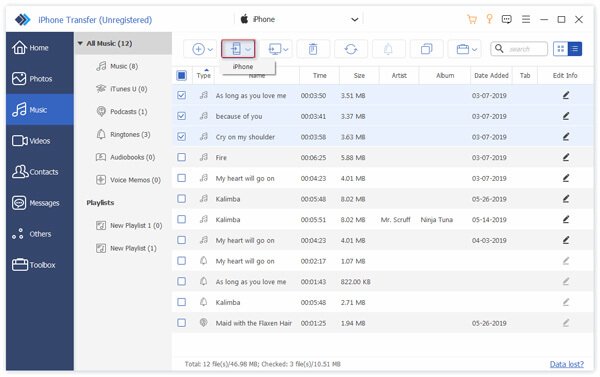
Tips: If you wish to put all music from iPhone to iPhone, go to the Toolbox tab, choose Phone to Phone, check Music, and click Start.
Part 2: How to Send Music between iPhones via Apple Music
Apple Music is the native music player on iOS devices. Furthermore, it is a music subscription service. It is a straightforward method to send music from an iPhone to iPhone wirelessly. All you need is an Apple ID account.
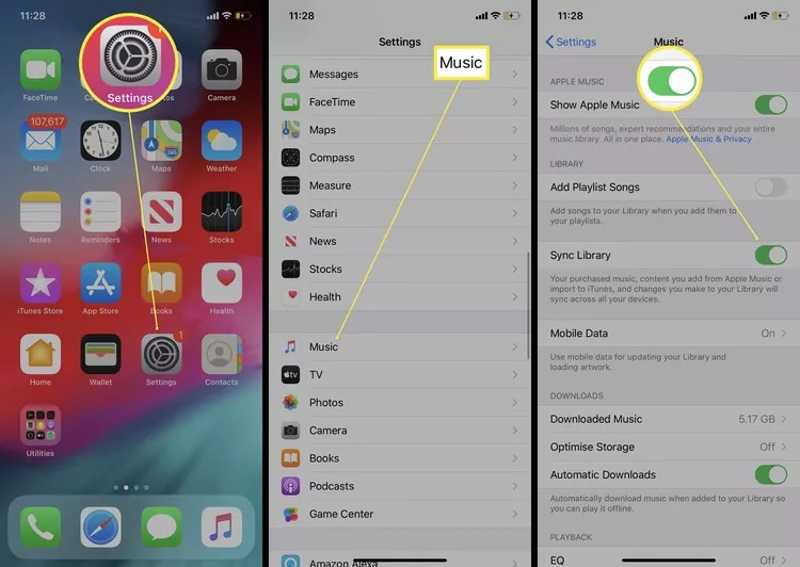
Step 1. Run the Settings app on the source iPhone.
Step 2. Scroll down and choose Music.
Step 3. Toggle on Sync Library to sync your music library.
Step 4. Go to the target iPhone.
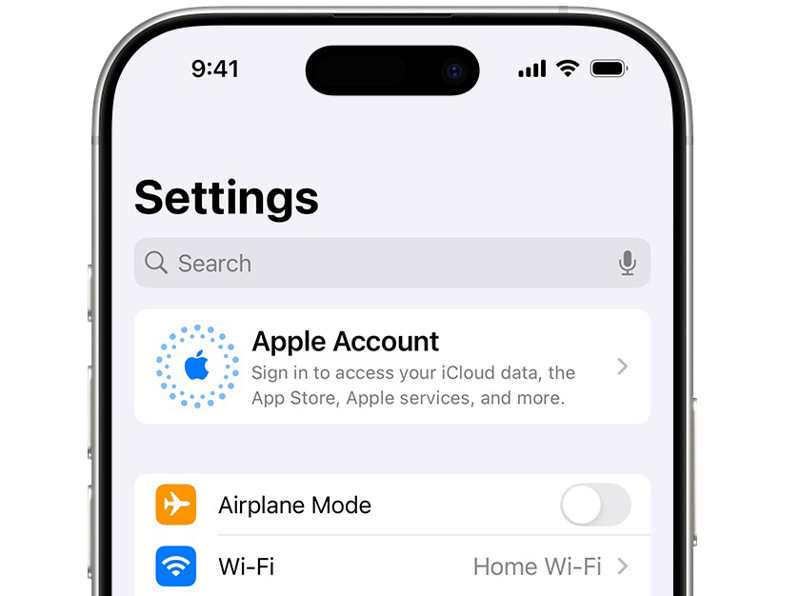
Step 5. Tap Apple Account in the Settings app.
Step 6. Then, sign in with the Apple ID account associated with the source device.
Step 7. Next, turn on Sync Library in the Music tab.
Step 8. Now, you can listen to your music in Apple Music.
Part 3: How to Transfer Music from iPhone to iPhone via iTunes
If you are using an old version of PC or Mac, you can transfer music from iPhone to iPhone via iTunes. For Windows 11/10 or macOS Catalina and later, you have to sync music using Apple Music.
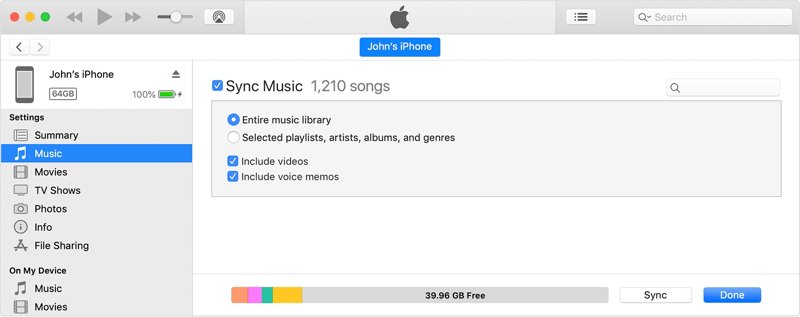
Step 1. tep 2: Open iTunes and click the Phone button after your device is detected.
Step 2. Go to the Music tab under Settings.
Step 3. Check Sync Music, and select Entire music library.
Step 4. Tip: If you want to share specific songs, pick Selected playlists, artists, albums, and genres.
Step 5. Click the Sync button at the bottom.
Step 6. When it is done, disconnect the iPhone.
Step 7. Next, plug the target iPhone into your computer with a compatible cable.
Step 8. Repeat the steps above to put music from iPhone to iPhone.
Part 4: How to Copy Music from iPhone to iPhone by AirDrop
If you don't have a computer, AirDrop is a simple way to copy music from iPhone to iPhone wirelessly. AirDrop is a very convenient method between iOS devices. You can also transfer iPhone photos to iPhone with it. Bear in mind that this way only works for purchased songs. Moreover, you must place two devices together.
Step 1. Go to the Control Center on one device, and turn on Bluetooth and Wi-Fi.
Tips: You don't need to connect to a real Wi-Fi network.
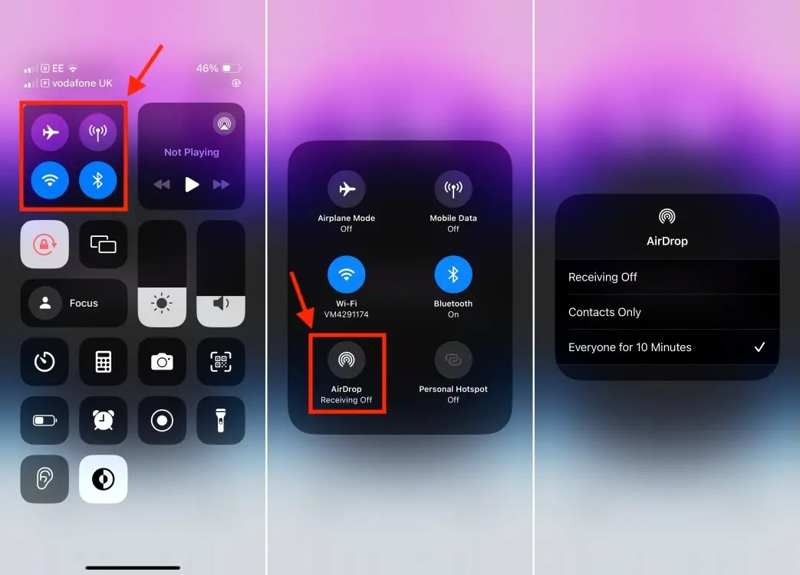
Step 2. Deep press the connection pane, tap AirDrop, and choose Everyone for 10 Minutes.
Step 3. Do the same thing on the other iPhone.
Step 4. Run the Music app, go to the Library tab, and tap the desired song.
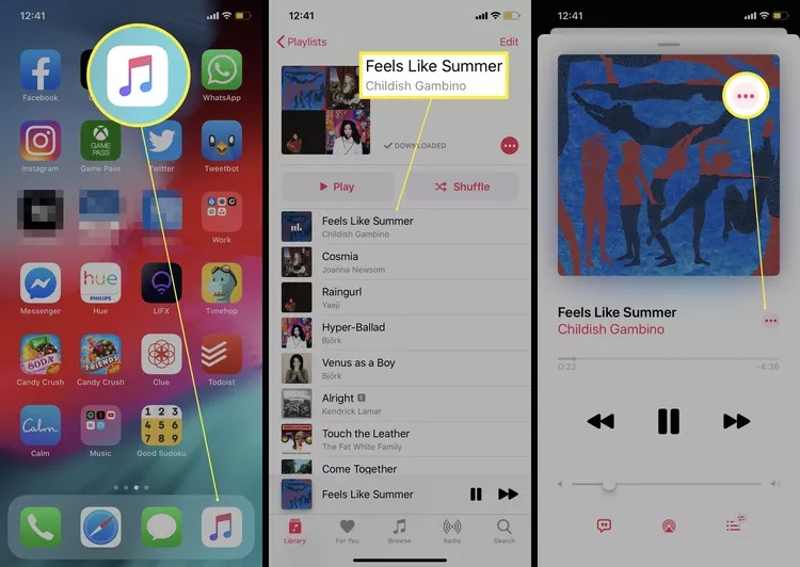
Step 5. Tap the More button with a three-dot icon.
Step 6. Choose Share, tap AirDrop, and pick the target iPhone.
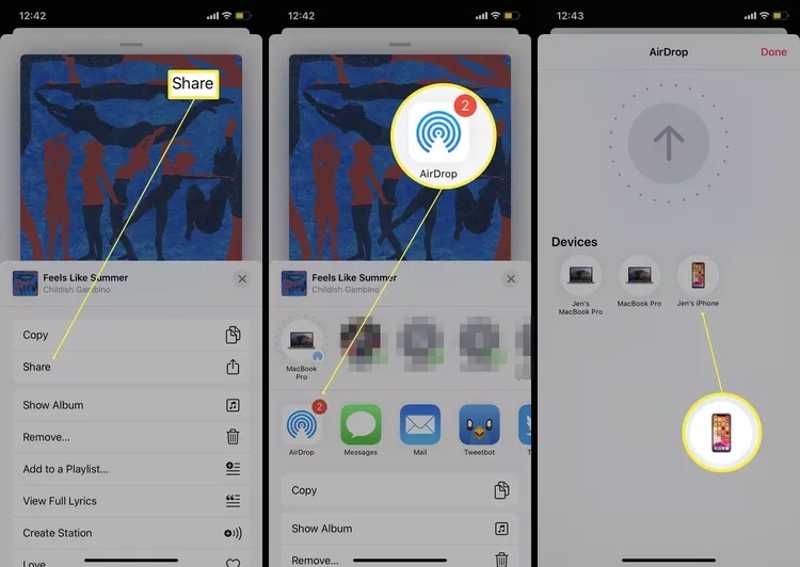
Step 7. Turn on the target device, and accept the song.
Step 8. If the song is purchased, it will go to the proper app immediately.
Conclusion
This guide shared four ways to transfer music to iPhone with or without iTunes. If you don't have a computer and cables, sync your music with the Apple Music app directly. The prerequisite is that the two devices are associated with the same Apple ID. AirDrop is another wireless method. iTunes is still working on old computers. Apeaksoft iPhone Transfer is a quick way to share music between iOS devices.
Related Articles




