


Transfer Notes from iPhone to Android: 5 Easy Methods (Step-by-Step)

Many users need to transfer notes from iPhone to Android after switching devices, or for sharing. However, the iPhone doesn't support a direct note transfer with the Android system. Is there a way to transfer notes from an iPhone to an Android?
Don't worry. This guide introduces 4 ways to transfer notes from iPhone to Android using a third-party platform, safely and efficiently, so you can quickly get the best solution.
PAGE CONTENT:
- Part 1: Why It Is Hard to Transfer Notes from iPhone to Android
- Part 2: How to Export iPhone Notes to Android via iCloud
- Part 3: How to Transfer iPhone Notes to Android via Email
- Part 4: How to Copy Notes from iPhone to Android with Google Docs
- Part 5: Migrate iPhone Notes from iPhone to Android Using Google Keep
Part 1: Why It Is Hard to Transfer Notes from iPhone to Android
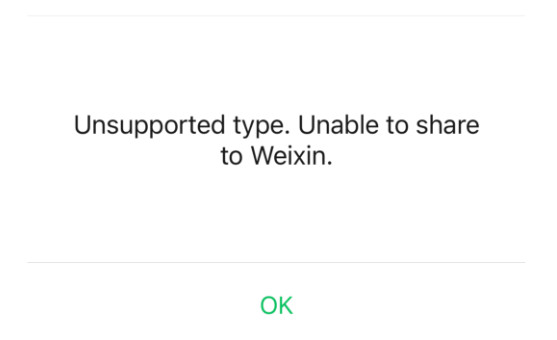
Many users will find it inconvenient to transfer notes from an Android phone to an iPhone. The main reason is that Apple's Notes app uses a proprietary format that cannot be directly exported as a universal file that Android devices can open, nor can it be shared through common apps like WeChat. Since no built-in way to move notes between the two systems directly, the transfer process is rather difficult.
Does it mean that it is impossible to sync notes between iPhone and Android phones? The answer is yes. Below are proven methods. Keep reading!

Downloaded by over 1,000,000 users
- Transfer data between iOS and Android with a computer.
- Preview and selectively transfer iPhone data to Android.
- Support transferring contacts, photos, messages, videos, music, etc.
- Beginner-friendly interface and time-saving steps.
Secure Download
Part 2: How to Export iPhone Notes to Android via iCloud
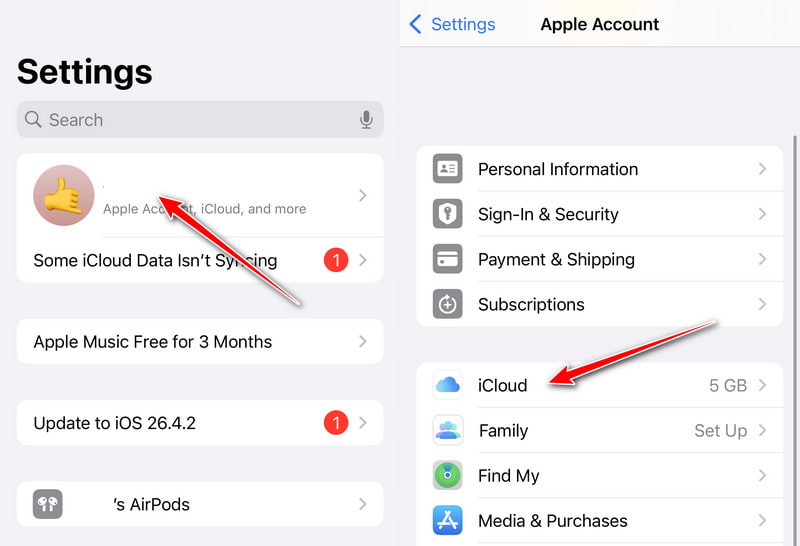
iCloud sync is the most widely usedwidely used way to export iPhone notes to Android because most iPhone notes are synced to iCloud by default. There are no extra apps required. However, there is no bulk export option, so you need to copy and paste notes manually. If you have time, try the steps below to transfer notes from iPhone to Android wirelessly:
Step 1. Click Settings > your name > iCloud.
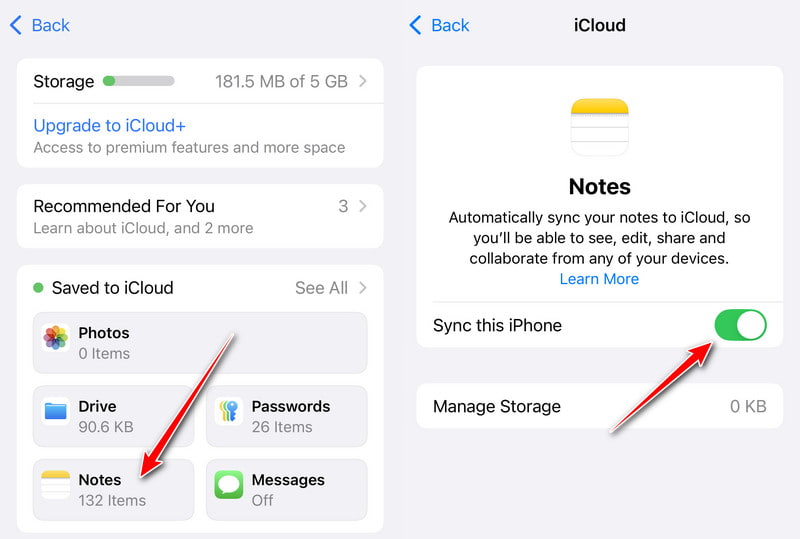
Step 2. Select Notes and toggle on Sync this iPhone.
Step 3. Visit iCloud.com in the browser and click Notes.
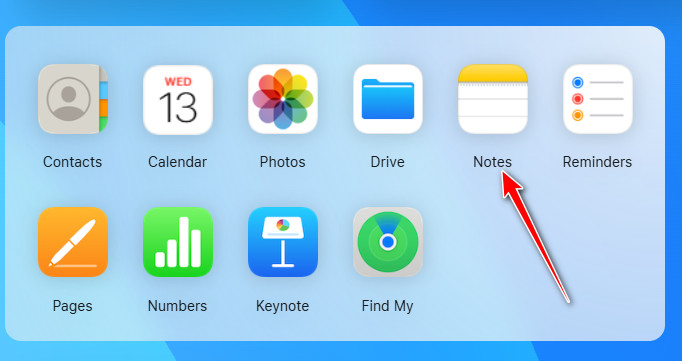
Step 4. You can choose to copy important notes. Or click the Share button in the top-right to send it to your email address or phone number.
Part 3: How to Transfer iPhone Notes to Android via Email
You can also share notes directly from the iPhone to Android without iCloud using the built-in send to mail feature. This method is fast and easy. However, it is suitable for transferring a few notes. If you want to bulk transfer iPhone notes to Android, it may not be an ideal solution. Follow the steps below to share your notes from iPhone to Android via email.
Step 1. Open the Notes app on iPhone.
Step 2. Select a note.
Step 3. Tap the Share button and select Mail.
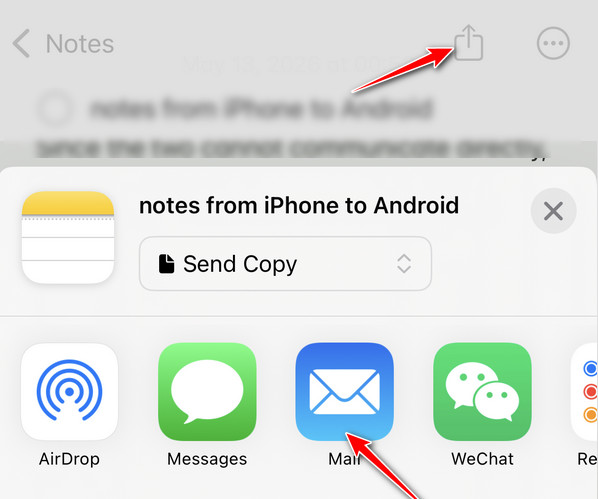
Step 4. Enter your email address.
Step 5. Open the email on Android and save the note
Part 4: How to Copy Notes from iPhone to Android with Google Docs
Another practical way to move notes from iPhone to Android is to use Google Docs. It can act as a bridge for text notes because both iOS and Android support it. This method uses cloud sync to manually transfer notes from the iPhone to the Android device.
Step 1. Copy notes from iPhone Notes.
Step 2. Paste them into Google Docs
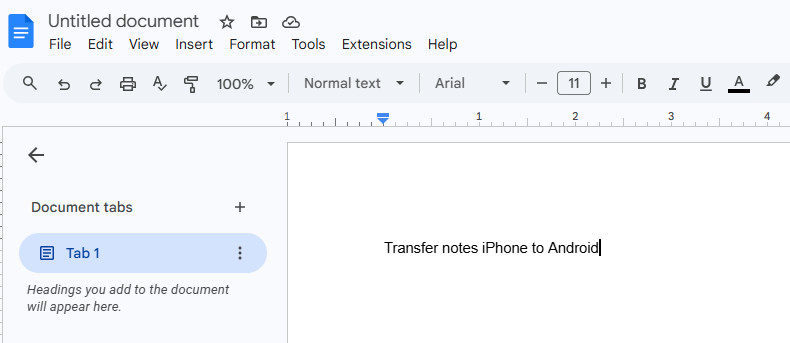
Step 3. Open Google Docs on Android
Step 4. Download or keep them synced
Part 5: Migrate iPhone Notes from iPhone to Android Using Google Keep
If you frequently need to transfer notes between different systems, it is recommended to use cross-platform note apps like Google Keep. This is the best app to share notes between an iPhone and an Android. It can keep your notes automatically synced across different devices as long as you sign in with the same account without additional transfer steps.
It also lets you transfer your existing iPhone Notes to Android using the steps below.
Step 1. Install and open Google Keep on your iPhone.
Step 2. Open Notes on your iPhone. Select and share the note with Google Keep.
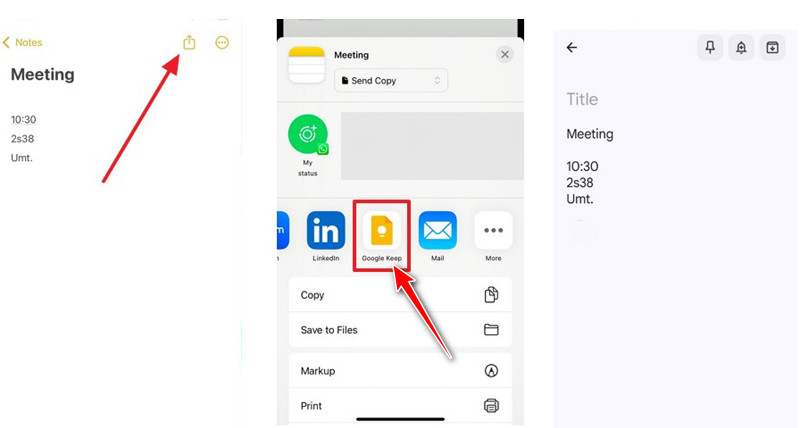
Step 3. Open Google Keep on Android and log in to the same account. The note will be synced.
Conclusion
This guide has introduced 4 effective ways to transfer iPhone notes to Android in terms of iCloud, mail, Google Docs, and Google Keep. Actually, most of these methods require manual operation. If you only have a few notes, email is the simplest option. If you pursue long-term cross-device use, Google Keep is more suitable.
Moreover, if you are looking for a more convenient way to transfer data between an iPhone and an Android, a dedicated transfer tool such as Apeaksoft MobieTrans is worth trying.

Related Articles




