

How to Restore Backup to a New iPhone: Step-by-Step Guide

"I just upgraded to iPhone 17, but how do I migrate my data to the new iPhone?"
If you have the same question, you're not alone. Many users are unsure how to restore their data when switching to a new iPhone. Fortunately, Apple provides several ways to bring your existing data to a new device. In this guide, we'll walk you several through these simple ways to restore a backup to a new iPhone quickly and safely.
PAGE CONTENT:
Part 1: How to Restore iCloud Backup to a New iPhone
iCloud is a cloud service provided by Apple for iOS users to back up and transfer data. Every iPhone user gets 5 GB of free iCloud storage, and you can purchase additional space if needed.
With iCloud, you can easily restore your backup to a new iPhone wirelessly. Before getting started, make sure that a recent iCloud backup is available in your account.
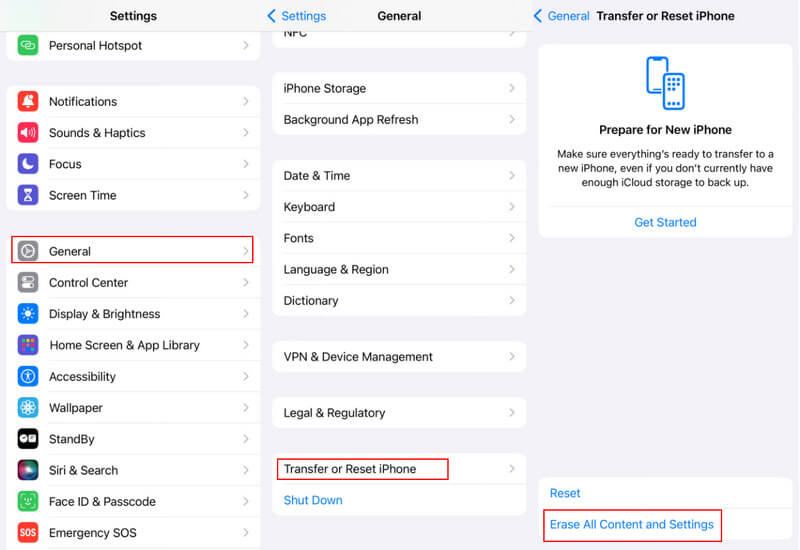
Step 1. Turn on your new iPhone, and you will see the welcome screen. If you have already set it up, go to Settings > General > Transfer or Reset iPhone and select Erase All Content and Settings to perform a factory reset.
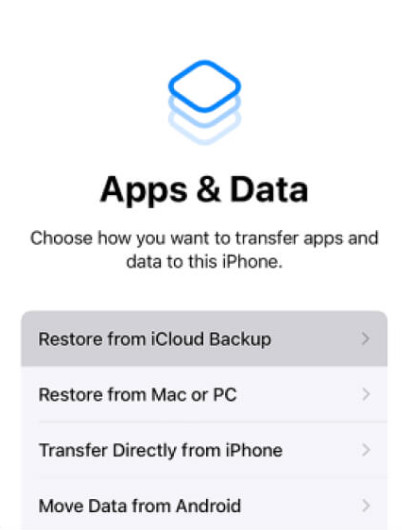
Step 2. On the Apps & Data screen, tap Restore from iCloud Backup from the options and then sign in to the iCloud account that contains the backup.
Step 3. Next, pick up the relevant iCloud backup you want to restore to the new iPhone. After that, the data will start transferring to the new iPhone.
Tips: If you get a message asking you to install the new version of iOS, follow the steps to update.
Step 4. When prompted, sign in with your Apple ID and password to restore apps and purchase content to the new iOS device.
Step 5. After iCloud backup is restored to the new iPhone, finish setup, and you can enjoy the new device.
- Allows wireless restoration without a computer or cable.
- Built-in restore solution.
- Requires stable Wi-Fi.
- Needs enough iCloud storage. You may need to pay for that.
- Data overwriting.
Part 2: How to Restore Backup to a New iPhone Using iTunes/Finder
You can also restore a new iPhone from a previous backup using iTunes or Finder. iTunes works on Windows and older macOS versions, while Finder is used on macOS Catalina and later. Similar to iCloud backup, iTunes will restore all backup data to the new iPhone. However, it relies on a physical connection, but not wireless.
Restore Backup to a New iPhone Using iTunes
Step 1. Hook up the target iPhone to your PC or Mac with a USB cable. Then launch the latest version of iTunes. When prompted, tap Trust This Computer on your iPhone screen.
Tips: If iTunes does not detect your iPhone correctly, disconnect iPhone and then reconnect it to your computer.
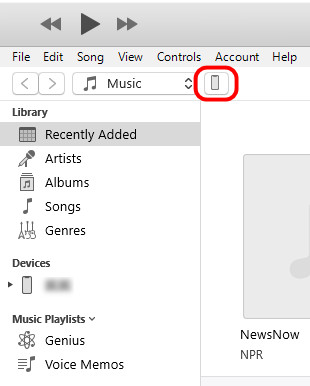
Step 2. Once iTunes recognizes your device, click the iPhone button in the upper left corner.
Step 3. Head to Summary > Backups and click the Restore Backup button to display the backup files available.
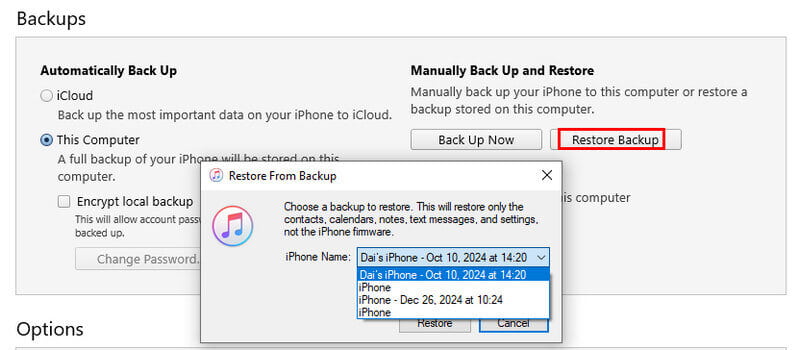
Step 4. Choose the most relevant backup file based on the date and size, and click the Restore button to start restoring the iTunes backup to the iPhone.
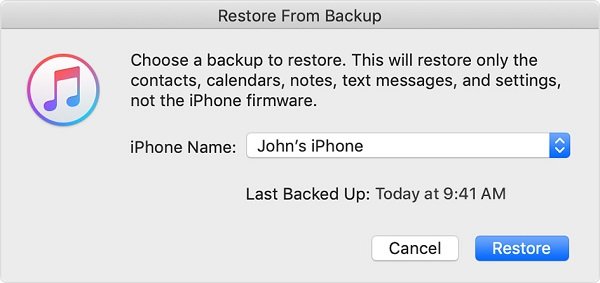
Tips: You may be required to enter the iTunes backup password if you have ever encrypted the backup.
Step 5. Keep your iPhone connected to the computer during the process. When it finishes, your iPhone will restart. Then remove iPhone from the machine.
Restore Backup to a New iPhone Using Finder (macOS Catalina+)
Step 1. Connect your iPhone to your Mac, and then open Finder.
Step 2. Select your iPhone under Locations in the sidebar and tap Trust if prompted.
Step 3. Choose the General tab, and click the Restore Backup button.
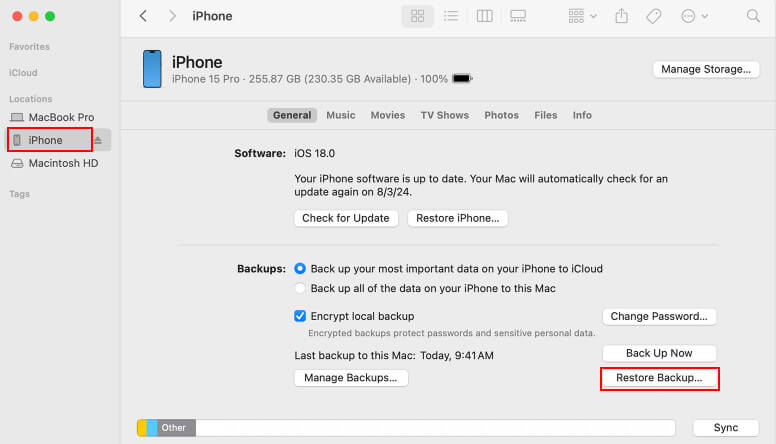
Step 4. Choose the relevant backup and click Restore.
- No internet connection required
- Fast local restoration
- Backup stored locally on the computer
- Requires a USB cable
- Cannot restore selective data
- Existing data on the iPhone will be overwritten
Part 3: Easiest Way to Back up and Restore iPhone with One Click
Apeaksoft iOS Data Backup & Restore is a powerful iOS toolkit that lets you back up and restore your iPhone safely without overwriting existing data. With its intuitive interface and flexible options, you can choose exactly what to save and recover, making the whole process faster, easier, and worry-free.
Backup and Restore iPhone Without Overwriting
- Backup photos, videos, contacts, messages, and more on iPhone.
- Restore iOS backup to iPhone or hard drive with one click.
- Preview any data in the backup for selectively restoring the iPhone.
- Safe and secure, no data loss.
Secure Download
Secure Download

Step 1. Download and install the right version of this tool onto your computer.
Step 2. Connect your old iPhone to your PC with a Lightning cable. Click the iOS Data Backup button in the home interface after your iOS device is detected.
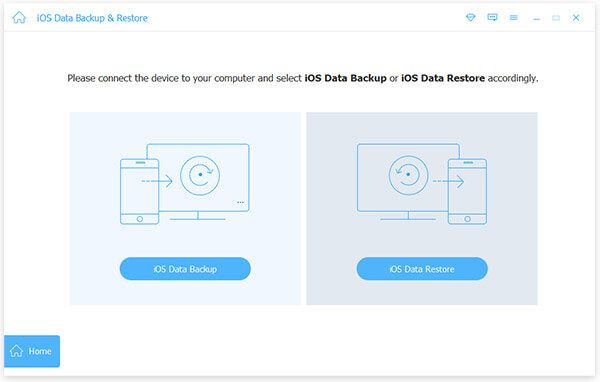
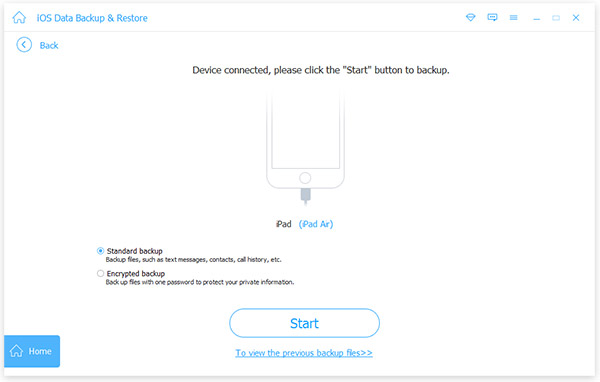
Step 3. Choose between Standard backup and Encrypted backup based on your needs. Then, click the Start button.
Step 4. Next, select what you want to restore to the new iPhone, such as Photos, or check Select All to make a backup of the entire iPhone. Click Next.
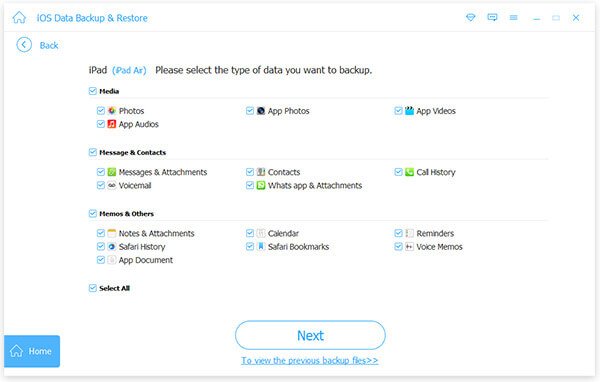
Step 5. When backup is done, disconnect the old iPhone and plug the new iPhone into your computer.
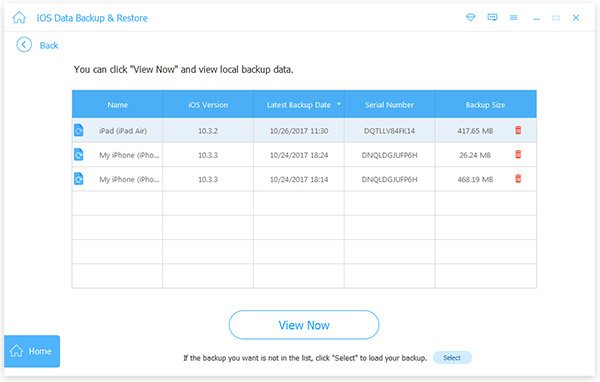
Step 6. Back to the main interface, click the iOS Data Restore button, select the latest backup, and click the View Now button.
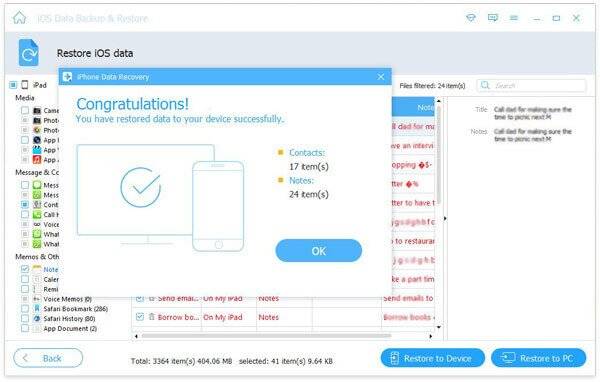
Step 7. When the preview window pops up, select a data type on the left sidebar, like Camera Roll, and preview and check the photos you want to transfer to the new iPhone. Choose other desired data and click the Restore to Device button in the bottom right corner to initiate the process of restoring new iPhone from backup.
- Selectively choose which files or apps to restore.
- No Wi-Fi or iCloud storage required.
- Backup and restore with one click.
- Requires installation of third-party software.
- Requires a USB connection.
Conclusion
This tutorial has shared three ways to restore a backup to a new iPhone. If you want to restore a backup to a new iPhone without a computer, choose iCloud. If you want to restore a backup from an old iPhone to a new one without a network, choose iTunes. If you want to selectively restore specific data, fully controlling what gets transferred, we recommend Apeaksoft iOS Data Backup & Restore.
Related Articles




