How to Share Calendar Events on Your iPhone or iPad

The Calendar feature is far more than a simple way to check the date on iOS devices. It is able to schedule events and alert you in time. More importantly, you can share Calendar on your iPhone to keep someone else, like your family, friends, and colleagues, in the loop. Depending on who you are sharing with, the workflows can vary. We list the proven methods and demonstrate the workflow below.
PAGE CONTENT:
Part 1: An Easy Way to Share Calendar on iPhone
Since Apple Calendar is very important in our daily planning. If you want to share Calendar events on an iPhone to a computer, Apeaksoft iPhone Transfer is a good option. It allows you to share and back up your events and calendars on your iOS device to a computer with no technical skills.
An Easy Method to Share an Event on iPhone Calendar
- Share Calendar events on iPhone or iPad quickly.
- Preview iPhone Calendar on a computer.
- Export events to a computer without data loss.
- Support CSV, TXT, and ICS file formats.
- Compatible with the latest editions of iOS and iPadOS.
Secure Download
Secure Download

How to Share Calendar Events on Your iPhone
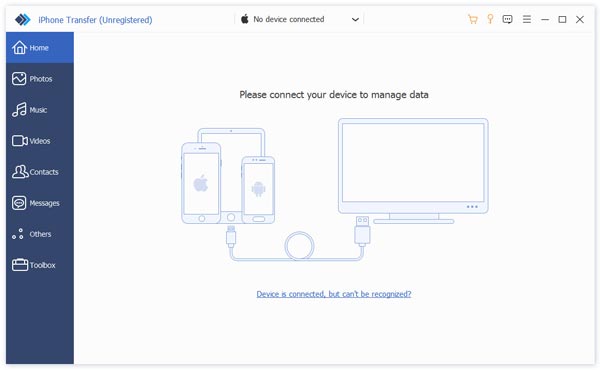
Step 1. Connect to your iPhone
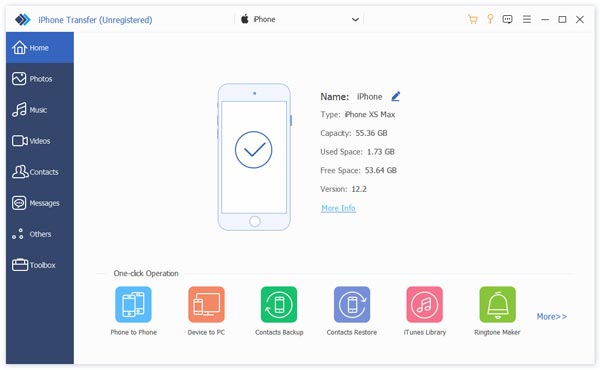
Launch iPhone Transfer once you install it on your PC. There is another version for Mac users. Plug your iPhone into your PC with a Lightning cable. If you connect the two devices for the first time, tap Trust on your screen to trust this PC. When prompted, enter your iPhone passcode to authorize the access.
Step 2. Preview iPhone Calendar
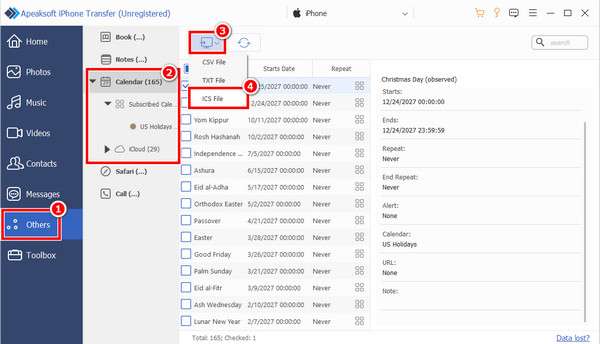
Once your device is detected, choose the Others tab on the sidebar, and click Calendar. Now, you can preview the events by title and date.
Step 3. Share Calendar on iPhone
Make sure to select all events you want to share, click the Monitor button on the top ribbon, and choose a file format. Then, set an output folder and confirm your action.
Part 2: How to Share Calendar on iPhone
In fact, you can share Calendar events on iPhone via email through an internet connection. This method doesn’t require extra software or hardware. All you need is an accessible email and a stable network.
How to Share Calendar on Your iPhone
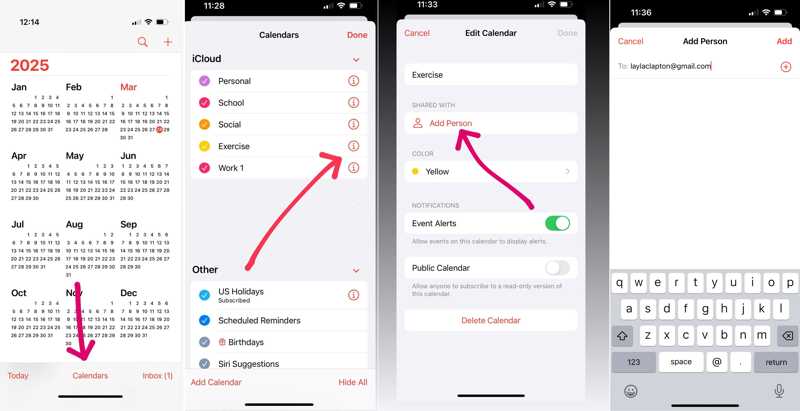
Step 1. Run the Apple Calendar app on your iPhone.
Step 2. Go to the alendars tab at the bottom to display all events linked to your account.
Step 3. Choose the calendar you want to share under the iCloud section.
Step 4. Tap the Add Person button under SHARED WITH to continue.
Step 5. Type in a contact or an email address in the To field and tap the Add button to begin sharing the iPhone calendar.
Step 6. Tap the contact. If you just want to share a read-only calendar, toggle off Allow Editing.
Step 7. On the recipient end, accept the invite to complete the process.
Note: This way is used to share a calendar with a specific person.
How to Share a Read-only Calendar from Your iPhone
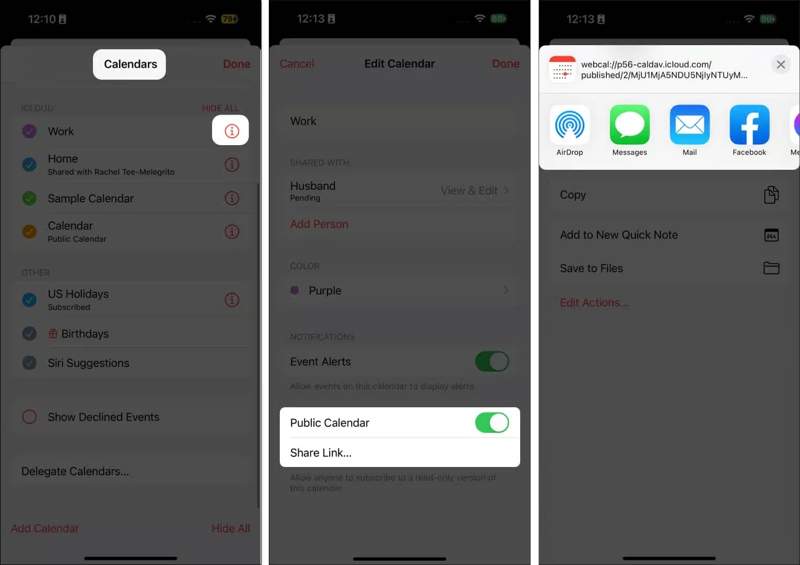
Step 1. Open the Calendar app.
Step 2. Head to the Calendars tab at the bottom.
Step 3. Tap the calendar you intend to share.
Step 4. Toggle on Public Calendar, and tap Share Link.
Step 5. Then, you can share the iPhone calendar via AirDrop, Messages, Mail, or social media.
Part 3: How to Share iPhone Calendar on iCloud.com
If you have synced your calendars to iCloud, you can also share Calendar events from your iPhone on iCloud.com. This method is available if your iPhone is not in your hand. It requires your iCloud account. The iCloud password is also your Apple ID password.
Step 1. Run the Settings app on your iPhone.
Step 2. Connect to the internet.
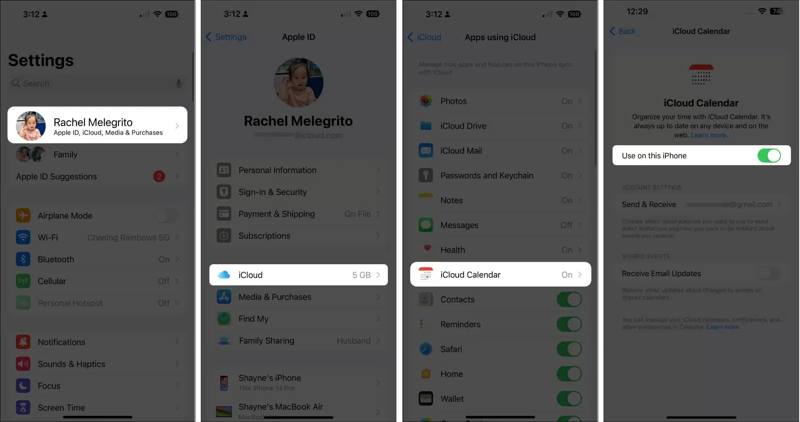
Step 3. Tap on your profile, choose iCloud, tap iCloud Calendar, and sync calendars.
Step 4. Turn to a computer and log in to the iCloud account associated with your iPhone.
Step 5. Click Calendar and locate the calendar you wish to share.
Step 6. Click the Share button and hit the Add option.
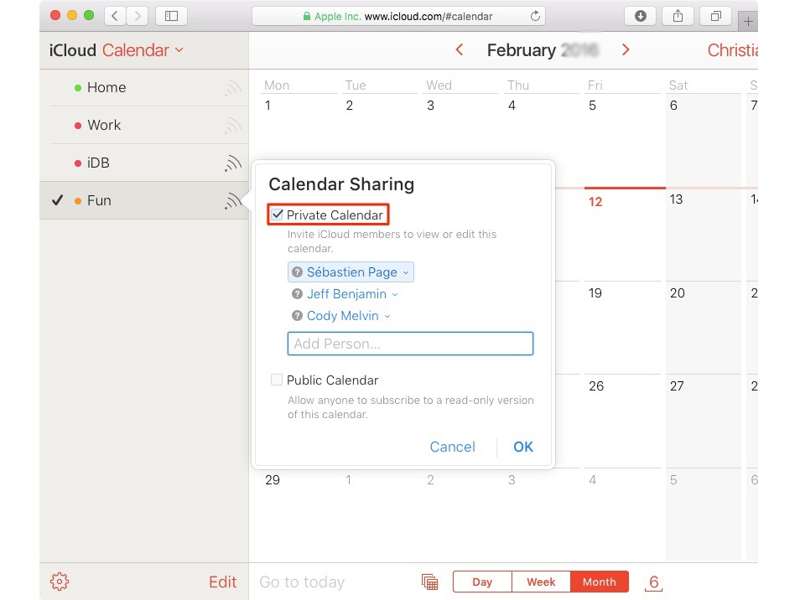
Step 7. Enter the contact or email address, toggle on Private Calendar, and click Done.
Step 8. Hit the More button, and choose Allow Editing or Read-Only, depending on your purpose.
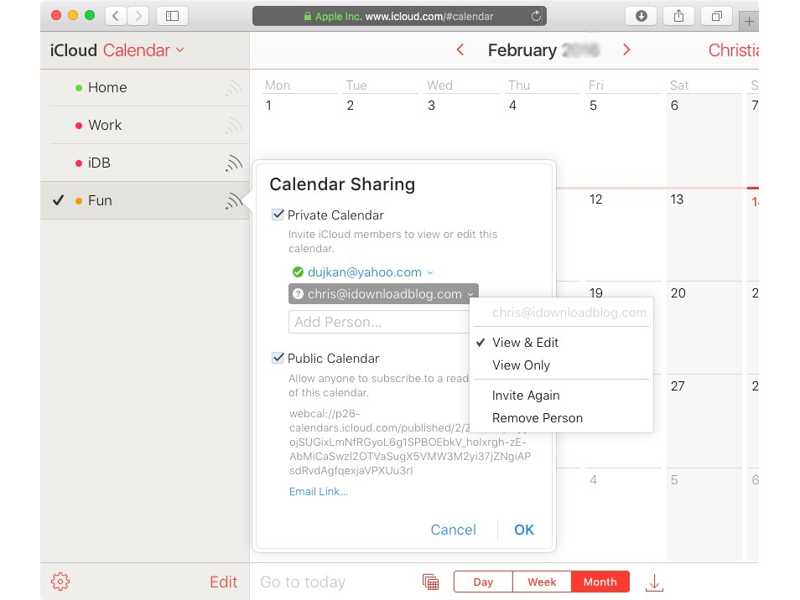
Note: If you want to share a read-only calendar, check Public Calendar, and click Email Link. Send the link to the recipient, and click Send.
Further Reading
Part 4: How to Share Calendar on iPhone with Family
If you have enabled Apple Family, you can share Calendar on iPhone with family members. The prerequisite is that you must enable iCloud Calendar. Here is how to set up a family calendar on your iPhone or iPad:
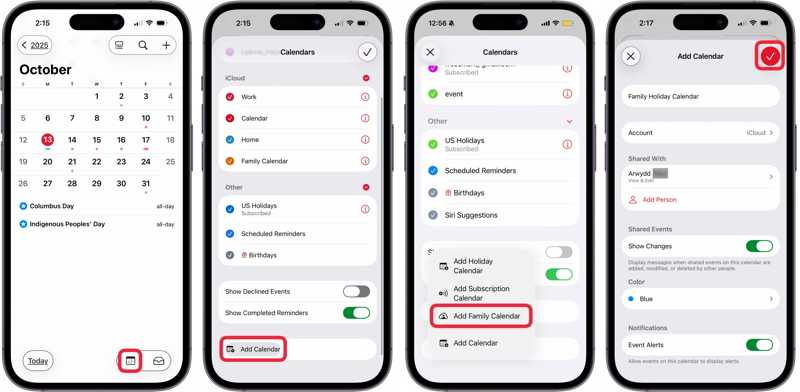
Step 1. Run your Settings app, and tap on your profile.
Step 2. Navigate to iCloud and Calendar.
Step 3. Enable iCloud Calendar.
Step 4. Back to the home screen and open the Calendar app.
Step 5. Tap the Calendars button and hit Add Calendar to create a shared calendar on iPhone.
Step 6. Choose Add Family Calendar.
Step 7. Your entire family group will be automatically added to the family calendar. Keep or change the name and set other options.
Tip: If you wish to share the calendar with someone not in your family, tap Add Person.
Step 8. Finally, tap the Done button at the top right corner to save the calendar.
Step 9. Next, back to the Calendar app screen, and tap the Add button.
Step 10. Input a name for the event, and set the options.
Step 11. Hit the Calendar field, choose the new family calendar, and tap Done.
Step 12. Then, all family members can view your iPhone's shared calendar.
Part 5: How to Share iPhone Calendar with Google Calendar
If the recipient doesn’t have an iOS device, you can share iPhone Calendar with Google Calendar, Outlook Calendar, or other services. All you need is a Google account and a stable internet connection.
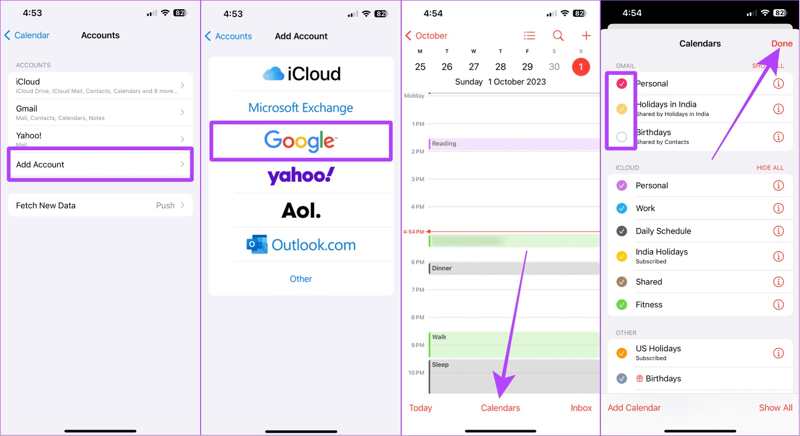
Step 1. Start the Settings app on your iPhone, scroll down, and choose Calendar.
Step 2. Tap Accounts, and hit Add Account.
Step 3. Choose Google, Outlook, or another service.
Step 4. Enter your Google credentials and tap Next.
Step 5. Next, switch to the Calendar app, and head to the Calendars tab at the bottom.
Step 6. Tap SHOW ALL next to GMAIL to display all available calendars.
Step 7. Select all calendars you want to share and tap Done.
Step 8. Pull your screen to refresh it, and your calendars will be synced if your iPhone is online.
Note: You can visit the Google Calendar website in a browser and check if your iPhone calendars are shared successfully. Plus, you can add new calendars under your Google account and share them directly.
Conclusion
Now, you should understand how to share an iPhone Calendar in various situations. You can share a calendar or event with a contact within the Calendar app. If the recipient doesn’t have an iOS device, you can share a read-only calendar via a URL. Furthermore, you are allowed to share calendars on iCloud.com or on Google Calendar easily. Apeaksoft iPhone Transfer is a flexible method to share your calendars without data loss, even if the recipients are using Windows, macOS, iOS, or Android devices.
Related Articles