

How to Quickly Sync Your Android Device to a Computer

Syncing Android to a computer means moving all files or specific data from your Android device to a computer immediately. Before you free up space on your phone, for example, you’d better sync important data and information to a computer. Moreover, it allows you to keep, view, and manage Android data on your computer. This guide identifies multiple proven methods and demonstrates the workflows with steps.
PAGE CONTENT:
Part 1: An Ideal Way to Sync Android to a Computer
To sync an Android phone, you may need an intuitive tool, such as Apeaksoft MobieTrans. It is able to access your Android device on a computer and move all data to your computer through a physical connection.
A Quick Way to Sync Android to a Computer
- Sync messages, media files, and more from Android to a computer.
- Work for a wide range of data types.
- Preview files for selectively syncing.
- Manage your Android files on a computer.
- Support almost all Android brands and models.
Secure Download
How to Sync an Android Phone to a Computer
Step 1. Connect to Android
Launch the Android syncing software once you install it on your PC. There is another version for Mac users. Connect your Android device to a PC with a Lightning cable. If you link the two devices for the first time, tap Trust on your screen to trust this PC.
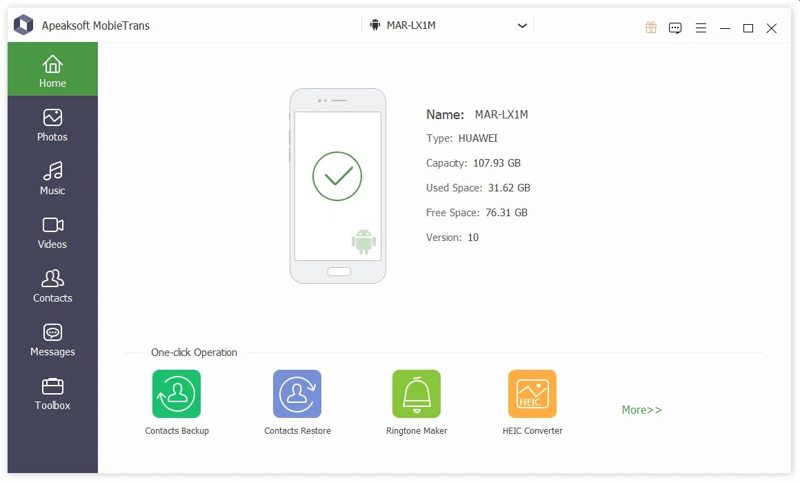
Tips: Make sure to turn on the USB Debugging mode on your Android phone.
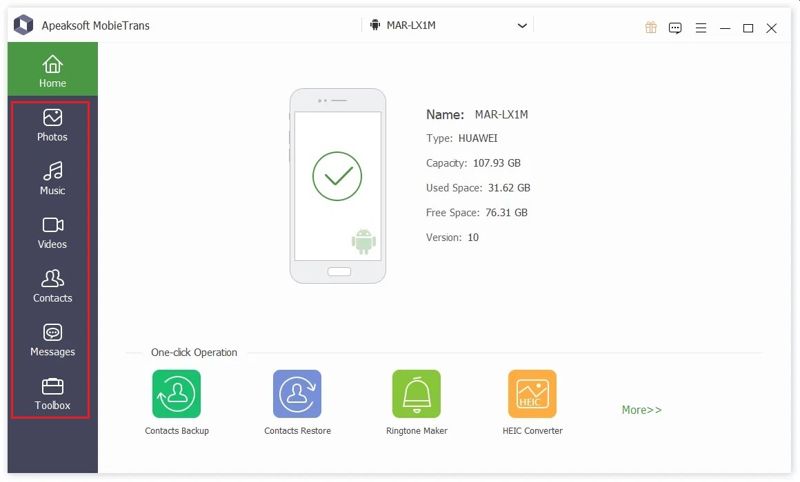
Step 2. Preview Android data
Then, you can preview your data by type. To view videos on your Android phone, for instance, go to the Videos tab on the sidebar.
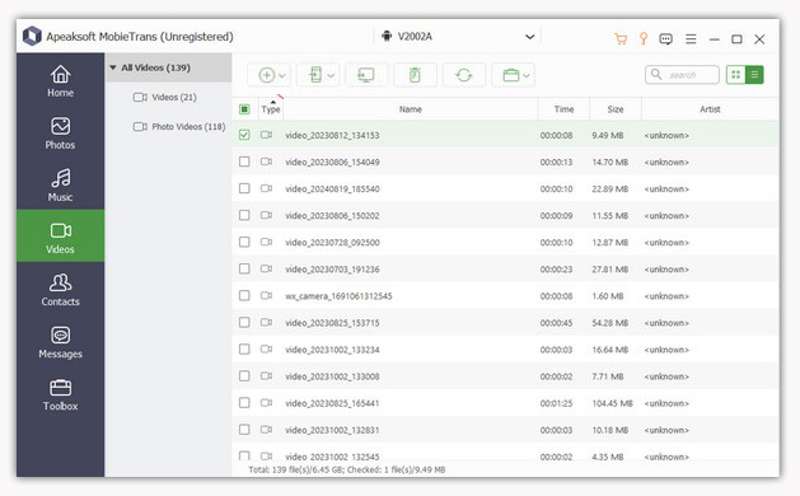
Step 3. Sync Android phone
Select the files and items you want to sync, and click the PC button on the top ribbon, and choose Export to PC. Set an output folder and confirm Android syncing. You can also transfer files from Android to iPhone with this program.
Part 2: How to Sync Android to a Computer with a Cable
Android is an open-source operating system. It allows you to access the file system in your memory. In other words, you can connect your phone to a computer with a USB cable and sync your Android to a PC quickly.
Step 1. Turn on your Android device and run the Settings app.
Step 2. Scroll down and go to the Developer options tab.
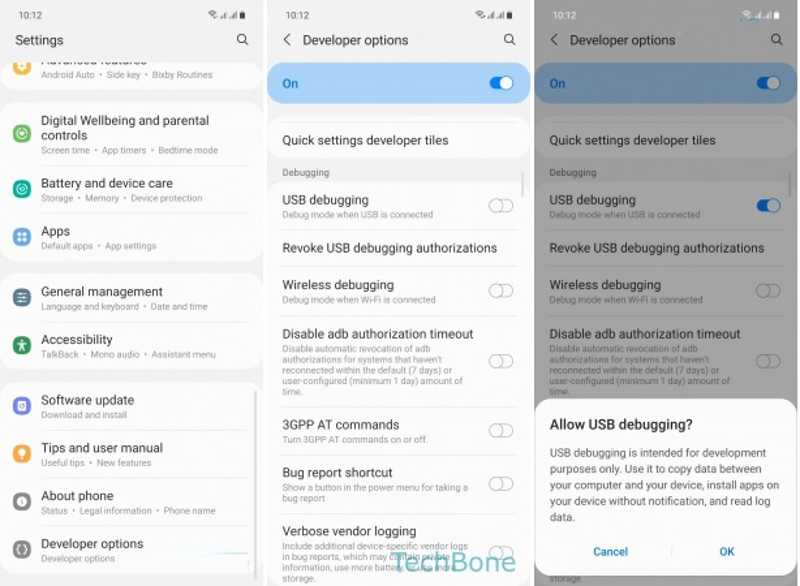
Tips: If you cannot find Developer options, tap Build Number in the About tab seven times in a row.
Step 3. Toggle on USB debugging, and tap OK to confirm it.
Step 4. Then, tap Default USB configuration, and select Transferring files.
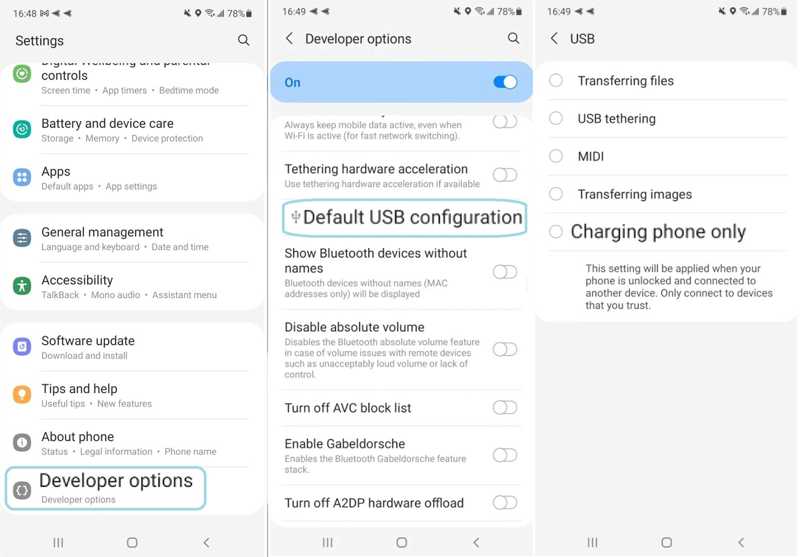
Step 5. Next, plug your Android device into your computer with a USB cable.
Step 6. Open a File Explorer and choose your Android device.
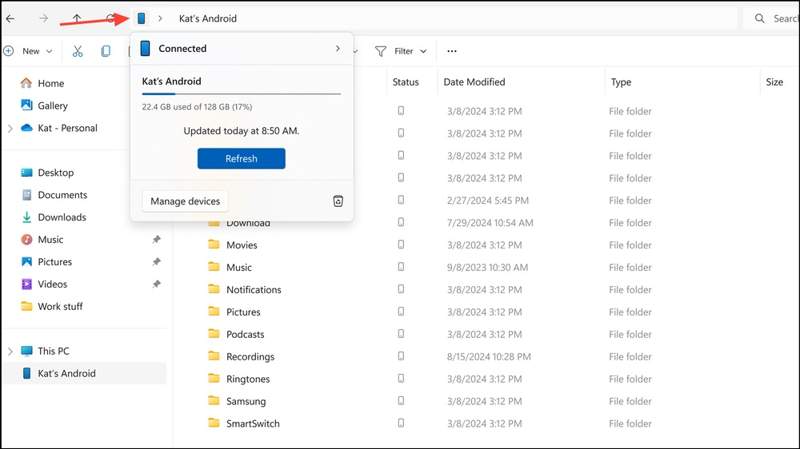
Step 7. Look at the files on your Android device and sync them to your PC.
Note: Some Android files could not be opened or read on your computer, such as messages.
Part 3: How to Sync Android to PC Using Phone Link
To sync Android phone messages to computer Windows 10, you can use the Phone Link app. It was launched by Microsoft and used to control and access your Android device on a PC running Windows 11/10.
Step 1. Open the Phone Link app from the Start menu on your PC.
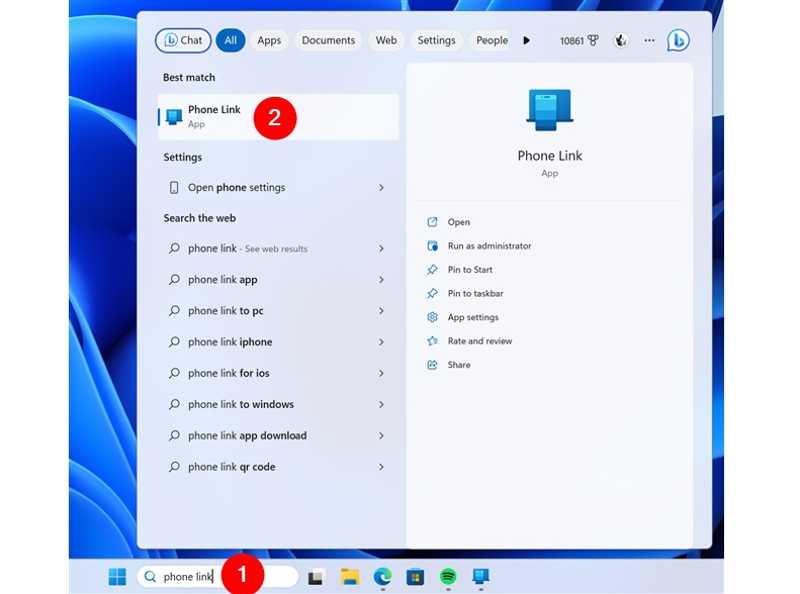
Tips: You can install the app from the Microsoft Store for free.
Step 2. Choose Android under Pick your phone.
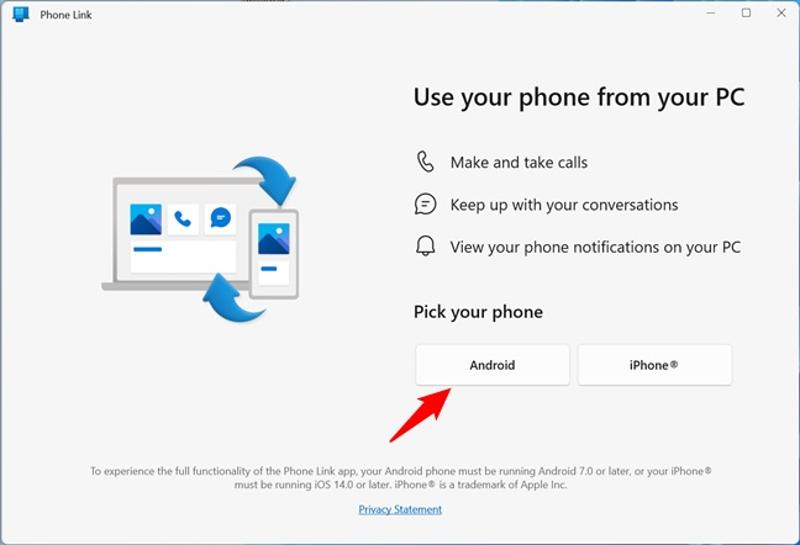
Step 3. When prompted, install the Link to Windows app on your Android device following the onscreen instructions.
Step 4. Next, check I have the Link to Window app ready, and click the Pair with QR code button.
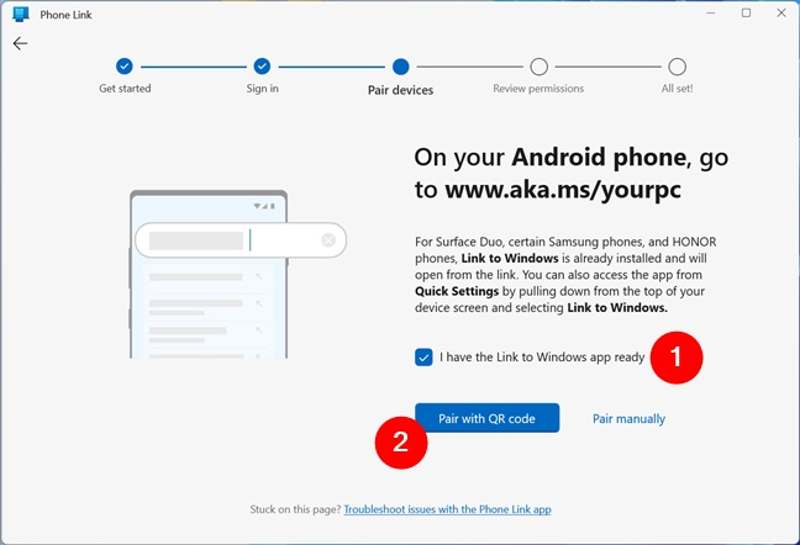
Step 5. Turn to your Android phone.
Step 6. Open the Settings app, tap Connected devices, and toggle on Link to Windows.
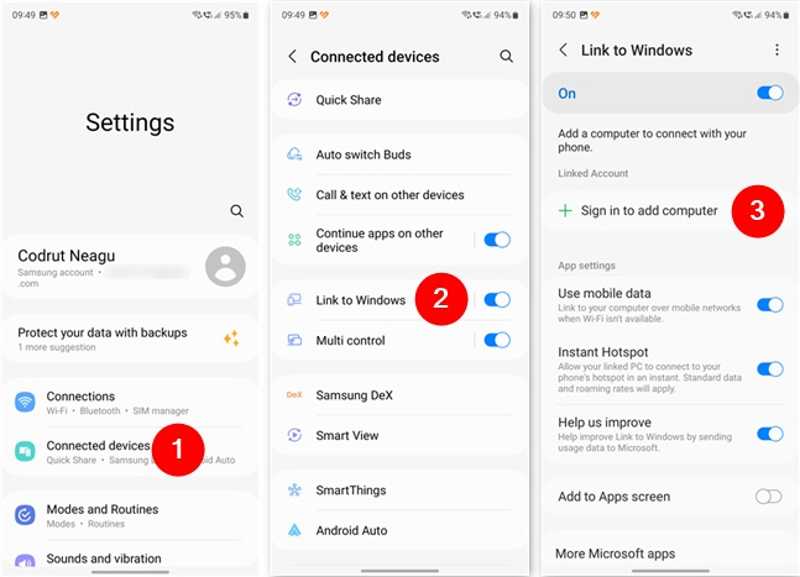
Step 7. Tap Sign in to add computer, and hit Add computer.
Step 8. Run the Link to Windows app from your app drawer.
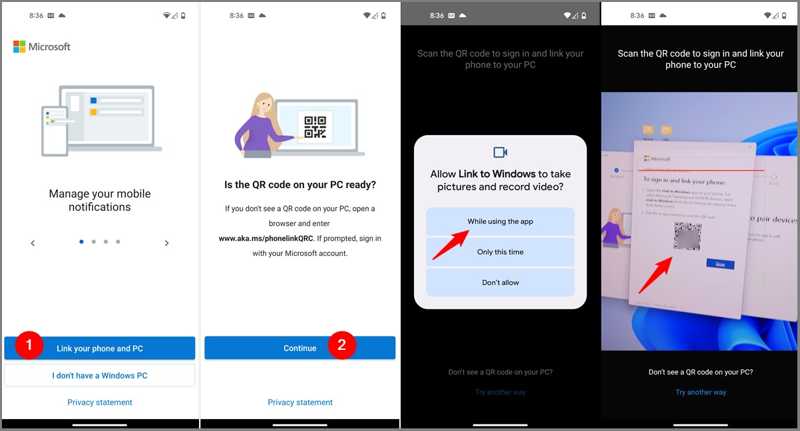
Step 9. Tap Link your phone and PC, and hit Continue.
Step 10. If prompted, choose While using the app, and scan the QR code using your phone.
Step 11. Then, the app will inform you that it is now Pairing with PC.
Step 12. Tap Continue on the app permissions screen and allow it to access your file, contacts, and more.
Step 13. Follow the onscreen instructions to stay connected and run it in the background.
Step 14. Finally, tap Done to confirm the configuration.
Step 15. Switch to your PC, and Phone Link should link to your phone.
Step 16. Click Continue, and hit Get started.
Step 17. Choose View my photos and sync your Android phone to the computer.
Conclusion
This guide shared three ways to sync Android phone messages to computer Windows 10 and other data types. You can connect your Android device to a PC with a USB cable for data syncing directly. The Link to Phone Link app is a fast way to sync Android photos and videos to a PC. Apeaksoft MobieTrans works for a variety of data types syncing between Android and a computer.
Related Articles




