


How to Sync Gmail & How to Fix Gmail Not Syncing Issue

As is known to all, when we sync Gmail, we can receive emails across all devices and will not miss any important messages. However, Gmail sync may sometimes fail, especially when you use Gmail with Outlook, iPhone, or other devices.
This is generally due to incorrect sync settings and account authentication issues between platforms. This article will introduce how to sync Gmail and troubleshoot issues when Gmail is not syncing with different devices and platforms.
PAGE CONTENT:
Part 1: What Does Gmail Sync Mean
Gmail sync is a feature that keeps your emails updated across different devices and apps. When enabled, any changes you make in Gmail, such as receiving, reading, or deleting emails, will be synced automatically across your connected devices. If you want to seamlessly check your Gmail across various devices, add your Gmail account to that device and turn on syncing. Operations vary between different devices.
If Gmail sync is not working, you may miss new emails or see outdated messages. The sync settings may vary depending on whether you use Gmail on iPhone, Android, or Outlook.
Part 2: How to Sync Gmail on Android
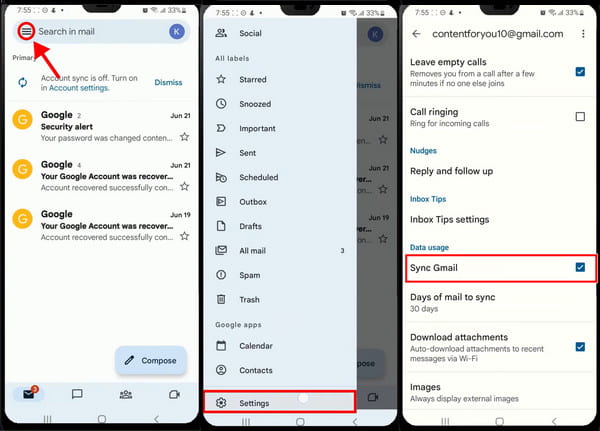
Step 1. First, you should have the newest version of Gmail installed. Then, open it and tap the three-line button on the top left corner.
Step 2. On the expanding left sidebar, scroll down and tap on Settings.
Step 3. Now, choose an account that you want to sync. In the settings screen, scroll down, find Sync Gmail and switch it on. On the right below, you can specify how often you want to sync your emails to this Android device, like 15 minutes, every hour or several days.
Part 3: How to Sync Gmail on iPhone
You don't have to install Gmail on your iPhone to sync Gmail. Follow the following steps and sync Gmail to the Mail app on your iPhone.
Step 1. Tap the Settings app, scroll down to the bottom and click Apps. Choose Mail from the following page.
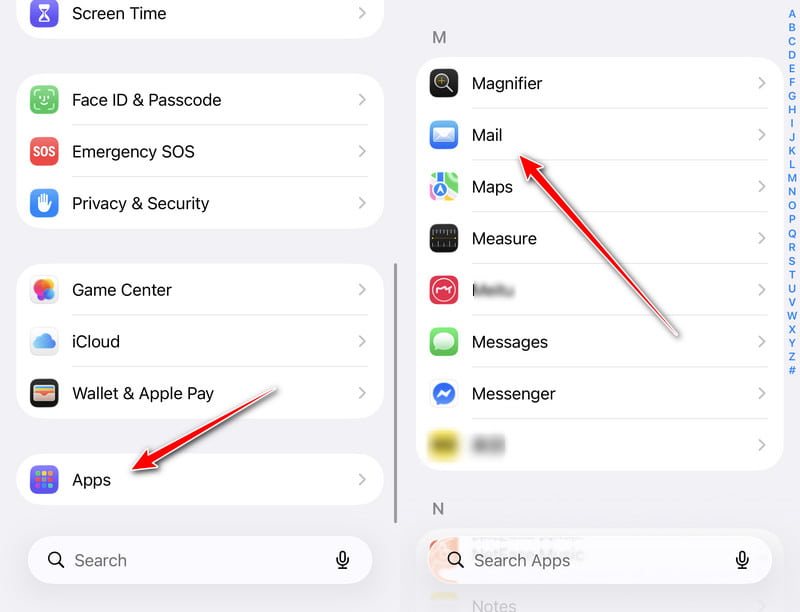
Step 2. Click Mail Accounts and tap on Gmail to enter your Gmail settings; if you don’t have the option, tap Add Account and log in to your Gmail account.
Step 3. Tap Mail and turn it on. Now, you can receive emails on your iPhone.
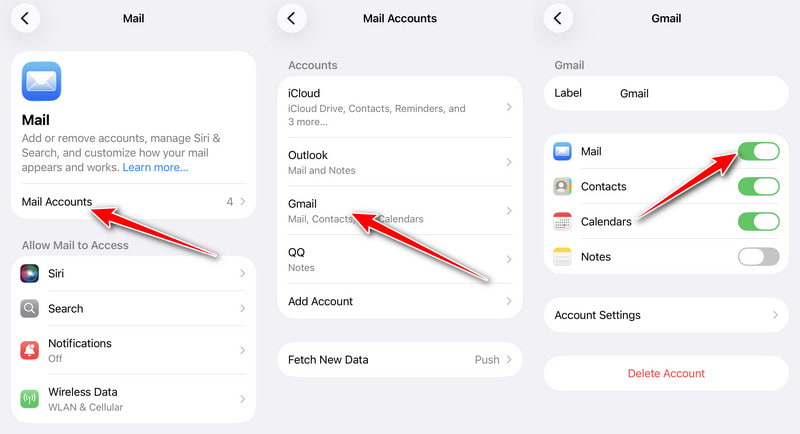
Sometimes, we prefer to separate mail from work and life. But how to stop Gmail from syncing? Well, just follow the same instructions and turn syncing off. This may not work immediately. You can turn off Wi-Fi and re-login your account to make it come into effect. Watch out if you delete emails after turning off syncing because this makes it harder to recover those deleted gmails.
Part 4: How to Sync Gmail in Outlook
Outlook is Microsoft's default mail app. You can get contacts, organize emails to or from a specific person, set labels to groups, and use many other advanced settings, making it a powerful mail program for business and daily contact. Let's see how to sync Gmail with this software. By the way, if you forget your Gmail password but have the account logged in your browser, don't worry. Outlook won't ask you for the password but jump to your browser.
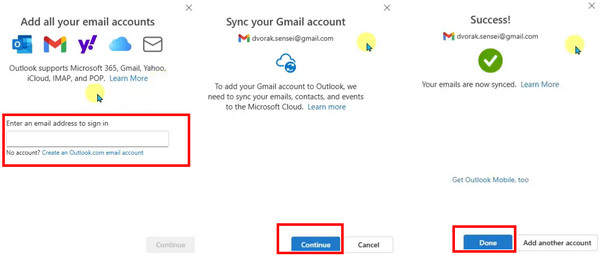
Step 1. Update Outlook on your computer to the newest version. Click the three-line button on the top left corner and click Add Account on the bottom.
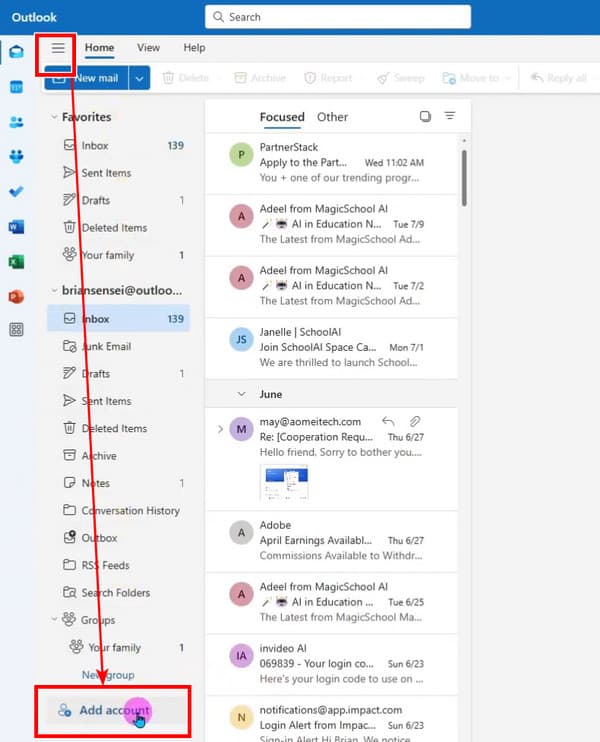
Step 2. On the pop-up window, input your Gmail address and click Continue.
Step 3. Outlook will lead you to your browser. Follow the instructions, turn on every service and enable Google Sync. After that, click Done to quit.
Part 5: How to Fix Gmail Not Syncing
Many unexpected factors may cause Gmail not to sync. Before troubleshooting, we recommend you update your apps, re-login your accounts, and restart your Wi-Fi or cellular network. Those three solutions will solve most of the problems.
Android Gmail not syncing:
First, Gmail syncing consumes a relatively large amount of battery power, so you can turn off low battery mode to see if it works. Second, reinstall the Gmail app. Third, try sending an email using another Gmail account on gmail.com and wait several minutes for it to be synced. The last solution has proved useful for users in the Samsung forum.
Gmail not syncing on iPhone:
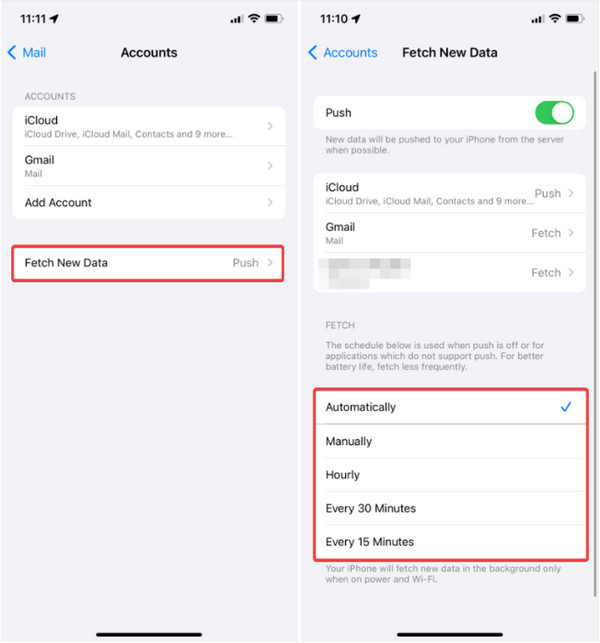
Gmail not syncing on iPhone may caused by its notification settings. Go to the mail account settings as we showed in Part 3 and click Fetch New Data. Set it to Manually. Now, every time when you go to the Mail app and drag down to refresh the inbox, emails will be synced.
Outlook not syncing with Gmail
Outlook not syncing with Gmail can be caused by more complicated issues, such as incorrect IMAP settings on Outlook or 2-step Verification and Password. To fix this issue, you can check your Outlook IMAP settings first, and then verify your 2-step Verification settings and password.
Makes Transfering Data Between Phones and Windows Easier
- Transfer date among Android, iPhone, and computer.
- Transfer photos, videos, contacts, and more with one click.
- Manage your phone data and de-duplicate contacts automatically.
- Compatible with most iOS, Android and Windows devices.
- 24/7 free technical support for your best user experience.
Secure Download
Conclusion
This article illustrates how to sync Gmail on different devices and platforms, including Android, iPhone, and Outlook, and analyzed why is Gmail not syncing. We really hope they work for you. If you have needs to transfer data like photos, messages, or contacts among Android phones, iPhones, or computers, you cannot miss Apeaksoft MobieTrans.

Related Articles




