

How to Quickly Sync iPhone Calendar and Events to iPad

Keeping your schedule and events organized across Apple devices can be essential, especially when you are managing calendars on both your iPhone and iPad. The good news is that the process is actually quite straightforward once you understand the steps. Whether you are using the same Apple ID or different accounts, you can complete the setup. This tutorial lists the proven methods and demonstrates the workflows to sync the Calendar between iPhone and iPad.
PAGE CONTENT:
Part 1: How to Sync Calendars between iPhone and iPad via iCloud
One easy way to sync the calendar with iPhone and iPad is through your iCloud account. In other words, you can sync calendars to iCloud and access them across iOS devices associated with the same account.
Step 1. Turn on the source device.
Step 2. Open the Settings app, connect to a network, and tap on your profile.
Step 3. Go to iCloud, tap Show All, and choose iCloud Calendar.
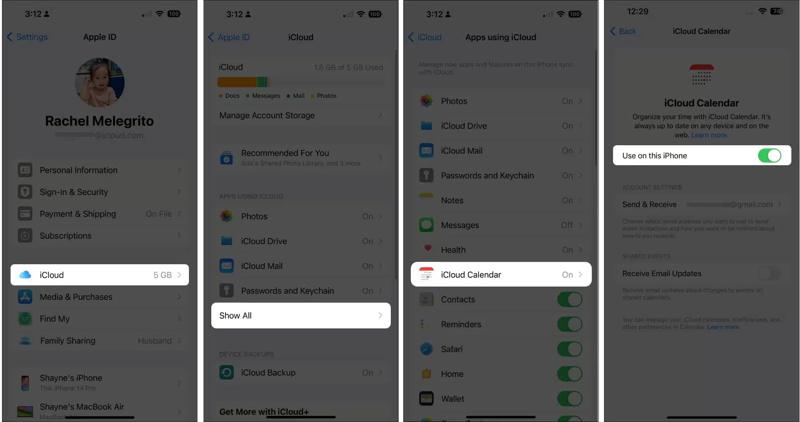
Step 4. Toggle on Use on this iPhone and choose Keep on my iPhone if prompted.
Tips: If you are using an old version of iOS, toggle on Calendar after going to iCloud.
Step 5. Double-check your Apple ID.
Step 6. Then, turn to the target device and tap on your profile in the Settings app.
Step 7. Check the Apple ID. If it is different from the account on the source device, sign it out, and sign in with the same Apple ID.
Step 8. Connect to the internet.
Step 9. Go to iCloud and tap iCloud Calendar.
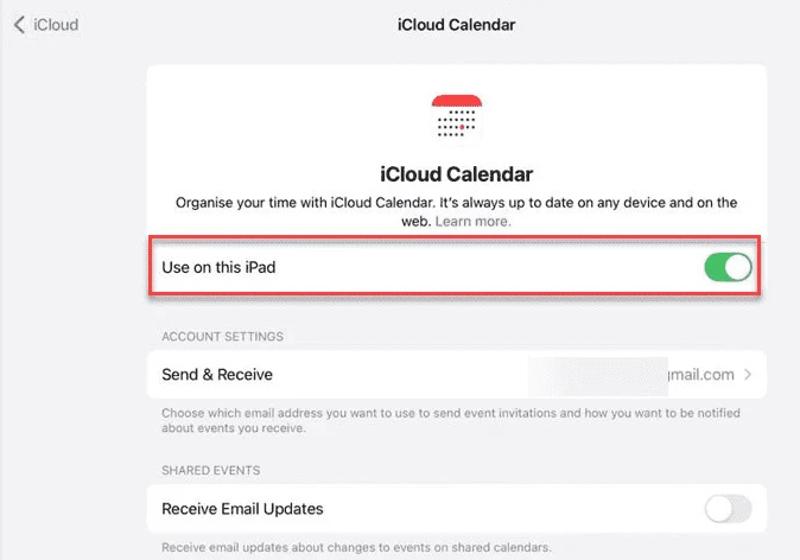
Step 10. Toggle on Use on this iPad. If this option is enabled but the iPad calendar is not syncing with the iPhone, turn it off and turn it back on.
Part 2: How to Sync iPad Calendar to iPhone by iTunes/Finder
With different Apple IDs on the iPhone and iPad, you have to link iPad calendar to iPhone using iTunes or Finder. This way requires a computer, the latest version of iTunes or Finder, and a compatible cable.
Step 1. Connect your iPad to your computer with a compatible cable.
Situation 1: On Windows and macOS Mojave or earlier
Step 2. Open iTunes and click the Phone button after your device is detected.
Step 3. Go to the Info tab on the sidebar.
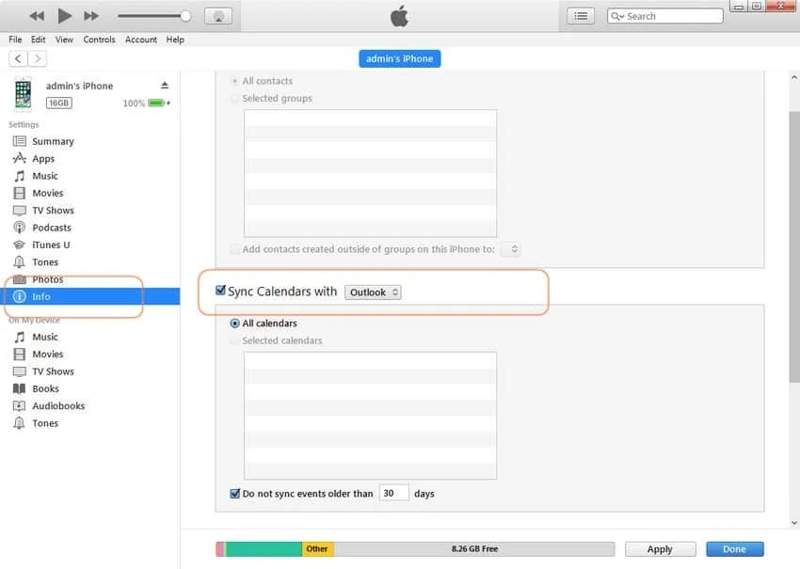
Step 4. Check Sync Calendar with, and select Outlook.
Step 5. Pick All calendars or Selected calendars and select the desired calendars.
Situation 2: On macOS Catalina or later
Step 2. Click your iPad name on the sidebar.
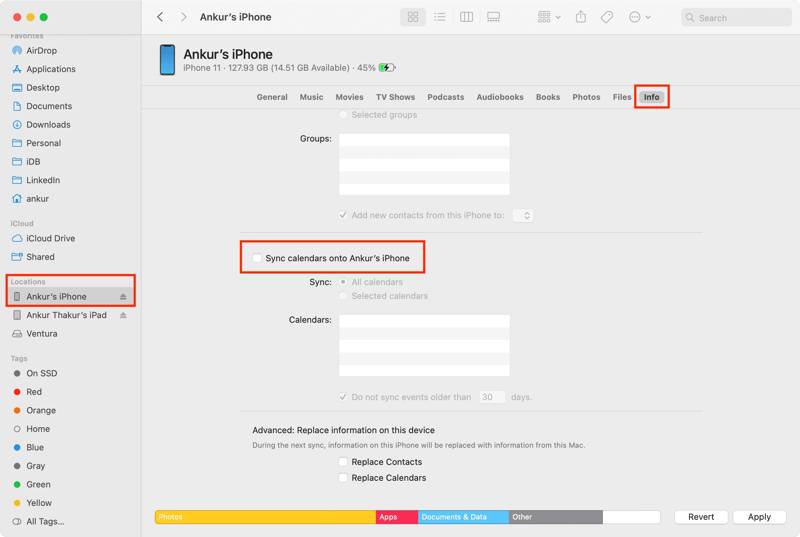
Step 3. Go to the Info tab, and check Sync calendars onto [your name] iPad.
Step 4. Then, pick All calendars or Selected calendars and select the desired calendars.
Step 6. Click the Apply button.
Step 7. When it is done, disconnect your iPad, and connect the iPhone to the same machine with a USB cable.
Step 8. Next, sync calendars between iPhone and iPad.
Part 3: How to Sync iPhone Calendar to iPad Google Calendar
If you want to keep different Apple IDs on your iPhone and iPad, you can also sync the iPhone calendar to the iPad using a Google account. With the proper settings, you can access your events on both devices.
Step 1. Make sure that the two devices are online.
Step 2. Open the Settings app on your iPhone.
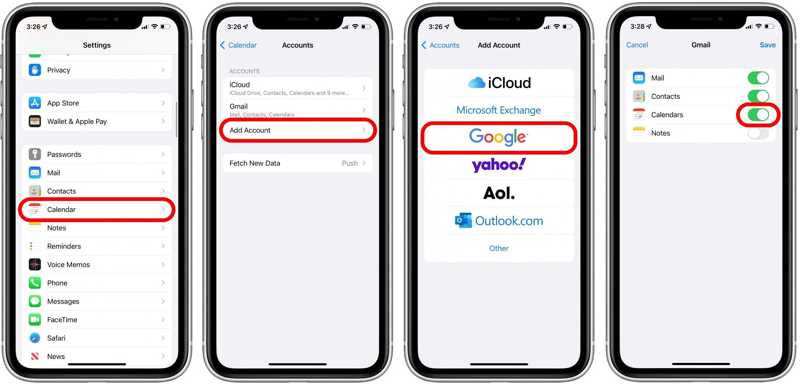
Step 3. Scroll down and choose Calendar.
Step 4. Tap Account, choose Add Account, and pick Google.
Step 5. Enter your Google account credentials.
Step 6. Toggle on Calendar to upload your calendars.
Step 7. Then, turn to the target device.
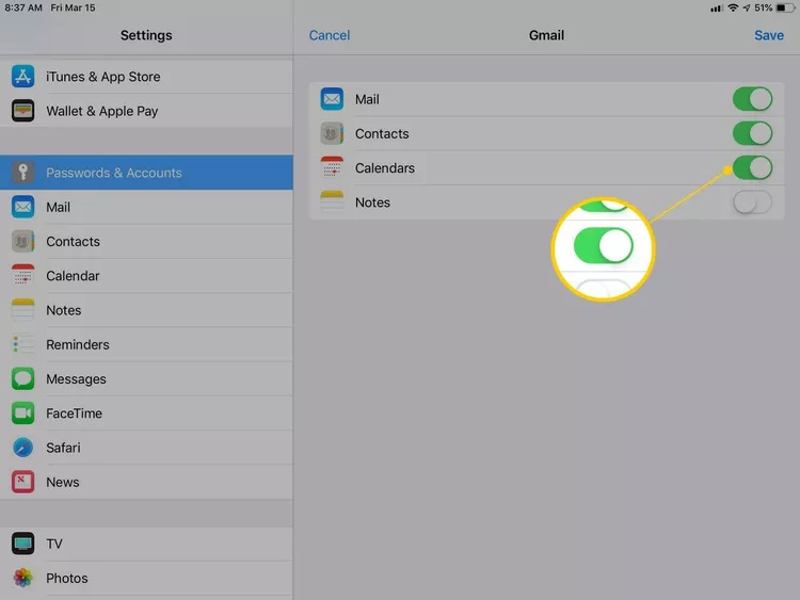
Step 8. Repeat the steps above to sync iPhone calendars to iPad or vice versa.
Part 4: How to Sync Specific Calendars between iPhone and iPad
If the methods above are unavailable to you, Apeaksoft iPhone Transfer is another option to sync calendars between iPhone and iPad. The user-friendly interface simplifies the workflow of calendar syncing.
A Quick Way to Sync Calendars between iPhone and iPad
- Sync iPhone calendars to iPad or vice versa.
- Preview iOS calendars on your computer.
- Work for both events and attachments.
- Support the latest models of iPhone and iPad.
Secure Download
Secure Download

How to Sync Calendars from iPhone to iPad
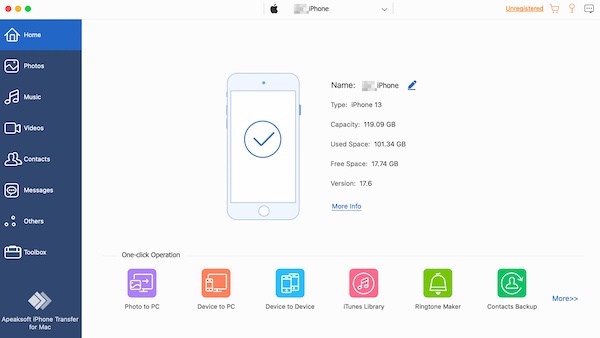
Step 1. Connect to your device
Launch iPhone Transfer after installing it on your computer. It is compatible with Windows and Mac. Plug the source device into your computer with a Lightning cable.
Step 2. Export calendars
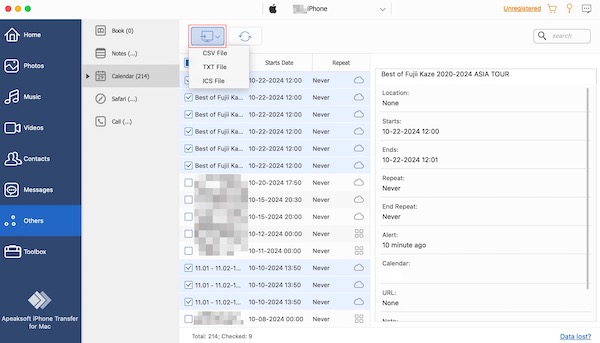
Go to the Others tab, and choose Calendar to view all calendars on your device. Select the desired items, click the Export button, and choose ICS File. Set an output folder and confirm it. Next, email the ICS file to your email address.
Step 3. Import calendars
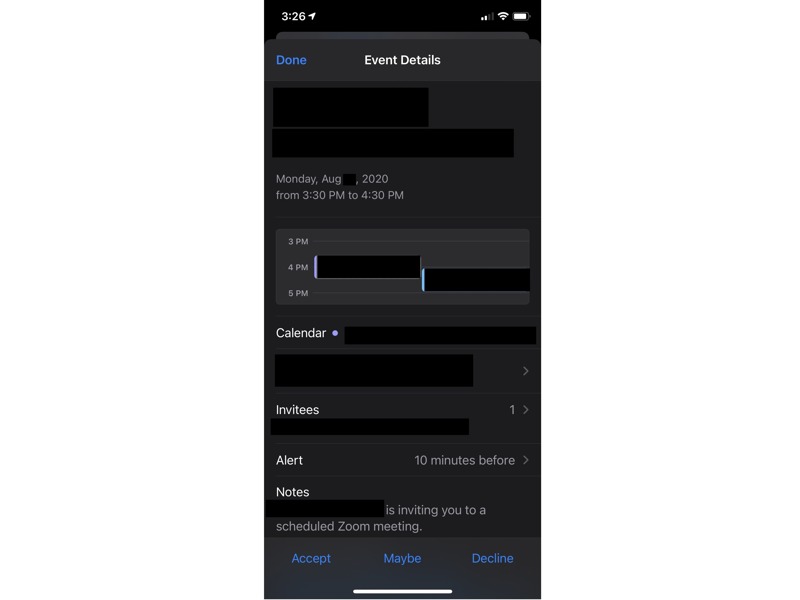
Open the Mail app on the target device. Open the new message, and tap the ICS file. Tap Accept or Add To Calendar to sync calendars between iPhone and iPad. You can also transfer photos from iPhone to iPad. This program support live photos and videos.
Further Reading
Conclusion
This guide shared four efficient ways to sync the Calendar with iPhone and iPad. The same iCloud, Google, or Outlook account enables you to access calendars across your iPhone and iPad with the proper setup. With a computer, you can complete calendar synchronizing with a cable. Apeaksoft iPhone Transfer is a fast option to access your calendars on any device.
Related Articles




