


10 Ways to Fix the Syncing with iCloud Paused Issue in iMessage

"My iMessage says Syncing with iCloud Paused. How to Fix it? Please help."
Many users reported that they have run into a syncing paused iMessage issue on their iPhones. Why is Syncing with iCloud paused on iMessage? Don't worry. This post provides 10 proven ways to fix this issue. If you face the same dilemma, read this article and find your solution.
PAGE CONTENT:
Part 1. Why Is Syncing with iCloud Paused on iMessage
What does syncing paused mean on iPhone messages? Well, it means your messages on your iPhone will not sync to iCloud after it pauses. After that, all the messages sent to or received from others will not be saved to iCloud or seen on other iDevices.
There could be many reasons for this syncing paused on iMessage, some of which could be inconspicuous. In this section, we will list as many potential factors for this error as possible before we dive into the solutions.
System Issue: This is the issue that most users in Apple Discussions run into. After updates to the Messages in iCloud syncing mechanism in iOS 17.2, many users encountered an iMessage Syncing Paused error when they upgrade their iOS version to iOS 17.2 or higher (for example, iOS 26).
Internet Error: The iCloud syncing is based on the internet. Therefore, the sync will temporarily pause if your iPhone is under an unstable internet connection or disconnected.
Low Battery Mode: iCloud data syncing is a power-consuming activity. If you turn on low battery mode on your iPhone, the sync will be paused automatically until you restart it.
Software Bugs: Software is often updated to guarantee a smooth user experience and repair issues and errors. If the version of iCloud you are running has errors, it may cause syncing to pause.
Insufficient iCloud Storage: iCloud only provides 5 GB of storage for free users, which is usually insufficient for data backup. Therefore, if your iCloud storage is full, sync will also pause.
Apple ID Authentication Issues: The iMessages syncing with iCloud paused issue can also result from your Apple ID authentication failure. It often occurs when you have logged out or recently changed your Apple ID password.
Part 2. How to Fix Syncing with iCloud Paused iMessages [10 Proven Solutions]
1. Ensure iMessage Is Synced
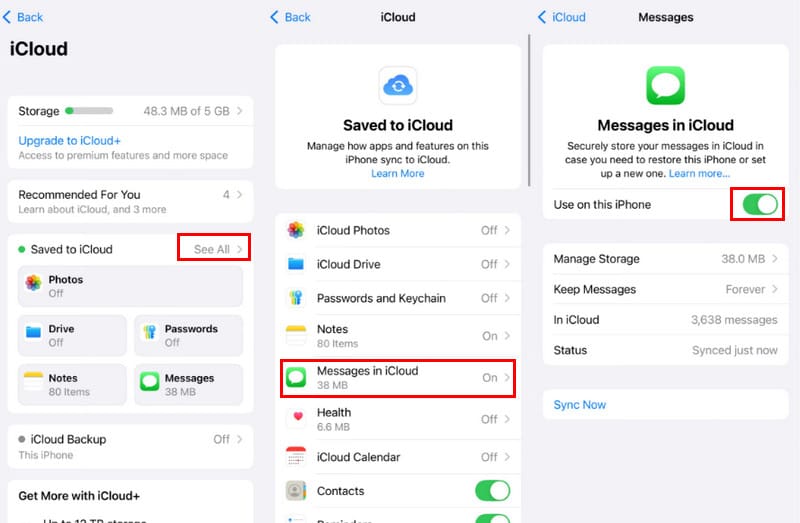
If you haven't enabled Messages syncing on your iPhone, there is no doubt you will encounter syncing paused in iMessage. Therefore, the first thing you should do is to check whether the Messages option is enabled. Follow the detailed steps below to check whether it is enabled:
Step 1. Open Settings on your iPhone.
Step 2. Tap your name and select iCloud.
Step 3. Click See All next to Saved to iCloud. Choose the Messages in iCloud option.
2. Restart Sync of Messages in iCloud
In Apple Discussions, 225 users gave positive feedback that the syncing paused warning disappeared after they restarted the sync of Messages in iCloud. You can also try the same method to fix the iMessage syncing paused issue.
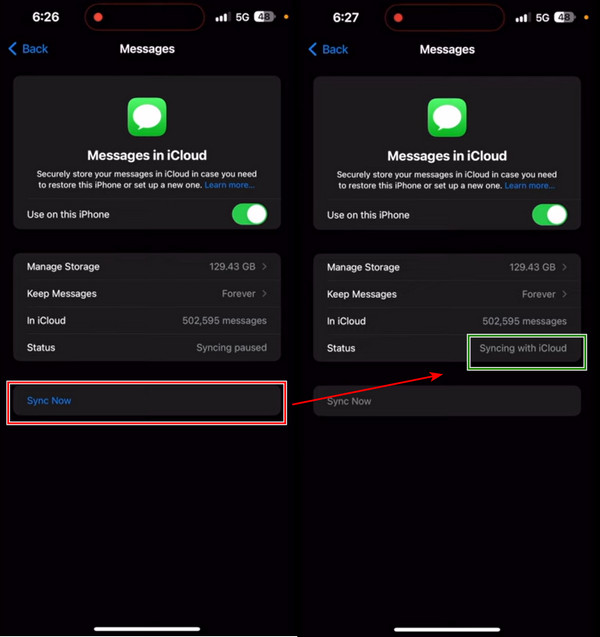
Step 1. Enter Settings on your iPhone. Hit the name at the top. Then, choose iCloud.
Step 2. Click Messages.
Step 3. Here, you can see the status: Syncing paused. Tap the blue Sync Now button, and the status will change to Sync with iCloud. Wait a few minutes, and your messages will be synced to iCloud.
3. Restart Your iPhone
Sometimes, the Syncing with iCloud Paused on iMessage issue is caused by temporary system glitches. A simple restart can refresh the system and may help resume iMessage syncing.
4. Check Your Internet Connection
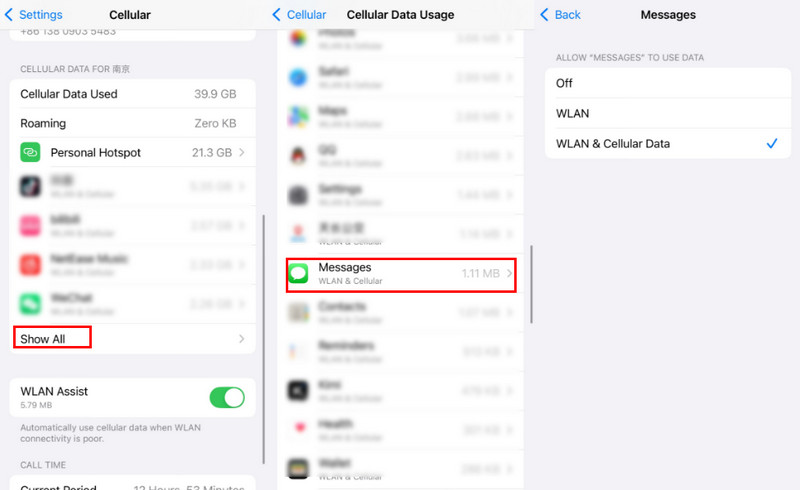
If your network condition is poor, syncing with iCloud can also be paused. Check your Wi-Fi status first. If you are using cellular data, make sure the cellular is open and is enabled for iMessages.
Step 1. Launch Settings and click Cellular. Make sure it is open.
Step 2. Scroll down to find the Show All option. Click it.
Step 3. Scroll down on the following page to locate Messages. Click it and see whether cellular is enabled for Messages.
5. Update iOS
Sometimes, a certain version of the iOS system reserves some inner issues, and you can only fix them with methods if you update your iOS to another version. This part will illustrate how to unpause syncing messages by updating the iOS version.
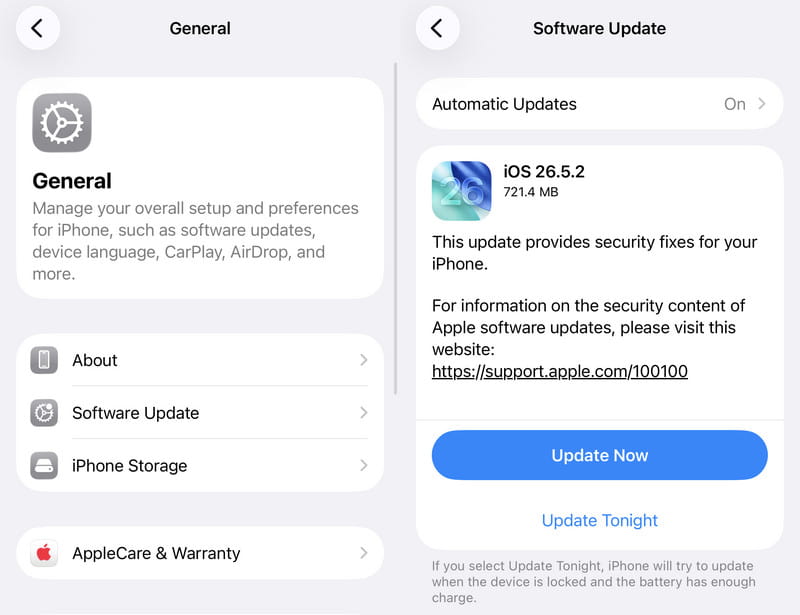
Step 1. On your iPhone, open Settings and tap General.
Step 2. You will see Software Update at the top of the screen. Select it.
Step 3. You will see the Update Now button if your iOS version is not the latest. Tap on it, and the system will be downloaded and installed. The process will take about hours.
6. Check and Free up iCloud Storage
iCloud provides only 5GB of free storage for each Apple Account. Once it runs out, iCloud syncing may be paused, including iMessage syncing. If you don't want to upgrade to a paid iCloud+ plan or have done that but the storage is still insufficient, consider checking and freeing up your iCloud storage to stop the syncing paused iPhone messages error.
Step 1. In the Settings app on your iPhone, tap your name at the top.
Step 2. Choose iCloud. You can tap the Upgrade to iCloud+ option to manage your iCloud storage. Or, tap Storage at the top.
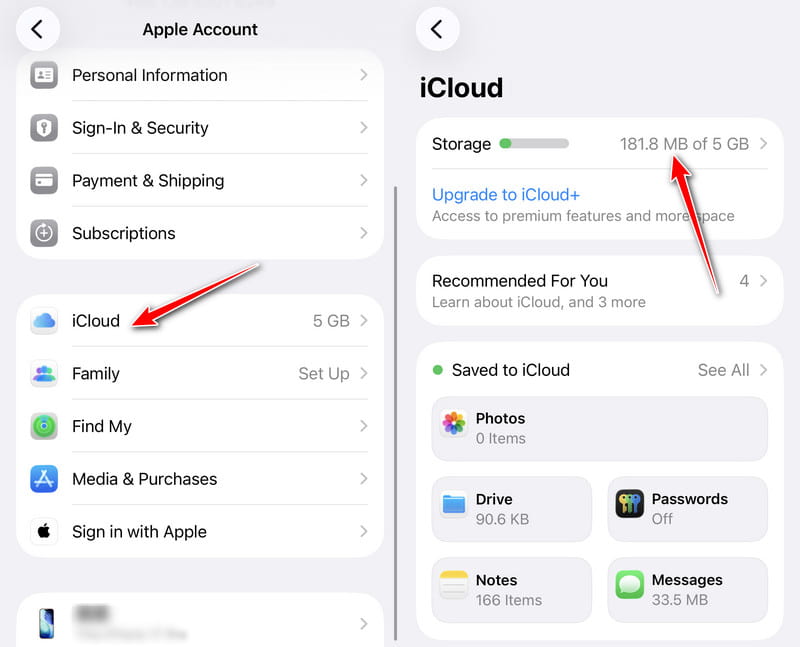
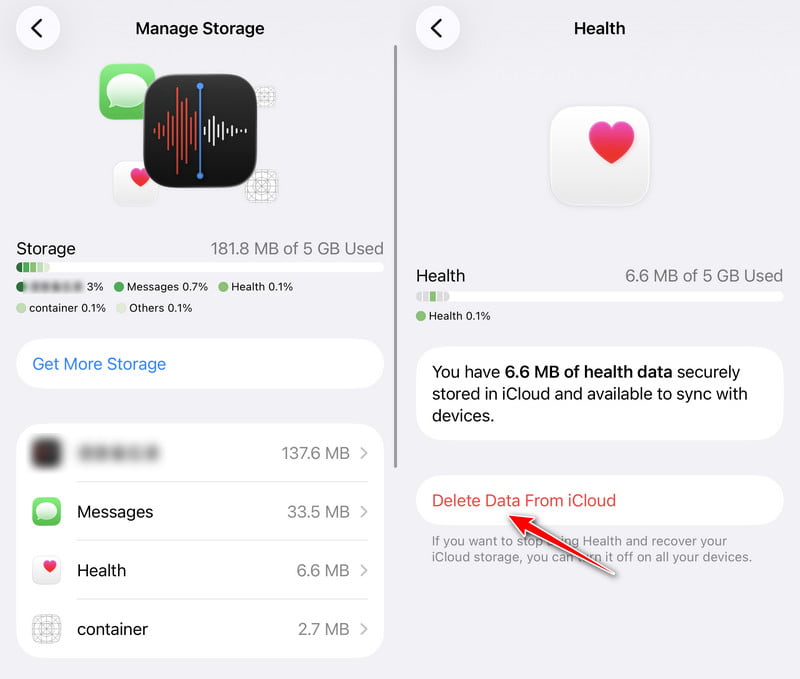
Step 3. Choose one app you don't want to sync anymore and tap it.
Step 4. Tap on Delete Data from iCloud and confirm it in the next page.
7. Turn off Low Battery Mode
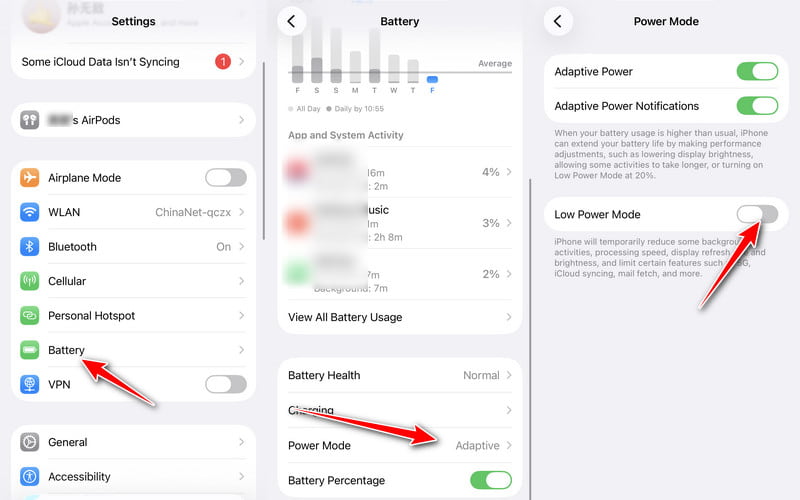
Moreover, you can fix the syncing paused iPhone messages error by turning off Low Battery Mode. In this case, your messages will be synced to iCloud in the iPhone's background.
Step 1. On your iPhone, open Settings > scroll down and select Battery.
Step 2. Click Power Mode.
Step 2. Switch off Low Battery Mode.
8. Check iCloud Server
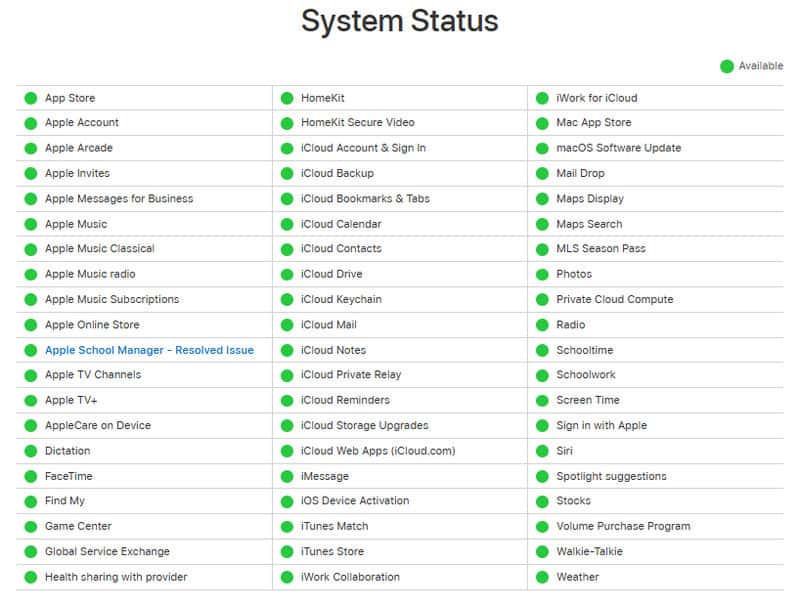
Although rare, sometimes you may encounter iMessage syncing paused due to scheduled maintenance or an error on Apple's end. It is recommended to check the Apple System Status page (https://www.apple.com/in/support/systemstatus/) to see whether the iMessage or iCloud Account & Sign In services are working properly. The green dots indicate that the server is operating normally.
9. Check and Update Your Apple ID Settings
If your Apple ID needs verification, the Syncing with iCloud can be paused. So, you need to open Settings and check whether there is any alert such as Update Apple ID Settings or Your Apple ID needs attention under your name.
10. Fix System Glitches
Sometimes, some system issues will also lead to "iMessage syncing with iCloud paused". Therefore, you should use tools to scan and fix iPhone system issues. Here is a free tool to quickly fix the iOS system in one click for your reference:

Downloaded by over 1,000,000 users
- Proven method to fix Syncing with iCloud paused.
- Fix iOS systems to normal professionally.
- Offers a quick free fix mode.
- Save your iPhone from system issues like Apple Logo, Recovery Mode, black screen, etc.
- Support all iOS versions, including iOS 27/26.
Secure Download
Secure Download
Step 1. Click the button above to free download this software.
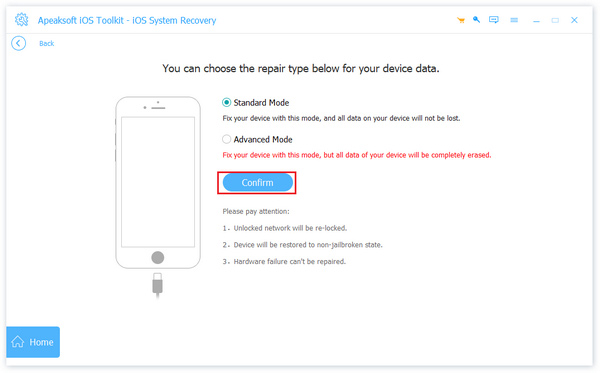
Step 2. Connect your iPhone to your computer and choose iOS System Recovery on the main interface.
Step 3. Click the Start button, and this professional program will scan your device. Choose Standard or Advanced mode, set the firmware, and click Next to start the recovery.
That's all about how to unpause syncing messages. You can try them now and see which one works for you. By the way, you'd better backup messages before you fix this issue so that any messages will not be lost.
Part 3. How to Sync iMessages Without iCloud
Although iCloud is an official way to sync iMessages across devices, it is not the only solution. If you have tried all the methods above but are still troubled by the iMessage syncing with iCloud paused issue, we recommend you try another method to move iMessages among Apple devices using Apeaksoft iPhone Transfer.
Downloaded by over 1,000,000 users
- Transfer iMessages without iCloud.
- Transfer iPhone messages without any data loss.
- Transfer other iOS data like photos, music, notes, calendars, etc
- Compatible with both Windows and Mac.
- Manage messages in order and keep them safe.
Secure Download
Secure Download
Conclusion
In this article, we explained why does it say syncing paused on iMessage and how to fix it. You can restart Messages in iCloud, update iOS, free up iCloud storage, and turn off Low Battery Mode. Before you try these methods, back up your messages to your computer quickly with Apeaksoft iPhone Transfer lest any other errors occur and your messages are lost.
 Apeaksoft iPhone Transfer
 Transfer iOS data among iOS devices, computer and iTunes.
Secure Download
Secure Download
Related Articles




