

Fix Syncing with iCloud Paused: A Step-by-Step Guide

Have you ever encountered the "sync with iCloud paused" message when you were trying to back up photos, videos, or other important files? This issue can interrupt backups, delay file uploads, or even prevent your data from being up to date. In this case, your information might not be saved in time and may be lost when you need to restore it later. Syncing with iCloud paused can occur for a variety of reasons. Fortunately, this issue is easy to resolve.
In this guide, you'll learn five reliable methods to restart iCloud sync and get your iCloud syncing back on track.
PAGE CONTENT:
- Method 1. Fix Syncing with iCloud Paused by Restarting
- Method 2. How to Fix Syncing with iCloud Paused via Cellular
- Method 3. Fix Syncing with iCloud Paused by Managing Storage
- Method 4. A Manual Way to Fix Syncing with iCloud Paused
- Method 5. A Professional Solution to Syncing with iCloud Paused
- Why is Syncing with iCloud So Important?
Method 1. Fix Syncing with iCloud Paused by Restarting
If you encounter a "sync with iCloud paused" issue, one of the simplest and perhaps most effective solutions is to restart your device. By doing so, the temporary iCloud sync issues caused by system glitches can be solved without requiring additional system or software intervention.
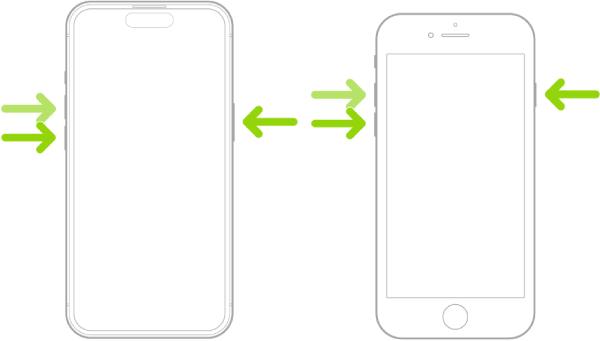
A simple restart can clear system caches, turn off conflicting apps, and refresh your network connection. iCloud syncing will typically resume automatically after your device restarts. This is a basic but effective solution and should be used before attempting more complex methods when the new iPhone is stuck on the restore screen.
Method 2. How to Fix Syncing with iCloud Paused via Cellular
If you find your iCloud syncing is paused, you should check whether you're syncing without a Wi-Fi connection. This is because, by default, iCloud doesn't automatically use your cellular data plan for backups to conserve data usage. If you want to sync your iCloud without a Wi-Fi connection, you'll need to change your device's default cellular settings to ensure that iCloud backups over cellular are enabled.
Step 1. Open your Settings and find the Cellular tab. Enter this tab to proceed.
Step 2. Scroll down and find the iCloud Drive tab. Check if this button is toggled. If this function is turned off, your iPhone won’t use the cellular network to transfer documents and data using iCloud when it is not connected to the WLAN, leading to iCloud paused when syncing.
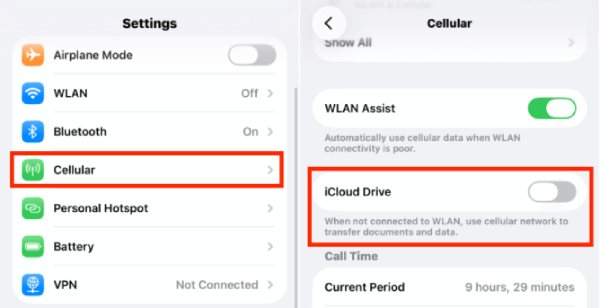
Adjusting your mobile data settings can enable iCloud to sync using mobile data, keeping everything up to date even without Wi-Fi. This method is handy for those who frequently rely on iCloud Photos or cloud storage services while traveling or working remotely.
Method 3. Fix Syncing with iCloud Paused by Managing Storage
When you encounter paused iCloud syncing, one common issue that can be overlooked is insufficient iCloud storage space. With the default (free) iCloud plan, you only have 5GB of iCloud storage space. Once your iCloud account nears capacity, backup files, photos, and other data won't upload properly, causing the sync process to stall. By reviewing your iCloud space usage and making some adjustments, you can restore normal syncing and ensure that your data is backed up uninterrupted. There are two options for this situation:
The first option is to manage your iCloud storage space by turning off unnecessary iCloud syncing or deleting unimportant backups to free up space or allocate it more efficiently. To do so, you can follow the detailed steps below:
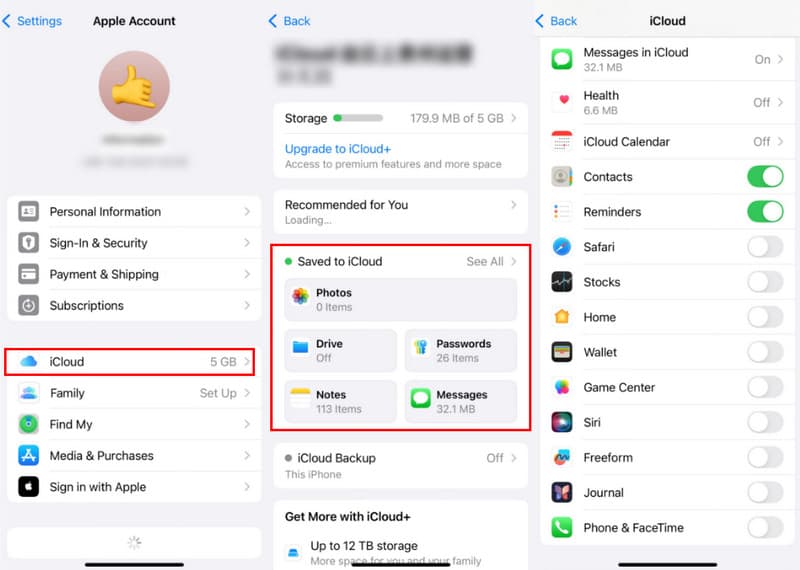
Step 1. Open Settings and tap to enter your profile page. Tap iCloud where iCloud syncing paused. Under the Save to iCloud tab, tap See All to further check your iCloud storage space.
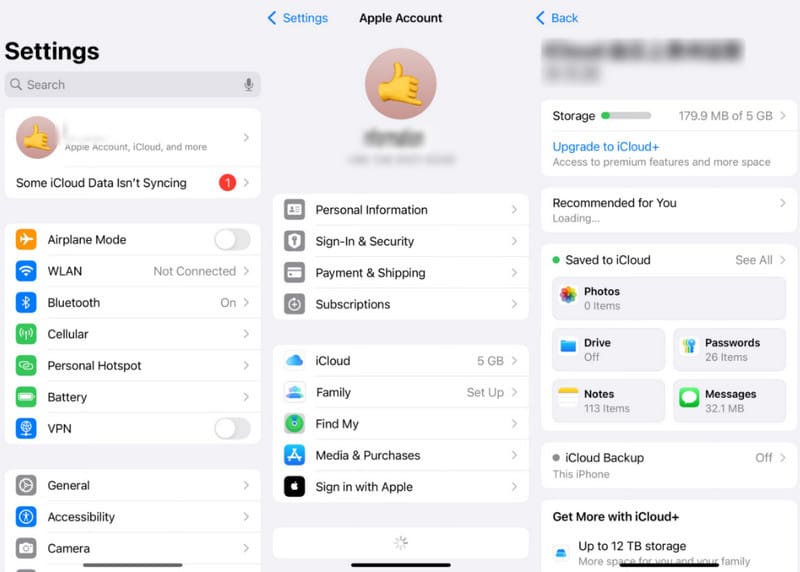
Step 2. Now, you can enter each page of these apps to check their storage occupied. When you choose an app, tap Manage Storage. In this page, tap Review Files under DOCUMENTS AND DATA to manage its iCloud storage.
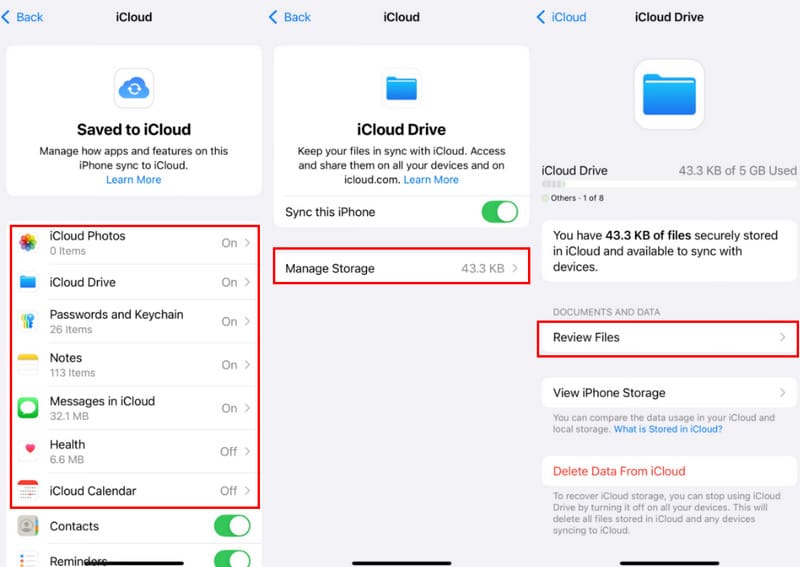
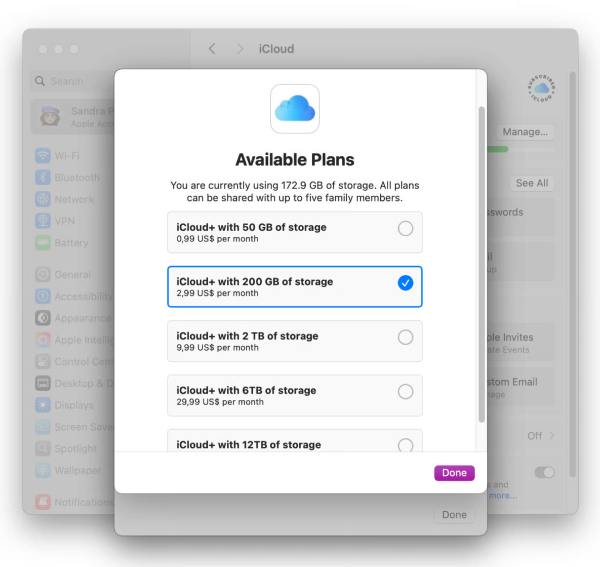
The second option is to directly upgrade your iCloud plan, which provides more storage space to handle iCloud backups. However, the specific choice of which plan to adopt depends on your budget and space requirements.
Method 4. A Manual Way to Fix Syncing with iCloud Paused
If iCloud sync remains paused despite trying the methods provided before, you may need to back up specific apps manually. This process can be cumbersome and time-consuming, as you have to enable iCloud sync for each app manually. To manually enable iCloud sync for specific apps or data, follow these steps to customize what you want to back up with iCloud and ensure your most important information stays up to date across your devices.
Step . Open Settings and access your profile. Tap iCloud to proceed. Tap See All under the Saved to iCloud tab. Here, you can select the content you want to back up to iCloud, and then click the switch to enable it.
Method 5. A Professional Solution to Syncing with iCloud Paused
Sometimes, the syncing with iCloud paused is not only due to network issues or limited storage space, but also because of iCloud's own limitations when processing large amounts of data across multiple devices. When you rely on iCloud to keep your iPhone, iPad or even your computer synchronized, any minor conflict between devices can cause the process to pause. If you want to sync iPhone data between different devices in a smoother way, you can consider using a dedicated tool like Apeaksoft iPhone Transfer.
It allows you to select specific data to back up on your Apple devices, supporting one-click customization of your backup content without encountering iCloud sync pauses, whether caused by device issues or storage space constraints.
Besides, this iCloud data recovery software backup process is not only highly efficient but also extremely secure, as all backed-up data remains only on your computer, ensuring your data privacy. For users who want a fast, professional, and reliable solution, Apeaksoft iPhone Transfer securely backs up all your important information and keeps it up-to-date.
Here, we use transferring data from one iPhone to another as an example to show how easily Apeaksoft iPhone Transfer handles multi-device syncing.
Step 1. Download Apeaksoft iPhone Transfer. When the download is complete, set up the downloaded file and install the software, and it will be launched automatically afterward.
Secure Download
Secure Download
Step 2. Connect your iOS devices to this software. Make sure the iPhone you want to transfer data from is on the main interface.
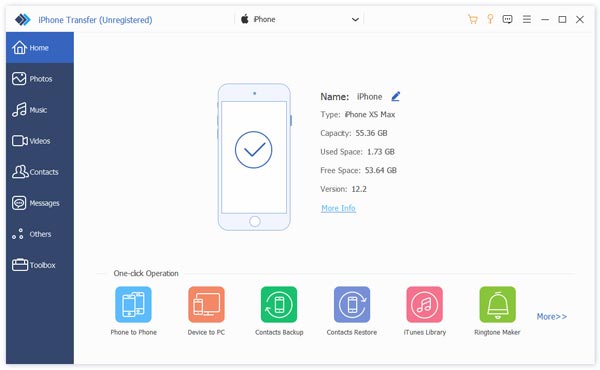
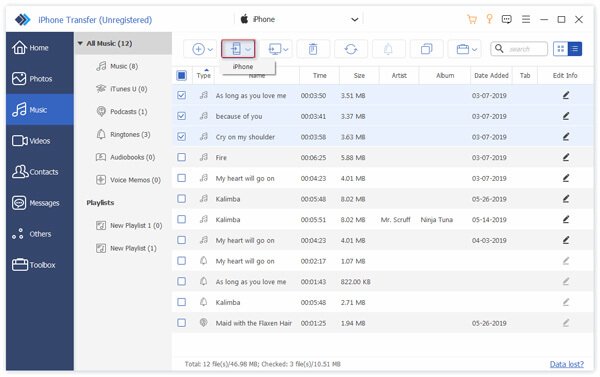
Step 3. Click the corresponding data type in the left panel and check your desired data.
Step 4. Press the iPhone pattern at the top and choose the iPhone that you want to transfer data to. Then, the transferring process will start automatically.
Why is Syncing with iCloud So Important?
Keeping iCloud syncing enabled is crucial, as it ensures your data is always consistently backed up and accessible across all your Apple devices. When syncing is working correctly, any changes you make on one device are automatically synced to the others. This makes it easy to search for files and data when you change devices or otherwise need to move them between devices-whether it's an iPhone, iPad, Mac, or even an Apple Watch-without any additional effort.

It also protects your data from accidental loss due to device damage, theft, or software issues. Overall, iCloud syncing keeps your digital life connected, secure, and up-to-date. For example, you can restore contacts from iCloud or retrieve important files in urgent cases, so you never have to worry about lost files or out-of-date information.
Conclusion
Encountering iCloud sync paused can prevent you from auto-saving data. This article provides several quick and easy solutions. You can make simple settings adjustments to solve the issue quickly. However, manual operations are often complex and time-consuming. To improve backup efficiency and security, Apeaksoft iPhone Transfer provides a more stable and reliable way to back up and sync your data without encountering the iCloud sync pause issue.
Related Articles
You can learn four effective approaches to transfer contacts between an iPhone and an iPad with a USB cable or wirelessly.
To sync music on iPhone, you can make use of Apeaksoft iPhone Transfer, Apple Music, AirDrop, iTunes, Finder, and iCloud Drive.
Before deleting your files, you’d better transfer files from your iPad to a PC following our proven methods and concrete guide.
This concrete tutorial tells you five approaches to transfer music from iTunes to your iPhone with or without a computer.



