

How to Transfer Contacts from iPhone to Android Samsung

When switching from an iPhone to a Samsung Android device, transferring contacts can be a daunting task. That is partly because they are running different operating systems as well as file systems. In other words, iPhone contacts cannot be decoded on Android directly. However, the process is not overwhelming if you use the right method. This comprehensive guide identifies the proven methods of transferring contacts from iPhone to Android. Thus, you can keep your contact book.
PAGE CONTENT:
- Part 1: How to Transfer Contacts from iPhone to Android Directly
- Part 2: How to Copy iPhone Contacts to Android via iCloud
- Part 3: How to Import iPhone Contacts to Android by Google Contacts
- Part 4: How to Move Contacts from iPhone to Samsung with Smart Switch
- Part 5: How to Put iPhone Contacts on Android Using Backup
Part 1: How to Transfer Contacts from iPhone to Android Directly
As mentioned previously, iOS and Android use different file systems. In other words, Android cannot decode your iPhone contacts. Thankfully, Apeaksoft MobieTrans can meet your needs. It automatically transcodes your data when transferring contacts. Plus, the user-friendly interface makes it easy to learn.
One of the Easiest Ways to Migrate Contacts from iPhone to Android
- Migrate contacts from iPhone to Android directly.
- Preview iPhone contacts for selective transferring.
- Decode and encode your contacts while moving.
- Manage your contacts quickly
- Support the latest models of iPhone and iPad.
Secure Download
How to Migrate Contacts from iPhone to Android
Step 1. Link your devices
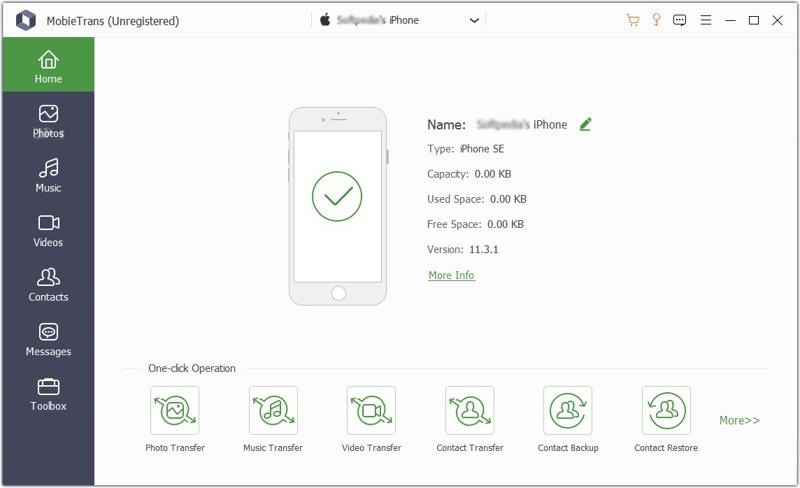
Launch the best contact transferring software once you install it on your computer. Then, connect both your iPhone or Android phone to your computer with compatible cables. Make sure to trust your PC if prompted.
Step 2. Preview iPhone contacts
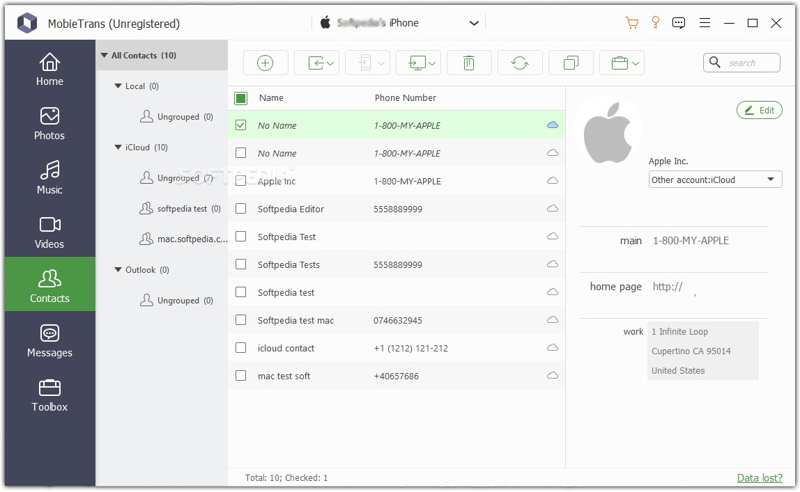
Pull down the top option and choose your iPhone. Then, the software will scan all data on your device. Choose Contacts on the sidebar and preview all contacts on your iPhone.
Step 3. Switch contacts from iPhone to Samsung
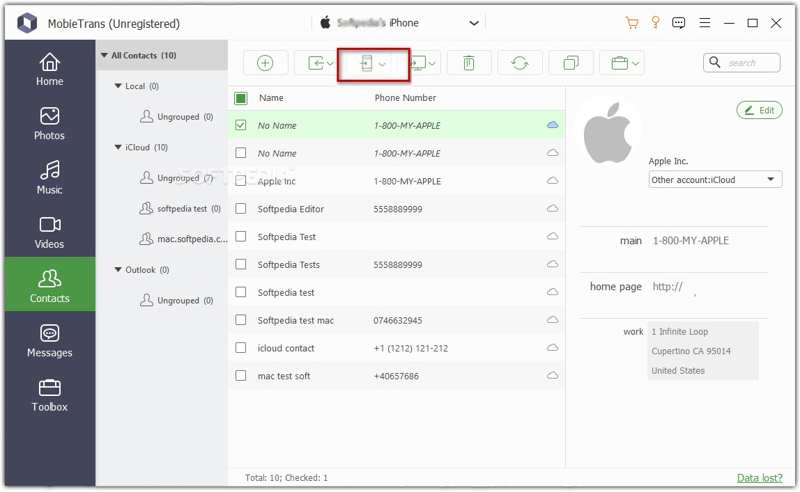
Check all items you want to transfer. Then, click the Phone button on the top menu bar and choose your Android device. When it is done, you can merge iPhone contacts and transfer them to your Android phone.
Part 2: How to Copy iPhone Contacts to Android via iCloud
If you prefer to copy iPhone contacts to an Android mobile device wirelessly, iCloud can meet your needs. You can sync your iPhone contacts to iCloud, export them to a vCard file, and import them to your Android phone. Alternatively, you can export iPhone contacts as a VCF file to iCloud Drive and import them on an Android device.
Option 1: Sync Contacts to iCloud
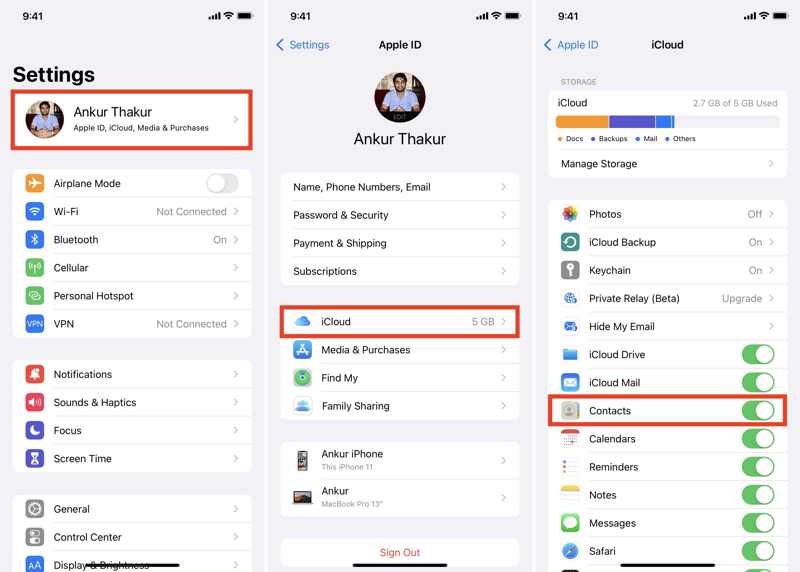
Step 1. Open the Settings app on your iPhone.
Step 2. Tap on your profile, choose iCloud, tap Show All, and toggle on Contacts.
Step 3. Visit www.icloud.com/contacts in a browser, and sign in with your Apple account.
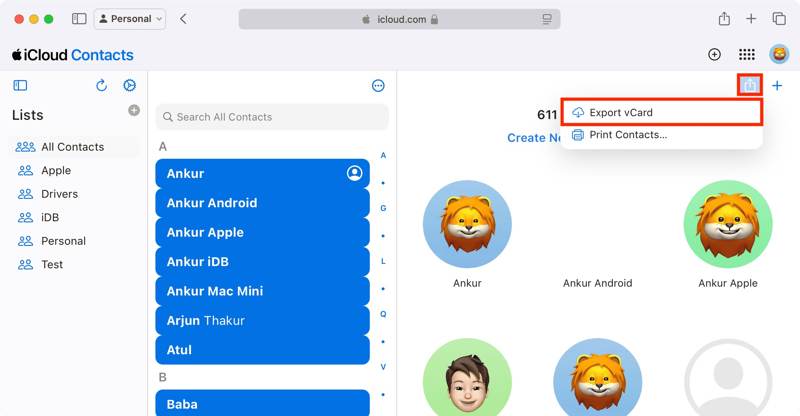
Step 4. Select the desired contacts, click the Download button, and choose Export vCard.
Step 5. Set an output folder and leave a name.
Option 2: Export Contacts to iCloud Drive
Step 1. Open the Phone app and enter the Contacts tab.
Step 2. Select the desired contacts, long-press them, and tap the Export button.
Step 3. Choose Save to Files, and navigate to iCloud Drive.
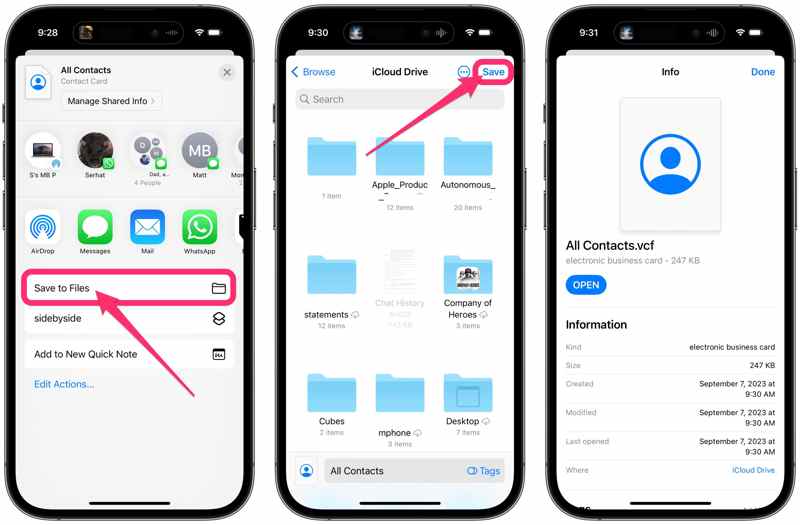
Step 4. Tap Done to confirm it.
Step 5. Make sure to sync iCloud Drive.
Import iPhone Contacts on Samsung
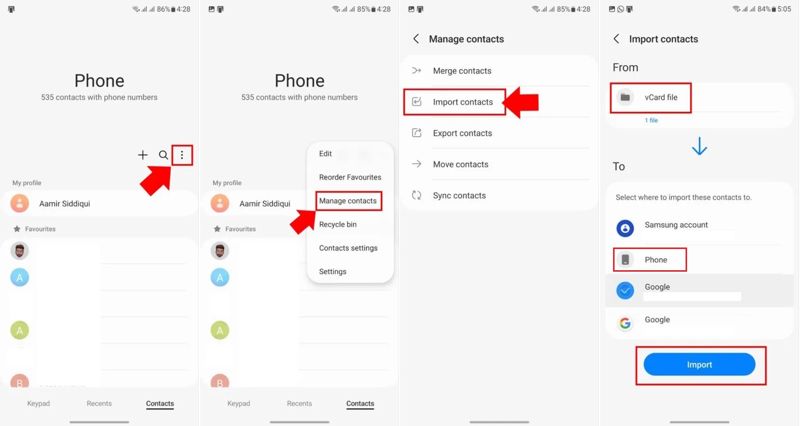
Step 1. Transfer the contact file to your Samsung Android phone using an instant message app or via a USB cable.
Step 2. Run the Phone app.
Step 3. Tap the Menu button with a three-dot icon.
Step 4. Choose Manage contacts and pick Import contacts.
Step 5. Select the contact file under From.
Step 6. Then, choose Phone under To, and hit Import.
Part 3: How to Import iPhone Contacts to Android by Google Contacts
With a Google account, you can use Google Contacts to import contacts from iPhone to Android wirelessly. This method doesn’t require extra software or hardware. All you need is a stable internet connection.
Step 1. Run your Settings app.
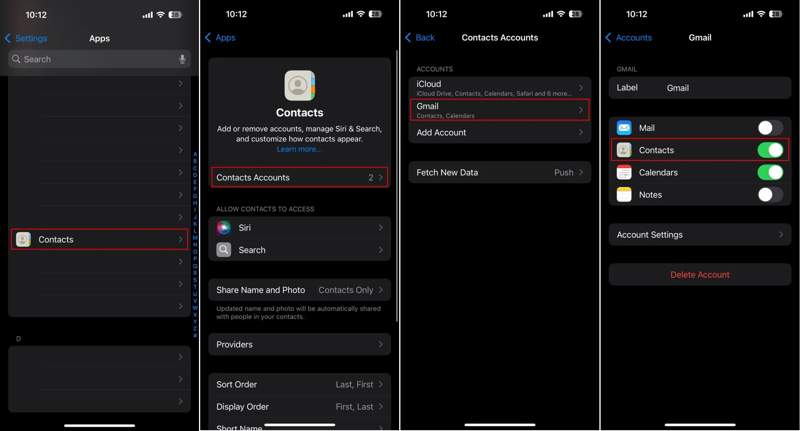
Step 2. Navigate to Apps, Contacts, and tap Contacts Accounts.
Step 3. Select your Gmail account. If you haven’t added one, tap Add Account, choose Google, and enter your account.
Step 4. Toggle on the Contacts option.
Step 5. After your contacts are synced to Google Contacts, switch to your Android device.
Step 6. Open the Settings app.
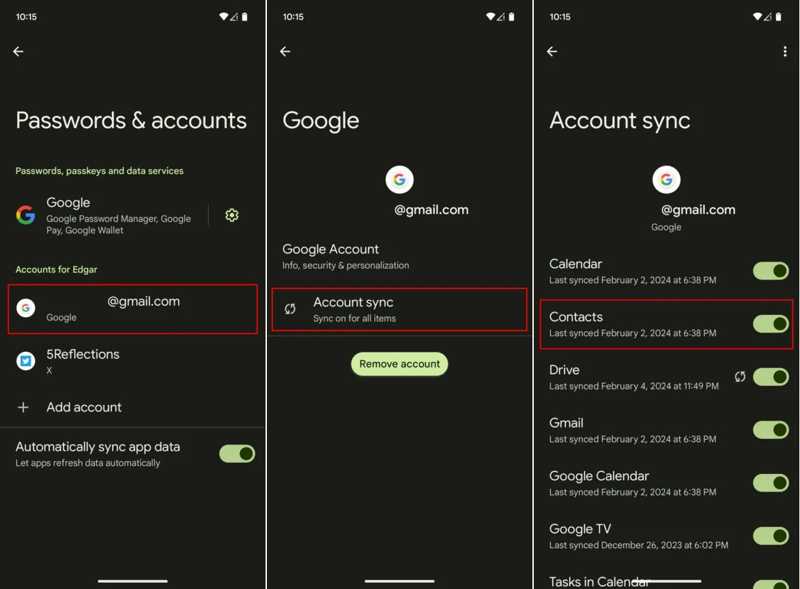
Step 7. Go to Passwords & accounts, and choose your Google account.
Step 8. Tap Account sync, and turn on Contacts.
Step 9. If your phone is online, the contacts will import to your device automatically. When it is done, you can check the last synced date and time.
Part 4: How to Move Contacts from iPhone to Samsung with Smart Switch
When you set up a new Samsung phone, the built-in Smart Switch feature allows you to shift contacts from an iPhone to a Samsung using a Lightning-to-USB-C cable. It is a quick way to get all iPhone contacts to Samsung.
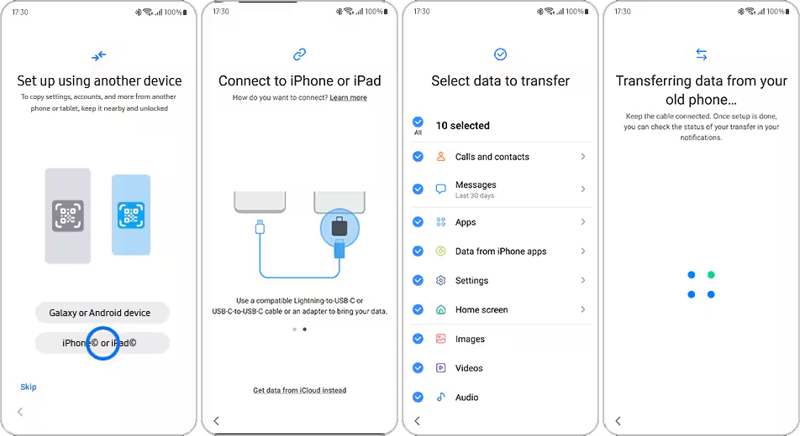
Step 1. Tap iPhone or iPad on the welcome screen.
Step 2. Link your Samsung device to your iPhone with a USB-C Lightning cable.
Step 3. If prompted, tap Trust on your iPhone screen.
Step 4. Make sure to select Calls and contacts and other desired data types.
Step 5. Finally, tap the Transfer button to begin sending contacts from your iPhone to your Samsung Galaxy.
Part 5: How to Put iPhone Contacts on Android Using Backup
Google One is another way to put contacts from iPhone to Android wirelessly. You can back up your iPhone contacts to Google One, and then restore the backup to your Android device quickly.
Step 1. Run the Google One app on your iPhone.
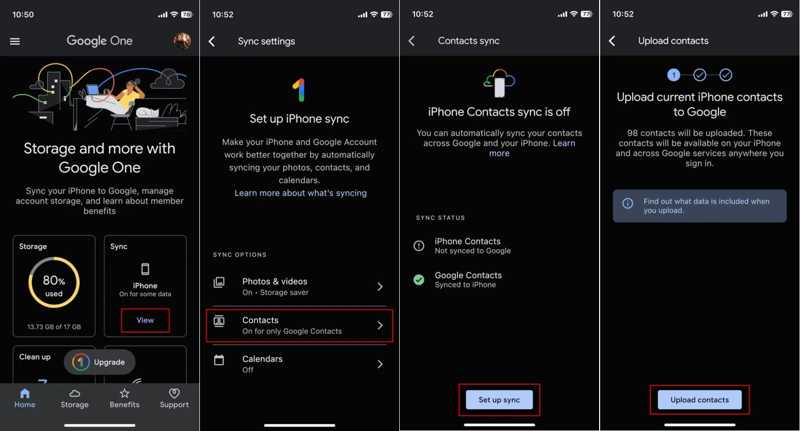
Step 2. Sign in with your account.
Step 3. Tap View in the Sync box, and choose Contacts.
Step 4. Tap Set up sync, and hit Upload contacts.
Step 5. Switch to the Android phone and factory reset it.
Step 6. When your phone restarts, follow the onscreen prompts to set it up.
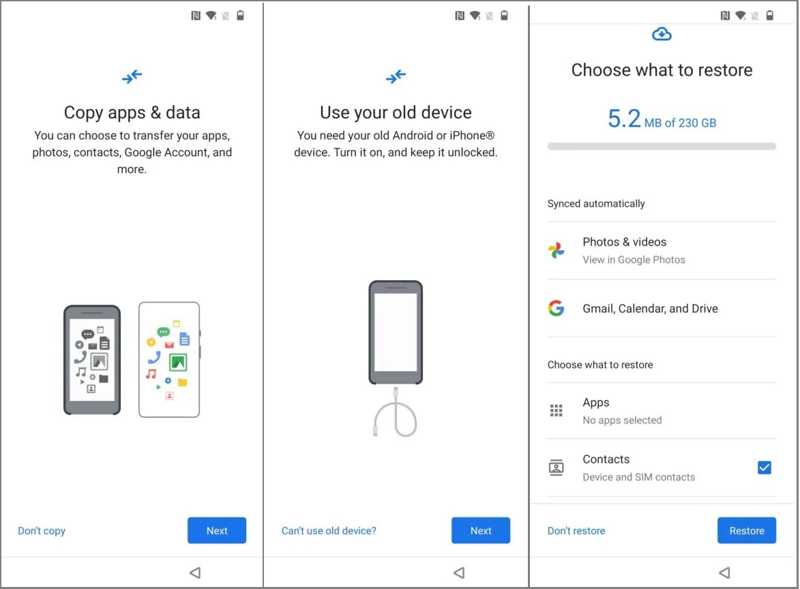
Step 7. When you are asked to Copy apps and data, tap Next, and pick Can’t use old device.
Step 8. Log in to the same Google account and select a backup.
Step 9. Finally, tap Restore.
Conclusion
This guide explained how to transfer iPhone contacts to Android with cables or wirelessly. Apeaksoft MobieTrans is the direct method of contact migration. iCloud and Google Contacts allow you to sync contacts through an internet connection. When setting up a new Samsung device, Smart Switch and Google One backup are the best options.
Related Articles




