How to Transfer Photos from Your iPhone to Android

According to our research, more and more people are multi-device users. Some people have both an iPhone and an Android device in order to get the advanced functionalities. That makes photo migration an essential skill. Plus, if you upgrade from an iPhone to an Android phone, you also need to transfer photos from the iPhone to the Android. Fortunately, you can learn five proven methods to access your photos across iOS and Android.
PAGE CONTENT:
- Part 1: How to Transfer Photos from iPhone to Android Directly
- Part 2: How to Send iPhone Photos to Android with Google Photos
- Part 3: How to Transfer Photos from iPhone to Android via Cables
- Part 4: How to Transfer iPhone Pictures to Android Using Instant Messaging Apps
- Part 5: How to Share iPhone Photos to Android via Email
Part 1: How to Transfer Photos from iPhone to Android Directly
Apeaksoft MobieTrans is a powerful way to send photos from iPhone to Android without losing quality. It links your iPhone and Android phone with USB cables. More importantly, it transcodes your photos automatically, according to the target device. It integrates advanced technology to protect your photo quality.
The Quick Way to Transfer iPhone Photos to Android Directly
- Send photos from iPhone to Android quickly.
- Preview your iPhone photos before transferring.
- Protect photo quality during the process.
- Integrate bonus features, like a HEIC converter.
- Support a wide range of iPhones and Android models.
Secure Download
How to Transfer Photos from iPhone to Android Directly
Step 1. Link your iPhone and Android
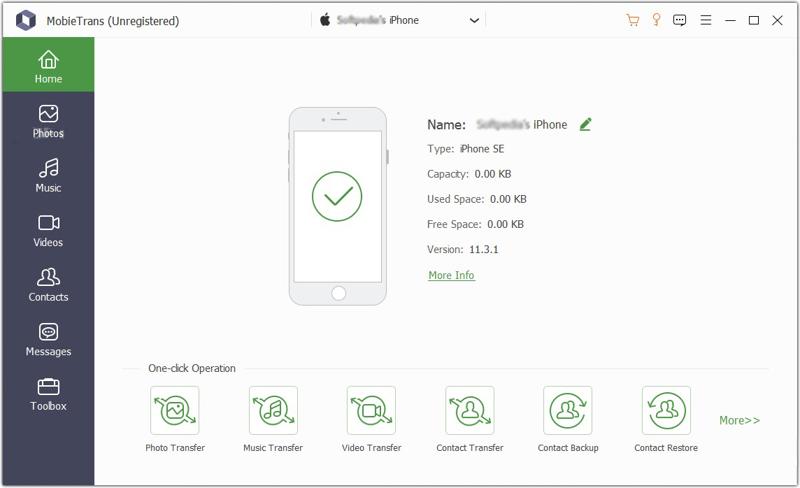
Start MobieTrans once you install it on your computer. Connect your iPhone and Android device to your computer with compatible cables. The software will detect your devices immediately. If prompted, tap Trust on your screen to trust this computer.
Step 2. Preview iPhone photos
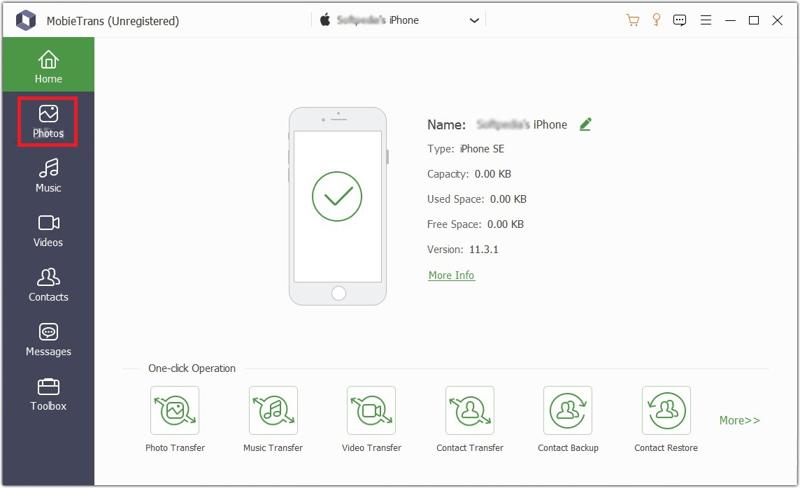
Pull down the top option and choose your iPhone. Then, go to the Photos tab on the sidebar. Here, you can view all photos on your iPhone. You can quickly locate specific photos with the date filter or album.
Step 3. Send iPhone photos to Android without losing quality
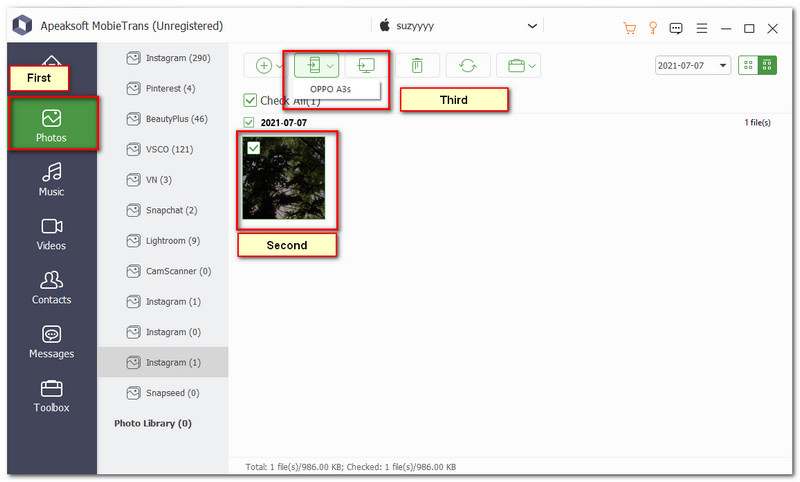
Check the photos you want to transfer, click the Phone button on the top ribbon, and choose your Android device. When it is done, disconnect the two devices.
Part 2: How to Send iPhone Photos to Android with Google Photos
Many people use Google Photos to back up their photos to the cloud. It allows you to access your photos across devices. It is able to send iPhone photos to Android wirelessly. Remember that Google only gives 15GB of free storage to each account.
Step 1. Open the Google Photos app on your iPhone. If you don't have it, install the app from your App Store.
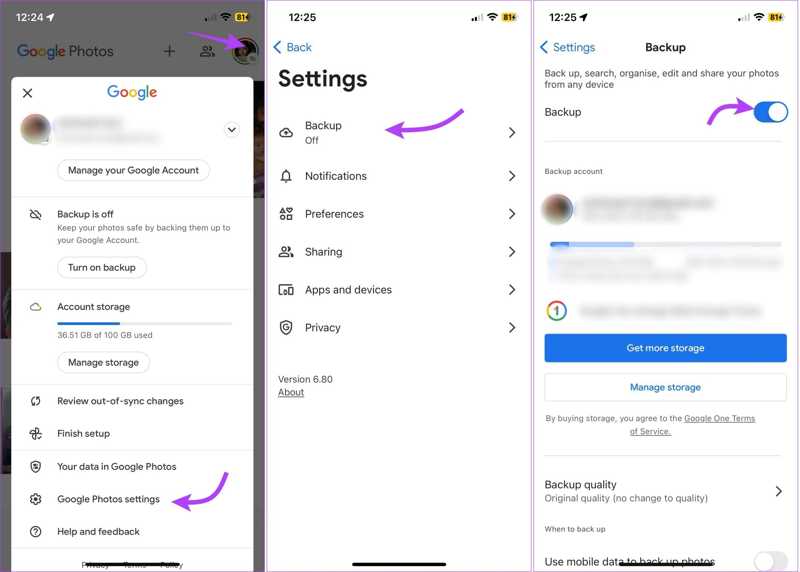
Step 2. Connect your iPhone to a Wi-Fi network.
Step 3. Sign in with your Google account.
Step 4. Tap on your profile picture.
Step 5. Choose Google Photos settings, and hit Backup.
Step 6. Toggle on Backup.
Step 7. Tap Backup quality and select Original quality.
Tip: Make sure to permit Google Photos to access your Camera Roll.
Step 8. Turn on your Android phone and open the Google Photos app.
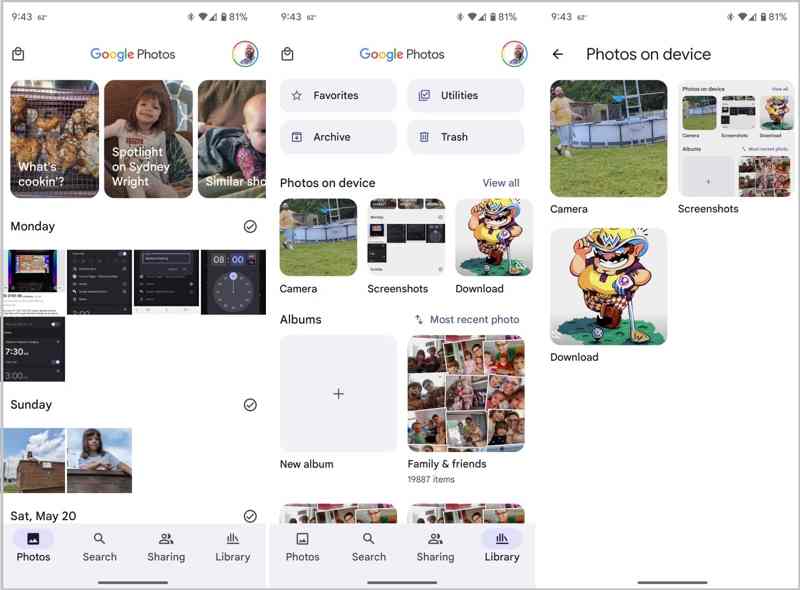
Step 9. Log in to the same Google account and view your iPhone photos.
Note: If you need to use your iPhone photos offline, download them from Google Photos.
Part 3: How to Transfer Photos from iPhone to Android via Cables
How to transfer photos from iPhone to Samsung? A simple method is using USB cables and a computer. This way works for the photos in your Camera Roll. This way cannot convert your photo format. Therefore, your iPhone photos may not be compatible with Android. You can also send videos from Android to iPhone with this method.
Step 1. Plug your iPhone into your computer with a compatible cable.
Step 2. Open a File Explorer, choose your iPhone, and go to Internet Storage.
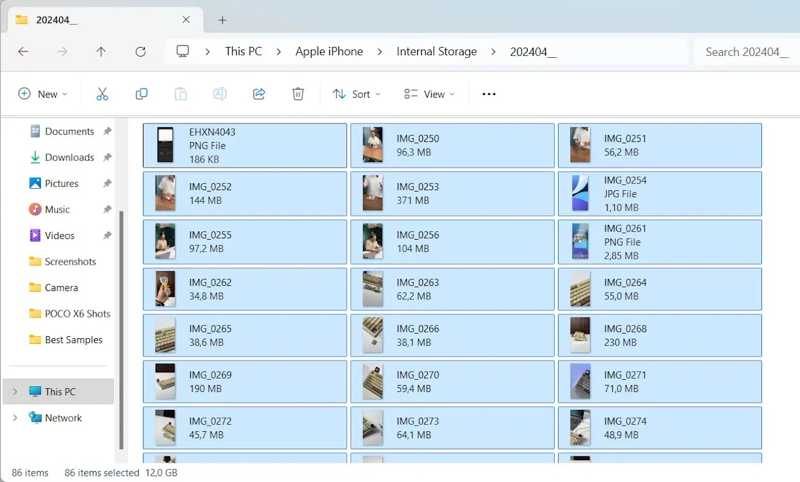
Step 3. Your iPhone photos are organized by date.
Step 4. Find and select all the photos you want to transfer, and copy them to your desktop.
Step 5. Disconnect your iPhone.
Step 6. Then, link your Android phone to your computer with a USB cable.
Step 7. When prompted, select File transfer.
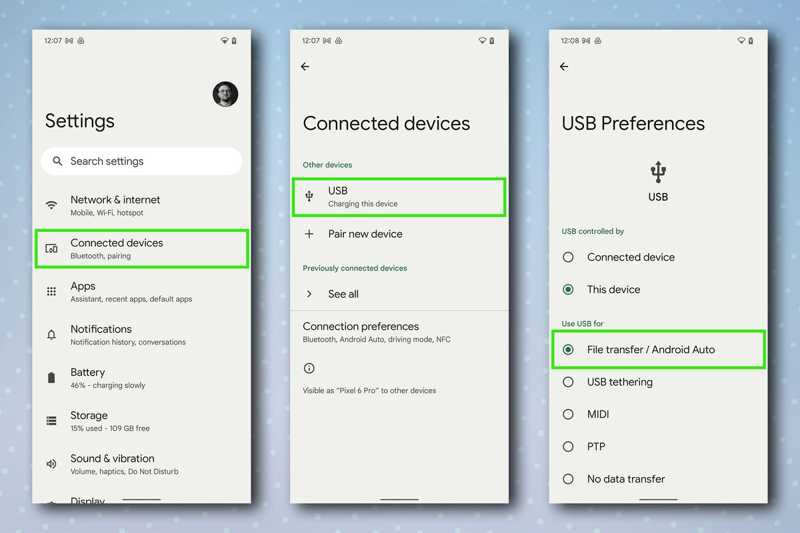
Step 8. Enter your phone in File Explorer, and choose DCIM.
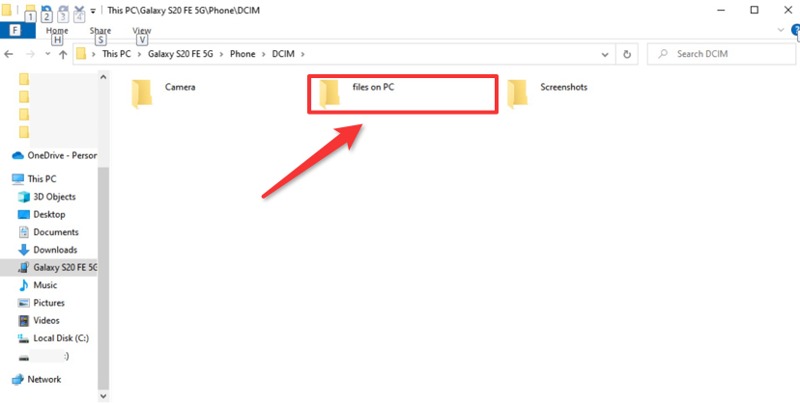
Step 9. Locate a desired folder, and transfer pictures from iPhone to Android.
Part 4: How to Transfer iPhone Pictures to Android Using Instant Messaging Apps
Another way to send photos from an iPhone to an Android is an instant messaging app, such as WhatsApp. It allows you to share up to 100 photos at a time, but it is slow. Therefore, it is a good option to transfer several photos.
Step 1. Run the WhatsApp app on your iPhone.
Step 2. Find the desired contact and create a new conversation or open an exist conversation.
Step 3. Tap the + button next to the text box and choose Photo & Video Library.
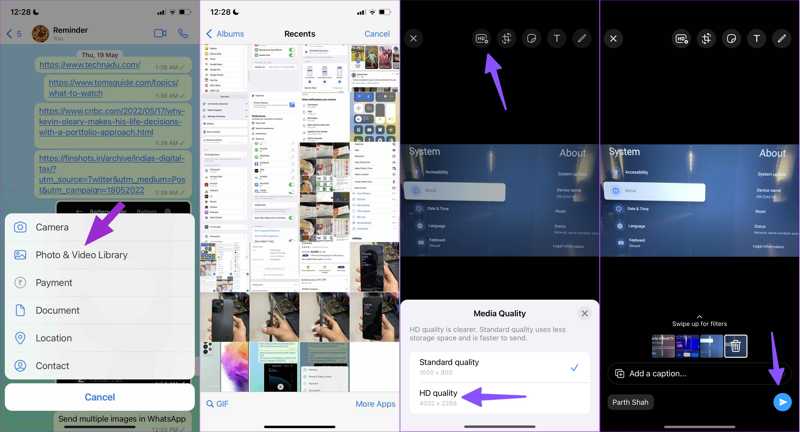
Step 4. Select the photos you want to share in your Camera Roll, and confirm it.
Step 5. Select HD Quality if prompted, and tap Send.
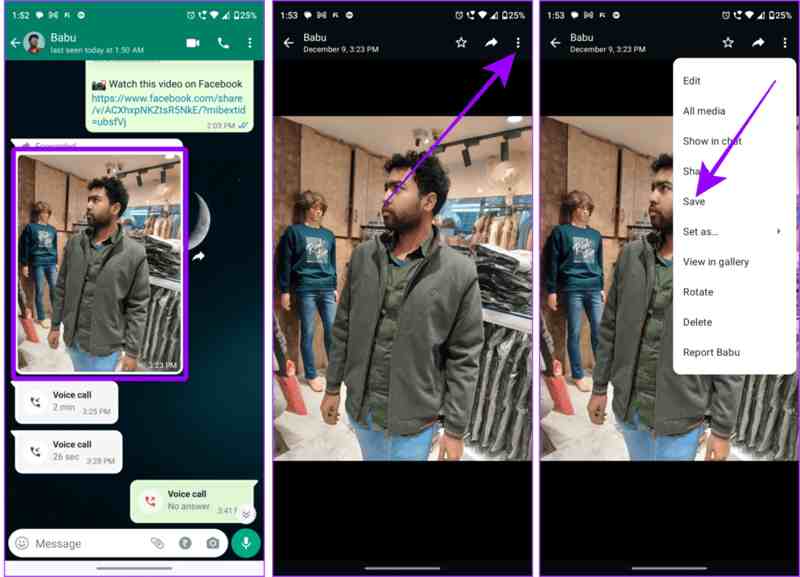
Step 6. Now, open WhatsApp on your Android phone, and receive iPhone photos.
Step 7. Then, tap a photo, hit the More button, and choose Save to download it.
Part 5: How to Share iPhone Photos to Android via Email
Email enables you to share photos from iPhone to Android wirelessly. You can add the photos as attachments and send them to another platform. However, this way won't transcode your photos.
Step 1. Open your Photos app on iPhone.
Step 2. Go to the Library album and select the desired photos.
Step 3. Tap the Share button and choose Mail.
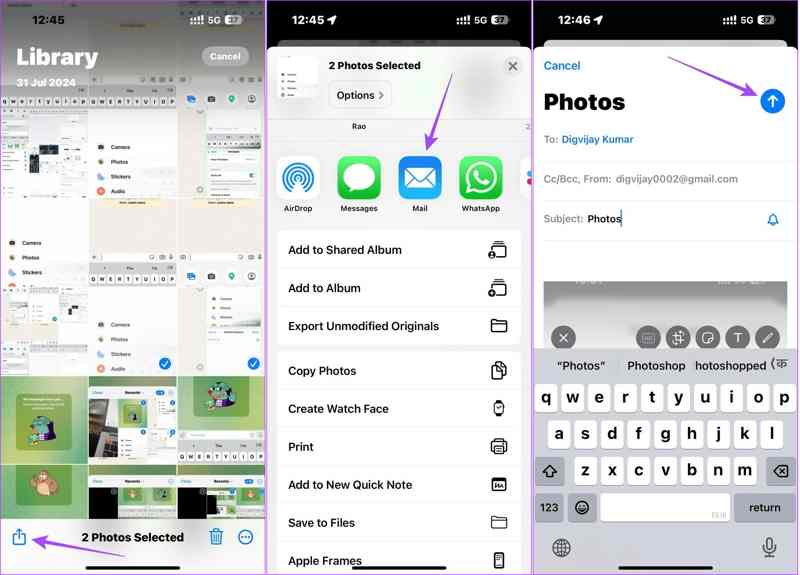
Step 4. Then, input your email address and leave a subject.
Step 5. Tap the Send button.
Step 6. Next, switch to your Android device and access your email in a mail app or browser.
Step 7. Open the last email and download the photo attachment.
Note: All email providers have a maximum message size. Therefore, this method cannot be used for sharing too many photos.
Conclusion
This guide provided five methods to send photos from an iPhone to an Android. Google Photos, instant messaging apps, and email are wireless methods for photo migration between iOS and Android. USB cables allow you to transfer photos without a network. Apeaksoft MobieTrans is a direct way to send your photos without losing quality. You can pick an appropriate method based on your needs.
Related Articles