

5 Proven Ways to Transfer Music from iPhone to iPad

For a more stable and enjoyable listening experience, you may prefer playing music on an iPad instead of an iPhone. But what if there is no music on your iPad and all your favourite songs are stored on your iPhone? That's when you need to transfer music from iPhone to iPad. This post will show you 4 workable ways to make it with ease!
PAGE CONTENT:
- Part 1: How to Transfer Music from iPhone to iPad Without iTunes
- Part 2: How to Get Music from iPhone to iPad via Apple Music Sync
- Part 3: How to Put Music from iPhone to iPad from iTunes Store Purchases
- Part 4: How Do I Move Music from iPhone to iPad with AirDrop
- Bonus: Can I Transfer Music from iPhone to iPad via Bluetooth
A Quick Overview for Your Reference
| Method | Require Computer | Require Apple ID | Support Non-Purchased Music | Overwriting | Best for | Ease of Use |
| Apeaksoft iPhone Transfer | Yes | No | Yes | No | Transfer music selectively Keep metadata impact Manage music files | Easy |
| Apple Music Sync | No | Yes | No | No | Apple Music subscribers | Very Easy |
| iTunes Store Purchase | No | Yes | No | No | Redownloading bought songs | Very Easy |
| AirDrop | No | No | Yes | No | Sending a few songs quickly | Easy |
Part 1: How to Transfer Music from iPhone to iPad Without iTunes
Apple doesn't offer a direct way to move music from an iPhone to an iPad, especially if the songs are not purchased from the iTunes Store. Fortunately, you can still put music from an iPhone on an iPad. Professional tools like Apeaksoft iPhone Transfer are designed to move all your songs, including non-purchased ones, while keeping them intact.
Transfer Music from iPhone to iPad Easily
- Transfer iPhone music to iPad quickly with one click.
- Keep metadata like album art, play count, and other ID3 information intact.
- Transfer music, iTunes files, podcasts, ringtones, and voice memos with ease.
- Convert the format of your music files automatically to make them compatible with your device.
Secure Download
Secure Download

Step 1. Get this software from the button above.
Step 2. Connect your iPhone and iPad to the computer with two USB cables at the same time. Make sure your iPhone information is displayed on the interface. If not, click the downward arrow at the top to change the source device.
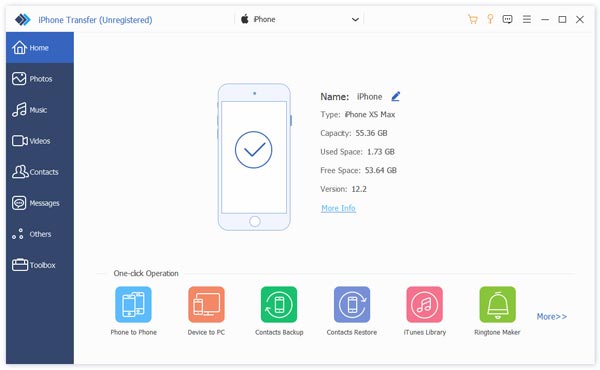
Step 3. Select Music in the left panel.
Step 4. Choose the files you want to transfer. Check them.
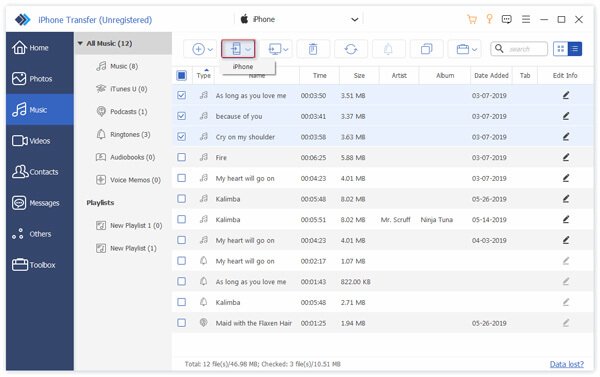
Step 5. Click the Phone button at the top and choose your iPad as the target device. Then, the transfer will be initiated.
Tips: This method is also applicable when you want to transfer iPod/iPhone music to a computer.
Part 2: How to Get Music from iPhone to iPad via Apple Music Sync
If you are an Apple Music subscriber, it is much simpler to sync iPhone music with an iPad. Apple Music will automatically sync your songs, playlists, and albums across all your devices as long as they are signed in with the same Apple ID. Detailed steps are listed below:
Step 1. Make sure your iPhone and iPad are signed in to the same Apple ID.
Step 2. Go to Settings - Apps - Music.
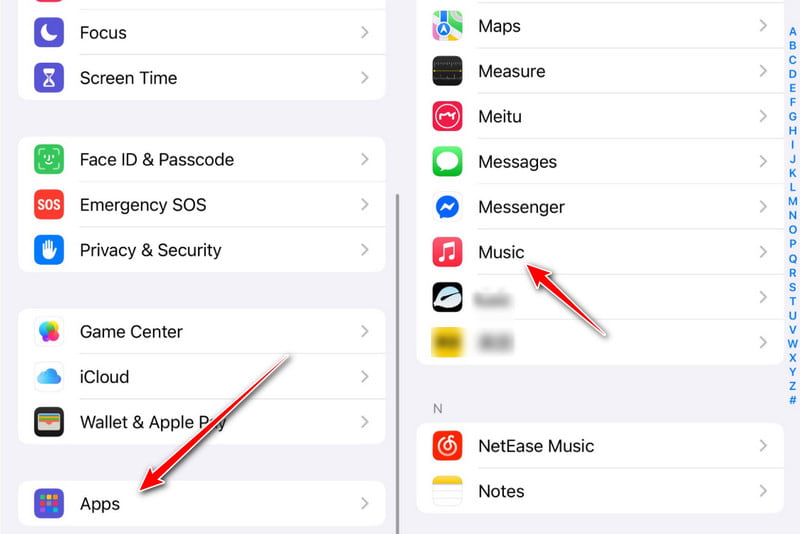
Step 3. Toggle on Sync Library.
Step 4. Open the Apple Music App on your iPad. You will see all your music files are synced.
Part 3: How to Put Music from iPhone to iPad from iTunes Store Purchases
Things will also be much easier if you've purchased music from the iTunes Store. You can simply re-download the purchased songs on your iPad.
Step 1. Open the iTunes Store app on your iPad. Make sure you log in to the same Apple ID as on your iPhone.
Step 2. Tap Purchased - Music.
Step 3. Select the Not on this iPad option.
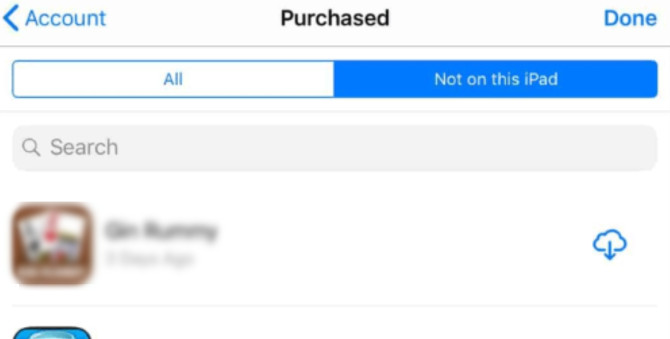
Step 4. Click Download All.
Part 4: How Do I Move Music from iPhone to iPad with AirDrop
If you only need to transfer a few songs, AirDrop can be a better choice. It allows you to wirelessly send music files from your iPhone to your iPad without cables. This method can also be used to transfer music from iPhone to iPhone. Follow the steps below to learn how to AirDrop music from an iPhone to an iPad:
Step 1. Swipe down from the top right of your screen and enable AirDrop.
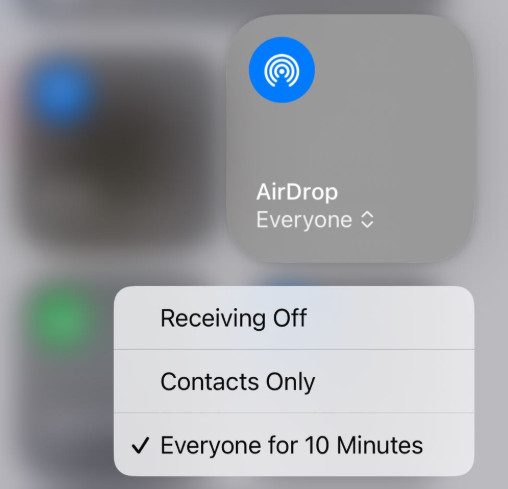
Step 2. Make sure Wi-Fi and Bluetooth are turned on.
Step 3. Open the app where the song is stored and click the music file.
Tips: Songs from Apple Music subscriptions usually can’t be shared this way.
Step 4. Tap the Share button and choose AirDrop. Select your iPad as the target.
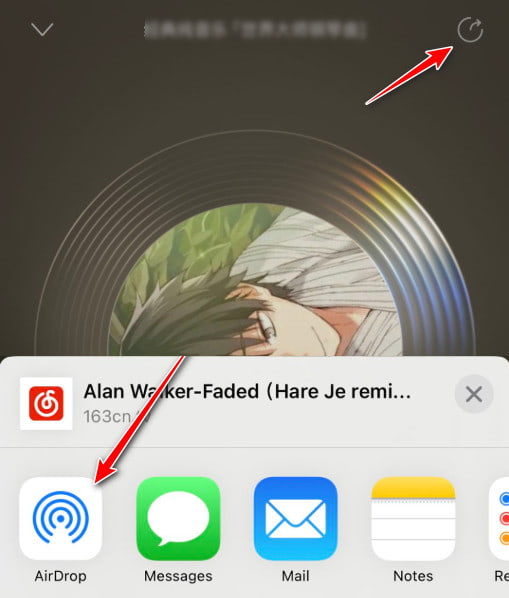
Step 5. Tap Accept on your iPad.
Bonus: Can I Transfer Music from iPhone to iPad via Bluetooth
Can you transfer music from an iPhone to an iPad using Bluetooth? Absolutely not. iOS does not support the transmission of music files via Bluetooth protocol as it does in Android devices. Many articles or videos online suggest that Bluetooth can transfer music files between Apple devices. In most cases, they confuse streaming music from an iPhone to an iPad (like using it as a wireless speaker) with actually transferring music files, which are two completely different things.
Conclusion
Transferring music from iPhone to iPad isn't complicated. This article introduced 5 simple methods, and the most suitable method simply depends on what kind of music you have and what matters most to you.
If you want to transfer music easily and completely, use Apeaksoft iPhone Transfer to transfer iPhone music (including non-purchased) to iPad while keeping the playlist, order, and metadata.
If you've subscribed to Apple Music, you can directly sync music between your iPhone and iPad.
If you want to transfer iTunes' purchased music, directly re-download it.
If you want to transfer a few songs, use AirDrop for a wireless transfer.
Related Articles




