

One-Stop Solution - Transfer Messages Between Android and iPhone

Switching phones? Using both Android and iPhone, but don’t know how to transfer SMS messages between them? Don’t worry!
This comprehensive guide shows you how to freely transfer messages between Android and iPhone, whether it’s Android to iPhone or iPhone to Android, keeping all your important messages intact.
PAGE CONTENT:
Part 1: One-Stop Solution to Transfer SMS Between Android & iPhone
The most troublesome problem when people switch to a new phone is the message transfer. Copying the messages manually is not only complicated and time-consuming, but also results in data loss due to different operation systems. For this purpose, Apeaksoft MobieTrans provides an easy and effective solution to transfer SMS between Android & iPhone with one click.
Transfer Data Between Android and iPhone Seamlessly
- Move messages from Android to iPhone easily.
- Copy messages from iPhone to Android with one click.
- Transfer text messages between Android and iPhone selectively.
- Preview the detailed message info before the transfer.
- 100% safe and virus-free.
- Your personal data will only be used for the transfer and will never be misused.
Secure Download
Step 1. Press the above button to download this professional data transferring tool for free.
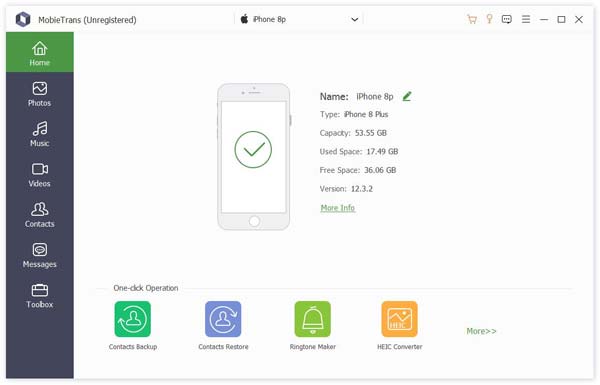
Step 2. Connect your Android and iPhone devices to the computer.
Step 3. Choose the device you want to transfer messages from. To do so, you can click the downward arrow at the top.
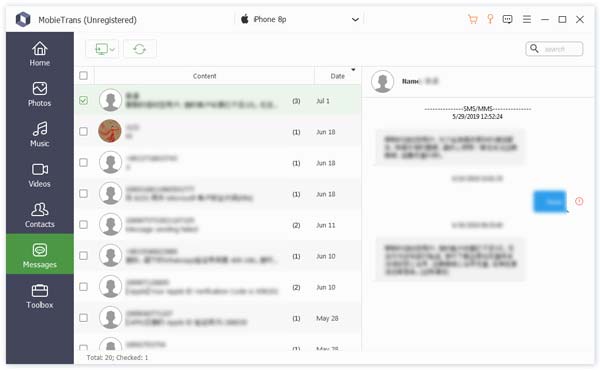
Step 4. Then, click the Messages tab in the left panel. Then, you will see all the SMS messages from your source device, including where they are from and their detailed content.
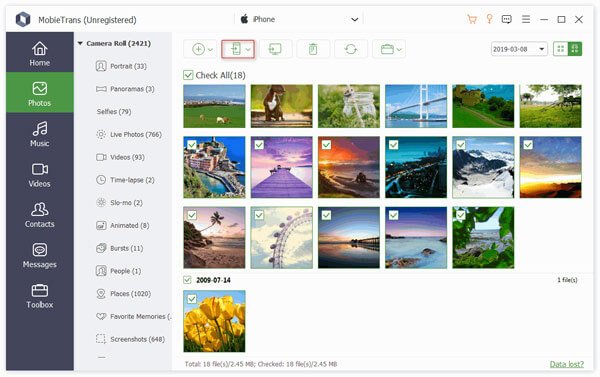
Step 5. Check your desired one(s) in the beginning box.
Step 6. Click the phone pattern at the top, and click your target device to transfer the messages to.
Tips: Besides exporting SMS from Android to iPhone and vice versa, this software also enables you to migrate WhatsApp messages from Android to iPhone.
Part 2: How to Transfer Messages Using Move to iOS [Android to iPhone]
Not everyone wants to import SMS from Android to iPhone using a computer. If you prefer the traditional method, Apple's official Move to iOS tool offers the most straightforward way. With a Wi-Fi connection, data such as text messages, contacts, and photos can be transferred between the two devices. However, please note that this method requires the iPhone to be brand new or in a reset state.
Before You Start
• Make sure your iPhone is new or has been factory reset.
• Both phones are connected to Wi-Fi.
• Ensure both devices have sufficient battery power.
Use Guide
Step 1. Open Google Play and download Move to iOS on your Android phone.
Step 2. Set up your iPhone. On the Apps & Data page, choose From Android.
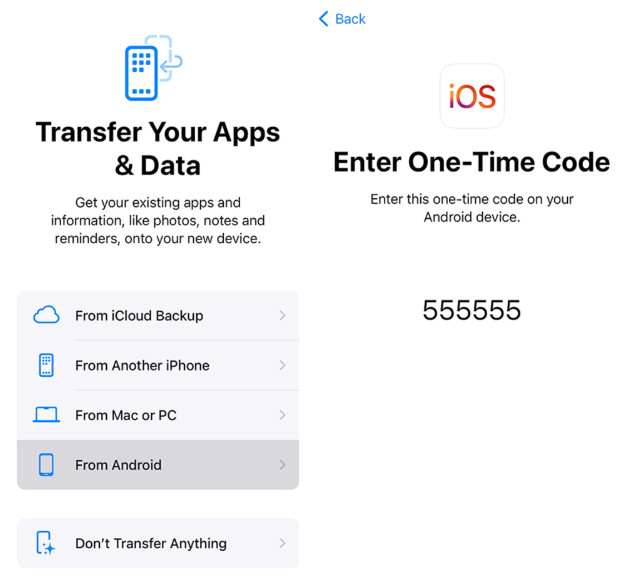
Step 3. Tap Continue, and you will see a 10-digit or 6-digit code.
Step 4. Launch Move to iOS on your Android phone and review the terms and conditions. Tap Agree and enable relevant permissions if needed.
Step 5. Enter the code on your iPhone screen.
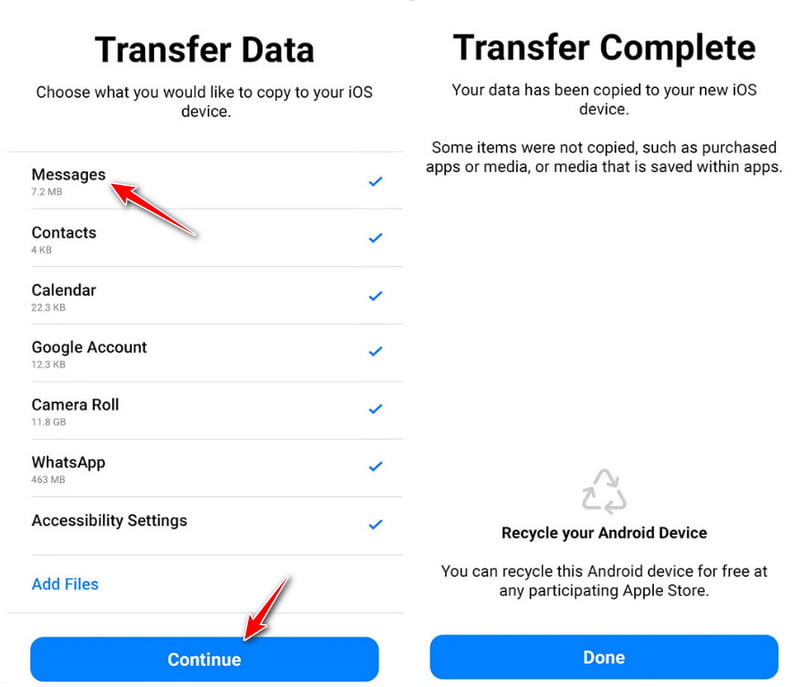
Step 6. Check Messages and click Continue to move messages from Android to iPhone.
Tips:
1. Do not perform on any device during the process.
2. The more messages you have, the longer it will take.
Part 3: How to Transfer Text Messages via Switch to Android [iPhone to Android]
Transferring messages from iPhone to Android may be tricky. Fortunately, Google provides an official data transfer tool called Android Switch, which allows you to move your messages and other data wirelessly during the setup of your new Android device.
Before You Start
• Make sure your Android phone is new or ready for setup.
• Ensure both devices are connected to a stable network.
• Make sure both devices have enough battery.
• Make sure iMessages and FaceTime are turned off on your iPhone.
• Prepare a USB-C to Lightning cable. Wireless transfer required iOS 15+ and Android 12+.
Use Guide
Step 1. Download Android Switch in App Store on your iPhone.
Step 2. Set up your Android phone and select Copy from iPhone on the Copy apps &data screen.
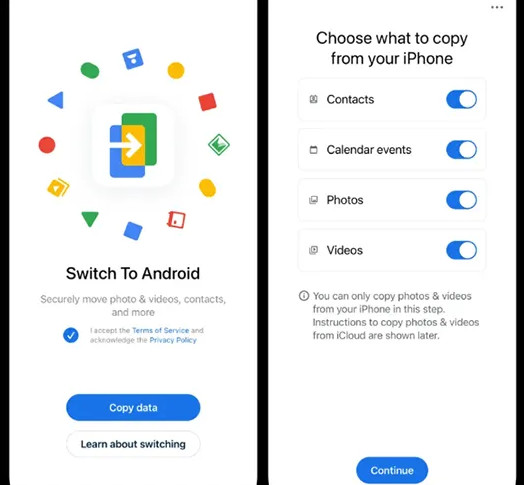
Step 3. Open Android Switch on your iPhone and scan the QR code displayed on your Android phone to build a connection.
Step 4. Select Messages and start to copy messages from iPhone to Android.
Conclusion
Now you've learned how to transfer text messages from Android to iPhone, and vice versa. This post has shared 3 proven ways for messaging between Android and iPhone. Among them, we recommend third-party software such as Apeaksoft MobieTrans the most, because it does not require your phone to be brand new or factory reset.
Related Articles




