

[Latest] How to Send Videos from iPhone to iPhone in 5 Proven Ways

Are you still troubled by how to transfer videos from iPhone to iPhone? This article will list 5 practical methods and compare their applicable scenarios, advantages, and disadvantages, aiming to help you make a choice within 3 seconds. Read more!
PAGE CONTENT:
- Part 1: How to Transfer Videos from iPhone Using Desktop Software [Fast & Lossless]
- Part 2: How to Send Long Videos Using AirDrop
- Part 3: How to Transfer Videos Between iPhones Using iCloud
- Part 4: How to Send Videos from iPhone to iPhone via iMessage
- Part 5: How to Transfer iPhone Videos to iPhone Using Chat Apps
| Method | Tool | Best for | Pros | Cons |
| Professional Desktop Software | Apeaksoft iPhone Transfer | Large or multiple video files | Fast, stable, preserves original quality, supports bulk transfer | Requires computer and installation |
| Wireless Local Transfer | AirDrop | Nearby iPhones, uncompressed video | No computer needed, fast, preserves original quality, simple | Devices must be nearby, may fail if screen locks or interference |
| Cloud Sync | iCloud | Automatic sync across Apple devices, backup videos | Hands-free, accessible on all devices, works over distance | Requires iCloud storage, depends on network speed, large videos may take long |
| Instant Messaging Sending | iMessage | Quick short clips between iPhones | Built-in app, no installation, easy | Video compressed, file size limited, requires network |
| Cross-Platform Chat Apps | Chat Apps | Sending videos with friends | Works across devices, convenient, widely used | May compress video, file size limits vary, requires internet |
Part 1: How to Transfer Videos from iPhone Using Desktop Software [Fast & Lossless]
If you need to manage or move large videos in a large number, at high speed and without quality loss, professional tools like Apeaksoft iPhone Transfer must be your best choice.
Transfer Large Videos in Bulk Quickly
- Lossless transmission without compression.
- Selectively transfer videos between iPhone.
- Equipped with a built-in format conversion function.
- Manage the transferred videos just like managing folders on a computer.
- Besides transferring videos from one iPhone to iPhone, you can also transfer videos from an iPhone to Windows/Mac.
Secure Download
Secure Download

How to Send Long Videos from iPhone to iPhone
Step 1. Launch the software and connect your two iPhones to your computer with USB cables.
Step 2. Check the on-screen device information. Make sure it‘s your source iPhone. If not, click the downward arrow at the top to change.
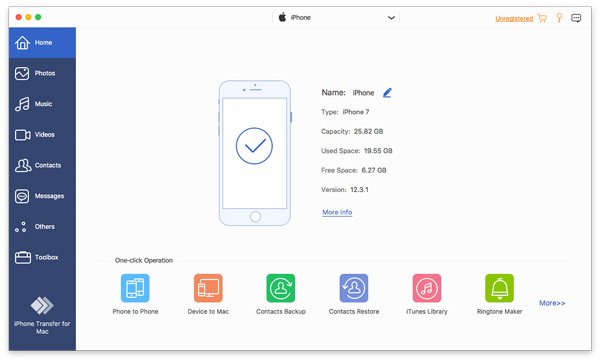
Step 3. Select the Videos option in the left panel. Then, you will see all videos on your source iPhone. Preview and check the ones you want to transfer.
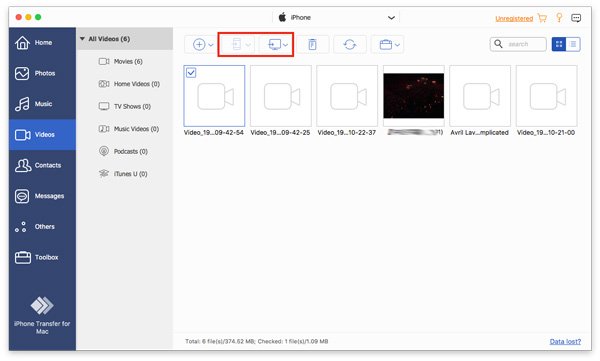
Step 4. Once selection is completed, click the iPhone pattern at the top. Make sure the device name is your target iPhone.
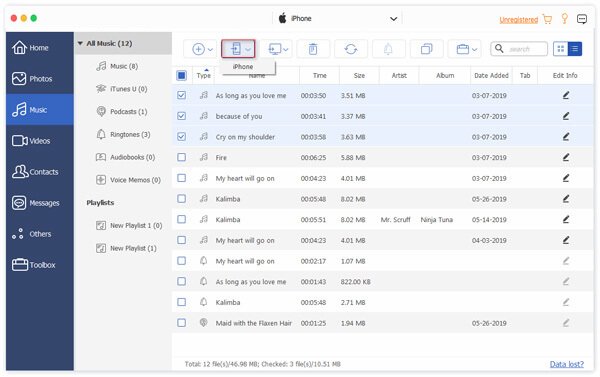
Tips: You can also use this software to transfer videos from iPhone to Mac.
Part 2: How to Send Long Videos Using AirDrop
If you want to send long videos quickly without sacrificing quality, AirDrop is the best local wireless solution for transferring long videos between nearby Apple devices without compression. Note that you should keep both devices close (within 9-10 meters) and unlocked during the transfer.
How to Send Videos from iPhone to iPhone Losslessly with AirDrop
Step 1. Ensure both iPhones have enabled Wi-Fi, Bluetooth, and AirDrop.
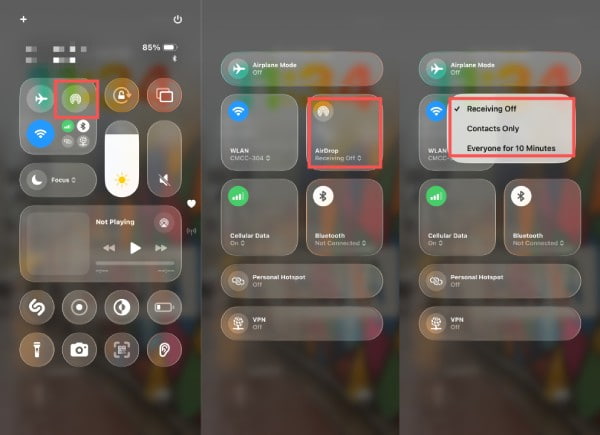
Step 2. Go to Photos to select videos, tap the Share button.
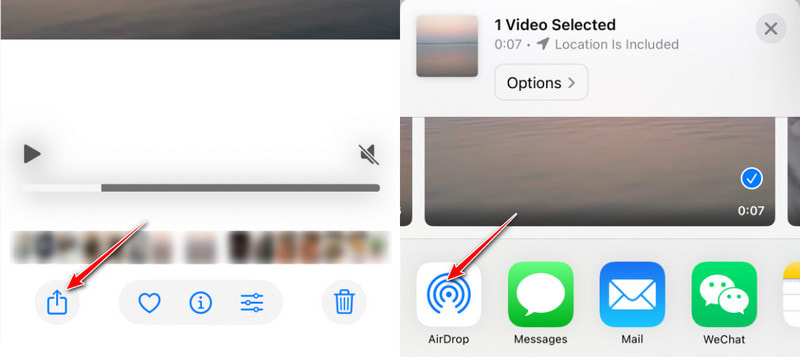
Step 3. Tap the recipient's device avatar in the AirDrop section.
Step 4. Tap Accept on another iPhone. Then, videos will be transferred successfully between the two devices.
Tips: You can also place the tops of the two iPhones together for quick identification and transfer.
Part 3: How to Transfer Videos Between iPhones Using iCloud
iCloud makes it easy to transfer videos between iPhones by syncing your media library through the cloud. As long as both devices are connected to the same Apple ID and have iCloud Photos enabled, video libraries will be automatically updated across devices. This method is not applicable for sharing videos with friends.
How to Move iPhone Videos by Syncing with iCloud
Step 1. Sign in to the same Apple ID on both iPhones
Step 2. Go to Settings > [Your Name] > iCloud > Photos.
Step 3. Enable Sync this iPhone and iCloud Photos.
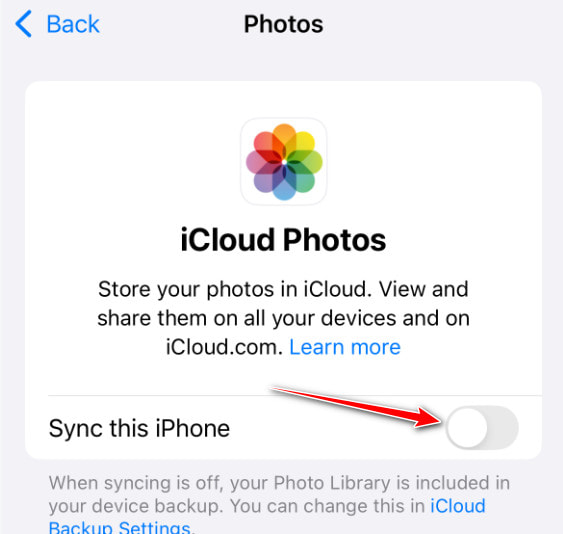
Step 4. Videos will be automatically uploaded/downloaded between devices.
Tips: Make sure your iCloud storage is sufficient.
Part 4: How to Send Videos from iPhone to iPhone via iMessage
iMessage is also a built-in messaging solution for sending videos directly between iPhones. But keep in mind that videos may be compressed during transmission.
How to Share Short Video Clips Quickly Using iMessage
Step 1. Select videos in the Photos app.
Step 2. Tap the Share button, choose the Messages option.
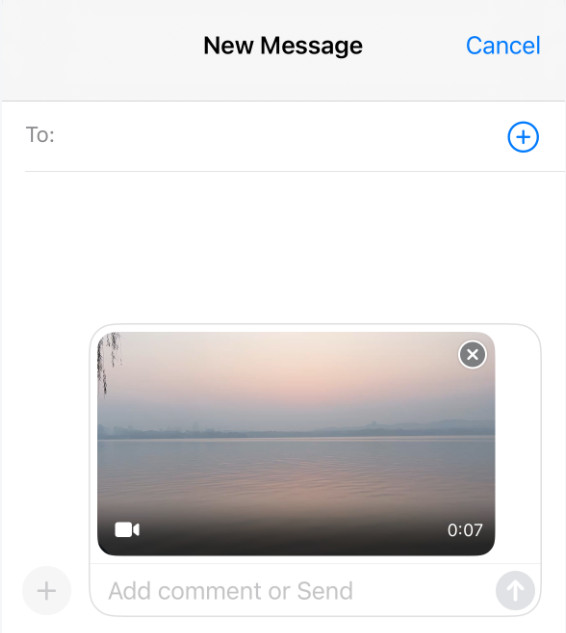
Step 3. Select a recipient from contacts or recent conversations.
Step 4. Tap Send.
Part 5: How to Transfer iPhone Videos to iPhone Using Chat Apps
Cross-platform messaging apps like WhatsApp, Telegram, and WeChat are widely used around the world to share large video files quickly. You can use either of them to send iPhone videos to your friends across different devices and operating systems with less compression.
How to Send iPhone Videos Using Chat Apps
Step 1. Go to any chat app (e.g., WhatsApp, Telegram, or Signal) and open a conversation.
Step 2. Tap the attachment or media button.
Step 3. Choose the video from your iPhone's Files or Photos app and send it.
Tips:
Telegram: It supports the upload of up to 2GB for a single file and stores it in the cloud, thus not occupying the phone's storage space.
WhatsApp: It allows for the transmission of larger videos (usually up to 100MB), but the original Video option will severely compress the video.
Signal: It supports the sending of larger files, but the size limit is usually stricter than that of Telegram.
You can also send large video files via email using the same principle.
Conclusion
Until now, we have provided a detailed overview of various methods for transferring videos between iPhones in different scenarios, including official tools, third-party software, and cross-platform cloud services.
Among them, we highly recommend Apeaksoft iPhone Transfer. Not only does it enable fast and lossless large file transfer, but it also offers flexible management capabilities across devices and systems.
Hope this article can help you find the most suitable video transmission method for yourself!
Related Articles




