

How to Transfer Videos from Your Android to Computer

Recording video is easier than ever before. Currently, almost all Android devices come with excellent lenses. Any time you want to keep memories, you just need to take out your phone, open a camera app, and tap the Shoot button. The new problem is that you find your memory storage is exhausted quickly. The good news is you can transfer videos from your Android device to a computer and then free up space.
PAGE CONTENT:
Part 1: A Quick Way to Transfer Videos from Android to Computer
If you care about video quality, Apeaksoft MobieTrans is a good option to transfer videos from Android to PC and Mac. It integrates AI technology to protect your video quality while managing and transferring it.
A Quick Way to Transfer Videos from Android to Computer
- Sync videos between Android and a computer quickly.
- Keep your video quality while transferring.
- Support a wide range of video formats.
- Manage Android videos on a computer.
- Compatible with almost all Android brands.
Secure Download
How to Transfer Videos from Android to PC
Step 1. Detect your phone
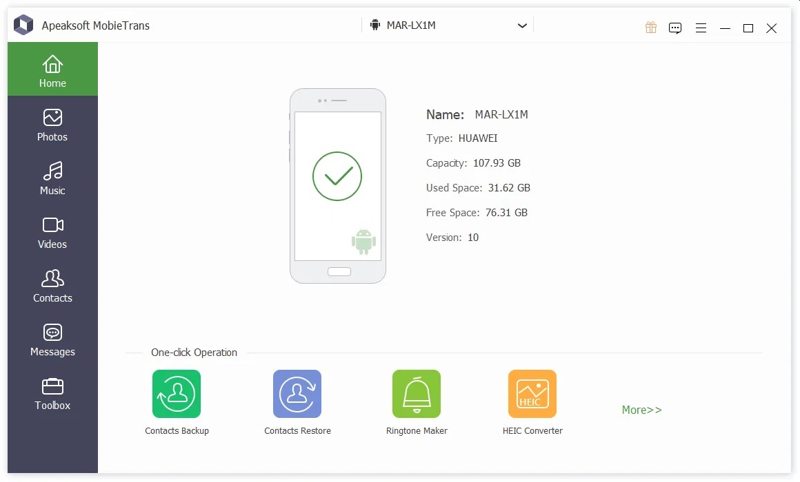
Launch the video transferring tool once you install it on your PC. There is another version for Mac. Connect your phone to your PC with a USB cable. Make sure to enable the USB Debugging mode on your phone.
Step 2. Preview videos
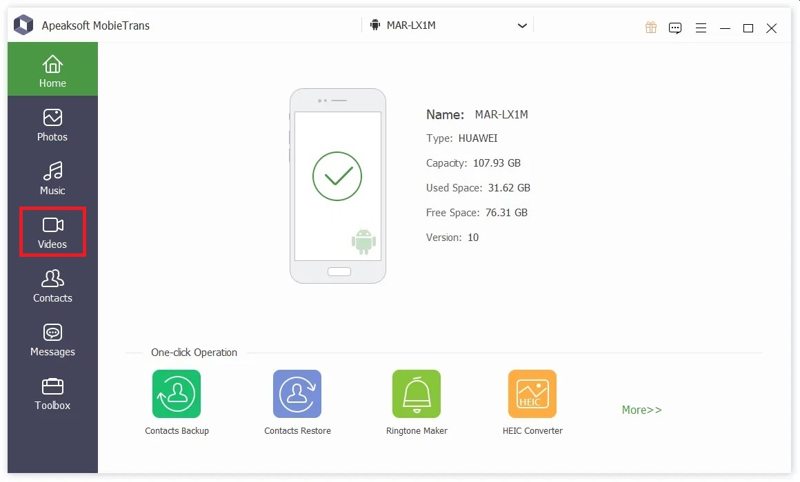
After your phone is detected, go to the Videos tab on the left sidebar. Now, you can view all videos on your Android device.
Step 3. Transfer Android videos to PC
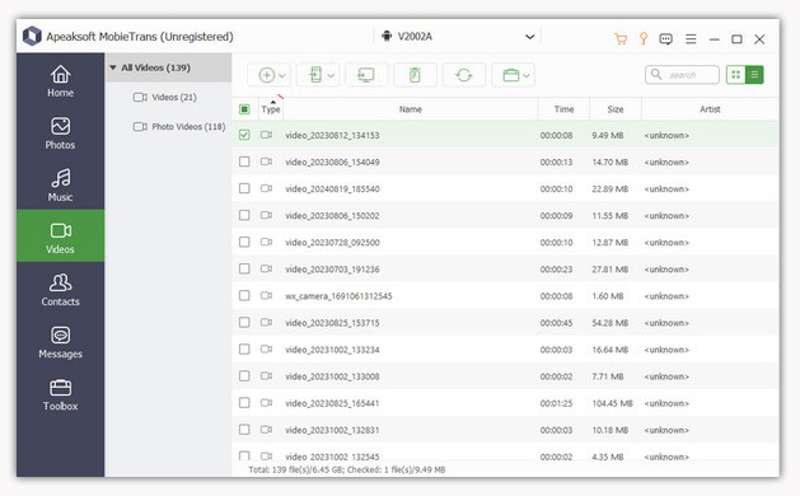
Select all videos you want to transfer, click the PC button on the top ribbon, and choose Export to PC. Navigate to the output folder, and confirm it. You can also transfer photos from Android to computer.
Part 2: How to Transfer Android Videos to a Computer by Cloud Storage
With cloud storage, such as Google Drive, you can transfer Android videos to a computer wirelessly. This way works for both a PC and a Mac computer. Here are the steps to back up your Android videos:
Step 1. Run the Google Photos app on your phone.
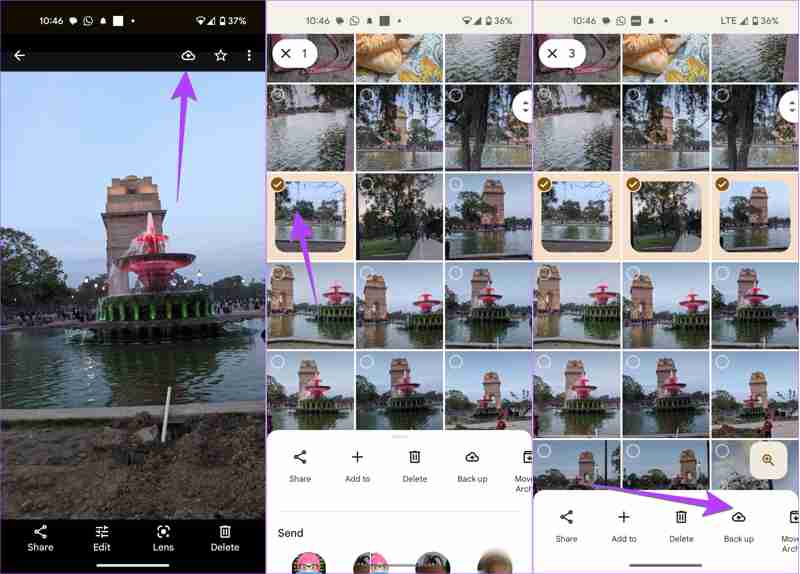
Step 2. Tap the Upload button and select the desired videos.
Tips: Permit Google Photos to access your Gallery.
Step 3. Next, tap the Back up button at the bottom.
Step 4. Turn to your computer, and access photos.google.com in a browser.
Step 5. Log in with the same account.
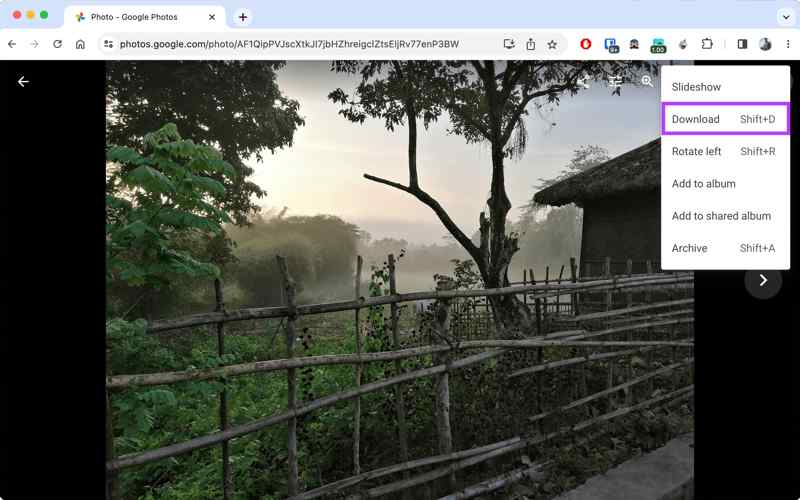
Step 6. Find and select the videos.
Step 7. Click the More button with a three-dot icon, and choose Download.
Tips: You can find the video in the Download folder.
Part 3: How to Move Videos from Android to PC with a Cable
Android is an open-source OS. It allows you to access the memory. In other words, you can link your phone to your PC with a compatible cable for transferring videos from your Android to your PC directly.
Step 1. Run the Settings app on your phone.
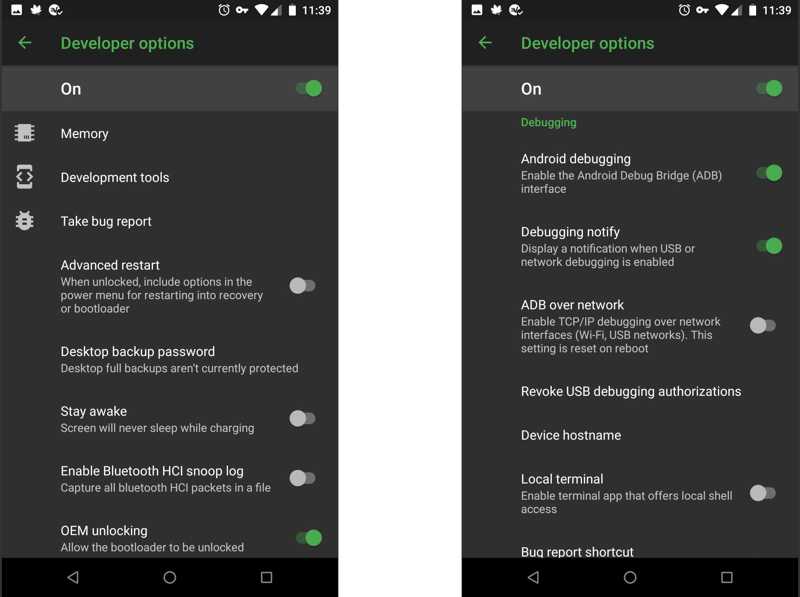
Step 2. Go to Developer options, and toggle on the USB Debugging mode.
Step 3. Connect your phone to your PC with a USB cable.
Step 4. If prompted, choose File transfer.
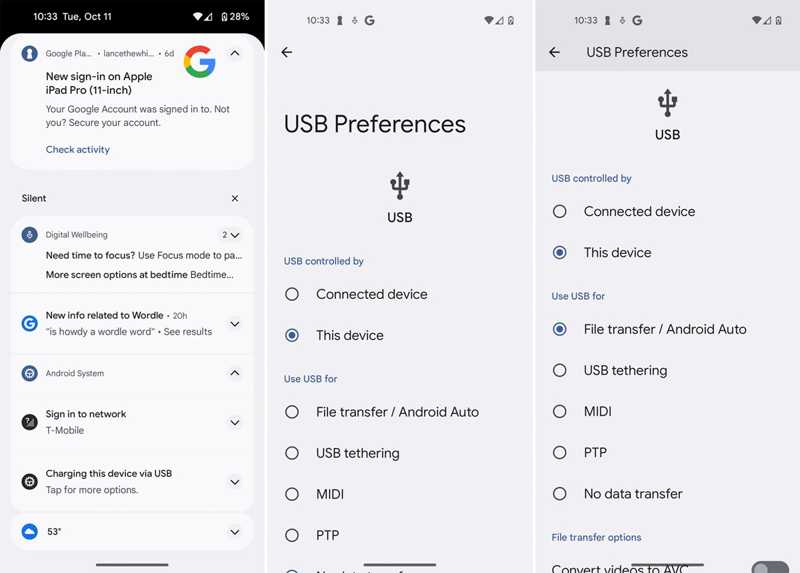
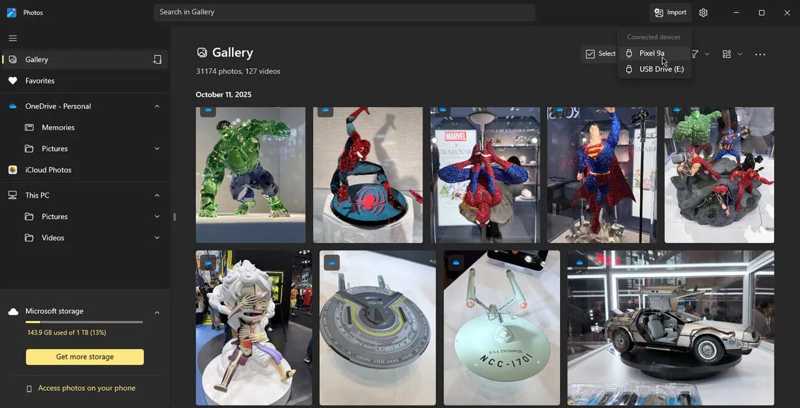
On Windows 11/10
Step 5. Run the Photos app, click Import, and pick your phone.
Step 6. Select the desired videos and click Add N Items.
On Windows 8/7/XP/Vista
Step 7. Click your phone in a File Explorer.
Step 8. Locate the videos and copy and paste them to your hard drive.
Part 4: How to Download Android Videos to a Computer via Email
You can also transfer Android videos to a Mac or PC using your email. This way is suitable for migrating a video or a few videos since all email providers have a maximum size. Gmail, for example, allows you to send a message up to 25MB at a time. You can also transfer contacts from Android to iPhone with this method.
Step 1. Open the email app on your phone.
Step 2. Go to the Inbox and tap the New button to enter the new email screen.
Step 3. Enter your email address in the To field and write down a subject.
Step 4. Tap the Attachment button and select the videos.
Step 5. Hit the Send button.
Step 6. Turn to your computer, and access your email in a browser or client software.
Step 7. Read the new email and download the videos to your hard drive.
Tips: If your videos are large, you may need a cloud service, such as Google Drive.
Conclusion
This guide shared four methods to transfer videos from Android to PC wirelessly or with a cable. A cloud service allows you to send videos from your Android phone to another digital device, like a Mac or a PC. Email is another way of video migration between Android and a computer. If you are using a PC, you can download Android videos to your hard drive with a USB cable. Apeaksoft MobieTrans is an easy method to sync Android videos.
Related Articles




