

How to Figure Out Screen Time Password - Complete Guide for Kids

Wondering how to figure out Screen Time password when it's managed through Family Sharing? Want to remove the parental control without a password? Or maybe you set the Screen Time passcode yourself but forgot it accidentally - how to change app time limits?
Many kids and teens face these struggles. This guide will show you all the simple, practical ways to solve this problem, helping you easily bypass your Screen Time restrictions.
PAGE CONTENT:
Part 1: Can Kid Really Figure Out Screen Time Passcode
If your parent has set up Screen Time restrictions to monitor your iPhone usage, you might be trying to find out the passcode to remove those limits. However, guessing the Screen Time passcode isn't easy, and bypassing the parental controls is even harder.
Why It’s Hard to Figure Out
That's because Screen Time is a built-in Apple feature designed with strong privacy and parental control protections. Here are a few reasons why finding out the Screen Time passcode is so difficult:
• After multiple failed password attempts, you may get locked out of your iPhone temporarily.
• Screen Time does not offer hints, security questions, or backup codes to help you recover the passcode.
• The Screen Time passcode is separate from your device passcode. Even if you can unlock the iPhone, you still won't be able to change or remove the Screen Time passcode.
When It Might Be Possible
Don't be too disappointed, there are a few specific situations where you might have a chance. If Screen Time was set up using an Apple ID, and you can reset the passcode with that Apple Account. But this method only works if Family Sharing is not enabled. If you're in a Family Sharing group, only the organizer can change the Screen Time password.
Part 2: How to Reset Screen Time Password as a Kid
If you cannot figure out the Screen Time passcode, don't worry - there are a few reliable ways to reset it, depending on how the restrictions were set up. Since each method works under different conditions, it's necessary to check your setup first and choose the one that fits best.
Way 1: Change Screen Time Passcode in Family Sharing
When to use:
Your family uses Family Sharing, and your parent is the organizer. Parents set up Family Sharing specifically to manage their children's device usage, monitor screen time, and prevent unauthorized app purchases or content access.
Because these controls are handled through the organizer's account, you won't be able to change the Screen Time passcode on your own. To make any changes, asking your parent for assistance is the most effective method.
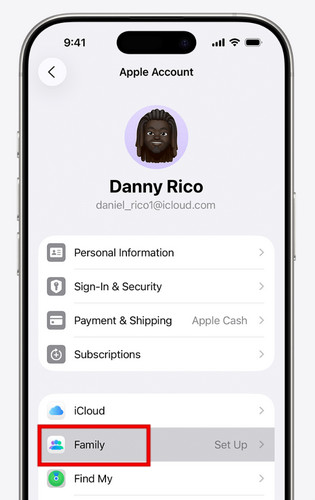
Step 1. On the Family Sharing organizer's device, go to Settings > Screen Time > Family, and tap on the kid's name.
Step 2. Under Restrictions, tap Manage Screen Time.
Step 3. Tap Change Screen Time Passcode, then choose it again to confirm. Then authenticate with Face ID, Touch ID, or the device passcode.
Step 4. Enter a new Screen Time passcode, then enter it again to confirm.
Way 2: Reset Screen Time Passcode via Apple ID
When to use:
If your device runs iOS 13.4 or later, resetting the Screen Time passcode with Apple ID is the most convenient official way. This method applies to the following common situations:
• Screen Time was set up without Family Sharing, and you know the Apple ID and password used to enable it.
• You set Screen Time by yourself, but later forgot the passcode, and you still have access to log in to your Apple ID credentials.
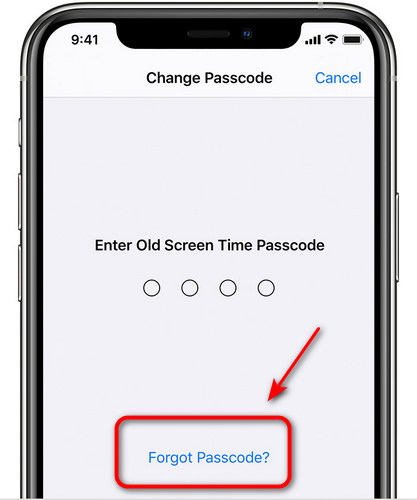
Step 1. Go to Settings > Screen Time > Change Screen Time Passcode > Forgot Passcode.
Step 2. When prompted, enter your Apple ID and password used to set up Screen Time.
Step 3. After verification, you can create a new passcode and enter it twice to confirm.
Way 3: Bypass Screen Time Passcode Using iTunes/Finder
When to use:
You can bypass Screen Time passcode via iTunes or Finder if you do not know the associated Apple ID, or if Screen Time is managed through Family Sharing, where only the organizer can reset the passcode.
Note: This method will restore your iPhone to factory settings and erase all existing data on your iPhone! If the device is set up again using the same Apple ID within a Family Sharing group, Screen Time restrictions may be reapplied.
Step 1. Put your iPhone into Recovery Mode.
iPhone 8 and later (including iPhone SE 2nd Generation)
Press and release the Volume Up button quickly, followed by the Volume Down button. Press and hold the Power button until Recovery Mode appears.
iPhone 7/iPhone 7 Plus
Press and hold the Volume Down button and Side button at the same time until the Recovery Mode screen appears.
iPhone 6S and earlier (including iPhone SE 1st Generation)
Press and hold the Home and Side buttons together until the Recovery Mode screen shows up.
Step 2. Connect your iPhone to the computer via a USB cable. Launch iTunes and select your iPhone from the sidebar.
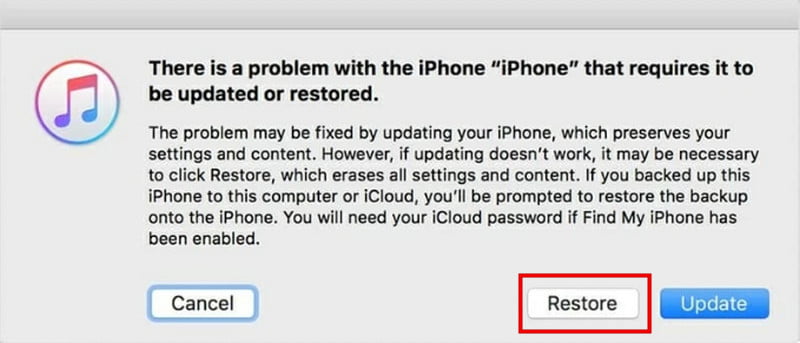
Step 3. When prompted, select Restore. iTunes will begin restoring your device, and the Screen Time passcode will be removed soon.
Part 3: Best Way to Remove Screen Time Passcode in All Scenarios
If you're tired of trying different ways to figure out the Screen Time passcode, it may be time for a faster and more reliable solution. Apeaksoft iFoneKit lets you remove Screen Time restrictions without a passcode or Apple ID - even if you're in a Family Sharing group. With just a few clicks, you can unlock your device and regain full control. It also supports the removal of various iOS locks and runs smoothly on both Windows and Mac.
Remove iOS Passcodes in All Scenarios
- Bypass Screen Time restrictions without data loss.
- Unlock iPhone from 4-digit/6-digit passcode, Touch ID, or Face ID.
- Remove MDM/Apple ID/ /iTunes backup password easily.
- Support all iOS models and versions, including the latest.
Secure Download
Secure Download

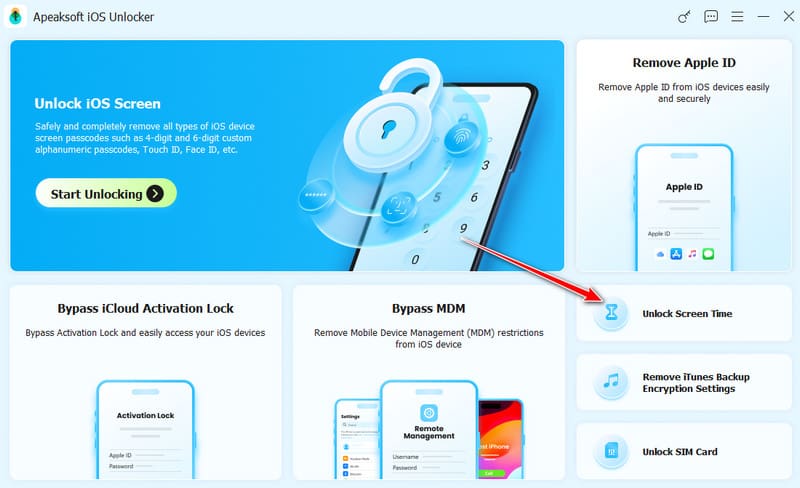
Step 1. Launch Apeaksoft iFoneKit on your computer and select the Unlock Screen Time mode from the interface. Connect your iOS device to the computer using a USB cable.
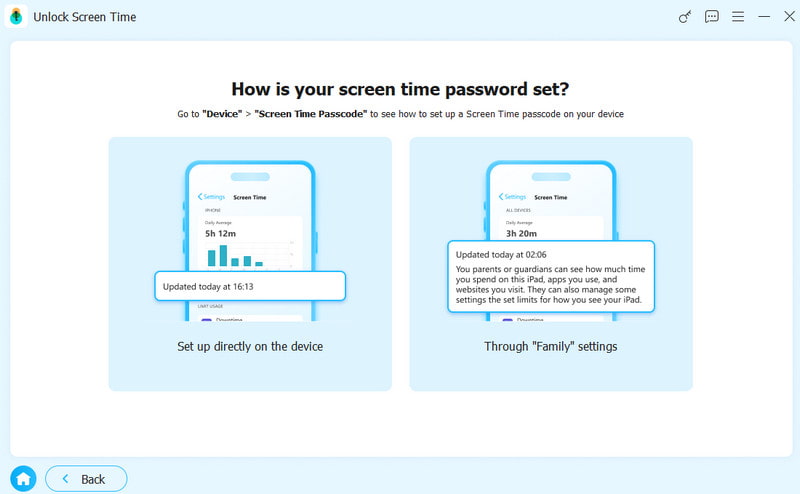
Step 2. Choose how your screen time passcode was set. If you set the passcode yourself, select the left option. If it was set by your parents, choose the right option.
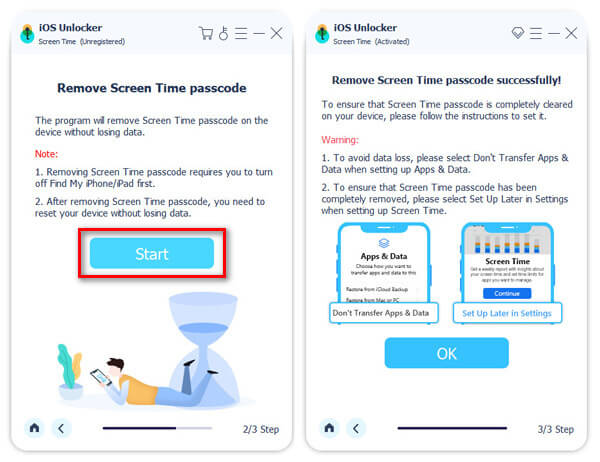
Step 3. Click the Start Now button to continue.
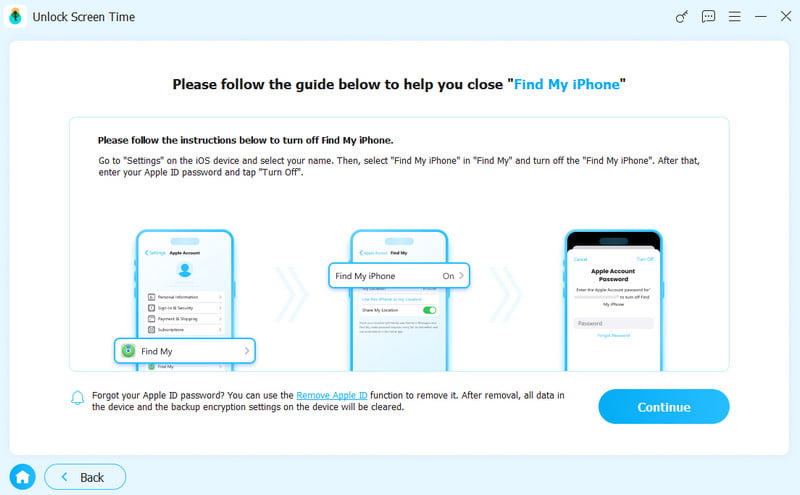
Step 4. Follow the on-screen instructions to turn off Find My on your iOS device.
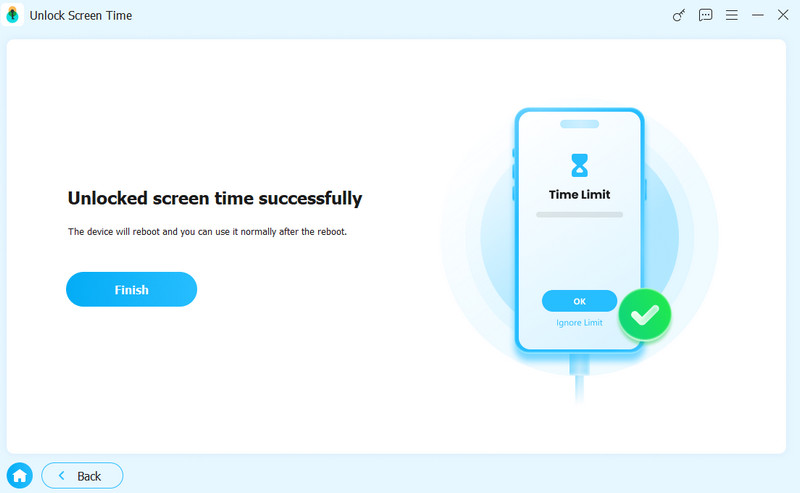
Step 5. Your Screen Time passcode will be removed soon. Please wait while the process completes.
Conclusion
Now you know how to find out Screen Time password and explore useful methods to reset a forgotten or unknown Screen Time passcode. Always remember not to guess the passcode randomly to avoid getting your device locked, and back up your data before using any method that could erase data.
Disclaimer: This guide is intended for lawful use only, such as when you have forgotten a password you set yourself or when resetting a device with parental consent.
Related Articles




