


How to Quickly Remove Passcode from an iPhone or iPad

It cannot be denied that iOS devices are advanced and equipped with high-level security measures. For instance, you have to input your lock screen passcode whenever you want to unlock your iPhone or iPad. There are scenarios where you have to remove the passcode from an iPhone or iPad. Before you sell or give a used iOS device, for example, you have to turn off the screen locks. Anyway, this guide shares the proven methods in various situations.
PAGE CONTENT:
Part 1: How to Remove Passcode from iPhone If You Remember Password
If you still remember your passcode, it will become easy to remove the passcode from an iPhone or iPad. You can complete the job in the built-in Settings app. We demonstrate the workflow below:
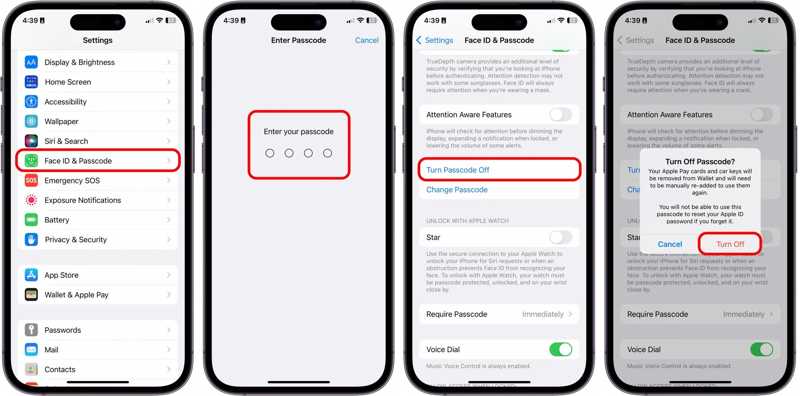
Step 1. Turn on your iPhone and go to the Settings app.
Step 2. Choose the Face ID & Passcode or Touch ID & Passcode option.
Step 3. Type in your passcode to verify your ownership.
Step 4. Make sure to turn off Stolen Device Protection.
Step 5. Next, tap the Turn Passcode Off button.
Step 6. If prompted, enter your Apple ID password.
Step 7. Read the alert and tap Turn Off if you still want to get rid of the passcode.
Note: If you use iCloud Keychain or the Apple Passwords app to keep your login information, you will be asked to either remove them from your device or keep them since your device is no longer secure without the passcode.
Bonus Tip: What to Do If You Cannot Remove iPhone/iPad Passcode
Some people found that the Turn Passcode Off option is greyed out and disabled. As a result, you cannot remove the passcode from your iPad or iPhone. Here, you must disable Screen Time Restrictions first.
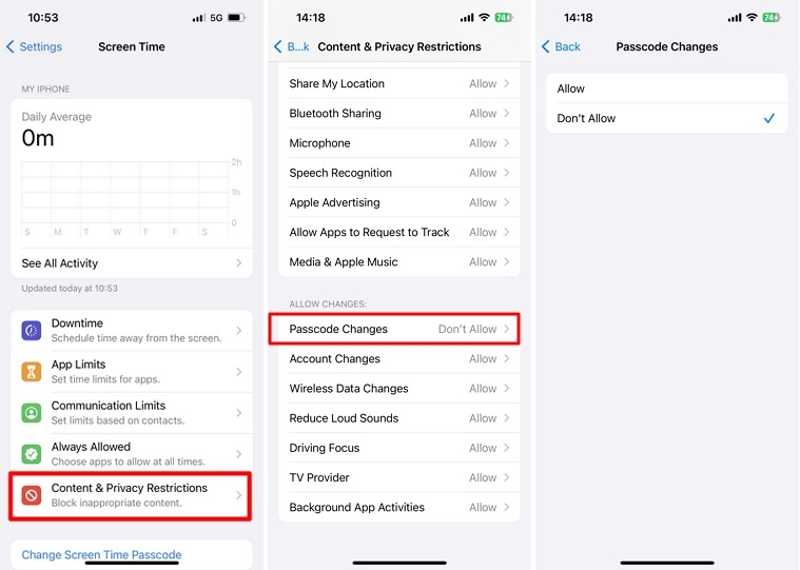
Step 1. Go to the Settings app.
Step 2. Choose Screen Time and tap Content & Privacy Restrictions.
Step 3. Scroll down to locate the ALLOW CHANGES section.
Step 4. Tap Passcode Changes and choose Allow.
Step 5. Next, try to remove the passcode from your iPhone or iPad again.
Part 2: How to Remove a Passcode from an iPhone or iPad When It Is Locked
If you no longer remember your passcode, you are locked out of your device and cannot turn off the passcode. Now, you have to erase or restore your device to delete the passcode from your iPhone or iPad when it is locked.
Way 1: How to Remove the Passcode from an iPhone by Erasing the iPhone
Requirement: Your iPhone is updated to iOS 15.2 or above.
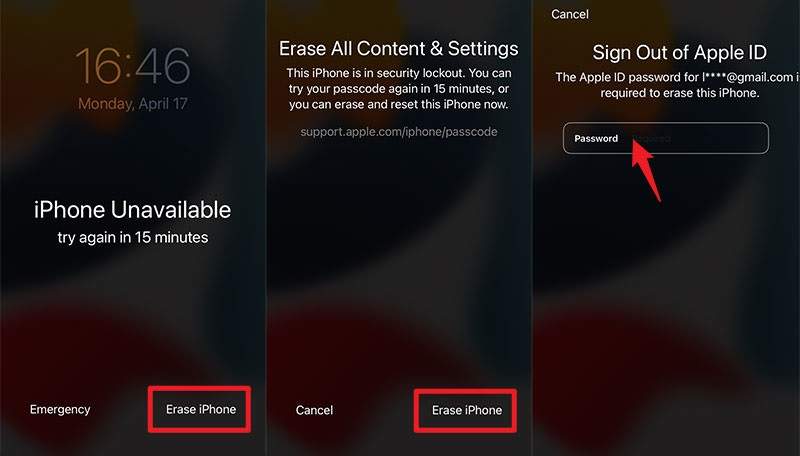
Step 1. Enter a wrong passcode multiple times until the iPhone Unavailable screen appears.
Step 2. Tap the Forgot Passcode or Erase iPhone option.
Step 3. Enter your Apple ID password and confirm erasing your device.
Step 4. When it is done, set your iPhone or iPad as a new device.
Way 2: How to Delete iPhone/iPad Passcode Using a Computer
Requirement: The latest version of iTunes or Finder
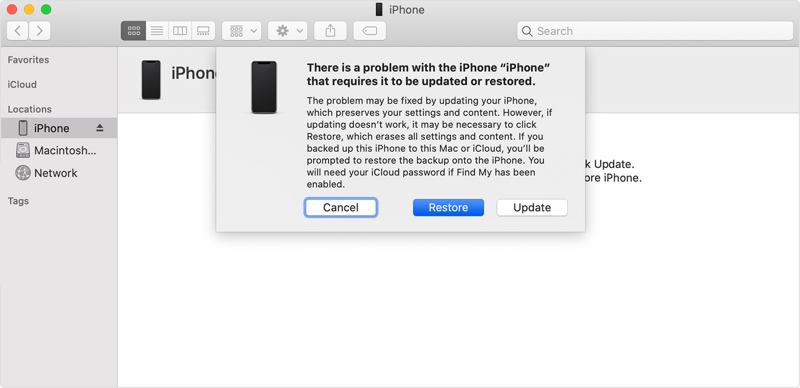
Step 1. Hold the Side button and move the power-off slider to shut down your iPhone.
Step 2. Connect your device to your computer with a USB cable.
Step 3. Open iTunes or Finder.
Step 4. On iPhone 7 and earlier, hold the Volume Down or Home button while pressing the Power button.
On iPhone 8 and later, quickly press and release the Volume Up button, do the same to the Volume Down button, and hold the Side button.
Step 5. When the Recovery Mode screen appears, release the buttons.
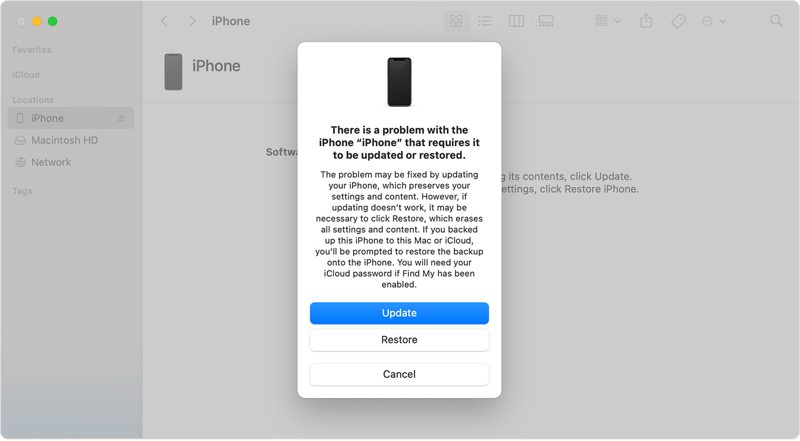
Step 6. Click the Restore button on the dialog in iTunes or Finder.
Step 7. Wait for the process to finish, and the iPhone or iPad passcode will be deleted.
Way 3: How to Remove iPhone/iPad Passcode from iCloud
Requirement: You have turned on Find My iPhone or Find My iPad. Then, iCloud can detect your iPhone and perform a factory reset.
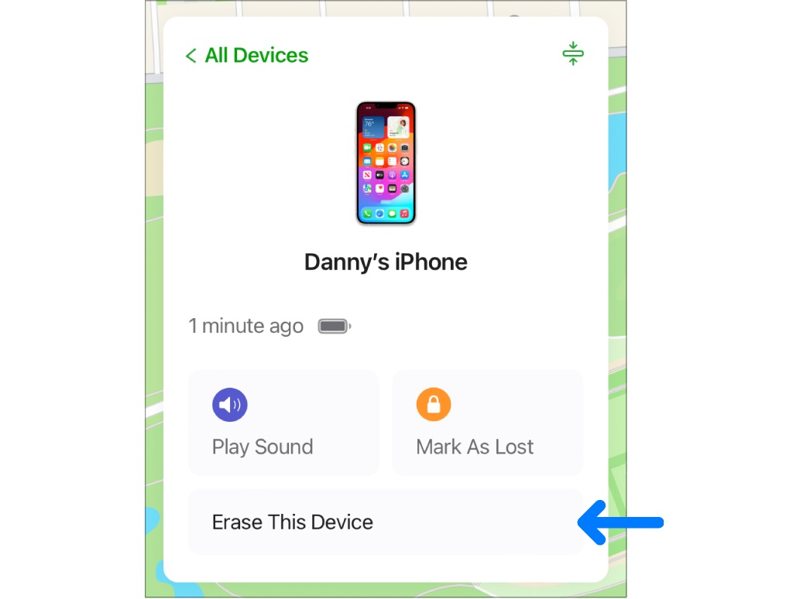
Step 1. Go to www.icloud.com/find/ in a browser.
Step 2. Log in with your Apple ID and password.
Step 3. Choose your iPhone or iPad from the All Devices list.
Step 4. Click the Erase This Device button.
Step 5. Hit Continue, and then click Erase to confirm your action.
Step 6. Once it is complete, your device will restart in the Hello screen.
Part 3: How to Delete a Password on an iPhone or iPad Without an Apple ID
No matter the Erase iPhone or Find My feature, it requires your Apple ID password to delete the passcode on your iPhone or iPad. If you forgot your Apple credentials, Apeaksoft iFoneKit can help you resolve the issue. It is able to remove all passcodes and biometric IDs from iOS devices.

Downloaded by over 1,000,000 users
- Remove screen locks from an iPhone or iPad.
- Delete digit passcodes, Face IDs, and Touch IDs.
- Work for a locked or disabled iOS device.
- Offer bonus features, like Screen Time bypass.
- Support a wide range of iPhones and iPad devices.
Secure Download
Secure Download

How to Delete a Passcode from Your iPhone Without an Apple ID
Step 1. Install iFoneKit
Run the iOS unlocking program after installing it on your computer. It is available on Windows 11 or earlier and macOS 10.7 or above. Link your iPhone to your computer using a Lightning cable. Choose the Unlock iOS Screen mode.
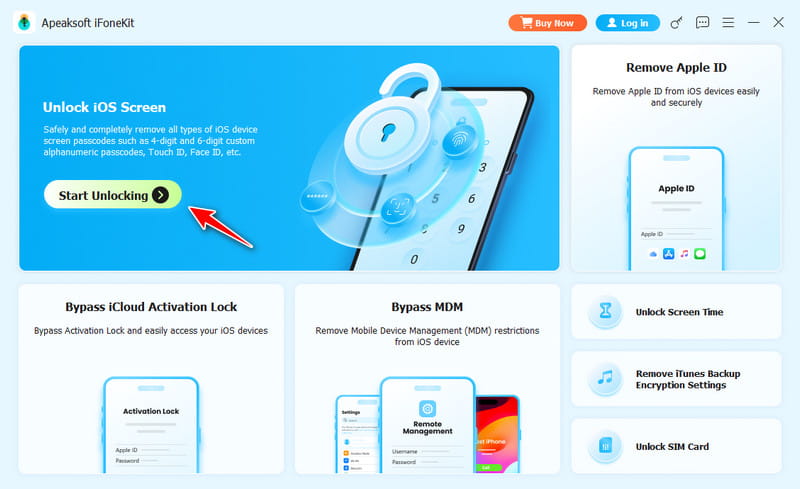
Step 2. Download the firmware
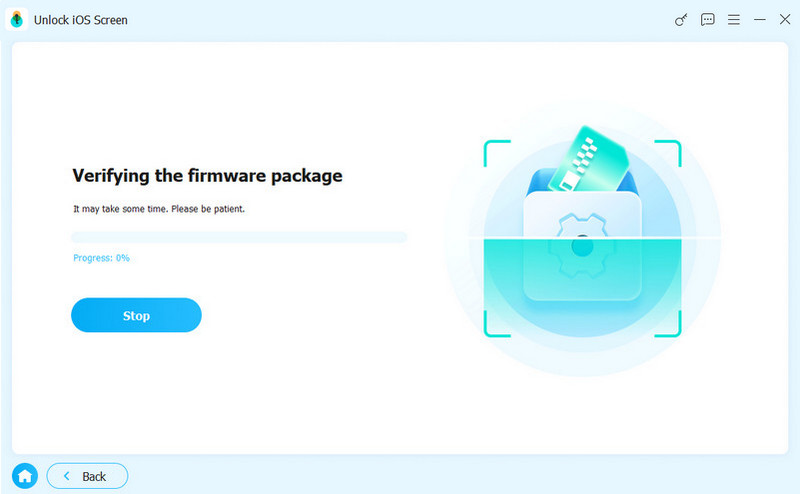
Once your device is recognized, click the Start Now button to begin downloading the firmware. It may take a while, depending on your internet connection.
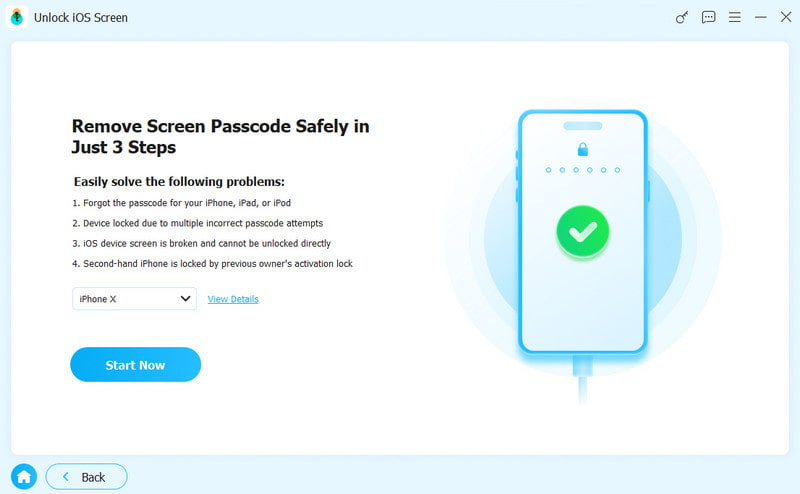
Step 3. Remove iPhone passcode
Click the OK button when the firmware download finishes. Next, click the Confirm Again button to verify your firmware. When it is done, the software will initiate deleting the passcode on your iPhone immediately.
Conclusion
This guide shared how to remove a passcode from an iPhone or iPad with or without the previous passcode. You can get rid of your passcode in the Settings app directly if you still remember it. Otherwise, you have to erase or reset your device using your Apple ID password. We also recommended an ultimate solution, Apeaksoft iFoneKit, to bypass iPhone passcode without any restrictions. Moreover, the software is very easy to use.
 Apeaksoft iFoneKit
 Unlock all types of iOS passwords from iPhone, iPad and iPod.
Secure Download
Secure Download
Related Articles




