


How to Set, Change, Reset, and Bypass Screen Time Passcode

Screen Time is the parental control feature released by Apple for Apple devices. It allows users to control the screen access time and add restrictions to specific services and apps. After setting up Screen Time on your or your child's device, you can leave a passcode to prevent unauthorized access. This article shares more information about it, such as how to change the Screen Time passcode on your iPhone or iPad.
PAGE CONTENT:
Part 1: How to Set up Screen Time Passcode
What is the Screen Time passcode? As mentioned previously, you can set up a Screen Time passcode on your or your child's iPhone or iPad to prevent others from changing relevant settings. Without the passcode, everyone cannot change Screen Time settings or turn off the parental feature.
How to Set up Screen Time Passcode on an iPhone
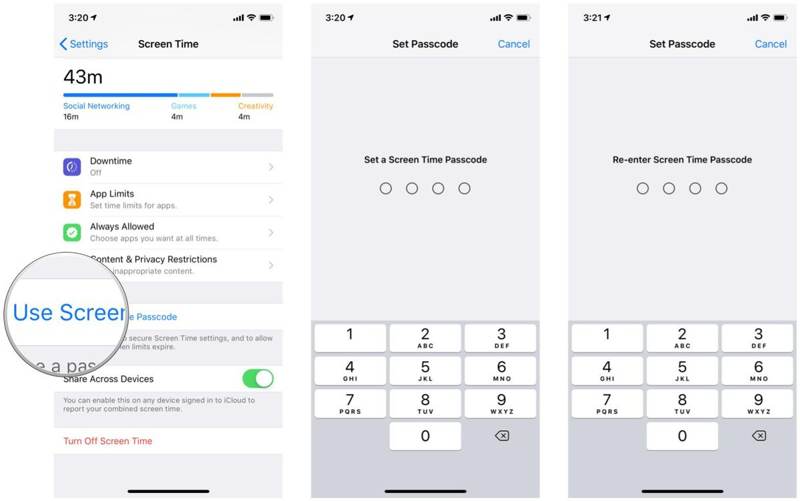
Step 1. Open the Settings app on your device.
Step 2. Go to Screen Time.
Step 3. Tap Use Screen Time Passcode.
Step 4. Enter a passcode, and re-enter it.
How to Set up Screen Time Passcode on a Child's Phone
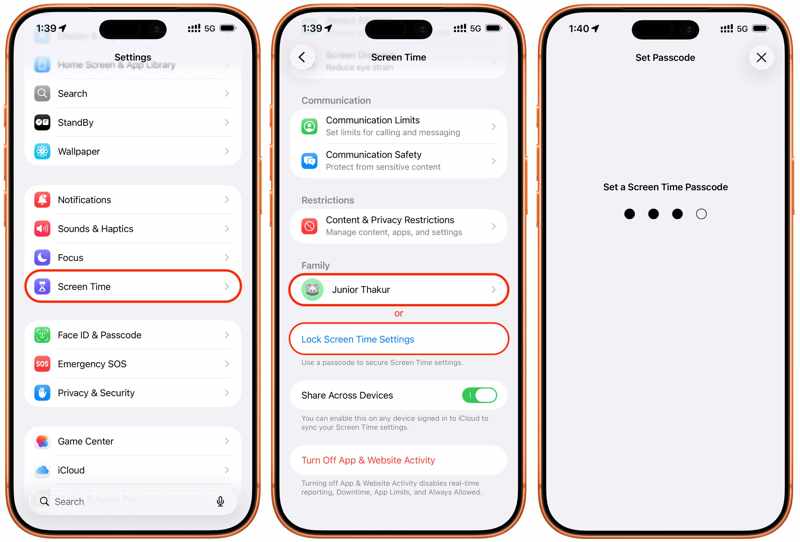
Step 1. Choose Screen Time in your Settings app.
Step 2. Tap your child's name under the Family section.
Step 3. Navigate to Manage Screen Time, then Lock Screen Time Settings.
Step 4. Then, leave a Screen Time passcode.
Part 2: How to Change Screen Time Passcode
After setting up the Screen Time passcode, you can change it for your iOS or your child's device to enhance security. Of course, you need to offer the current Screen Time passcode before changing the Screen Time passcode.
How to Change Screen Time Passcode on Your iPhone/iPad
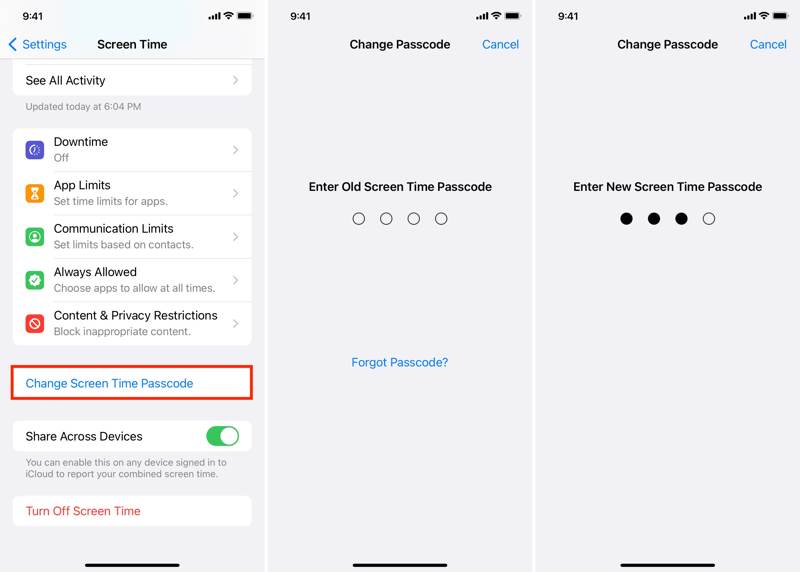
Step 1. Run your Settings app.
Step 2. Head to the Screen Time tab.
Step 3. Tap the Change Screen Time Passcode button.
Step 4. Next, choose Change Screen Time Passcode.
Step 5. Enter the current Screen Time passcode.
Step 6. Then, create a new Screen Time passcode and re-enter it.
How to Change Screen Time Passcode on Your Child's Phone
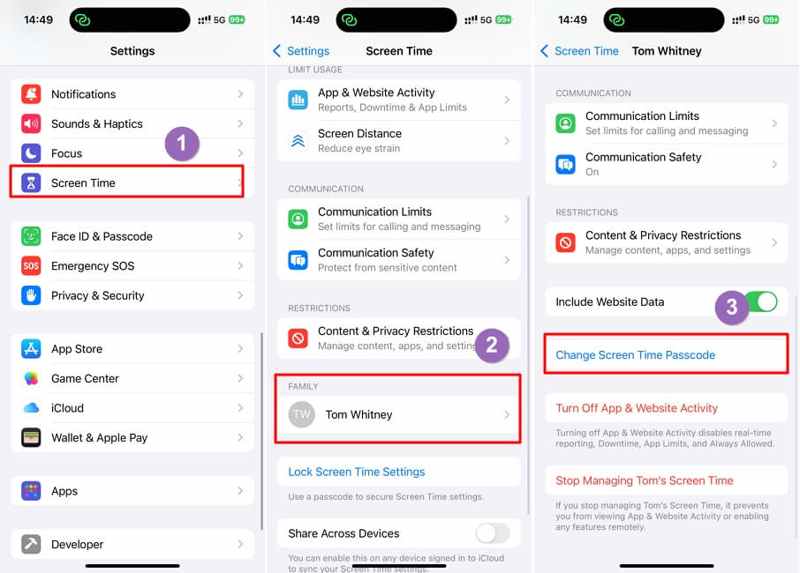
Step 1. On your iPhone or iPad, go to Settings and Screen Time.
Step 2. Choose your child's name under the Family heading.
Step 3. Tap the Change Screen Time Passcode button.
Step 4. Follow the onscreen instructions to authenticate.
Step 5. Enter a new Screen Time passcode, and re-enter it to change the Screen Time passcode on your child's phone.
Part 3: How to Turn off Screen Time Passcode
Once you wish to give up the Screen Time passcode, you can turn it off. Bear in mind that turning off the Screen Time passcode won't disable Screen Time. That allows you to adjust Screen Time settings without restrictions.
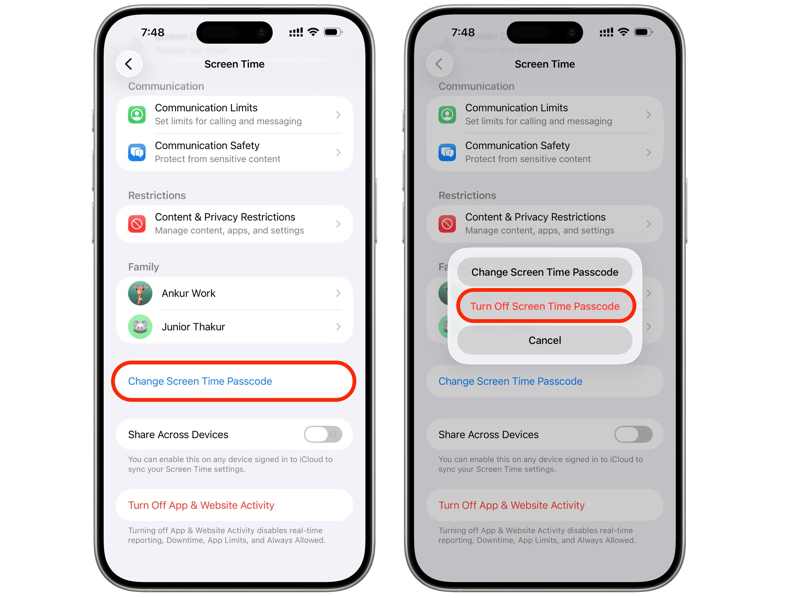
Step 1. Go to your Settings app on your iPhone.
Step 2. Choose the Screen Time entry.
Tips: To remove the Screen Time passcode on your child's device, tap the name under the Family section.
Step 3. Tap the Change Screen Time Passcode button.
Step 4. Choose Turn Off Screen Time Passcode.
Step 5. Next, enter your current Screen Time passcode to get rid of the Screen Time passcode.
Part 4: How to Reset Screen Time Passcode
OSuppose you cannot remember the Screen Time passcode, and there is no way to find it out without a third-party password manager. The good news is that you can try your passcode without a time limit. What happens after 10 failed Screen Time passcode attempts? Your device won't be disabled, and you just need to wait for the timeout to finish. Plus, you can reset the Screen Time passcode with your Apple Account and password.
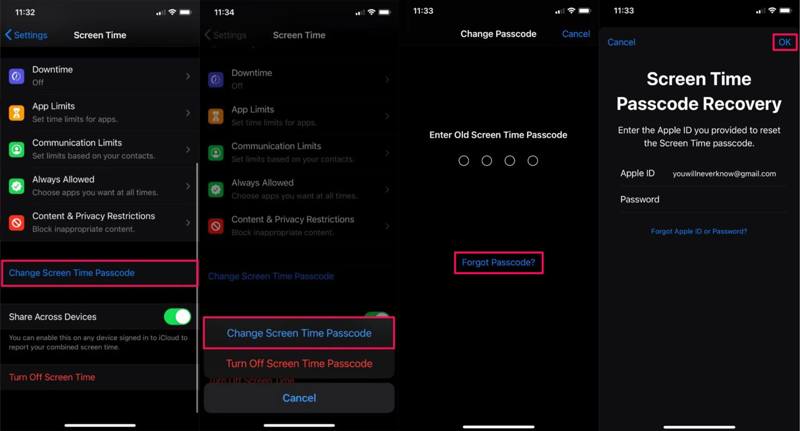
Step 1. Run the Settings app on your device.
Step 2. Choose the Screen Time option.
Step 3. Tap the Change Screen Time Passcode button.
Step 4. Pick Change Screen Time Passcode or Turn Off Screen Time Passcode.
Step 5. When you are asked to enter the passcode, tap Forgot Passcode.
Step 6. Enter your Apple Account password and tap OK.
Step 7. Next, set a new Screen Time passcode and re-enter it.
Tips: If your device runs iOS 13.4 or earlier or is enrolled by MDM, there is no option for Forgot Screen Time Passcode. Plus, this option won't appear on a child's iOS device.
Further Reading
Part 5: What to Do If Screen Time Passcode Is Not Working
When changing the settings, you may find that the Screen Time passcode is not working. The main causes might include a wrong passcode, outdated software, something wrong with your Apple Account, and more.
Solution 1: Update Software
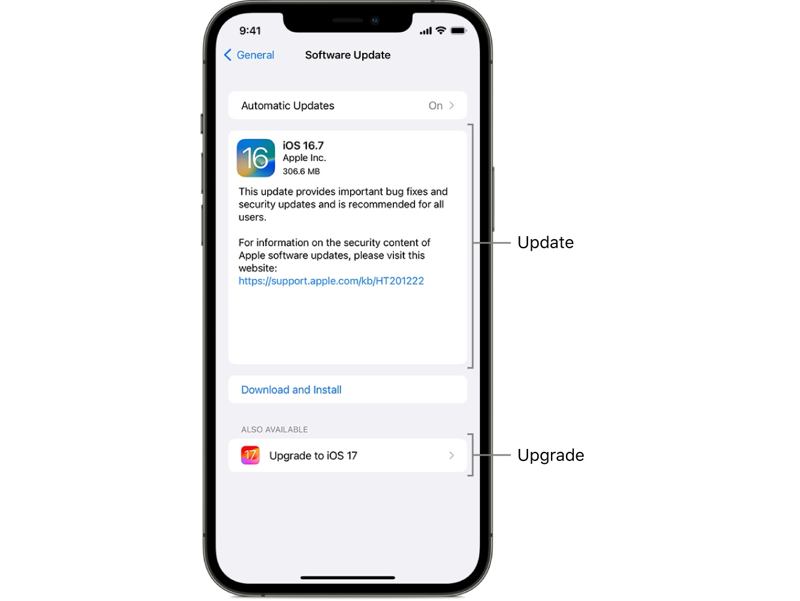
Step 1. Go to your Settings app.
Step 2. Enter the General tab.
Step 3. Tap Software Update to search for updates.
Step 4. If an update is available, tap the Download and Install button.
Step 5. Follow the onscreen instructions to update iOS.
Step 6. When it is done, your device will restart, and you can try the Screen Time passcode again.
Solution 2: Reset Screen Time Passcode
If you or someone else has changed the passcode, the old Screen Time passcode won't work. Fortunately, you can reset Screen Time passcode with your Apple Account password. We have demonstrated the workflow above.
If you cannot find the Forgot Passcode option, make sure to update your software to the latest version. Plus, you need to reset it on the organizer's device if you intend to reset the Screen Time passcode for your child's phone.
Solution 3: Sign out and Sign in Apple Account
Step 1. Tap on your profile in Settings.
Step 2. Scroll down and tap the Sign Out button at the bottom.
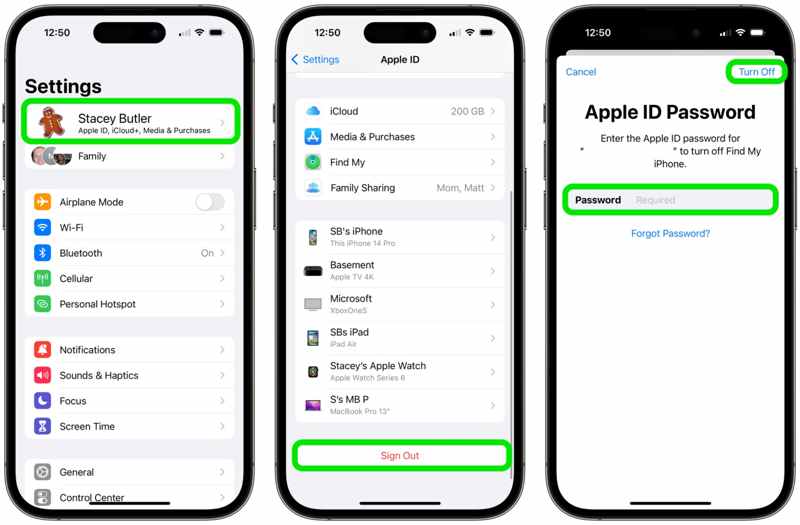
Step 3. Enter your Apple Account password to turn off Find My.
Step 4. Tap the Turn Off button.
Step 5. Select the data types you want to keep and tap Sign Out to confirm it.
Step 6. Restart your device.
Step 7. Go back to the Settings app.
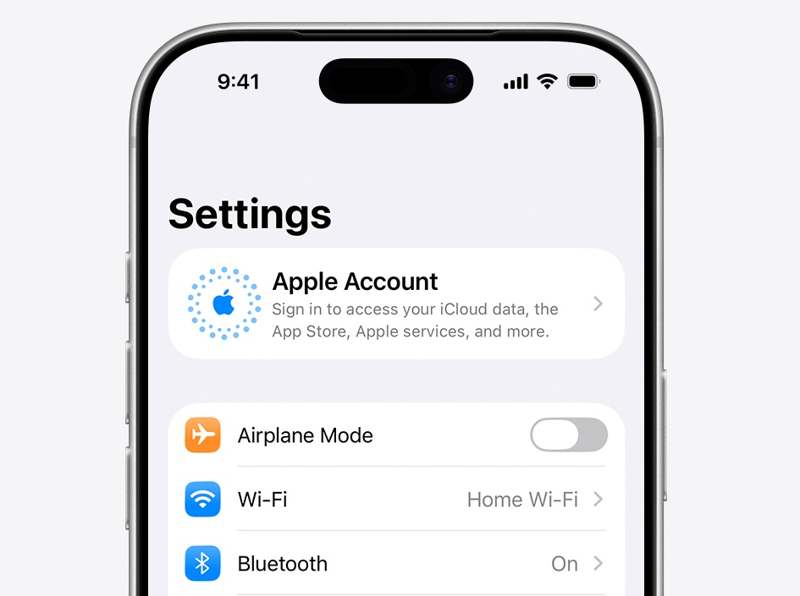
Step 8. Tap Apple Account and choose Sign in Manually to log in to your account again.
Part 6: How to Remove Screen Time Passcode Without Restrictions
Apeaksoft iFoneKit iOS Unlocker is a quick way to bypass the Screen Time passcode on your iPhone. It doesn't ask your current Screen Time passcode or Apple ID password. Your data won't be interrupted during the process.

Downloaded by over 1,000,000 users
- Remove Screen Time passcode in 3 steps.
- Protect your data during the process.
- Work for both your and your child's devices.
- Support a wide range of iPhones and iPad devices.
Secure Download
Secure Download

How to Disable Screen Time Passcode on Your iPhone
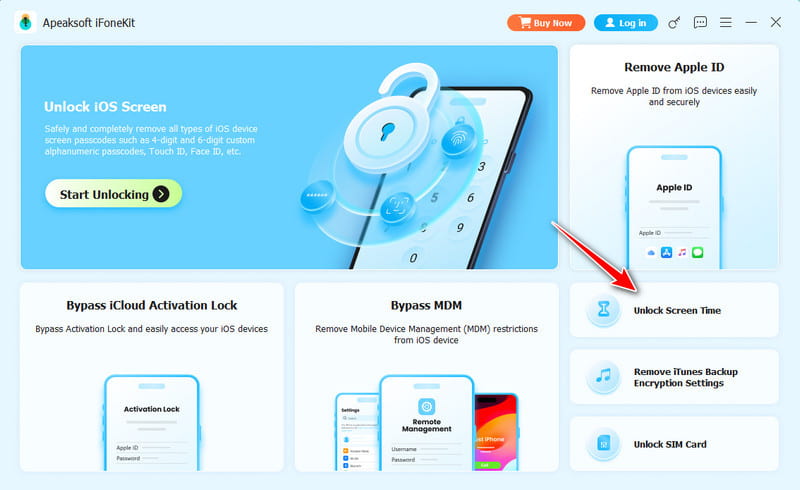
Step 1. Install iOS Unlocker
Download and install the Screen Time passcode removal software on a PC. There is another version for Mac. Launch it and choose the Unlock Screen Time mode.
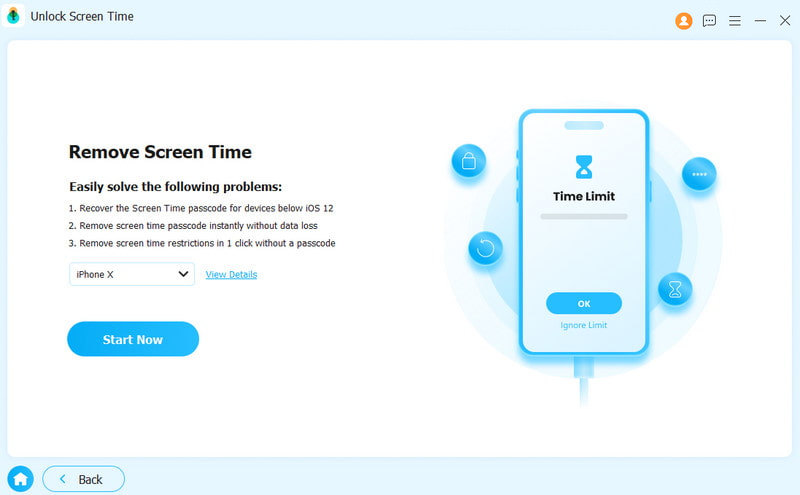
Step 2. Connect to your iPhone
Connect your iPhone to your PC with a Lightning cable. Wait for your device to be recognized and choose how your Screen Time passcode is set.
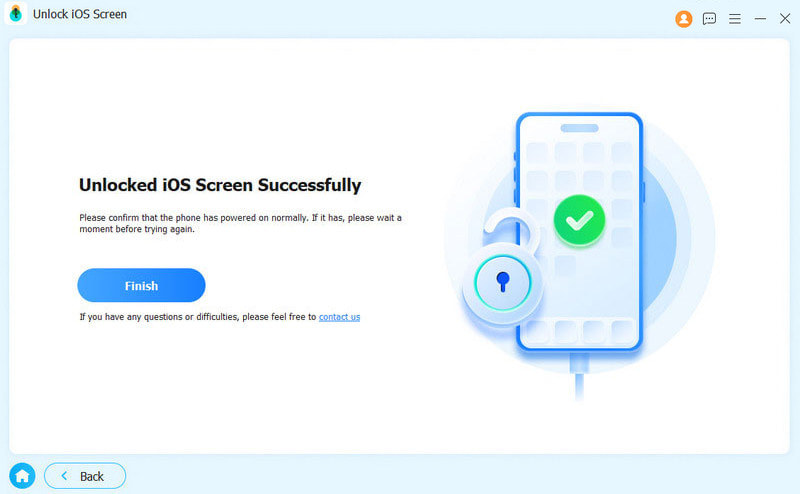
Step 3. Disable Screen Time passcode
Click the Start Now button after the software loads your device information. Follow the onscreen instructions to disable Find My on your device. Then, the software will begin disabling the Screen Time passcode automatically.
Conclusion
This guide explained how to change the Screen Time passcode on your or your child's iOS device. You can follow our steps to change, turn off, and reset the Screen Time passcode in different situations. If your passcode is not working, try Apeaksoft iFoneKit iOS Unlocker to get rid of the parental control feature from your device without any restrictions.
Related Articles




