


Complete Guide: How to Unlock iPhone/iPad Without Apple ID

Getting locked out of your iOS device can be an incredibly frustrating experience. Whether you forgot your screen passcode, bought a second-hand device, or can’t remember your iCloud password, you might feel stuck.
The good news is that it is entirely possible to regain access to your device. This comprehensive guide will show you how to unlock an iPhone without an Apple ID or even a screen passcode using several proven methods.
PAGE CONTENT:
Part 1: Can You Unlock iPhone/iPad Passcode Without Apple ID?
The answer is yes, but with obvious restrictions. Usually, when you've forgotten the iPhone screen passcode, you'll need to use the combined Apple ID and password to reset your device. Since you don't know your Apple ID and password, the process will get more difficult and complex. You can check the detailed guides below.
Part 2: 3 Effective Ways to Unlock iPhone Without Apple ID
Method 1: Use Recovery Mode with iTunes or Finder (Free)
Brief Introduction: Put your iPhone or iPad into Recovery Mode first, and then iTunes (on Windows) or Finder (on Mac) will detect your device's condition and help you restore it.
Step 1. Put iPhone into Recovery Mode
Connect your iPhone to your computer while holding the correct button to enter Recovery Mode.
- iPhone 8 or later: Use the Side button.
- iPhone 7/7 Plus: Use the Volume Down button.
- iPhone 6s or earlier: Use the Home button.
Keep holding the button until you see the Recovery Mode screen (a cable pointing toward a computer).
Step 2. Open iTunes or Finder
If you use a Windows computer, launch iTunes (if you don't have this program, you'll need to download and install it).
If you use a MacBook, directly launch Finder. If you use a very old MacBook and there's an iTunes, just launch iTunes.
Step 3. Directly Restore Your iPhone
Since your iPhone is connected to your PC or Mac, iTunes/Finder will quickly recognize your phone and detect that there's a problem with it (actually, it is the Recovery Mode), You just need to click the Restore button.
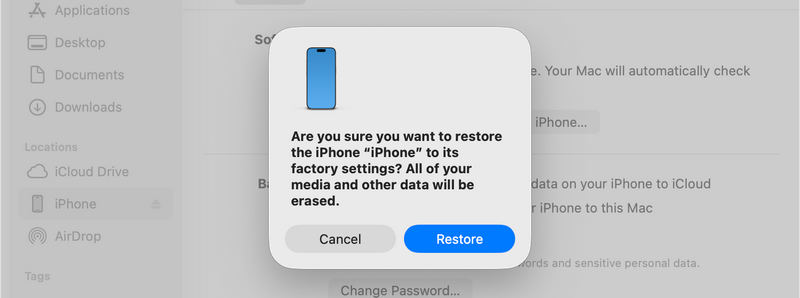
Note: This method is the safest way to unlock an iPhone without apple id, but it requires that the Find My feature was turned off before you got locked out. If Find My is on, you will still hit the Activation Lock screen after the restore.
Method 2: Bypass iPhone Locked to Owner Screen
After you restore your iPhone from Recovery Mode, the device probably get loocked since the Find My feature is not off in most cases. If you do not have the original Apple ID credentials, you can try to bypass it using a DNS server trick. This is a temporary bypass mainly used for browsing the web or watching videos on an older locked device.
Step 1. Restart your iPhone and start the setup process until you reach the Wi-Fi Settings page.
Step 2. Connect to a Wi-Fi network, then click the i (Information) button next to the network name.
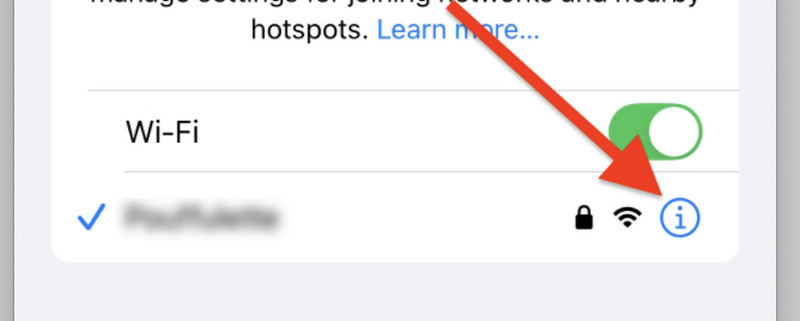
Step 3. croll down to find Configure DNS and select Manual.
Step 4. Remove the existing DNS numbers and enter a new DNS IP address based on your region:
- USA: 104.154.51.7
- Europe: 104.155.28.90
- Asia: 104.155.220.58
Step 5. Tap Back, then connect to the Wi-Fi network again. Tap Back one more time when the phone tries to activate. You will be redirected to a custom menu screen where you can access basic apps.
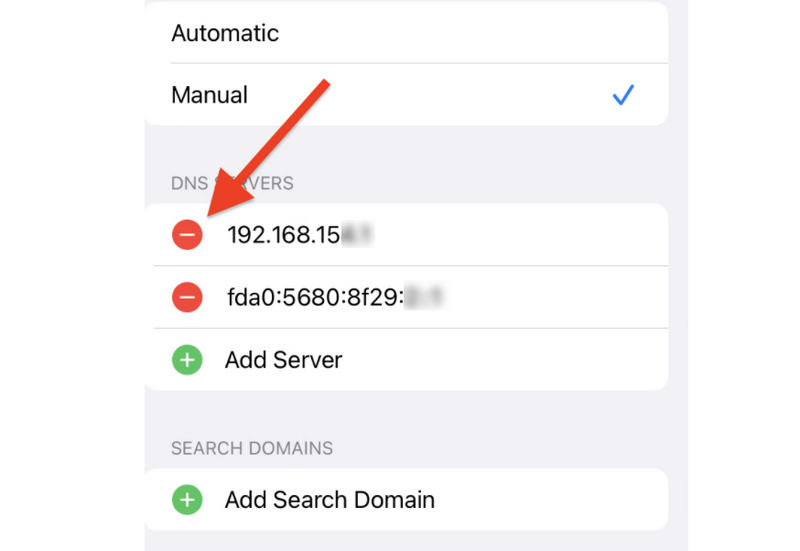
This is a clever way to unlock an iPhone Locked to Owner without an Apple ID if you cannot contact the previous owner.
Method 3: Apeaksoft iFoneKit iOS Unlocker
You've known that it is really difficult to unlock iPhone and iPad without an Apple ID, so why not directly bypass the lock screen to regain access to your iOS device? Apeaksoft iFoneKit iOS Unlocker can easily handle forgotten screen passcode, useless Face ID, or Touch ID on iPhone or iPad. You don't need to remember the screen passcode, combined Apple ID, or password to use your device within a few clicks.

Downloaded by over 1,000,000 users
- Connect your iPhone to your computer to bypass screen lock quickly.
- Regain access to iOS without Apple ID, passcode, or screen passcode.
- One-click remove other restrictions, like Screen Time or MDM.
- Support the latest Apple devices and iOS/IPadOS versions.
Secure Download
Secure Download

Step 1. Connect Your iPhone to Your Computer
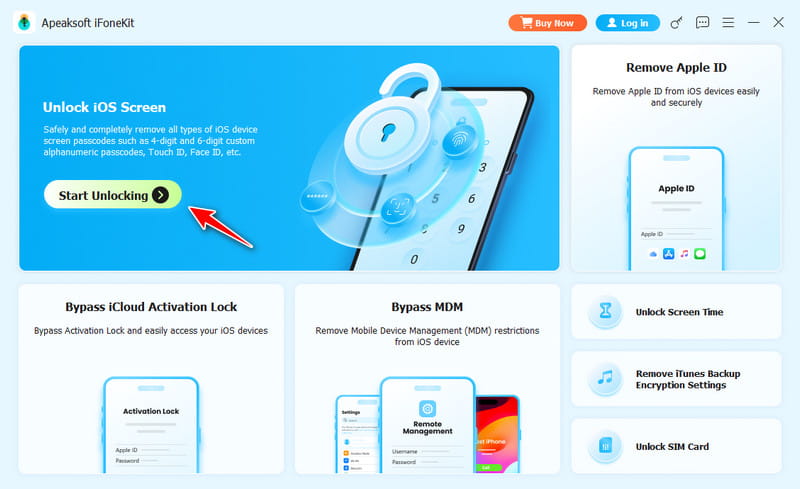
Download, install, and launch Apeaksoft iFoneKit iOS Unlocker. Connect your iPhone. Then, this program will recognize your device. Click the Start Unlocking button on the main interface.
Step 2. Confirm Device Information and Start Bypass Screen Lock
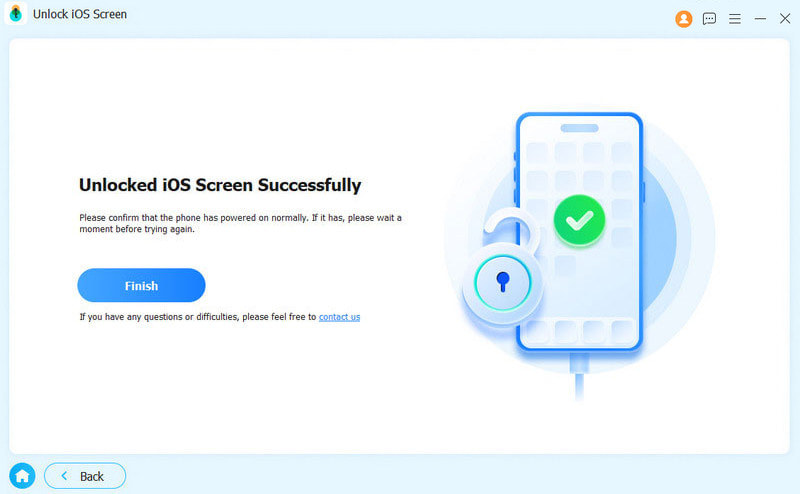
This program will analyze your iOS device's information. Confirm it and download the firmware package of your iOS version. Then, it will keep working to bypass the screen lock. This way, you can easily unlock iPhone or iPad passcode without an Apple ID and password.
Part 3: Crucial Things to Know Before Unlocking Your iOS Device
Before you try any of these methods to solve how to unlock an Apple iPhone without Apple ID, please keep these critical facts in mind:
Data Erasing is Inevitable: Except for the temporary DNS bypass method, every official and third-party technique that successfully unlocks a screen passcode will completely factory reset your iPhone or iPad. This is an intentional security design by Apple to protect user privacy if a device is stolen.
Beware of Online Scams: There are many online websites claiming they can unlock your iPhone remotely if you send them money or serial numbers (IMEI). 99% of these services are scams. Stick to desktop software applications or official Apple channels.
Backup is King: Always keep regular backups on your computer or iCloud. If you ever have to execute an operation to unlock an iPhone without Apple ID, you can easily restore your personal files afterward from a local computer backup.
Conclusion
Unlocking your iPhone or iPad when you lose your Apple ID information is difficult, but not impossible. If your device does not have iCloud Activation Lock turned on, using iTunes Recovery Mode or professional desktop unlocking tools will easily solve your problem. They give you a clear path on how to unlock an iPhone passcode without Apple ID.
However, if iCloud Activation Lock is on, you'll need Apeaksoft iFonekit iOS Unlocker permanently unlock your iPhone or iPad without Apple iD and password. You can quickly regain access to your device.
 Apeaksoft iFoneKit
 Unlock all types of iOS passwords from iPhone, iPad and iPod.
Secure Download
Secure Download
Related Articles




