

How to Back up Phone to Google and Restore Your Backup

Backing up Android phone devices is an essential skill. When your phone becomes slower and slower, for example, you need to free up space and remove useless apps and files. To avoid data loss, you'd better create a backup for your entire phone. If you just upgrade to a new phone, Google phone backup and restore can help you migrate all data and apps to the new device quickly. That is why we share this tutorial.
PAGE CONTENT:
Part 1: How to Back up Phone to Google
With a Google account, you have at least two options for phone backup and restore: Google Drive and Google One. The former is pre-installed on all Android devices, but you can only store backups up to 15GB for free. Google One, on the other hand, is a subscription-based storage service. Users can upgrade to get more storage space. Moreover, Google One phone backup covers more data types than Google Drive. In addition, you can also back up photos and videos on your phone to Google Photos.
How to Back up Phone to Google One
Requirements
- 1.You have added a Google account to your phone.
- 2.A stable internet network.
- 3.Android 10 or later.
Here are the steps to back up your phone to Google One:
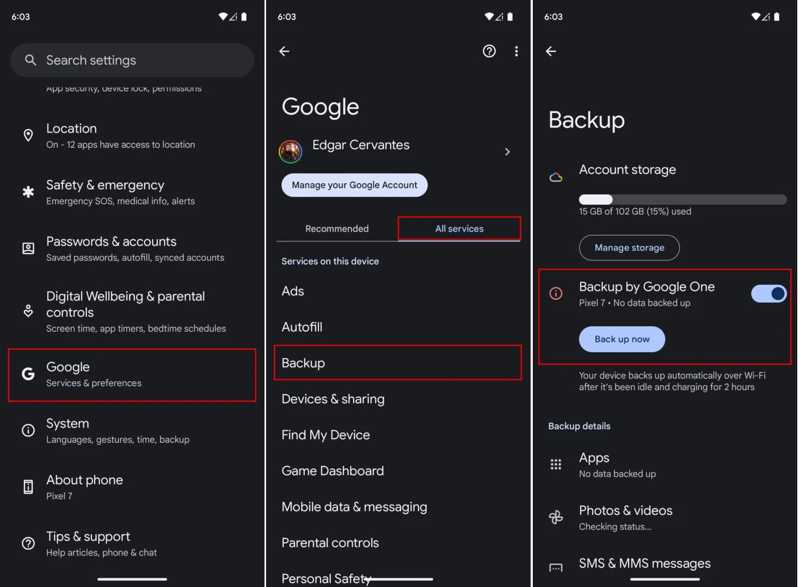
Step 1. Open the Settings app on your phone.
Step 2. Scroll down to find and tap Google, and head to the All services tab.
Step 3. Choose Backup and toggle on Back up to Google One.
Step 4. If you want to back up your phone manually, tap the Back up now button.
How to Back up Phone to Google Drive
Requirements
- 1.Sufficient Google Drive storage.
- 2.An internet connection.
- 3.Google Drive app.
Here are the steps to back up your phone to Google Drive:
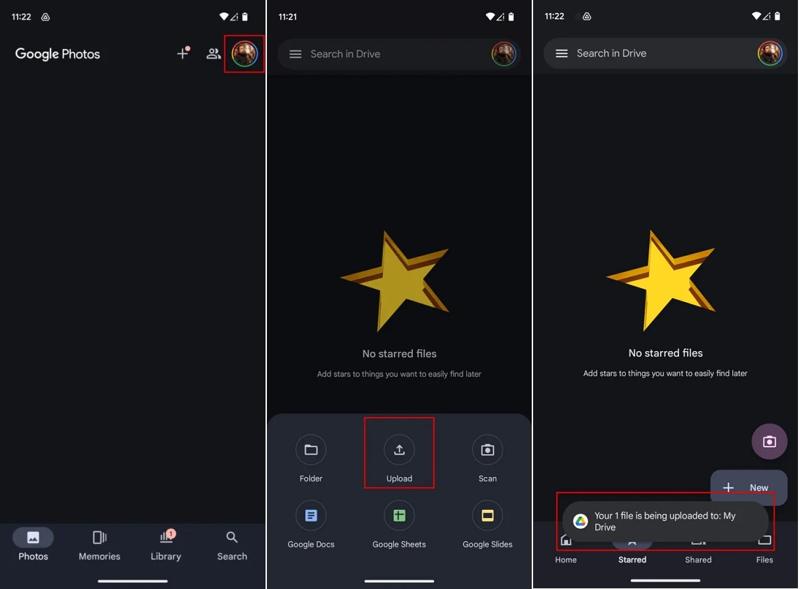
Step 1. Run the Google Drive app.
Step 2. Tap the New button and choose Upload.
Step 3. Then, access your phone memory, find and select the files you want to back up.
How to Back up Phone to Google Photos
Requirements
- 1.A Google account.
- 2.A Wi-Fi or cellular data connection.
- 3.Google Photos app.
Here are the steps to back up photos and videos to Google Photos:
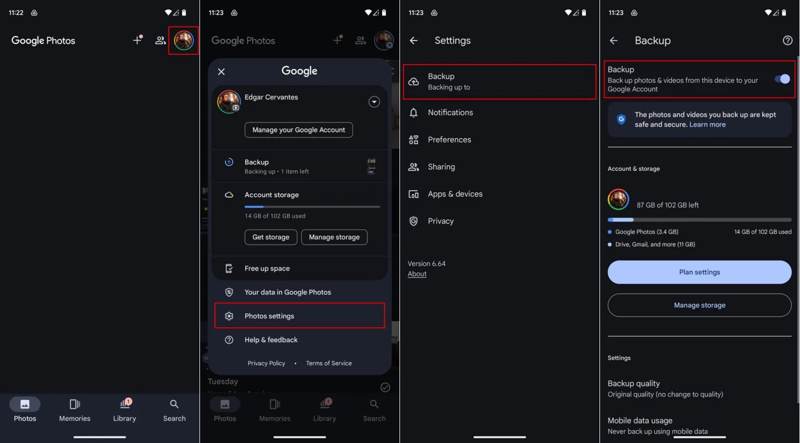
Step 1. Open the Google Photos app. You can download it from the Google Play Store for free.
Step 2. Tap on your profile and choose Photos settings.
Step 3. Go to the Backup tab, and toggle on Backup.
Step 4. Next, set Backup quality and Mobile data usage according to your preferences.
Part 2: How to Restore a Phone from Google
If you accidentally delete important files or factory reset your phone, Google phone backup and restore allow you to get back your data. Make sure that you have a Google backup, and try the steps below:
Step 1. If you are setting up a new device, skip to step 5. Run the Settings app on your phone.
Step 2. Navigate to System, Reset options, and tap Erase all data.
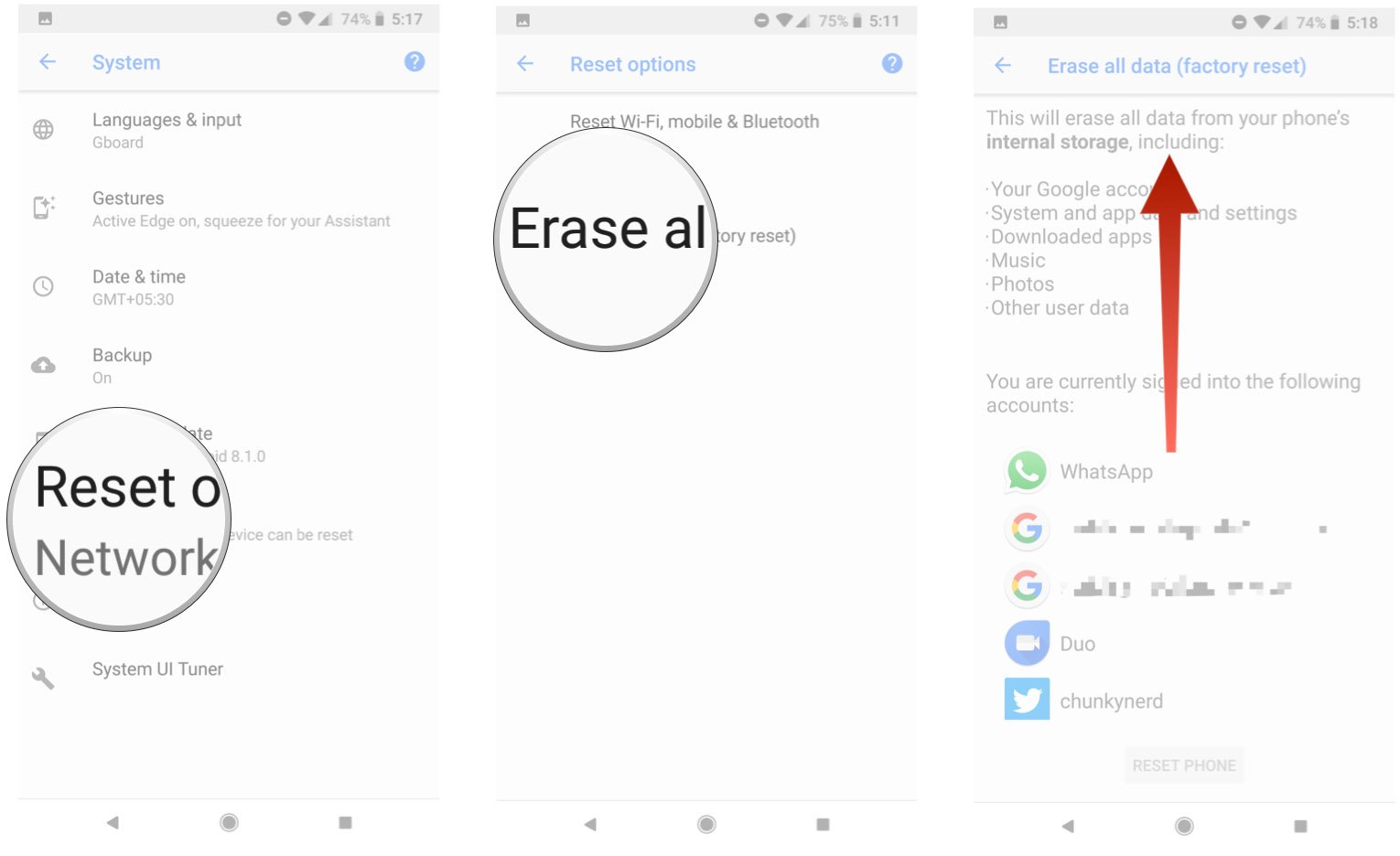
Step 3. Read the message, and tap RESET PHONE.
Step 4. If prompted, enter your Google account password.
Step 5. When your phone restarts, tap Start and initiate the setup process.
Step 6. Connect to a Wi-Fi network.
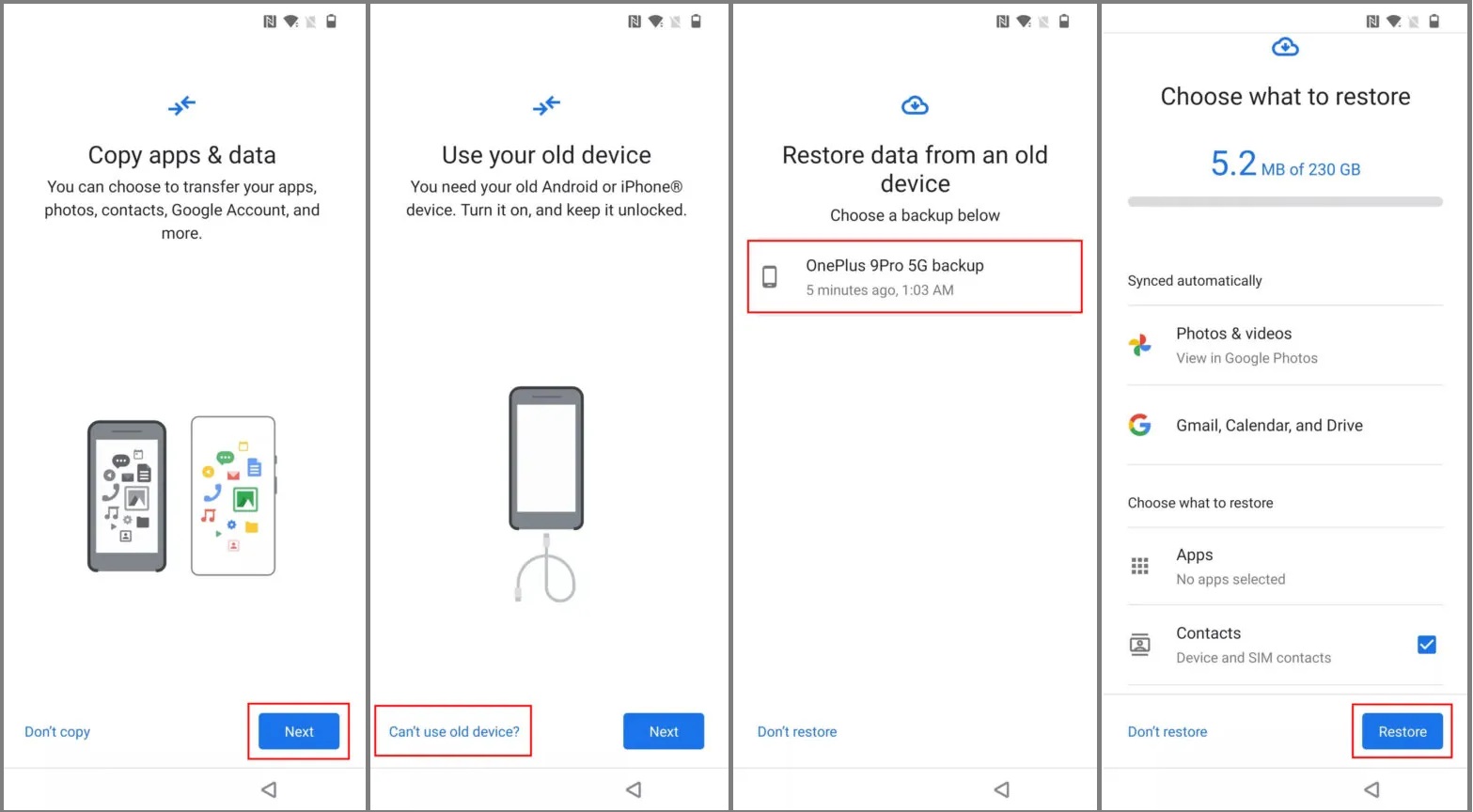
Step 7. Tap Next on the Copy apps & data screen.
Step 8. Press Can't use old device, sign in to your Google account, and select the backup.
Step 9. Choose the desired data types or all data, and tap Restore.
Part 3: Best Alternative to Google for Backup Phone
Google phone backup allows you to store up to 15GB of data for free. If you don't have enough space, try an alternative solution: back up your phone to a computer with Apeaksoft Android Data Backup & Restore. Moreover, it is easier to use.
An Efficient Alternative to Google Phone Backup for Android Users
- Back up your Android phone to Windows or Mac quickly.
- Encrypt phone backup with a password.
- Support a wide range of data types.
- Work for almost all Android brands and models.
Secure Download
Secure Download

How to Back up Your Phone Without a Google Account
Step 1. Connect to your phone
Download, install, and launch Apeaksoft Android Data Backup & Restore on your computer. Connect your Android phone to your computer.
Step 2. Start Backup
Click the Device Data Backup button. Then, select your desired file and info types. Then, click the Start button.
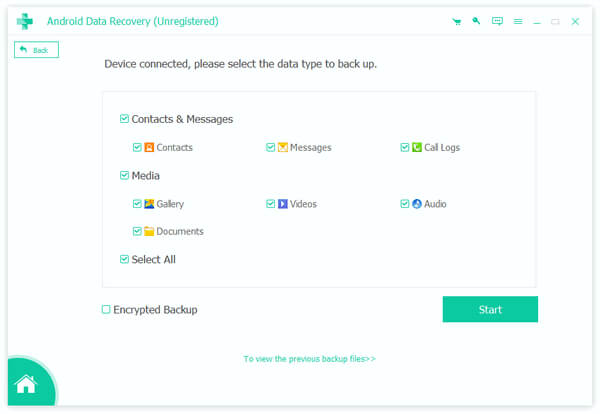
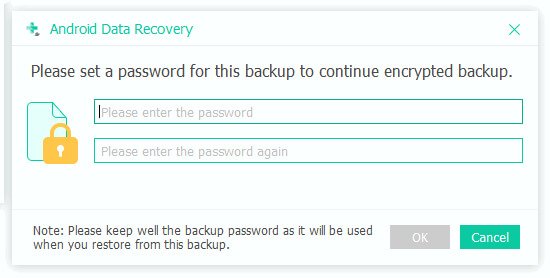
To protect your backup (like some passwords, contacts, and message history), you need to set up a backup password.
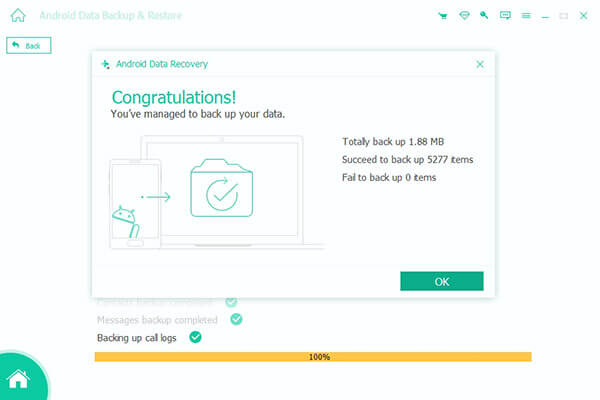
Step 3. Finish Backup
The program will automatically back up your Android device. After a while, the backup will finish. Click the OK button to confirm.
Conclusion
This tutorial explained how to use Google phone backup and restore. You can back up your data to Google One, Google Drive, and Google Photos. Remember that all of them use 15GB of free storage if you sign in with the same Google account. Apeaksoft Android Data Backup & Restore is an ideal alternative to Google for backing up smartphones.
Related Articles




