

How to Enable/Disable/Recover/Reset iPhone Backup Password

When you back up your iPhone to iTunes, encrypting your iPhone backup with a password is necessary for your privacy.
What is the iPhone backup password?
How to encrypt iPhone backup?
Forgot iPhone backup password?
Read this page to get the comprehensive guide on iPhone backup password and troubleshoot all issues about it in this post!
PAGE CONTENT:
Part 1: What Is iPhone Backup Password
What is an iPhone backup password?
After you successfully back up the content in your iPhone and want to have a look at the files in iTunes, will there be a password that racks your poor brains?
Here is more detail about the iPhone backup password you should know.
Actually, the iPhone backup password is not your first Apple ID password, nor your mobile phone password, but a password set by yourself when you first used the iTunes backup function. Under normal conditions, iTunes would not encrypt backups. When you want to encrypt backup in iTunes for the first time, you will be asked to set a password, and your iTunes will then start automatically creating encrypted backups for this device with the iPhone backup password.
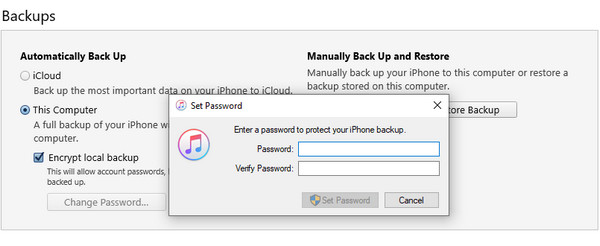
Unlike the iTunes password, your iPhone backup password works only when you need to see your backups in iTunes. They are two different passwords, and this one is needed when the system prompts and is set individually. After you set the password, remember it well or write the password down in a secure place, because without this password, you will not be able to use your iTunes backup. Just remember to pay attention to this.
Part 2: How to Enable or Disable iPhone Backup Password
No matter whether you have set the password for your iPhone backup or never set one, you just need to follow the steps below to set the password:
Step 1. Just do as usual, connect your iPhone to the computer via the USB cable, then run iTunes, and iTunes will detect your iPhone automatically.
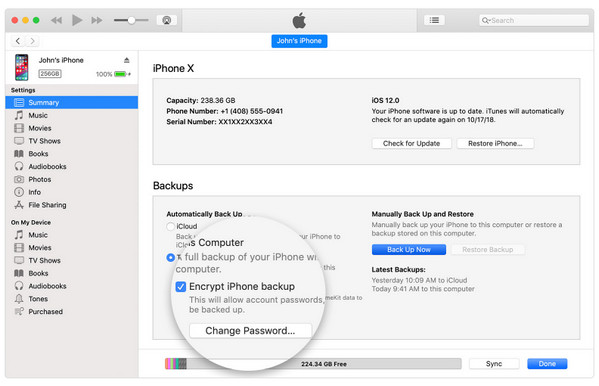
Step 2. In the iTunes interface, click the iPhone icon to enter the Summary screen by default.
Step 3. In the Backups section, when you select This Computer, you can see the option to Encrypt iPhone backup.
Step 4. In the pop-up window, you are asked to input a password. After that, click Back Up Now to start backing up your iPhone data to iTunes on this computer. Meanwhile, it will overwrite and encrypt your previous backups.
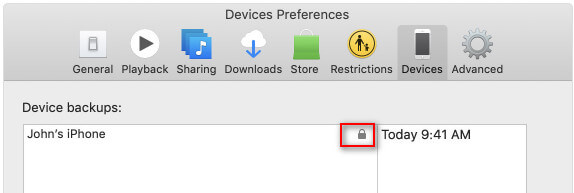
Step 5. After the backup is done, you can check if the backup is encrypted. Just go to Edit > Preferences > Device tab, where you can see a lock image to the right of your device's name.
Step 6. To disable iTunes backup encryption, just uncheck the Encrypted iPhone Backup box in iTunes, and enter the password to turn it off.
Part 3: How to Recover a Lost iPhone Backup Password
If you forget the password for iPhone backup, you will not be able to access or restore any encrypted backup data. Fortunately, although Apple does not offer a direct way to retrieve passwords for security reasons, there are still some methods that can help you try to retrieve forgotten passwords:
Try Possible Password
The most direct way is to try the common password you might have used before. Many people may use the same password for several similar accounts. You can try
• Apple ID password
• iPhone screen passcode
• Birthday date
• Common weak passwords like 1234, 0000, etc.
• …
Check the Keychain
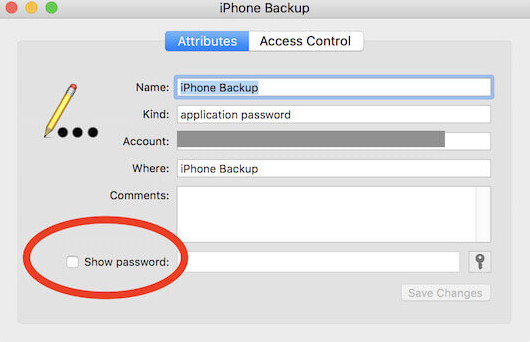
If you are using a Mac and have allowed it to save passwords before, it is very likely that the encrypted backup password has been stored in the Keychain Access. By checking the keychain, you might be able to directly retrieve this forgotten backup password.
Step 1. Open the Keychain Access app.
Step 2. Select Password in the left panel.
Step 3. Enter iPhone Backup or Backup in the search box.
Step 4. Check the Show password and enter your admin passcode.
Check Your Notes
Many users have the habit of writing down their passwords somewhere, such as in the memo on their mobile phones, the notepad on their computers, the draft of emails, or even in paper notebooks. You can check them when you forget the encryption password for iPhone backup.
Use iPhone Backup Password Recovery Tool
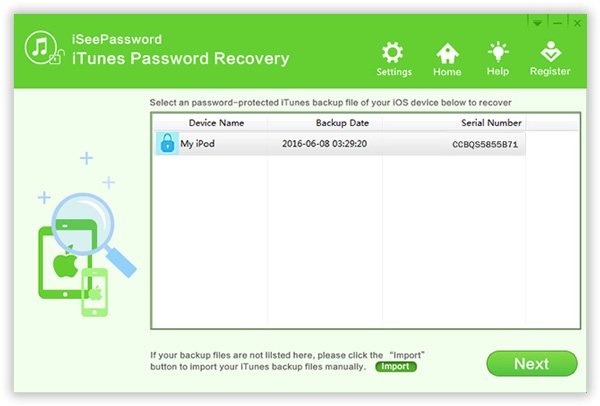
Actually, iSeePassword should be strongly recommended by many users around the world. Just take iSeePassword for example, this software is committed to developing easy-to-use decryption for iTunes users. Here is the detailed process to decrypt and recover the iPhone backup password.
Step 1. Install and launch the program on your computer. It is recommended to purchase and register the program before recovering the iPhone backup password.
Step 2. Choose the suitable attack type from Brute-force Attack or Mask Attack, and then enter the information to help the program decrypt the iPhone backup password.
Step 3. Decrypt the password protection of the iTunes backup. After that, you can click the Start button to recover the iPhone backup password to unlock iTunes.
Part 4: How to Reset iPhone Backup Password If You Forget It
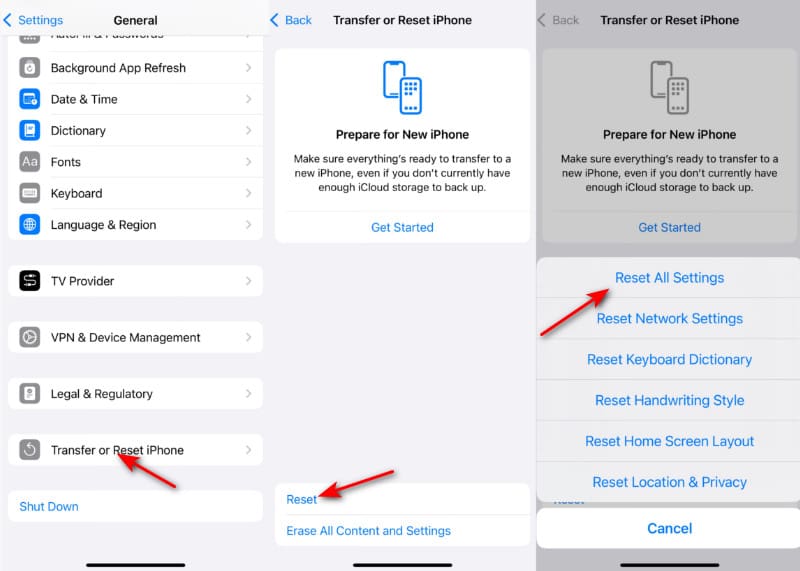
With iOS 16 or later, you could make a new encrypted backup of your device by resetting the iPhone backup password. Here is more detail about the steps.
Step 1. Enter the home page of the iOS device, go to Settings > General > Transfer or Reset iPhone > Reset.
Step 2. Choose Restore All Settings, and then enter your Apple ID password. It will reset settings like iPhone backup password, display brightness, Home screen layout, and wallpaper.
Step 3. Connect your device to iTunes again and create a new iPhone backup password like part 2.
This way is easier to reset the iPhone backup password, compared with iTunes password reset.
Bonus Tip: Best Alternative to Back up iPhone
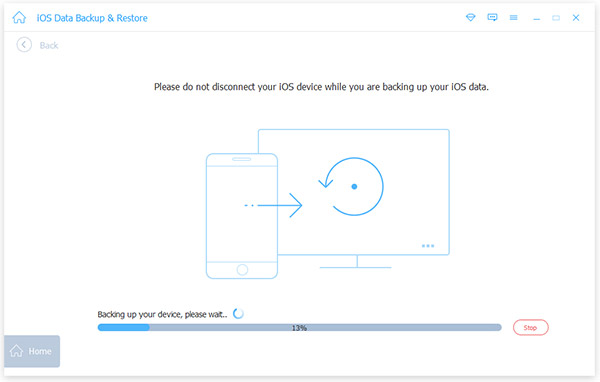
If you worry about forgetting the iPhone backup password, or you find the iTunes backup mechanism is complex, you can find an alternative backup tool that is more flexible and easier. Here, we recommend Apeaksoft iOS Data Backup & Restore. Compared with the traditional iTunes, it offers a more intuitive operation interface, a higher success rate, and a more convenient recovery method.
Best Alternative to iTunes for Backing up iPhone
- One click to back up iPhone content to the computer.
- Preview and select iPhone data with easy steps.
- Support iPhone 18 Pro/17/16, etc.
- Set the iPhone backup password to protect the content safely.
- Straightforward interface and easy-to-follow steps.
Secure Download
Secure Download

Step 1. Free download and install the program. Choose iOS Data Backup & Restore. Click iOS Data Backup on the following page.
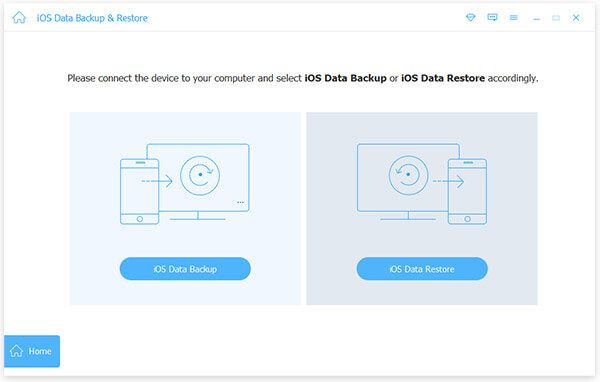
Step 2. Once you connect your iPhone to the computer, you can select the files you want to back up. Of course, you can also have a preview of the files before you save files from your iPhone to your computer.
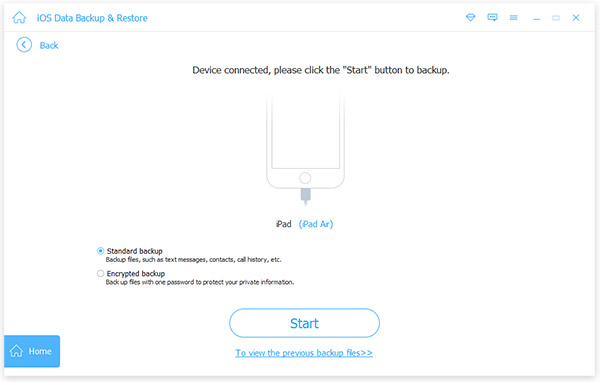
Step 3. You can back up iPhone content to the computer. Click the Start button after you choose the Encrypted backup option to set iPhone backup password according to your requirement.You can also back up iPhone without a passcode by checking Standard backup.
Conclusion
When faced with any problem related to iPhone backup password, you can just refer to the information in this article for decent answers. Do not panic when you find that your iPhone backup password is forgotten. Even though all the methods fail, you can still use Apeaksoft iOS Data Backup & Restore as an alternative solution.
Related Articles




