


How to Reset Your iTunes Login and Password Quickly

It is well known that Apple has built a security ecosystem. In addition to the security measures on Apple devices, the login credentials are crucial to protect your data, such as your iTunes login and password. What about if you forgot your password and cannot access your iTunes account? This article shows you how to reset your iTunes password so you can once again enjoy all the benefits of your account.
PAGE CONTENT:
Part 1: What Is iTunes Password
While Apple has stopped iTunes on the latest versions of macOS, this utility is still available for iPhone data backup and management. However, there is no iTunes password at all. Alternatively, you log in to iTunes with your Apple ID and password. In other words, your iTunes password is the same as your Apple ID password.
Part 2: How to Reset iTunes Password
If you are using Windows and macOS Mojave or earlier, you can use iTunes to back up your iPhone, manage your music library, and more. If you forget your password, you can reset your password for iTunes on your computer or a trusted iOS device.
How to Reset a Password in iTunes
Step 1. Run the latest version of iTunes on your computer.
Step 2. Go to the Account menu and choose Sign In.
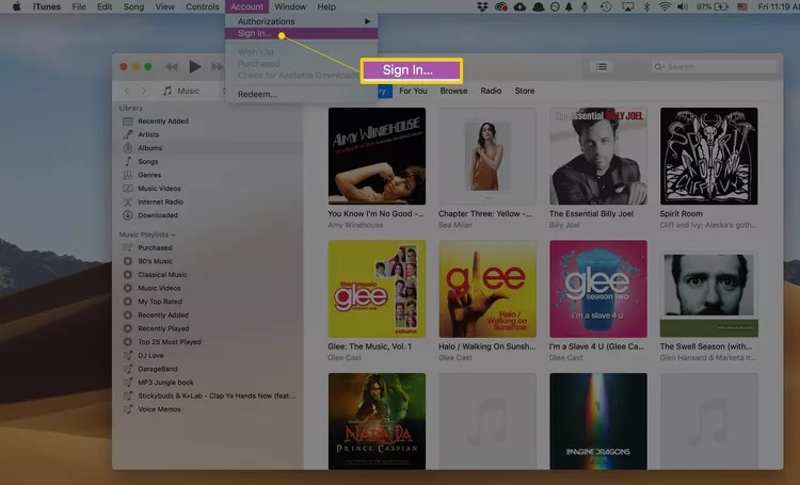
Step 3. Click the Forgot Apple ID or Password link in the pop-up dialog.
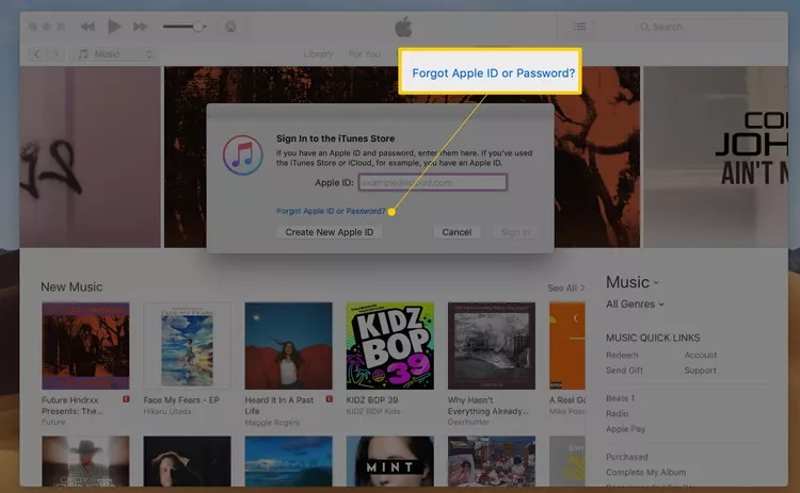
Step 4. Enter your Apple ID email address or phone number into the field and click Continue.
Step 5. Input the password you use for your computer user account.
Step 6. Type a new password, re-enter it, and hit Continue.
Step 7. Select Use trusted phone number or another channel, then click Continue.
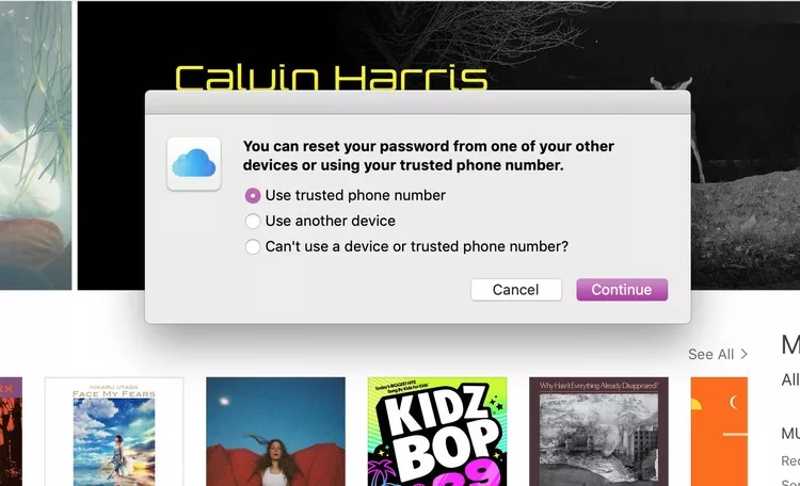
Step 8. Follow the onscreen instructions to reset your iTunes password.
How to Reset iTunes Password on Trusted Device
Step 1. If you have set up Two-factor Authentication for your account, turn on your trusted iPhone or iPad.
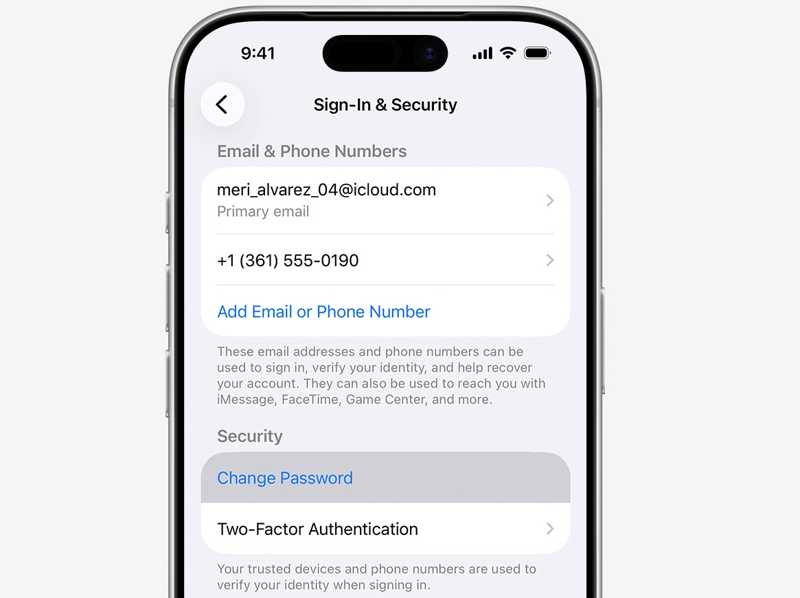
Step 2. Go to the Settings app.
Step 3. Tap on your profile.
Step 4. Tap the Change Password button.
Step 5. Enter your iPhone's passcode.
Step 6. Then, enter a new password, verify it, and confirm the reset of the iTunes password.
How to Reset iTunes Password Online
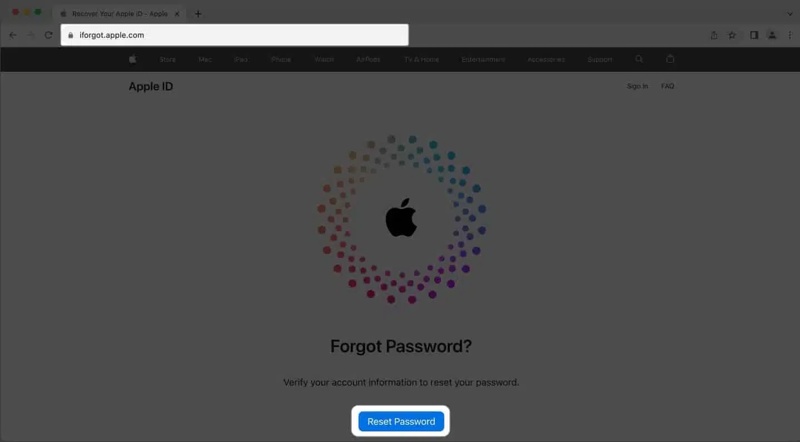
Step 1. Access iforgot.apple.com in a web browser and click Reset Password.
Step 2. Enter your Apple ID email or phone number and click Continue.
Step 3. Choose a channel to verify your ownership:
If Two-factor Authentication is enabled, choose a trusted device.
Or select Get an email or Answer security questions.
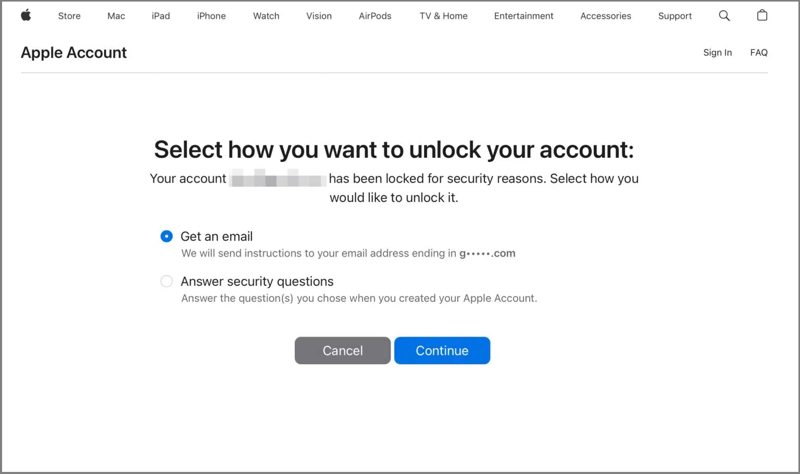
Step 4. Follow the onscreen instructions to verify your identity.
Step 5. Next, create a new password, re-enter it, and confirm your action.
Step 6. After resetting the iTunes password, you can update it on your Apple devices, iTunes, and other Apple services.
Further Reading
Part 3: The Ultimate Way to Reset iTunes Password on Your iPhone
If you forgot your iTunes password and don't have a trusted device, you will need a powerful password removal program. Apeaksoft iFoneKit iOS Unlocker, for example, can remove the iTunes password from an iOS device without any restrictions. Furthermore, the intuitive design makes it easy to navigate.

Downloaded by over 1,000,000 users
- Complete the process with three steps.
- Don't ask your iTunes password or iPhone passcode.
- Offer bonus features, like Screen Time passcode removal.
- Support almost all iPhone and iPad models.
Secure Download
Secure Download

How to Reset iTunes Password on Your iPhone
Step 1. Install Apple ID removal software
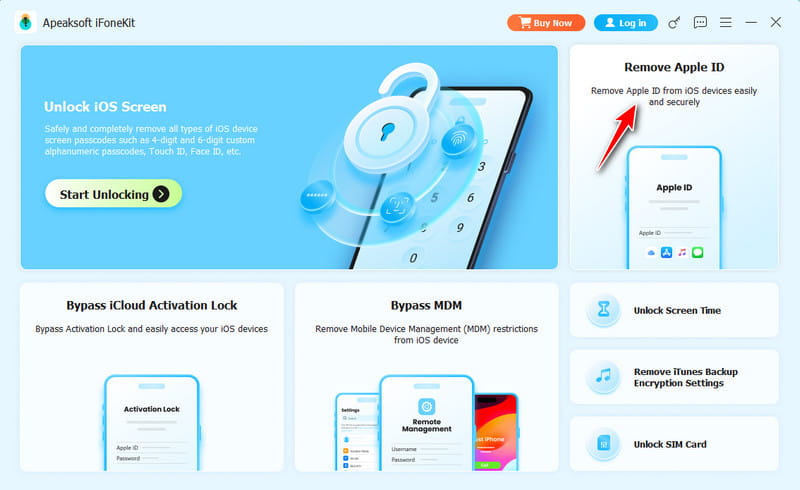
Launch the Apple ID removal software after installing it on your computer. It is compatible with Windows 11/10/8/7/XP/Vista and macOS 10.7 or above. Choose the Remove Apple ID mode to continue.
Step 2. Connect to your iPhone
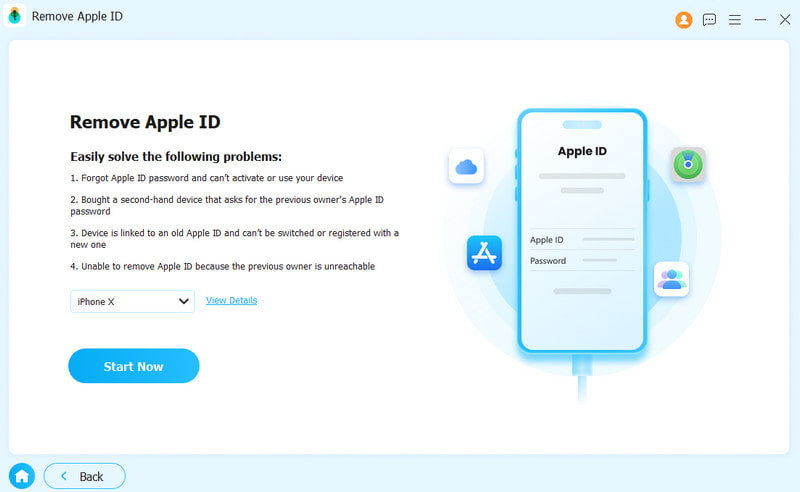
Connect your iPhone to your computer with a Lightning cable. If prompted, tap the Trust button on your iPhone screen to trust this computer. Once your device is recognized, the software will load the iPhone information. Then, click the Start Now button.
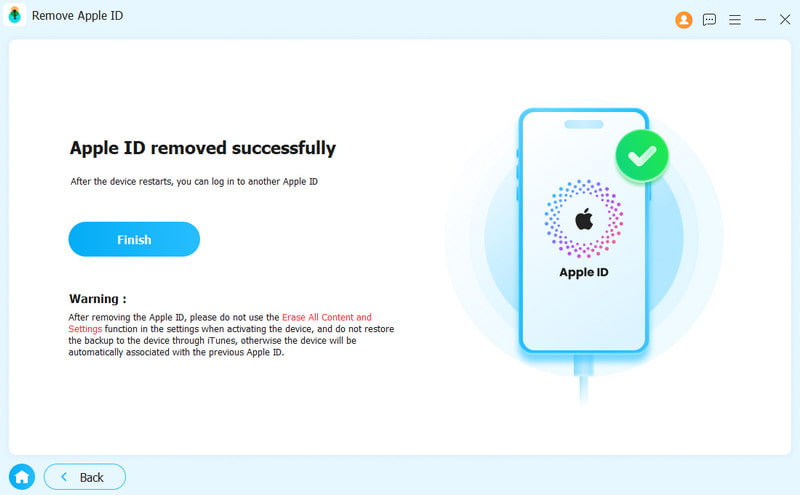
Step 3. Remove iTunes password
If Find My iPhone is disabled, the software will start removing the iTunes password immediately. If Find My iPhone is enabled, follow the onscreen instructions to reset all settings on your device. Then, click the OK button on the confirmation dialog. Next, hit Confirm Again to initiate the process. You can set a new iTunes password.
Conclusion
This article explained how to reset the iTunes login and password. As mentioned, you log in to iTunes with your Apple ID password. If you forgot your iTunes login information, you can follow our proven methods to reset your account credentials. Apeaksoft iFoneKit iOS Unlocker is a quick way to remove the forgotten iTunes login and password from your iOS device, then create a new account and password.
 Apeaksoft iFoneKit
 Unlock all types of iOS passwords from iPhone, iPad and iPod.
Secure Download
Secure Download
Related Articles




