

5 Tested and Proven Ways to Back Up Samsung Messages

For Samsung users, messages play an important role in our daily lives, whether it's for verification codes, notifications, or important communication with family and friends. If lost, it will bring great inconvenience to us. Therefore, it is essential to make a Samsung messages backup.
This post will introduce 5 ways to back up Samsung messages in detail, all of which have been fully tested and proven effective, so you can use them with confidence.
PAGE CONTENT:
- Part 1: Back up Samsung Text Messages to Computer Anytime
- Part 2: Back up Samsung Messages with SMS Backup+
- Part 3: Back up Messages on Samsung via Cloud Service
- Part 4: Samsung Messages Backup via the SMS Backup & Restore Android App
- Part 5: Use Super Backup & Restore to Back up Messages on Samsung
Part 1: Back up Samsung Text Messages to Computer Anytime
If you want to back up Samsung text messages to your computer anytime, you cannot miss Apeaksoft Android Data Backup & Restore. It is an easy-to-use tool that enables you to back up and restore Samsung data with one click. Besides messages, you can also use this software to back up other important data, including contacts, call logs, and photos. Whether it’s for regular backups or saving your data before changing devices, you can always rely on this tool.
Reliable Samsung Messages Backup Tool
- Back up Samsung text messages to a computer quickly.
- Choose which message to back up exactly and selectively.
- All Samsung message backups will be kept on your computer safely.
- Restore Samsung messages backup anytime without overwriting.
Secure Download
Secure Download

Step 1. Download this Samsung backup tool for free from the above button.
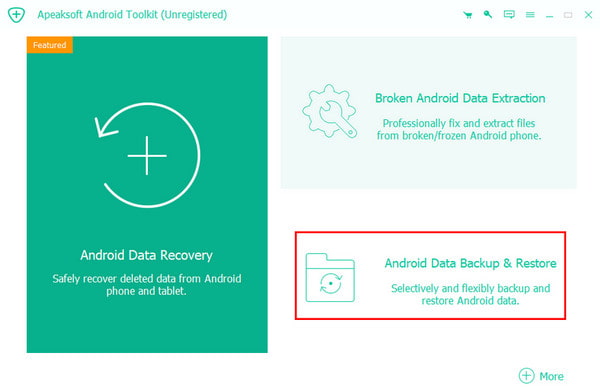
Step 2. Choose Android Data Backup & Restore on the main interface.
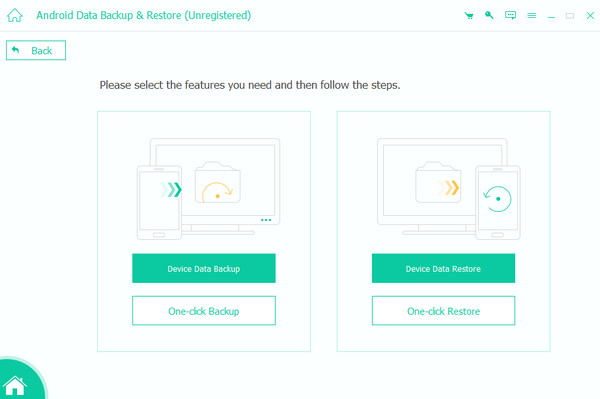
Step 3. Then, press the Device Data Backup button.
Step 4. Connect your Samsung phone to this software, check Messages, and press the Start button.
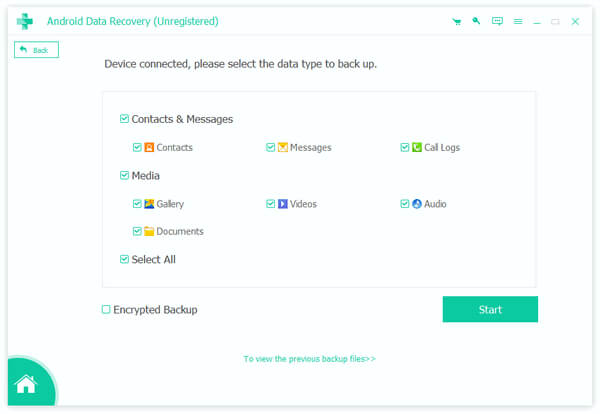
Tips: You can check the Encrypted Backup at the bottom if you want to make your backup safer. If you want to back up contacts on Android, just check the Contacts.
Part 2: Back up Samsung Messages with SMS Backup+
If you want to use a free tool to back up text messages on Samsung, SMS Backup+ is an ideal choice. It can back up your messages, call logs, etc., to Gmail or Google Calendar, which enables you to access them across different devices.
Step 1. Search for SMS Backup+ in your Google Play Store and install it on your Samsung phone.
Step 2. Launch it and grant it all necessary permissions.
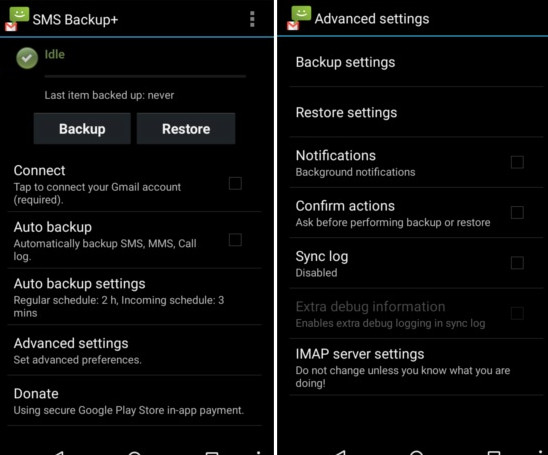
Step 3. Press the Backup button from the home screen. Connect it to your Google profile.
Step 4. You can also set an auto backup and set the frequency.
Part 3: Back up Messages on Samsung via Cloud Service
If you want to back up Samsung messages without a computer, using Samsung Cloud Backup is a great alternative. It is also an official backup solution for Samsung. As long as you have enabled the sync feature, your messages will be synced to the cloud automatically. Moreover, Samsung Cloud provides 15GB of free storage space.
Step 1. Go to Settings - Clouds & Account - Accounts - Add Account to sign in with a Samsung account.
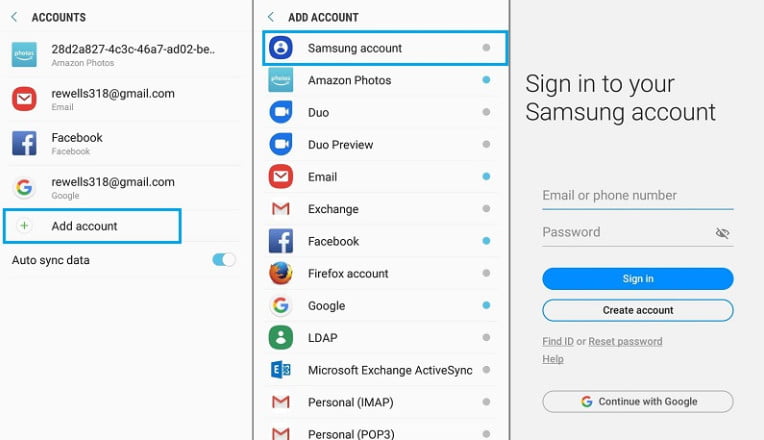
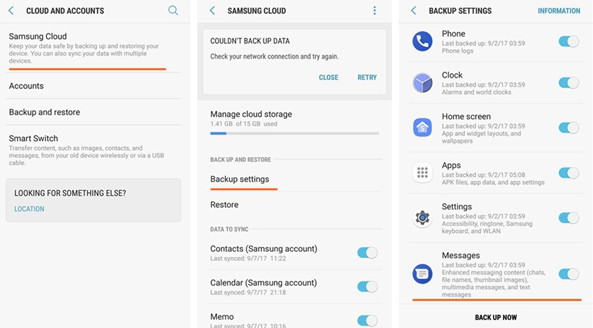
Step 2. Back to the Clouds & Account screen and click Samsung Cloud.
Step 3. Click Backup Settings and toggle on Messages.
Step 4. Press the BACK UP NOW button.
Part 4: Samsung Messages Backup via the SMS Backup & Restore Android App
If you are looking for a more comprehensive tool that supports backing up Samsung text messages both locally and in the cloud, SMS Backup & Restore is a worthy Android app to consider. It can not only back up Samsung text messages, but also support backing up call records. Also, it can save the data to the local phone, Google Drive or Dropbox.
Step 1. Download the Samsung Backup and Restore Android App from the Google Play Store. Install and launch it once finished.
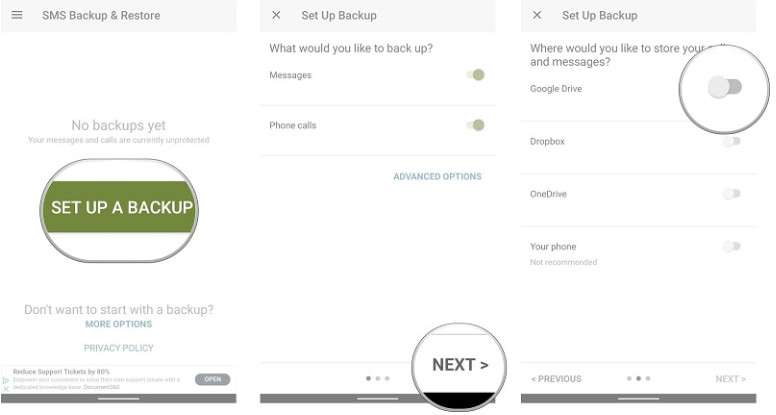
Step 2. Press the SET UP A BACKUP button on the home screen.
Step 3. Turn the toggle of Messages on, and then click NEXT.
Step 4. Choose the location where you want to back up your Samsung messages.
Part 5: Use Super Backup & Restore to Back up Messages on Samsung
If you want to quickly back up Samsung text messages to your local device or the cloud, Super Backup & Restore is a simple-to-operate tool that can help you easily save text messages and restore them at any time.
Step 1. Download and install the Super Backup & Restore from the Google Play Store.
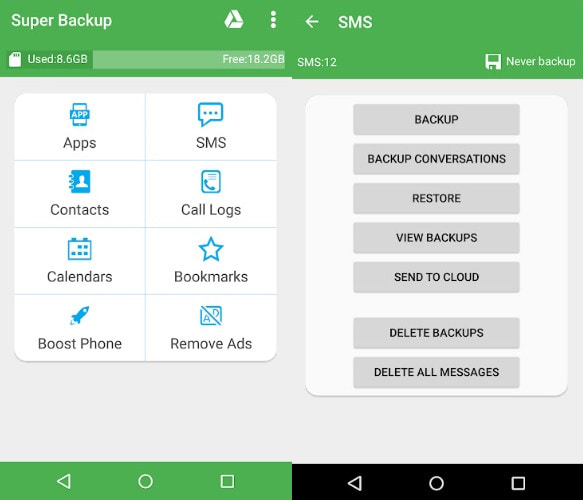
Step 2. Launch the app and press the SMS button.
Step 3. Then you will see different storage options. Choose based on your needs.
Step 4. Follow the on-screen instructions to complete the process.
Conclusion
Up till now, this post has introduced 5 proven ways to back up Samsung messages based on our careful tests. Among them, we recommend Apeaksoft Android Data Backup & Restore the most because it enables you to back up Android call logs, contacts, photos, etc., anytime with one click!
Related Articles




