


How to Freeze Location on Snapchat on iPhone/Android

Snapchat is known for its real-time interactions and location-based features like Snap Map. However, there are times when users want control over their location information, whether for privacy or simply for a touch of mystery.
This raises an important question: Can you freeze your location on Snapchat?
This article will dive into the feasibility of this desire, exploring whether it's possible to maintain a static location on your Snapchat profile. Furthermore, we will uncover practical methods to pause your location on Snapchat, ensuring you can curate your Snapchat experience according to your preferences.
PAGE CONTENT:
Part 1: Is it Possible to Freeze the Location on Your Snapchat
Yes, it is possible to freeze Snapchat locations whenever you want. Snapchat permits users to transmit their location with friends through the app's Snap Map feature. This feature provides real-time location sharing, allowing friends to see each other on a map. However, users can control their privacy settings to choose who can view their location.
While Snapchat allows users to share their live location temporarily, there isn't a built‑in feature to freeze, permanently fix, or change location on the map. The real‑time sharing is designed to be dynamic, reflecting the user's current location. To know the workable methods to freeze your location, proceed to the next part.
Will others know you are pausing Snapchat location?
Generally, others will not be notified if you pause location on Snapchat. However, others may detect that you are pausing Snapchat location through certain signs, such as your Bitmoji staying in the same location for a long time, the "last update time" on the map remaining unchanged, and more.
To help you better understand how Snapchat handles location privacy, we've summarized the most common methods and whether your friends will be notified or aware of the change in the table below.
| Method | Signs |
| Ghost Mode | Other people will notice that your Bitmoji has disappeared from the Snapchat map. |
| Turn off location for specific friends | Your Bitmoji will disappear and friends will find that they can no longer view your location information. |
| Turn off Snapchat location | Others will see your location as unavailable or not updating. |
| Airplane Mode | Your last updated location may stay frozen. Once you reconnect, your location will update. |
Part 2: 4 Workable Methods to Freeze Location on Your Snapchat
Snapchat offers various methods to control and manage your location settings, providing users with flexibility and privacy options. Whether you want to temporarily pause your location, freeze it by blocking Snapchat's access, or choose specific sharing preferences, here's a guide to navigate through these features:
Method 1. Freeze Snapchat Location via Ghost Mode
This method involves how to freeze Snapchat locations, offering an additional layer of privacy control via the built‑in Ghost Mode feature.
Step 1. Open Snapchat, go to the camera screen and pinch the screen with two fingers to open the Snap Map.
Step 2. Tap the gear button to open settings and choose Ghost Mode to turn off location sharing.
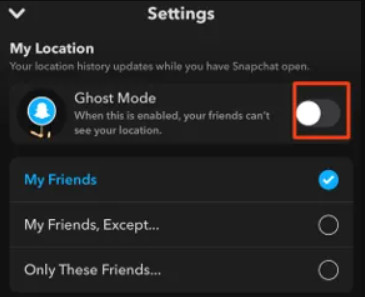
Step 3. Return to settings, scroll down to Manage, go to Maps, and turn off usage data sharing.
Method 2. Pause Snapchat Location for Certain Friends
If you only want to pause location sharing for certain friends, Snapchat enables you to freeze location sharing:
Step 1. Open Settings from Snap Map.
Step 2. Disable Ghost Mode first, and customize "Who Can See My Location".
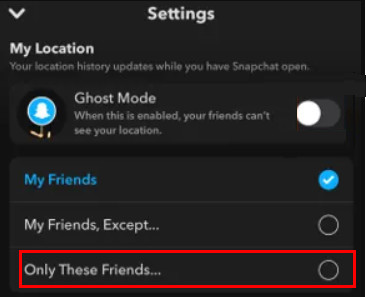
Step 3. Check Only These Friends and choose respectively.
Method 3. Pause My Location on Snapchat by Disabling Location Permission
Block Snapchat's access to your location entirely, providing a more static and controlled approach to your privacy. Here are the steps to learn how to freeze location on Snapchat.
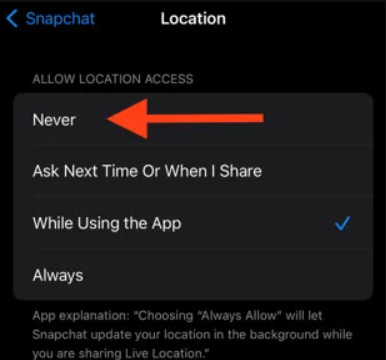
Step 1. Open Settings on your iPhone or Android phone, and find the Snapchat app.
Step 2. Find and tap on the Snapchat app.
Step 3. Navigate to Location settings and choose Never.
Method 4. Pause Your Snapchat Location via Airplane Mode
If you just want to pause location on Snapchat temporarily without turning it off, enabling the flight mode (Airplane mode) is a simple solution. Once you turn it on, your device will disconnect from the network, and Snapchat will no longer be able to update the real‑time location. Your last location will freeze until you reconnect to the network.
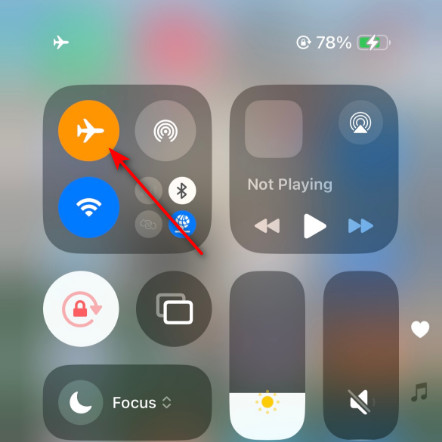
Step 1. Open the Control Center on your iPhone or Android phone.
Step 2. Tap the Airplane Mode icon to disconnect your device from Wi‑Fi and cellular data.
Part 3: Bonus: Protect Your Privacy on Snapchat by Changing the iPhone's Location
Altering your location on an iPhone or iPad typically proves challenging due to Apple's stringent control over Location Services, which utilizes GPS to pinpoint your geographic coordinates. Apple, by default, does not permit users to modify their location on iOS devices. However, an innovative solution comes in the form of Apeaksoft iPhone Location Changer.

Downloaded by over 1,000,000 users
- Change Snapchat location with one click.
- Create virtual locations and routes effortlessly.
- Highly compatible with iPhone and Android phones.
- User-friendly interface and simple steps.
Secure Download
Secure Download
Step 1. Download and install the app by clicking the download button above. Launch it.
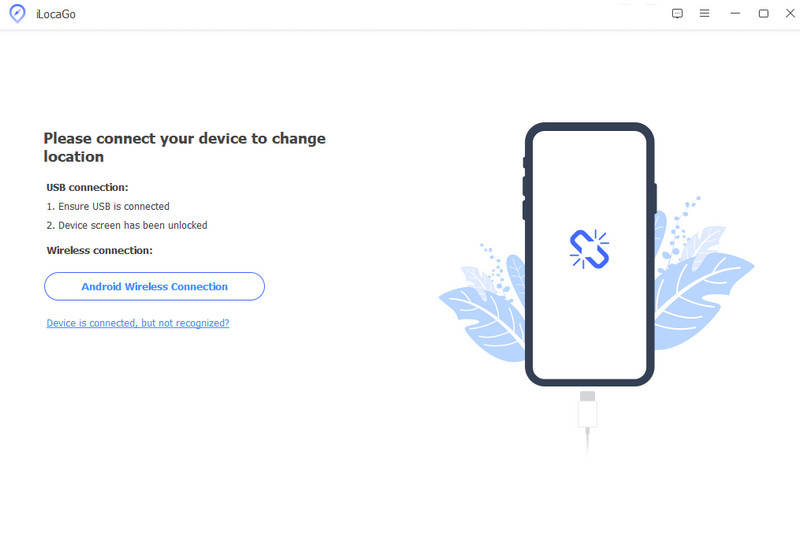
Step 2. Connect your iPhone or Android phone to your PC using a USB cable.
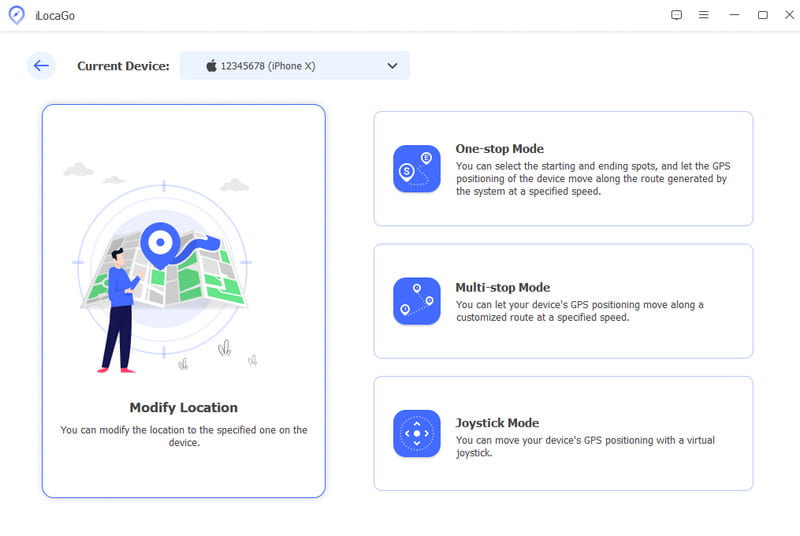
Step 3. Once your device is detected, you'll navigate to the main interface, offering four distinctive modes: Modify Location, One‑stop Mode, Multi‑stop Mode, and Joystick Mode. For this guide, we'll select Modify Location.
Step 4. Two methods are at your disposal on the map screen:
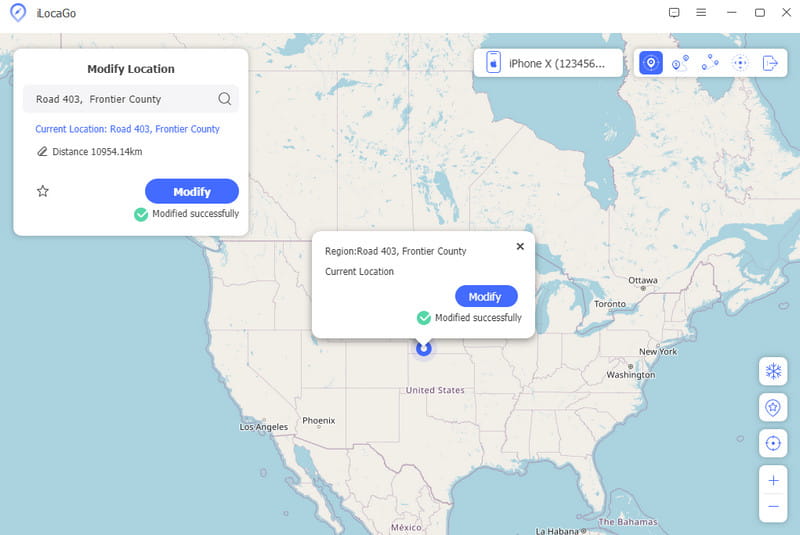
Method 1. If you possess an exact address, input it into the field on the Modify Location dialog. Subsequently, click Modify to solidify the changes.
Method 2. Alternatively, if you lack a precise address, simply click on the desired destination spot on the map. The software will promptly display the address in a pop‑up dialog. Confirm the adjustment by clicking the Modify button.
Part 4: FAQs on How to Freeze Location on Snapchat
Does Ghost mode freeze your location?
Yes, Ghost Mode on Snapchat effectively freezes your location. When enabled, it ensures that your real‑time location is not visible on the Snap Map, providing heightened privacy. Ghost Mode lets you control when and how your location is shared with friends on the platform.
How can you tell if someone is in Ghost mode?
Identifying if someone is in Ghost Mode on Snapchat can be challenging. When a user activates Ghost Mode, their Bitmoji disappears from the Snap Map, making it difficult for others to pinpoint their exact location. However, it’s important to note that while someone may be in Ghost Mode, they can still see the locations of friends who haven’t activated the same privacy setting.
Can I hide someone on Snapchat without blocking them?
Yes, Snapchat offers a Hide My Story feature that allows you to hide your Snapchat Story from specific friends without blocking it. This way, you can manage your visibility and interactions on the platform without completely severing your connection with specific individuals.
How vital is freezing location on Snapchat?
Freezing or controlling your location on Snapchat is crucial for personal privacy and security. Using features like Ghost Mode, users can choose when to share their location and with whom, ensuring a more controlled and intentional sharing of their whereabouts. This is particularly important in today’s digital landscape, where privacy concerns are paramount.
How to freeze Find My iPhone location?
To freeze your Find My iPhone location, you can enable Share My Location on your iPhone and customize it by choosing the From option. Select My Location to freeze your current location effectively. However, it’s essential to be cautious with location settings to avoid unintentional sharing and to review and update your privacy preferences regularly.
Can I pause my location on Snapchat without them knowing?
Yes. You can enable the Ghost Mode on Snapchat to hide your location in one click.
Why does people’s Snapchat location freeze?
There are several reasons. Your friend hasn’t opened the app, has enabled Ghost Mode, turned off location permissions, etc.
How to freeze a Snapchat location without turning it off?
You can use Apeaksoft iPhone Location Changer to fake your location to a certain place.
Conclusion
With the method above, you can also use it to perform a how to freeze location on Snapchat. Now that you know the information, we hope you protect your location from anyone who wants to get in on Snapchat immediately.
 Apeaksoft iPhone Location Changer
 Change location and Simulate GPS movement on iOS devices.
Secure Download
Secure Download
Related Articles




