

The Most Detailed Guide to Find the Disappeared Calendar App

"I manage my schedules mainly relying on my Calendar, but I deleted it accidentally just now. How do I get the Calendar back on my iPhone 17?"
It could be a headache when you accidentally delete the Calendar app on your iPhone because you need it to remind you of some important dates and management. From iOS 10, Apple has enabled you to delete or uninstall some built-in apps like Calendar. Just keep reading and learn about 3 efficient ways to help you restore the deleted Calendar app on iPhone on different occasions.
PAGE CONTENT:
- Part 1: Check the App Library - Is the Calendar App Just Hidden
- Part 2: Reinstall the Calendar App on iPhone from the App Store
- Bonus Tip: Restore Calendar Events on iPhone After the Reinstallation
- Part 3: Reset the Home Screen Layout If the Calendar Icon Cannot Be Found
- Part 4: FAQs of Restoring Deleted Calendar App on iPhone
Part 1: Check the App Library - Is the Calendar App Just Hidden
Sometimes, the Calendar app isn’t deleted at all. When you accidentally delete the Calendar app from the home screen of iPhone, you can search your App Library to see if the app is still on your iPhone but just not visible on the home screen.
Step 1. Unlock your iPhone and keep swiping left on the Home Screen until you reach the App Library interface.
Step 2. Find the Calendar app and long-press it.
Step 3. Select Add to Home Screen. Then, you will see the Calendar app on your home screen.
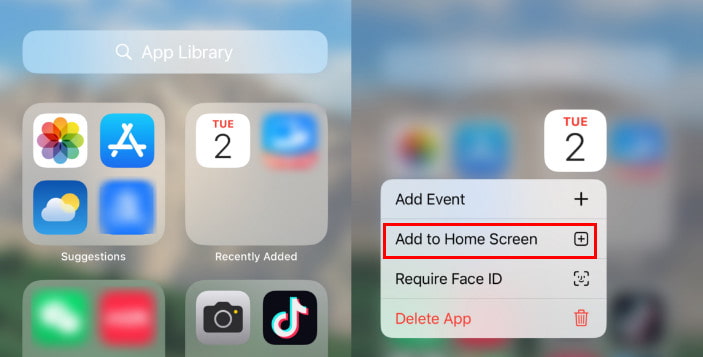
Tips: If you cannot find the Add to Home Screen option, it means that the app is still on your home screen.
Part 2: Reinstall the Calendar App on iPhone from the App Store
If you have deleted the Calendar app accidentally on your iPhone, don’t worry. You can find it in the App Store. The steps are very simple, just like when you usually install other applications. Follow the steps below to continue managing your schedules.
How to Restore the Accidentally Deleted Calendar App on Your iPhone
Step 1. Open the App Store on your iPhone.
Step 2. Choose the Search tab at the bottom.
Step 3. Enter Calendar in the search box.
Step 4. Press the download button next to the app.
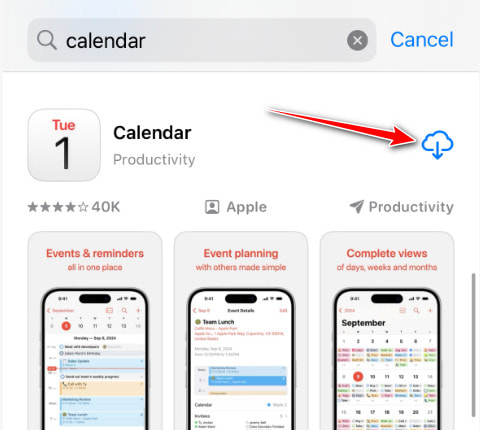
Tips: Make sure you are downloading the right official built-in app from Apple.
Bonus Tip: Restore Calendar Events on iPhone After the Reinstallation
We know that most calendar data synced through iCloud, Google, or Exchange accounts will automatically reappear after reinstalling the Calendar app. However, if you didn’t have backups or your iPhone Calendar was not syncing, some locally stored calendar events may not be restored automatically. Can we recover deleted Calendar events without a backup? Yes! All you need is third-party software. And after our prudent tests of 10+ Calendar data recovery software, we recommend Apeaksoft iPhone Data Recovery finally.
Restore Deleted Calendar Events Hassle-Free
- Support all iOS devices and iOS versions, including the latest iOS 26.
- Recover the Calendar events from iPhone without backup.
- Preview the detailed Calendar events before the recovery.
- Restore deleted or lost data from iTunes/iCloud backup.
Secure Download
Secure Download

How to Restore the Deleted Calendar Events on Your iPhone
Step 1. Connect iPhone to PC
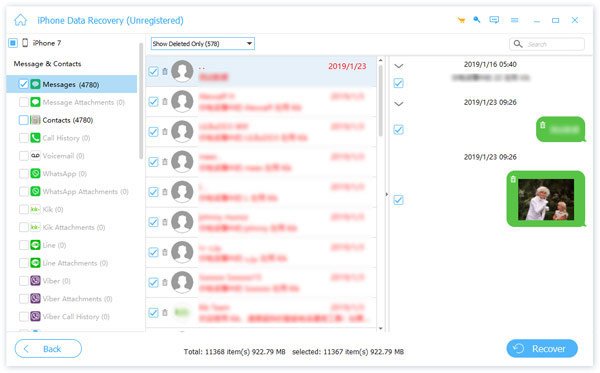
Download and install Apeaksoft iPhone Data Recovery on your computer. Launch it and connect your iPhone to the computer with a USB cable. Then, click Start Scan to scan your handset.

Step 2. Retrieve Deleted Calendar Events
After scanning, you will see the data type screen. Locate the Memos & Others section, and check the Calendar. Then you can preview all Calendar events on the right side.
Step 3. Retrieve Deleted Calendar Events
At last, choose the desired events, and click the Recover button to get the accidentally deleted Calendar app back on iPhone.
Part 3: Reset the Home Screen Layout If the Calendar Icon Cannot Be Found
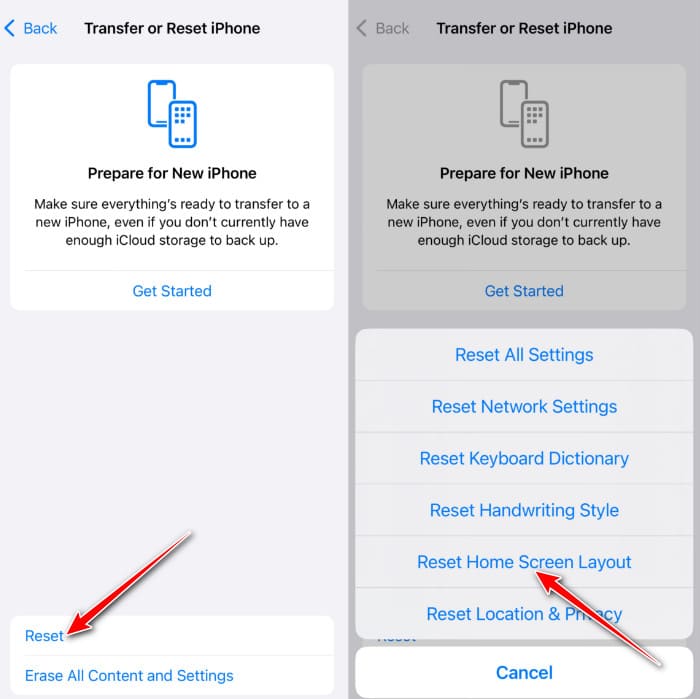
If you can’t find the Calendar app in the App Library, or you don’t remember which folder you placed it in, you can quickly restore all default system app positions by resetting the Home Screen layout. This won’t delete any apps or data.
Step 1. Go to the Settings app and click the General button. Tap the Transfer or Reset iPhone button.
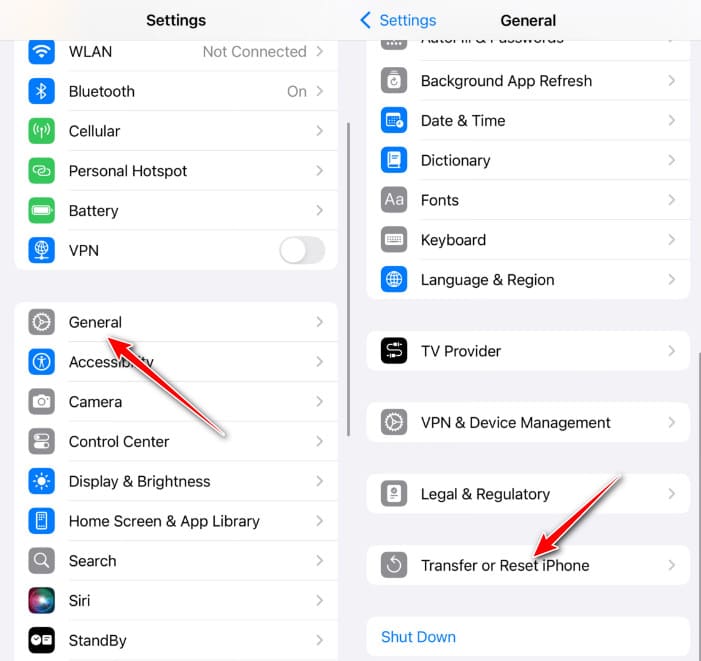
Step 2. Select the Reset option, and then click Reset Home Screen Layout. Now, the Calendar app should get back. You should note that this way will delete all your app folders and return the apps to your home screen.
Part 4: FAQs of Restoring Deleted Calendar App on iPhone
Why did my Calendar app disappear from my iPhone?
Sometimes, you may have inadvertently moved into a screen or a folder, so it has disappeared from your home screen.
Where can I find the Calendar app on iPhone?
Generally speaking, you can find the Calendar app from your home screen on your iPhone. Moreover, you can find the app in App Library too. If you accidentally deleted the Calendar app on your iPhone, you can simply reset the home screen layout at first.
Can I recover deleted Calendar events from iPhone without a backup?
You cannot get back Calendar events if you deleted them on your iPhone without a backup by default. Therefore, you’d better back up your iPhone regularly. If indeed, you can look for a dedicated data recovery tool like Apeaksoft iPhone Data Recovery.
Conclusion
Now you have grasped 3 steps when you cannot find the Calendar app on your iPhone. If you accidentally deleted the Calendar app on your iPhone, just follow the 3 methods we introduced, and there is a high possibility of restoring the Calendar app to its original state. Moreover, if you want to get the deleted Calendar event back, Apeaksoft iPhone Data Recovery is a great helper.
Related Articles
"Why is my Samsung calendar not syncing?" Have you ever had that question? This detailed article will help you solve the Samsung Calendar not syncing problem!
Google Calendar helps you plan your days. If your schedule gets lost, you can still recover Google Calendar events in 3 ways.
When you mistakenly delete a calendar event in Outlook, it's still recoverable on your PC. Check how to retrieve deleted Outlook Calendar.
Want to share a business schedule on the Calendar on iPhone with your colleagues? Just learn more details about the best methods from the article.



