

How to Clear Your iPhone to Sell Without Data Loss

According to our survey, millions of users sell, give away, or trade in their iPhone and iPad devices. That is a good way to get some money back from old iOS devices. However, one concern is privacy leakage. iOS devices come with the factory reset option, but it is not enough to protect your private data. Therefore, our guide explains how to clear your iPhone to sell and protect your data.
PAGE CONTENT:
Part 1: Before Clearing iPhone to Sell
What to do before selling your iPhone? To avoid data loss, you‘d better make a backup. Moreover, you need to turn off Find My iPhone, unpair Apple Watch and other devices, and sign out all accounts on your iPhone.
How to Back up Your iPhone
To iCloud
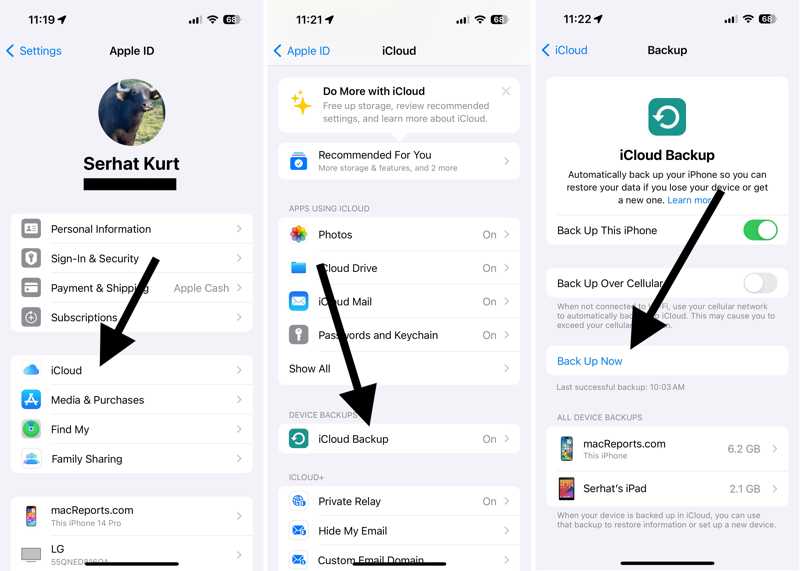
Step 1. Run your Settings app.
Step 2. Connect your iPhone to an internet connection.
Step 3. Tap on your profile and choose iCloud.
Step 4. Go to iCloud Backup and tap Back Up Now.
To Computer
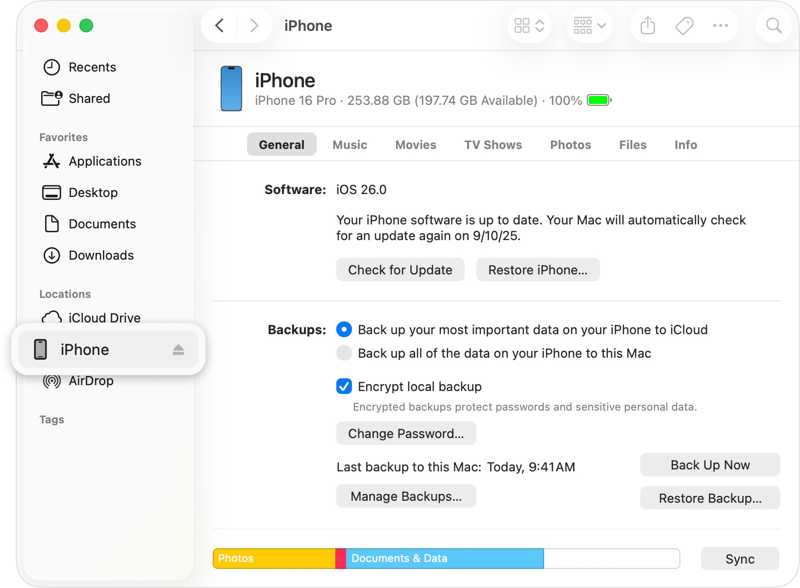
Step 1. Connect your iPhone to your computer with a USB cable.
Step 2. Open iTunes on Windows and macOS Mojave or earlier, or Finder on macOS Catalina and later.
Step 3. Click the Phone button or your iPhone name.
Step 4. Go to the Summary or General tab, and click the Back Up Now button.
How to Turn off Find My iPhone
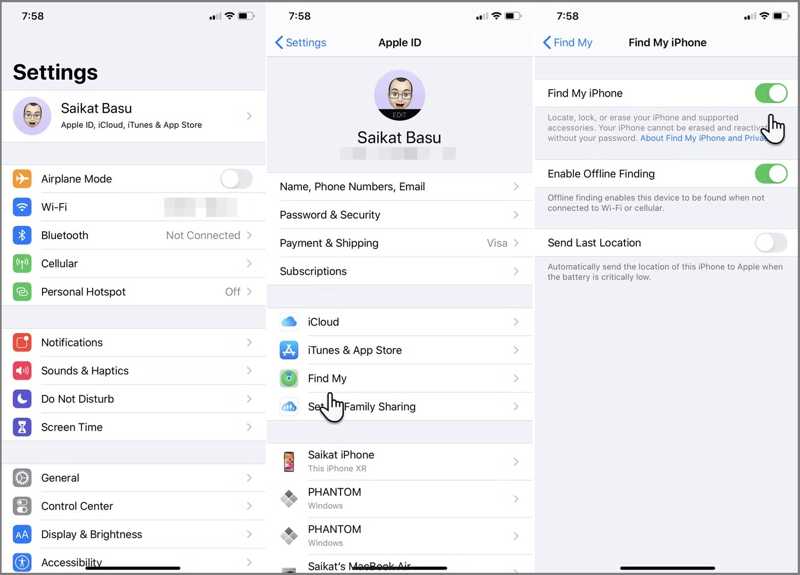
Step 1. Tap on your profile in the Settings app.
Step 2. Choose Find My, and toggle off Find My iPhone.
Step 3. If prompted, enter your Apple ID password. If you've forgotten your Apple ID password, you can reset it with the associated phone number or email.
How to Unpair Apple Watch
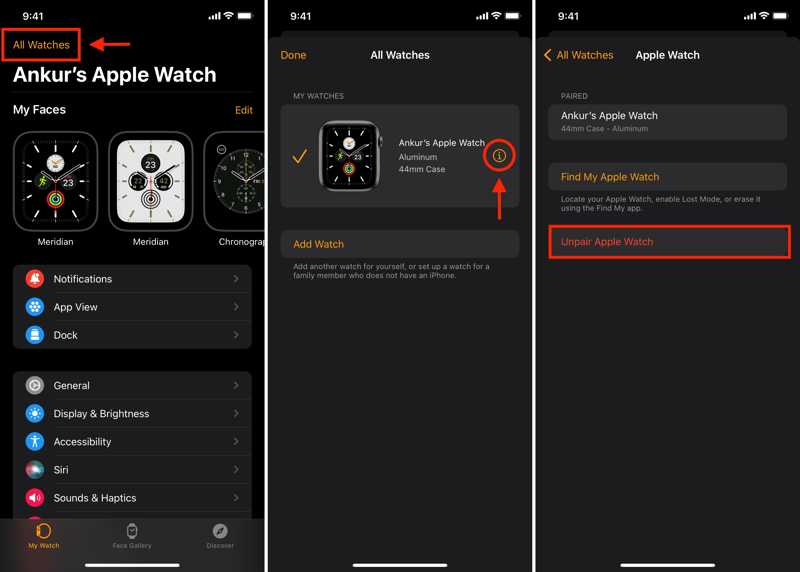
Step 1. Run the Watch app on your iPhone.
Step 2. Tap All Watches in the My Watch section.
Step 3. Tap the Info button and choose Unpair Apple Watch.
Step 4. When prompted, confirm the unpairing before erasing the iPhone to sell.
How to Sign Out Apple ID
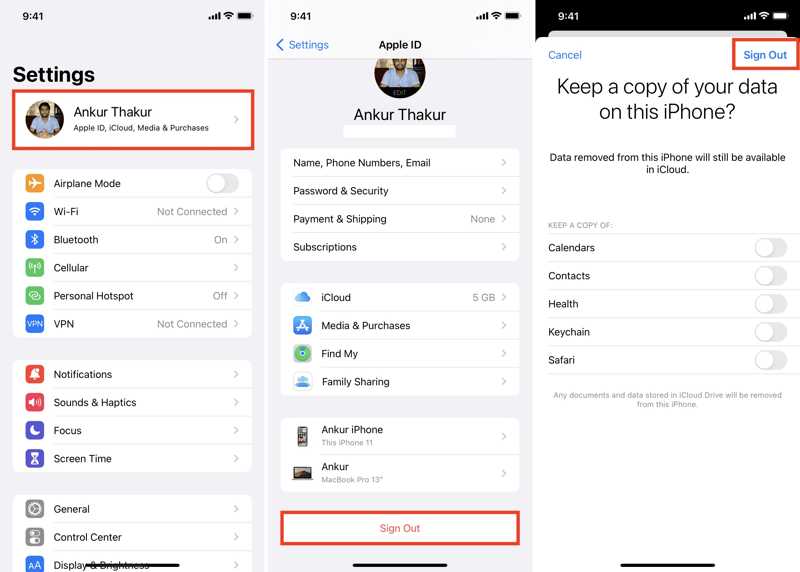
Step 1. Tap on your profile in Settings.
Step 2. Scroll down and tap Sign Out.
Step 3. Then, input your Apple ID password and tap Turn Off.
Step 4. Next, decide to keep a copy of your data or ignore it
Step 5. Tap Sign Out again.
Part 2: How to Manually Clear an iPhone to Sell
What to do before selling your iPhone? You must clear all data on your device. In fact, you have multiple ways to complete the job, depending on your device status. We demonstrate the workflows below:
How to Erase iPhone to Sell by Settings
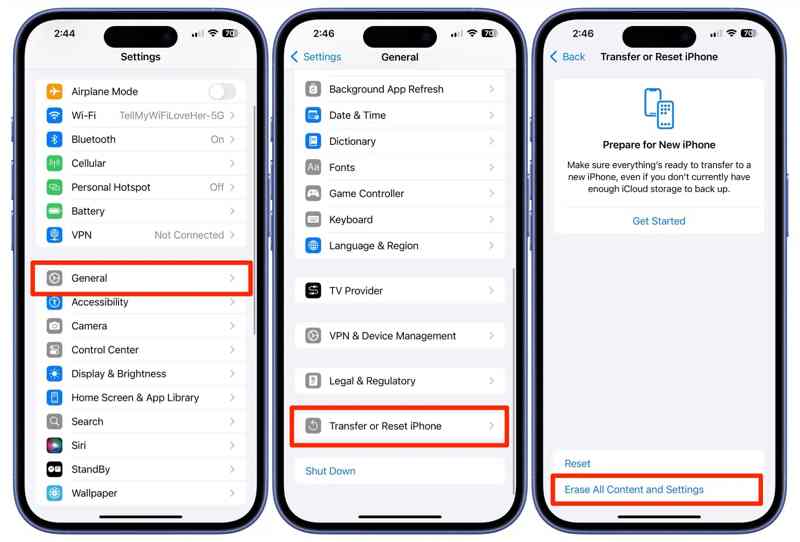
Step 1. Run your Settings app.
Step 2. Go to General, and Transfer or Reset iPhone.
Step 3. Choose Erase All Content and Settings.
Step 4. Read the alert and tap Continue.
Step 5. If prompted, enter your Apple ID password to confirm the action
How to Clear an iPhone before Selling Remotely
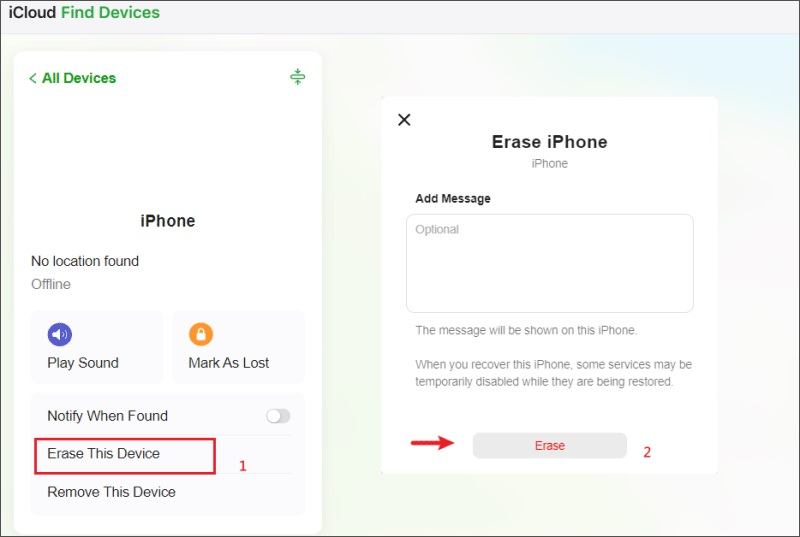
Step 1. Go to www.icloud.com/find/ in a browser and log in with your Apple ID and password.
Step 2. Choose your iPhone from All Devices.
Step 3. Click Erase This Device.
Step 4. If prompted, enter your Apple ID password.
Step 5. Then, click the Erase button again to erase the iPhone to sell.
How to Clear iPhone to Sell Using Another iOS Device
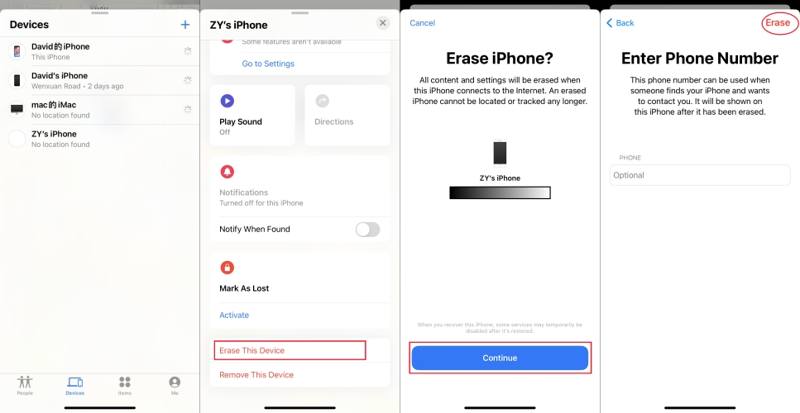
Step 1. Open the Find My app on another iPhone.
Step 2. Head to the Devices tab, and pick your iPhone.
Tips: If you cannot find your iPhone, tap +, choose Add AirTag, and search for your device.
Step 3. Tap and expand the bottom toolbar, and tap Erase This Device.
Step 4. Follow the onscreen instructions to wipe your iPhone to sell.
Part 3: One-stop Way to Clear iPhone to Sell
If you forgot your Apple ID password, it is difficult to clear your iPhone before selling. Thankfully, Apeaksoft iPhone Eraser can help you resolve this problem. The user-friendly interface makes it a good option for non-tech-savvy users.
A One-stop Solution to Clear iPhone Before Selling
- Erase all data on your iPhone in one click.
- Use advanced technology to wipe your iOS device.
- Include bonus features and multiple levels.
- Support the latest editions of iOS and iPadOS.
Secure Download
How to Clear Your iPhone Before Selling
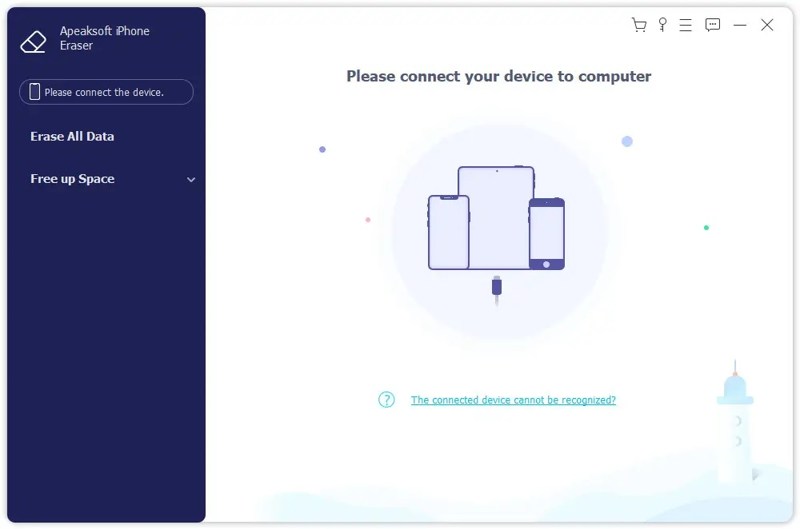
Step 1. Detect your iPhone
Launch the iPhone erasing software after installing it on your computer. It is compatible with Windows and macOS. Connect your iPhone to your computer with a Lightning cable.
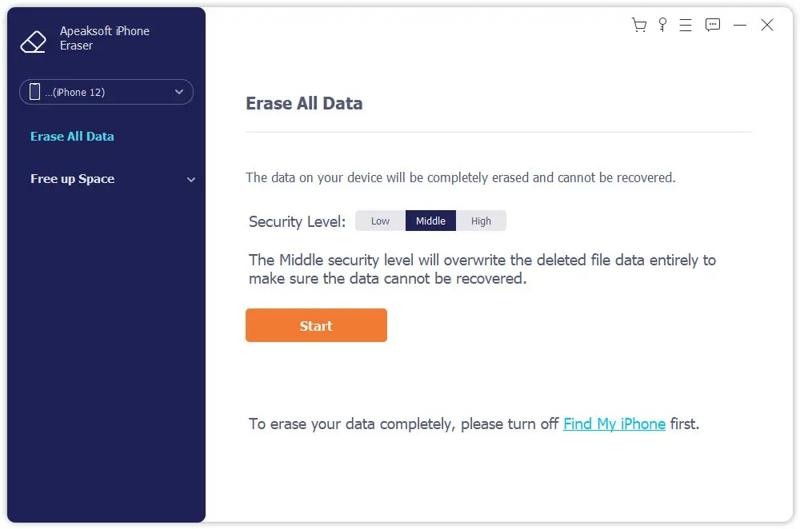
Step 2. Select a level
Click Erase All Data and pick an erasing level: Low, Middle, or High. Here, we choose High and click Start to continue.
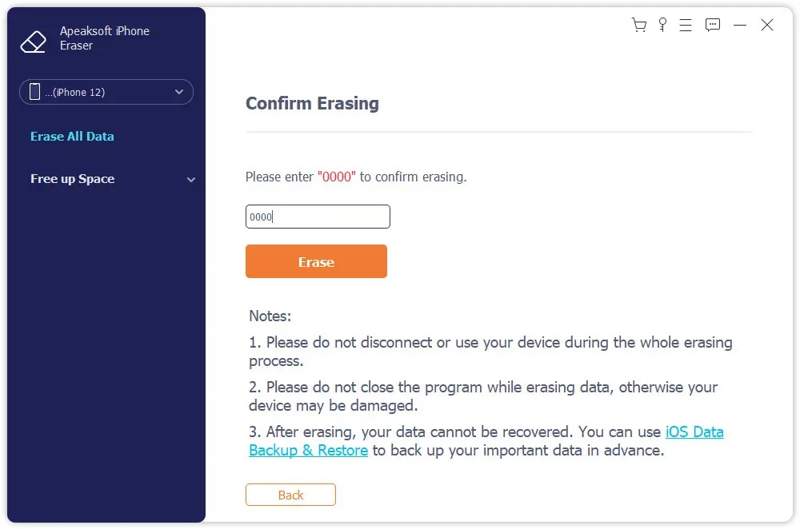
Step 3. Erase your iPhone
Type 0000 in the field and click the Erase button to begin erasing your iPhone before selling.
Conclusion
If you intend to sell or give away your old iPhone, you‘d better follow our guide to wipe your iPhone before selling. First of all, you should back up your device, disable Find My iPhone, unpair your Apple Watch, and sign out of your account. Then, you have a few ways to erase your device. Apeaksoft iPhone Eraser is the one-stop solution to complete the job.
Related Articles
If your Inbox is full of emails, learn how to delete emails in Outlook on your desktop, mobile device, or in a web browser.
Although Mac has much more memory than iPhone, the storage space will run out if cookies accumulate. Follow this post to clear cache and cookies on Mac.
If you intend to stop accessing Instagram, our guide tells you how to delete Instagram account on a mobile phone or computer.
If you have too many contacts on your iOS device, you‘d better follow our guide to quickly delete contacts on your iPhone.



