

How to Recover and Reset Forgotten Apple ID Password

Once you have an Apple device, like an iPhone, iPad, MacBook, Apple Watch, or Apple TV, you are asked to create an Apple ID account. It is used to activate the Apple device and access all Apple services. Suppose you forgot your Apple ID password, you cannot turn off Find My or access other services. This guide shares what to do if you forgot your Apple account credentials associated with your device.
PAGE CONTENT:
Part 1: What Happens If I forgot My Apple ID Password
The Apple ID account plays a key role in the Apple ecosystem. As mentioned previously, it links to secure measures and allows you to access all Apple services. If you forgot your Apple ID password, you will lose access to:
1. Find My iPhone or Find My iPad
2. iCloud backup and iCloud.com
3. Apple Music
4. App Store
5. iMessage
6. FaceTime
7. Apple Book
8. iTunes Store
9. And more.
Part 2: How to Recover a Forgotten Apple ID Password
If you have logged in your Apple ID credentials on your iPhone, iPad, or MacBook, you can recover them after you forgot your Apple ID login password. The precondition is that your device is still accessible.
How to Recover a Forgotten Apple ID Password on iOS 18 and Later
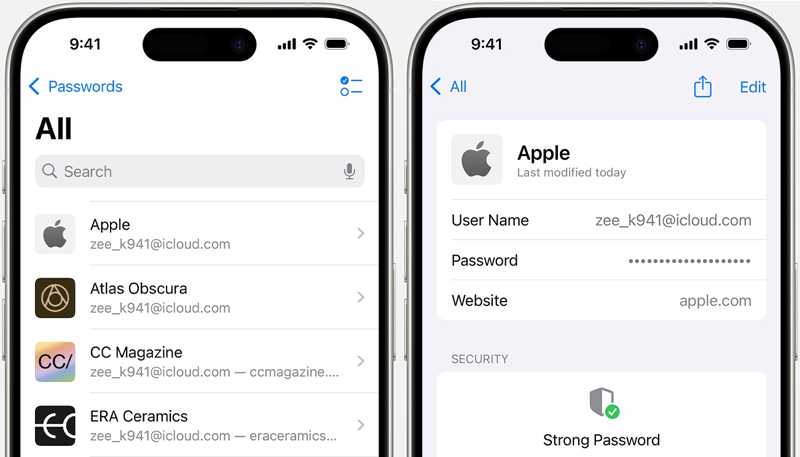
Step 1. Open the Passwords app.
Step 2. Unlock it with your Face ID or passcode.
Step 3. Choose a category or group, and select an Apple website.
Step 4. Tap the Edit button to see the password.
How to Recover a Forgotten Apple ID Password on iOS 17 and Earlier
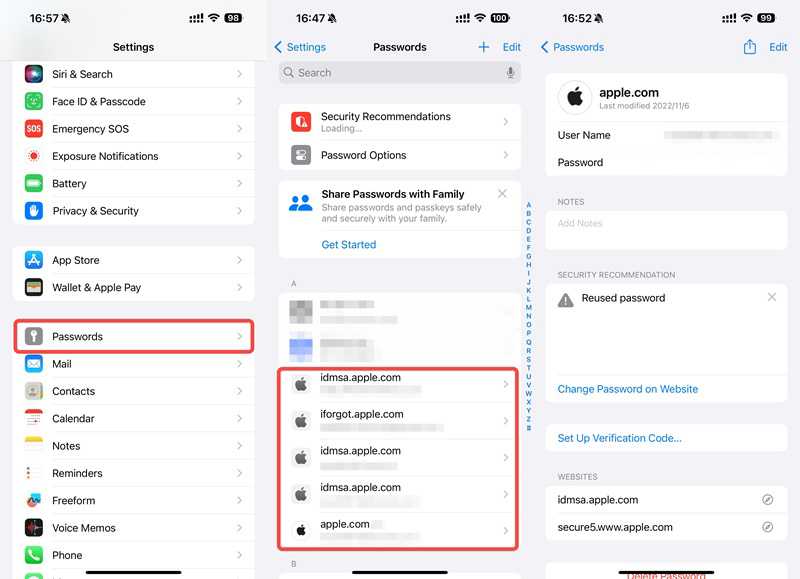
Step 1. Run the Settings app.
Step 2. Scroll down and go to Passwords.
Step 3. When prompted, enter your passcode or Face ID.
Step 4. Select www.apple.com or www.icloud.com.
Step 5. Tap Edit to view the password.
How to Recover a Forgotten Apple ID Login Password on a Mac
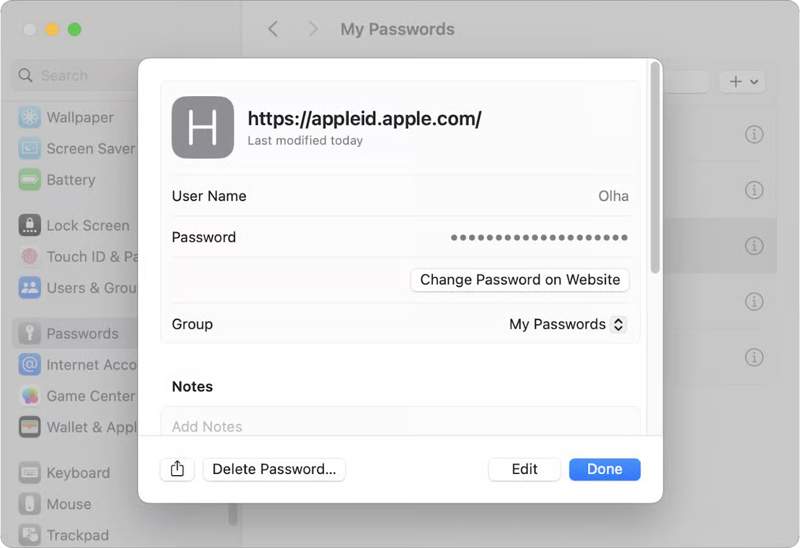
Step 1. Click the Apple menu and choose System Settings.
Step 2. Click Passwords on the sidebar and select My Passwords.
Tips: On macOS Sequoia and later, open the Passwords app, and select a group.
Step 3. Find an Apple website and click it.
Step 4. Click the Edit button to retrieve the forgotten Apple ID login password.
Part 3: How to Change Apple ID Password If You Forgot It
Can you change your Apple ID password if you forgot it? Yes. When you set up Two-factor Authentication for your account, you can add trusted devices. Once you forgot your credentials, you can change it on your trusted device quickly.
How to Change Apple ID Password on iPhone
Step 1. Open the Settings app on a trusted iOS device.
Step 2. Tap on the profile.
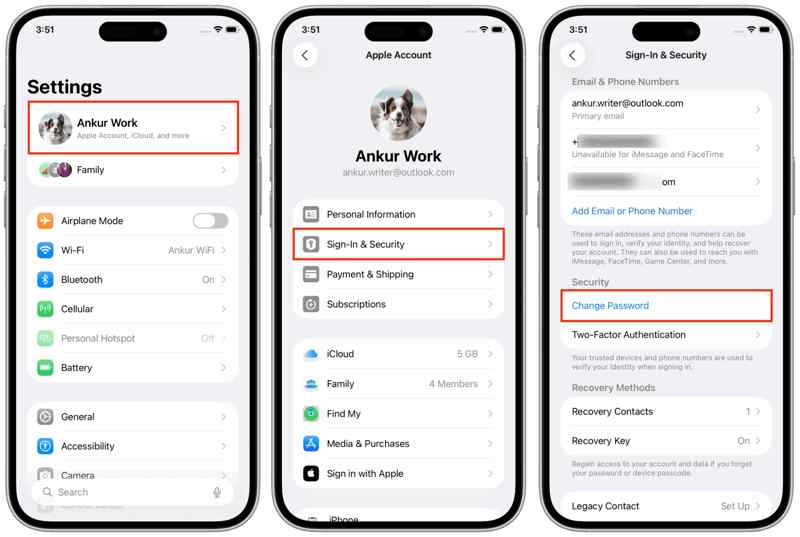
Step 3. Go to Sign-In & Security.
Step 4. Tap the Change Password button.
Step 5. Enter your iPhone passcode when prompted.
Step 6. Next, type in a new password, follow the instructions, and verify it.
Step 7. Tap the Continue button.
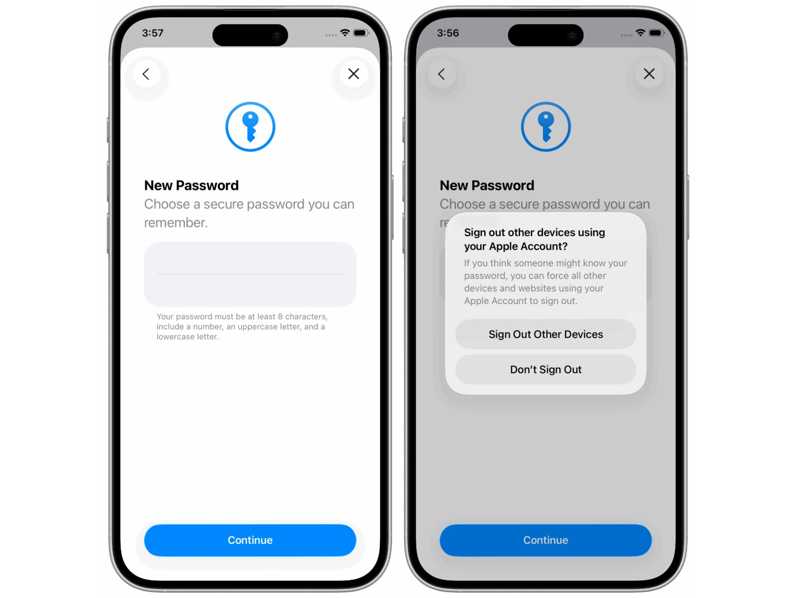
Step 8. Finally, choose Sign Out Other Devices or Don't Sign Out according to your situation.
How to Change Apple ID Password on Mac
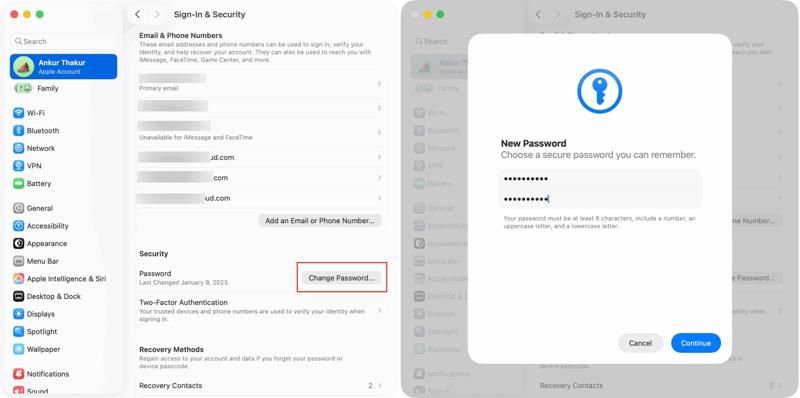
Step 1. If your trusted device is a MacBook, turn it on.
Step 2. Click the Apple menu and choose System Settings or System Preferences.
Step 3. Choose your Apple account on the sidebar.
Step 4. Click the Sign-in & Security option.
Step 5. Next, click the Change Password button.
Step 6. Type in your Mac login password and click Allow.
Step 7. Create a new password, type it again, and click Continue to change the forgotten Apple ID password.
How to Change Apple ID Password on Apple Watch
Step 1. Turn on your Apple Watch.
Step 2. Run the Settings app and tap on your account.
Step 3. Choose Sign-In & Security or Password & Security.
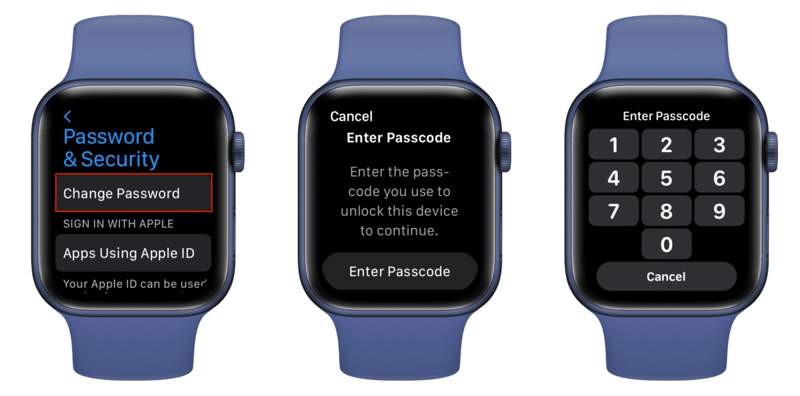
Step 4. Tap the Change Password button.
Step 5. Hit Enter Passcode and type the passcode.
Step 6. Next, make a new Apple ID password and verify it.
Step 7. Finally, tap the Change button.
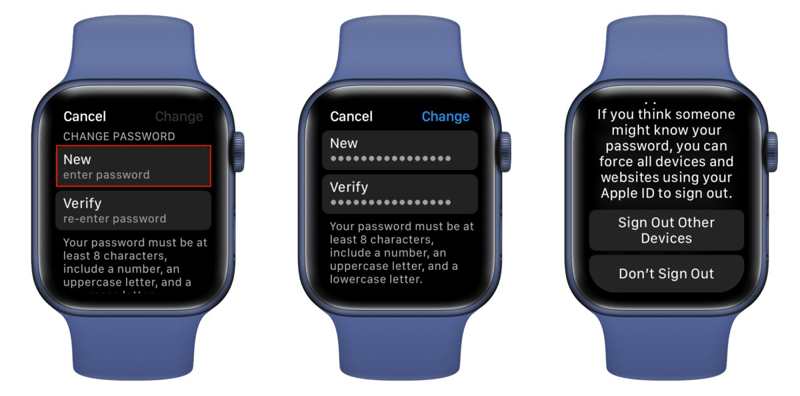
Step 8. Now, you can choose Sign Out Other Devices or Don't Sign Out.
Note: If you choose Don't Sign Out, make sure to update the new password on all your Apple devices manually.
Part 4: How to Reset Apple ID Password if You Forgot It
How to reset Apple ID password if you forgot it? Apple has released the iForgot website to help users to reset their account passwords. It offers a few ways to verify your ownership. Moreover, you can reset it in the Apple Support app on a borrowed iPhone or iPad.
How to Reset a Forgotten Apple ID Password on iForgot
Step 1. Go to iforgot.apple.com in a browser.
Step 2. Click the Reset Password button to continue.
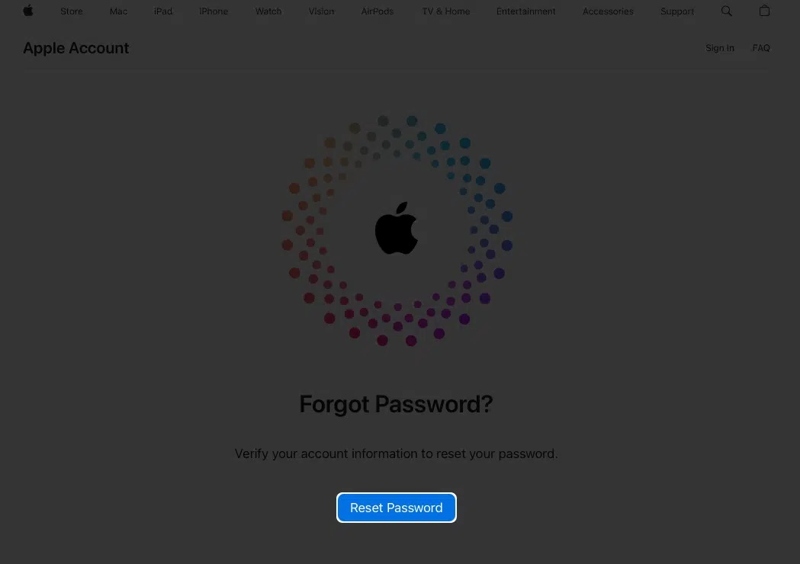
Step 3. Enter the phone number or email address associated with your Apple ID.
Step 4. Type the characters in the image and click Continue.
Now, you will have a few options to verify your ownership:
Option 1: A Trusted Device
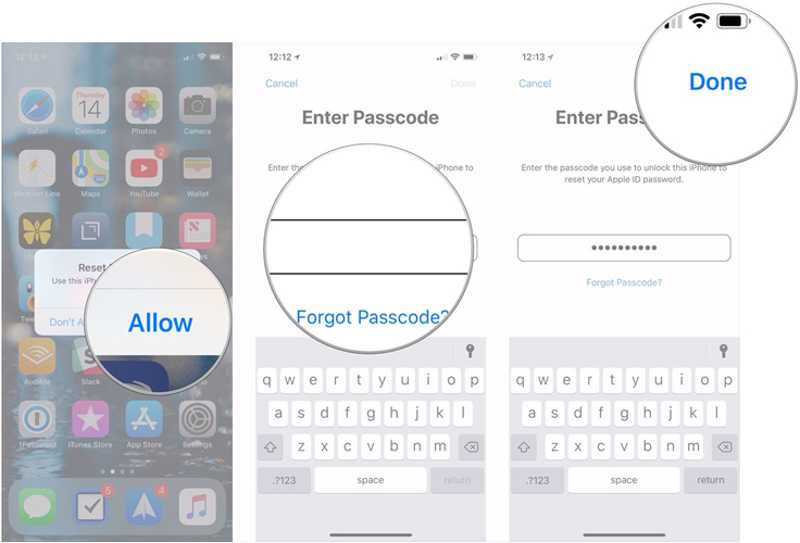
Choose a trusted device if Two-factor Authentication is enabled.
Turn to the trusted device, tap or click the Allow button on the notification.
Then, provide your device login passcode or password.
Enter a new password, re-enter it, and confirm resetting the Apple ID password after you forgot it.
Option 2: Without a Trusted Device
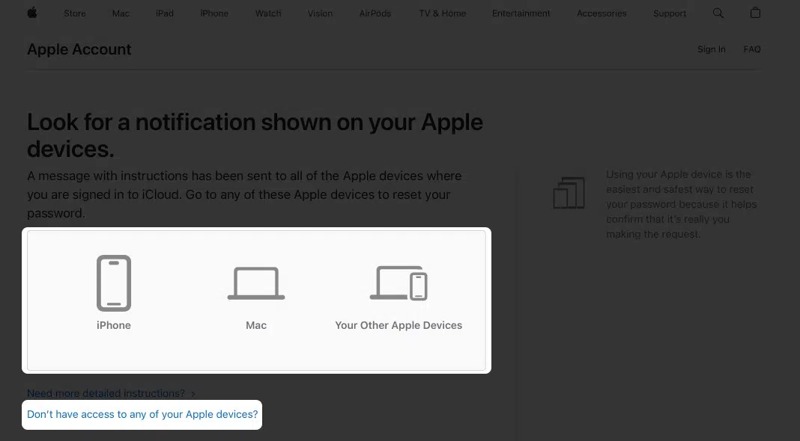
If all trusted devices are inaccessible, press the link of Don't have access to any of your Apple devices.
Then, you will get a few ways to reset your password on another device. Choose a proper one and click the Continue button.
Next, Apple will show you the detailed instructions.
Option 3: Get an Email
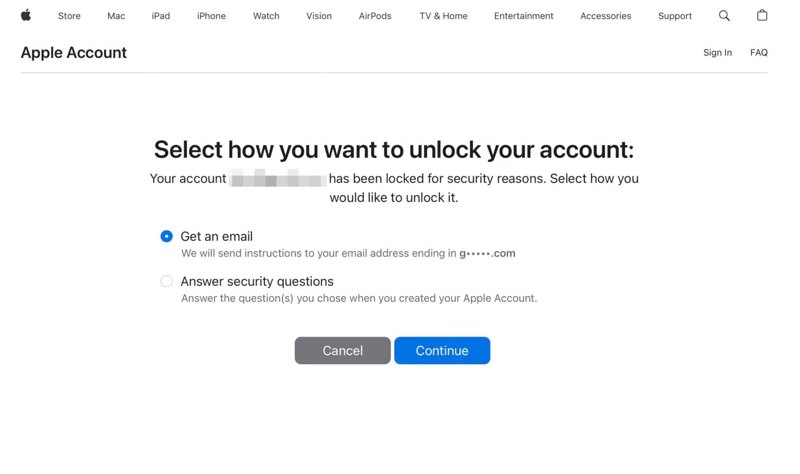
If you haven't set Two-factor Authentication for your account, select Get an email and click Continue.
Enter your email address.
Then, check your inbox for an Apple account recovery email.
Click the Reset Now button to redirect to the password reset page.
Enter and confirm the new password.
At last, click the Reset Password button.
Option 4: Answer Security Questions
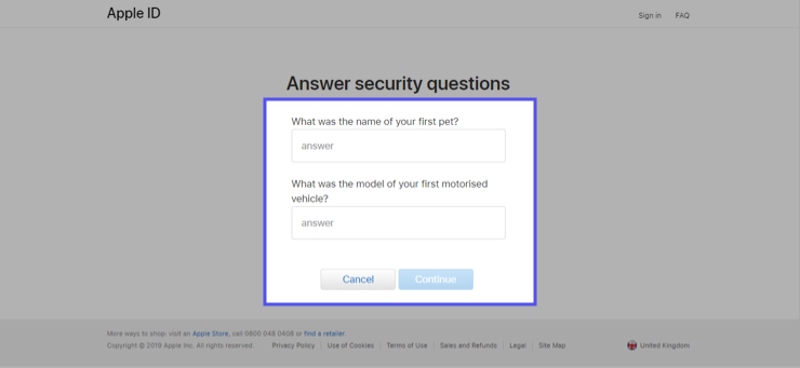
If you remember your security questions and answers, select Answer security questions and click Continue.
Enter your birth and hit Continue.
Input an accurate answer to each security question and click Continue.
Reset your Apple ID password if you forgot it and confirm it.
Finally, click on the Reset Password button.
Option 5: Verification Code
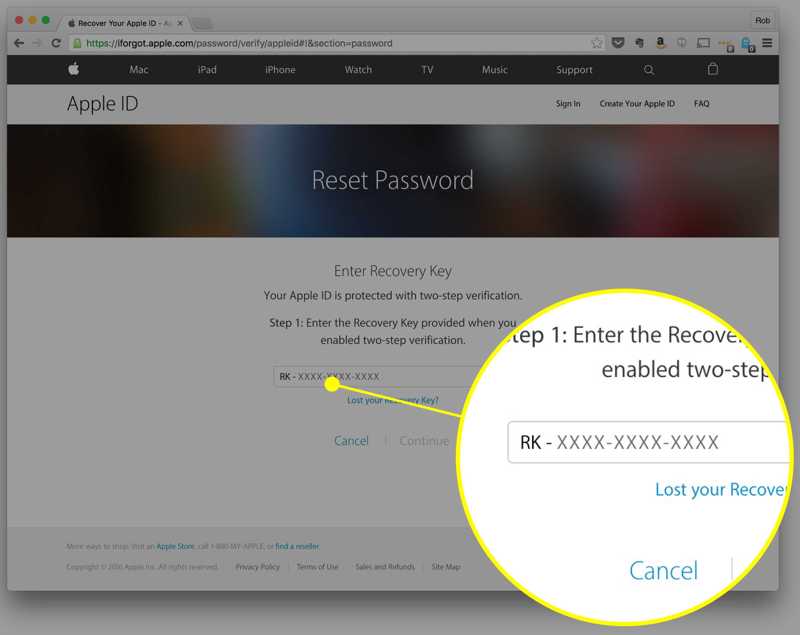
If you have turned on Two-step Verification for your account, you will get a recovery code.
When resetting the Apple ID password after forgetting it, enter the recovery key.
Click the Continue button and enter the password-reset page.
Set a new password, confirm it, and click Reset Password.
Option 6: Recovery Account
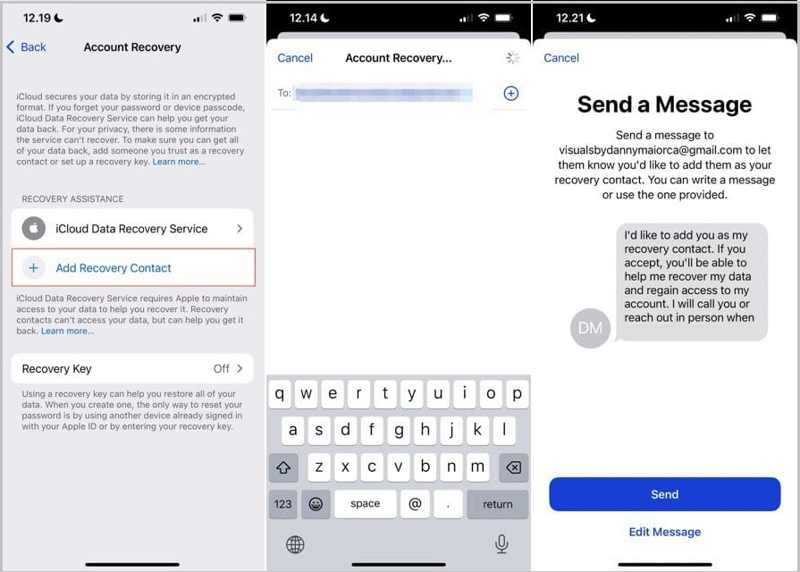
Go to the Settings or System Settings app.
Press your profile and choose Sign-In & Security.
Scroll down and choose Account Recovery.
Hit Add Recovery Contact and hit Add Recovery Contact.
Unlock your device with Face ID or passcode.
Choose a contact, and hit Add.
Press the Send button to send a message to the contact, and hit Done.
When you reset your Apple ID password if you forgot it, go to the Account Recovery screen in the Settings app.
Hit Get Recovery Code.
Then, enter the code on iForgot to verify your ownership.
Now, you can reset your password.
How to Reset a Forgotten Apple ID Password in Apple Support
Step 1. Open the Apple Support app on a borrowed iPhone. You can download it in the App Store for free.
Step 2. Locate the Support Tools section and tap Reset Password.
Step 3. Next, tap the Help Someone Else button.
Step 4. Enter your Apple ID email or phone number and tap Continue.
Step 5. Confirm your trusted phone number and tap Continue.
Step 6. Hit the Send Code to [your phone number] button.
Step 7. Once you receive the code, input it.
Step 8. If you have turned on recovery code for your account, enter the 28-digit code.
Step 9. Next, enter a new password twice and tap Continue to reset your Apple ID password after you forgot it.
Part 5: How to Remove Forgotten Apple ID and Password
To recover, change, or reset your Apple ID password if you forgot it, you must meet the condition. For example, you need to set up Two-factor Authentication or Two-step Verification for your account. Plus, the email address and phone number associated with your Apple ID must be accessible.
If you cannot meet the precondition, the alternative solution is to use a new account. From this point, we recommend Apeaksoft iFoneKit. It enables you to get rid of the forgotten Apple ID and password from your iOS device without any restrictions. Then, you can create a new account directly.
- Remove an Apple ID account from an iPhone quickly.
- Don't require your iPhone passcode or Apple ID password.
- Work for a variety of situations, including a locked account.
- Offer bonus features, like MDM bypassing.
- Support a wide range of iPhone and iPad models.
Secure Download
Secure Download

How to Remove Forgotten Apple ID and Password on Your iPhone
Step 1. Install iOS Unlocker
Download and install the iOS unlocking software on a computer. It is compatible with Windows 11/10/8/7/XP/Vista and macOS 10.7 or above. Then, open the software from your desktop and choose the Remove Apple ID mode to proceed.
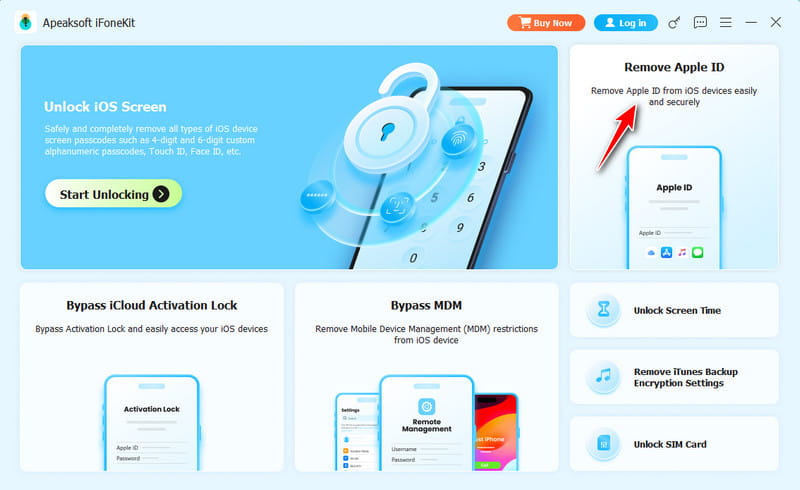
Tips: The process will factory reset your device, so you'd better back up your iPhone first to avoid data loss.
Step 2. Connect to your iPhone
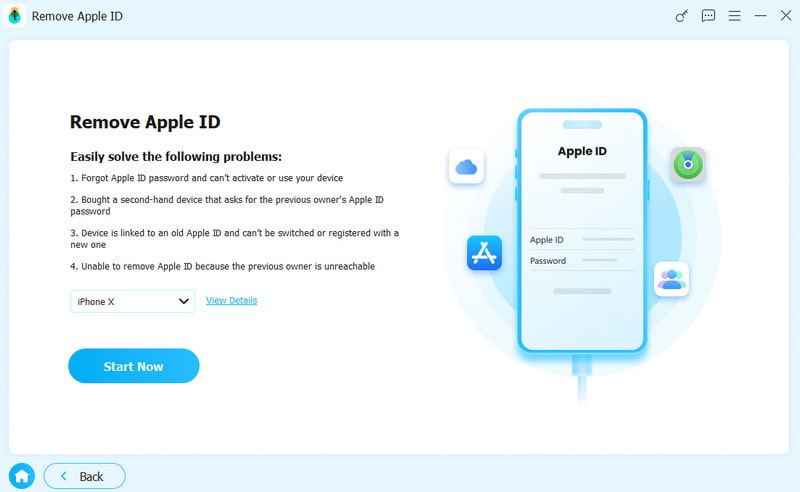
Connect your iPhone to the computer with a Lightning cable. If you link the two devices for the first time, tap Trust on your screen to trust this computer. Then, the software will automatically detect your device and display your device model. If you want to check more information, click the View Details link. Click the Start Now button to continue.
Step 3. Remove your Apple account
If Find My is disabled on your device, the software will initiate removing the forgotten Apple ID and password immediately.
If Find My is enabled, follow the onscreen instructions to reset all settings on your device. When it is done, click the OK button to initiate the process. Next, click the Confirm Again button to confirm it, and the software will do the rest of the job.
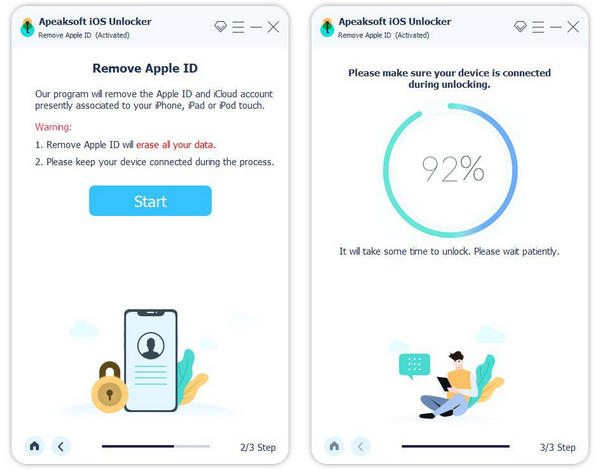
Note: When the process finishes, set up your iPhone as a new device and restore a backup. Then, create a new Apple ID and password.
Further Reading
Conclusion
This guide shared what to do if I forgot my Apple ID password. First of all, you can try to recover your password if you have saved it on your iPhone, Mac, or a browser. With 2FA enabled, you can change it even if you don't remember your password. Otherwise, you have to reset your password on iForgot or Apple Support. We also recommended Apeaksoft iFoneKit to delete the forgotten account from your iOS device quickly.
Related Articles




