How to Clear All Cache and Cookies on Your iPhone/iPad

The cache is a storage location on your device where your browser keeps bits and pieces of websites. It stores images, fonts, HTML, CSS, JavaScript files, and more. When you visit a website for the first time, your browser downloads everything to display the page. Your browser saves cache in your memory. When you revisit the website, your browser displays the page quickly. However, it also takes up lots of space. Therefore, we explain how to clear the cache on Safari for iOS.
PAGE CONTENT:
Part 1: What Is Safari Cache Data?
Safari cache temporarily stores web pages, images, JavaScript, data, and other information locally. If you browse the same web page next time, Safari will check the local cache and display the data directly without re-downloading it. According to developers, cache data can accelerate the load time and reduce the load on the server when you access websites.
If you browse websites frequently on Safari, the amount of cache data will accumulate as time goes by. That can bring serious problems, like YouTube videos not loading. Cache data may lead websites to load too slow. Moreover, it may occupy a large amount of space. Therefore, you'd better empty Safari cache from time to time.
Part 2: How to Clear All Safari Cache on iPhone
Apple allows you to clear all Safari cache, including browsing history, website data, and cookies. Furthermore, you can also clear cookies and cache, but keep your history. We demonstrate the workflows below:
How to Clear All Safari Cache and Cookies
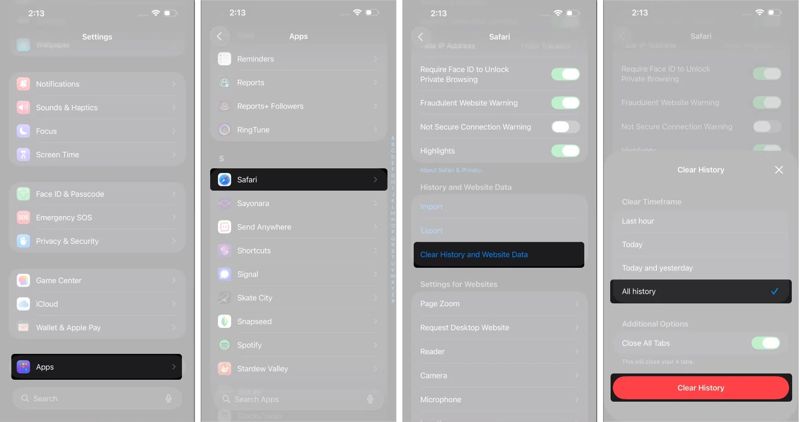
Step 1. Open the Settings app on your iPhone or iPad.
Step 2. Scroll down and tap Apps.
Step 3. Choose Safari and tap Clear History and Website Data.
Step 4. If prompted, choose All history, and tap Clear History to clear cache and cookies on Safari.
How to Delete Cache but Keep History
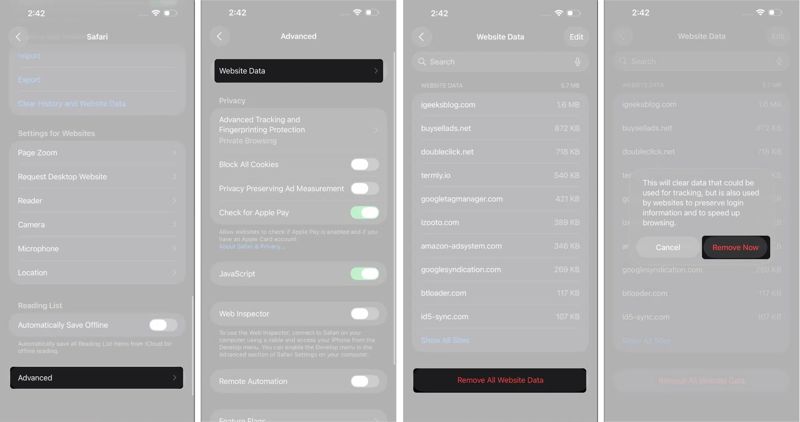
Step 1. Run your Settings app.
Step 2. Go to the Apps tab and choose Safari.
Step 3. Scroll down and tap Advanced.
Step 4. Tap Website Data, and hit Remove All Website Data at the bottom.
Step 5. When prompted, tap the Remove Now button on the confirmation dialog.
Part 3: How to Delete Specific Safari Cache on iPhone
Safari saves cache data for every website that you have browsed. If a web page is full of images and videos, the cache data may take up a lot of space. You can clear Safari cache for specific websites.
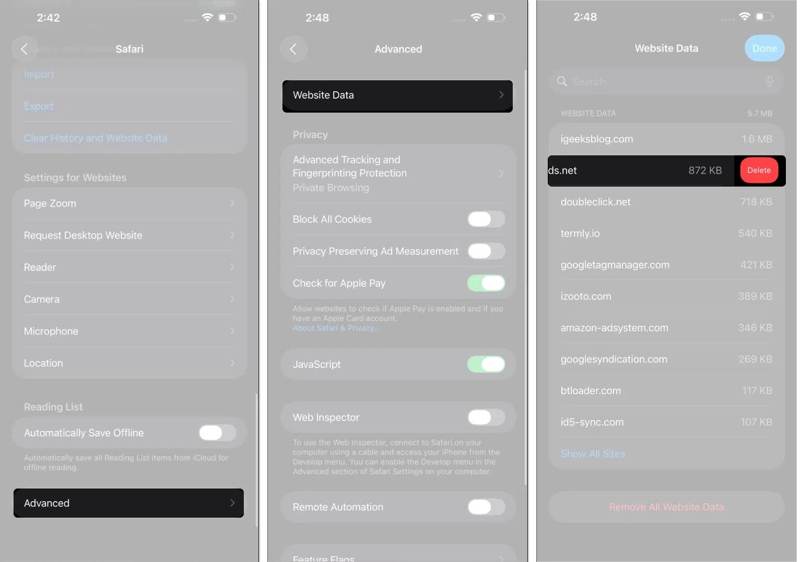
Step 1. Open the Settings app from your home screen.
Step 2. Navigate to Apps, Safari, and dvanced.
Step 3. Tap Website Data, and find the unwanted website. You can quickly locate it with the top search bar.
Step 4. Touch the website and swipe left.
Step 5. Next, hit the Delete button to delete Safari cache.
Part 4: How to Block Cookies on Safari
Currently, major browsers are able to block cookies and protect your privacy. Safari includes an option to block all cookies on your iPhone or iPad. That can stop websites from tracking your online activities.
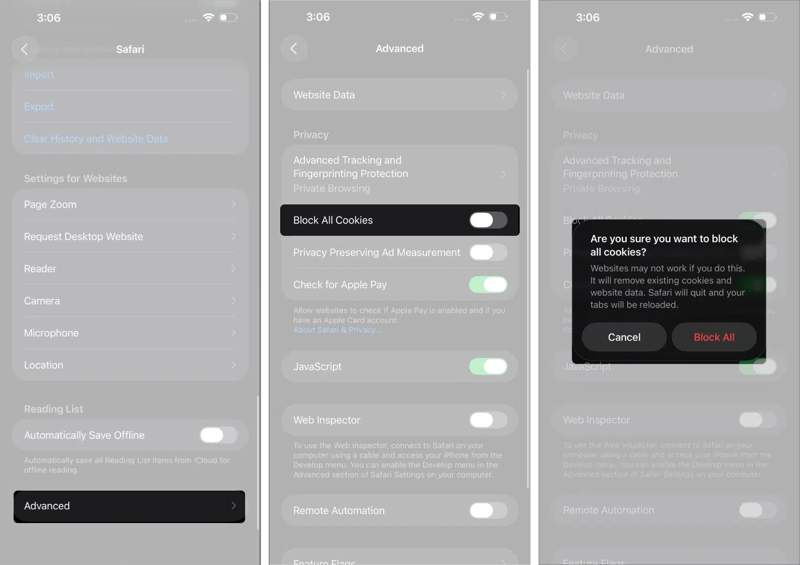
Step 1. Go to your Settings app.
Step 2. Navigate to Apps, Safari, and Advanced.
Step 3. Toggle on Block All Cookies.
Step 4. When prompted, tap Block All on the alert dialog.
Part 5: What to Do If You Cannot Clear Safari Cache
Some users reported that they cannot clear the cache on Safari, old browser history reappears, or the Clear History and Website Data button is greyed out. You can try a few solutions to fix this problem and free up Safari cache data.
Solution 1: Close All Tabs
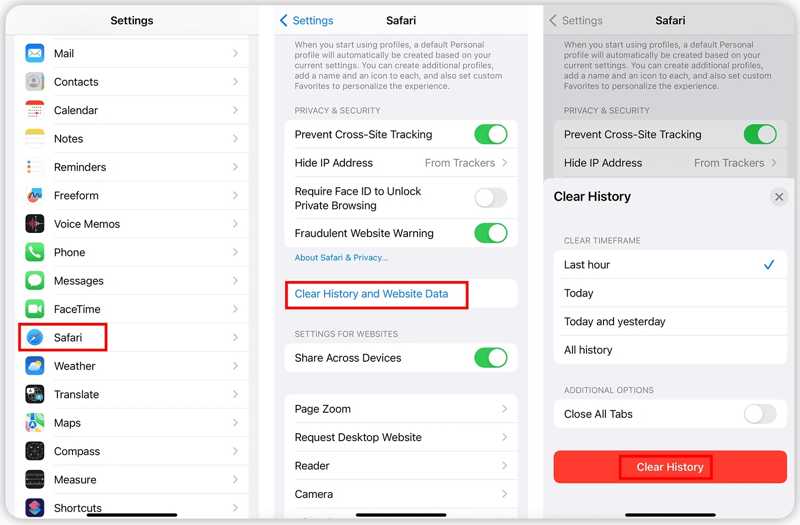
Step 1. Scroll down and go to Apps in your Settings app.
Step 2. Choose Safari, and tap Clear History and Website Data.
Step 3. Make sure to toggle on Close All Tabs.
Step 4. Select All history under the CLEAR TIMEFRAME section.
Step 5. Then, hit Clear History to confirm it.
Solution 2: Unrestricted Web Content
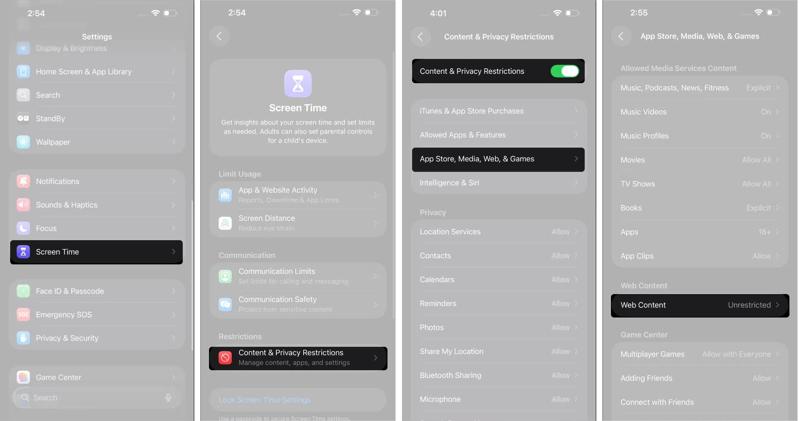
Step 1. Go to Screen Time in your Settings app.
Step 2. Tap Content & Privacy Restrictions.
Step 3. Enter your Screen Time passcode.
Step 4. Then, toggle on Content & Privacy Restrictions.
Step 5. Choose App Store, Media, Web, & Games.
Step 6. Tap Web Content, and select Unrestricted.
Step 7. Try clearing the browser cache on Safari again.
Solution 3: Turn off iCloud Sync for Safari
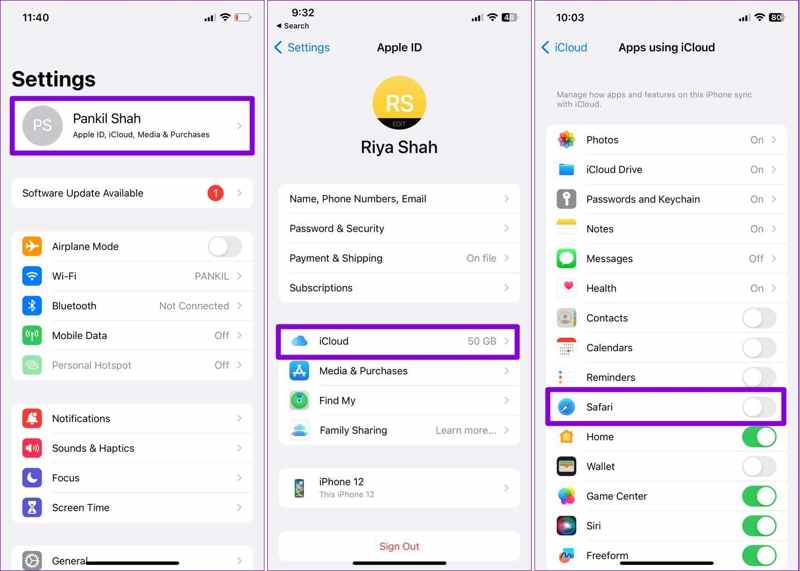
Step 1. Run the Settings app.
Step 2. Tap on your profile and choose iCloud.
Step 3. Tap Show All under the APPS USING ICLOUD section.
Step 4. Toggle off Safari to disable iCloud sync for Safari.
Step 5. Back to the Settings app and empty Safari cache again.
Solution 4: Reset All Settings
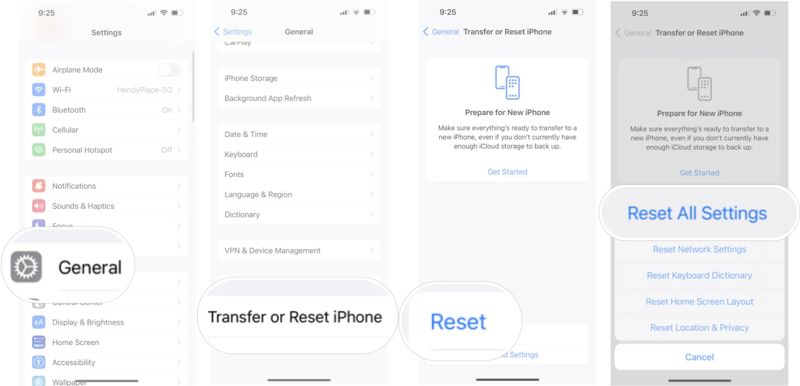
Step 1. Start your Settings app.
Step 2. Go to General, Transfer or Reset iPhone, and Reset.
Step 3. Choose Reset All Settings.
Step 4. Enter your iPhone passcode or Apple ID password.
Step 5. Then, confirm resetting all settings.
Step 6. When your iPhone restarts, clear Safari cache on iPhone again.
Note: This will also reset Network Settings, and the Wi-Fi password is also erased, However, you can quickly share Wi-Fi password from one iPhone to your iPhone without entering pascode.
Part 6: A Fast Way to Empty the Cache on Safari
The built-in option can clear the cache on Safari, but it does not always work. In addition to the common solutions, you can force empty Safari cache on your iPad or iPhone with a powerful tool, such as Apeaksoft iPhone Eraser. It uses advanced technology to completely erase all cache data on your iOS device without recovery. Moreover, the user-friendly design makes it an ideal option for ordinary people.
A Fast Way to Empty Safari Cache on iPhone and iPad
- Clear cache, cookies, and history on Safari with one click.
- Offer three security levels for different purposes.
- Provide bonus features, like uninstalling apps.
- Support the latest editions of iOS and iPadOS.
Secure Download
Secure Download
How to Empty Safari Cache on Your iPhone
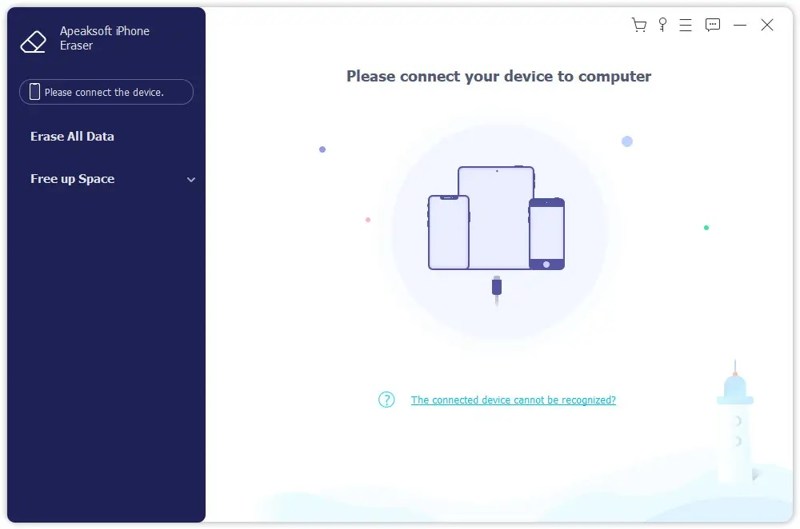
Step 1. Detect your iPhone
Launch the iPhone erasing software after you install it on your PC. It is compatible with Windows 11/10/8/7/XP/Vista. There is another version for Mac users. Connect your iPhone to your PC with a Lightning cable. If prompted, tap the Trust button on your screen to trust this PC.
Step 2. Select a level
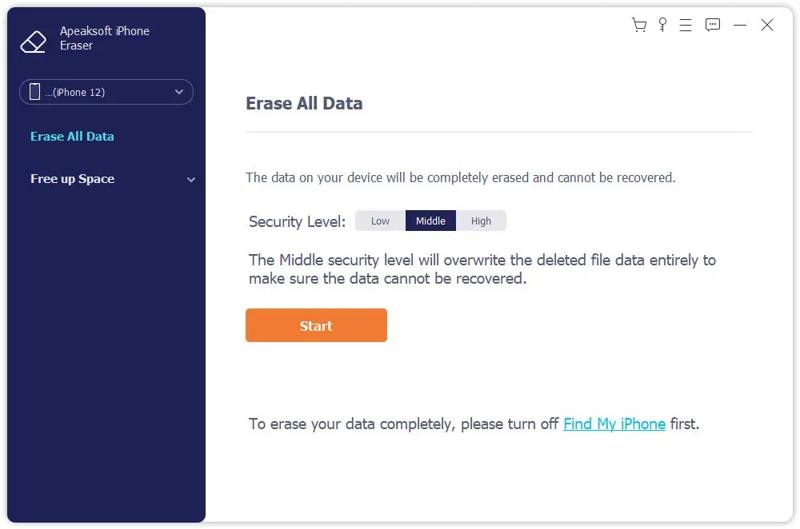
Once your iPhone is detected, click the Erase All Data option on the sidebar. Now, you will see three erasing levels:
Low is used to quickly delete Safari cache on your iPhone.
Middle will overwrite all cache data, browser history, cookies, and website data to make sure they cannot be recovered.
High adopts military-level technology to wipe and erase Safari cache.
Choose a proper level according to your needs.
Step 3. Delete Safari cache
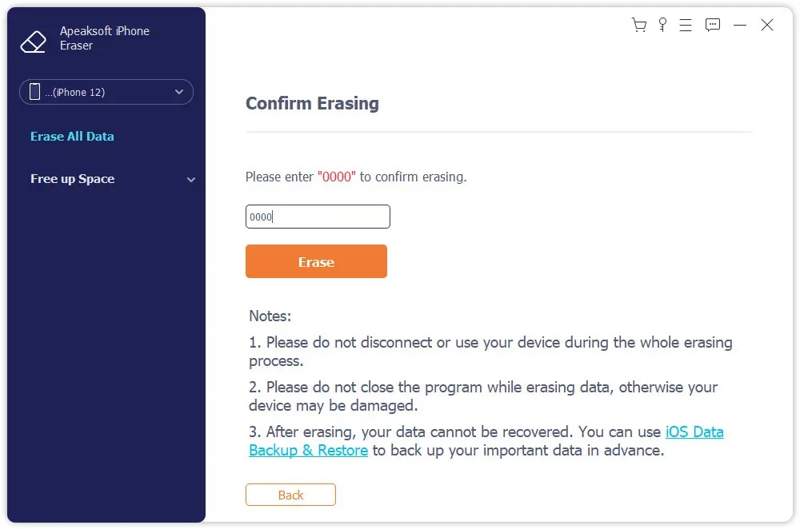
Click the Start button to confirm your selection. Next, enter 0000 into the field and click the Erase button to begin deleting Safari cache on your iPhone immediately.
Note: Since anyone cannot recover your browsing data after erasing, you'd better back up your iPhone first.
Conclusion
This guide explained how to clear the cache on Safari on your iPhone or iPad. You can remove cache data, browsing history, cookies, and website data from your Safari or get rid of cache but keep history. Moreover, we also explained what you can do if you cannot delete Safari cache data. More importantly, we recommended Apeaksoft iPhone Eraser. It can help you get rid of all cache data on your iPhone or iPad quickly. All deleted data cannot be recovered.
Related Articles