How to Quickly Delete Photos from Your WhatsApp App

While WhatsApp is a convenient way to keep in touch with your friends and family, it may become slower and slower as time goes by. That is usually due to the media files you send and receive taking up much space on your iPhone or Android phone. It makes sense that you are suggested to delete WhatsApp photos regularly. This guide shares multiple ways for different situations.
PAGE CONTENT:
Part 1: How to Permanently Delete WhatsApp Photos on iPhone
Apeaksoft iPhone Eraser is a quick way to permanently delete photos from WhatsApp on your iPhone or iPad. It uses advanced technology to free up space, and all deleted photos cannot be recovered. The user-friendly interface makes it easy to navigate.
A Quick Way to Permanently Delete WhatsApp Photos on iPhone/iPad
- Delete photos and videos from WhatsApp quickly.
- Preview WhatsApp photos for selective deletion.
- Find WhatsApp photos by date.
- 4.Support the latest models of iPhone and iPad.
Secure Download
Secure Download
How to Permanently Delete WhatsApp Photos on Your iPhone
Step 1. Connect to your iPhone
Download and install photo-deleting software on your PC. There is another version for Mac. Launch it from your desktop, and connect your iPhone to your PC with a Lightning cable. If prompted, tap Trust on your screen to trust this PC.
Step 2. Scan WhatsApp photos
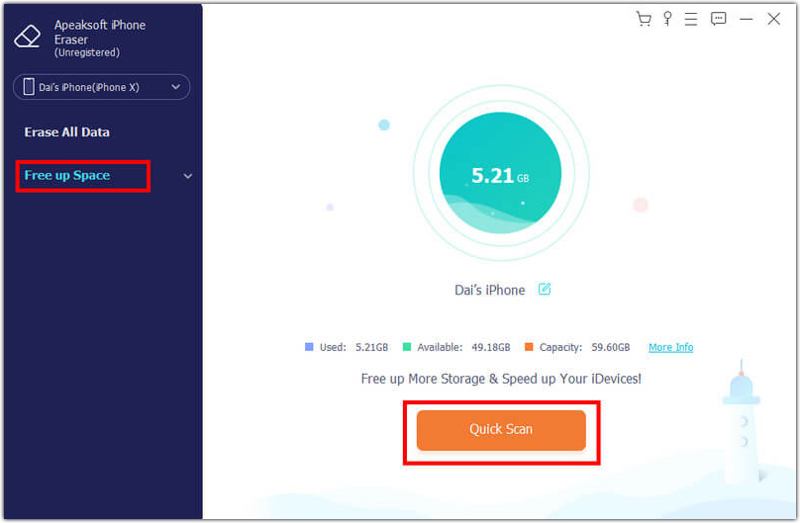
Once your device is recognized, choose Free up Space and click the Quick Scan button to begin scanning WhatsApp photos. When it is done, click Erase on the Clean up Photos item.
Step 3. Delete WhatsApp photos
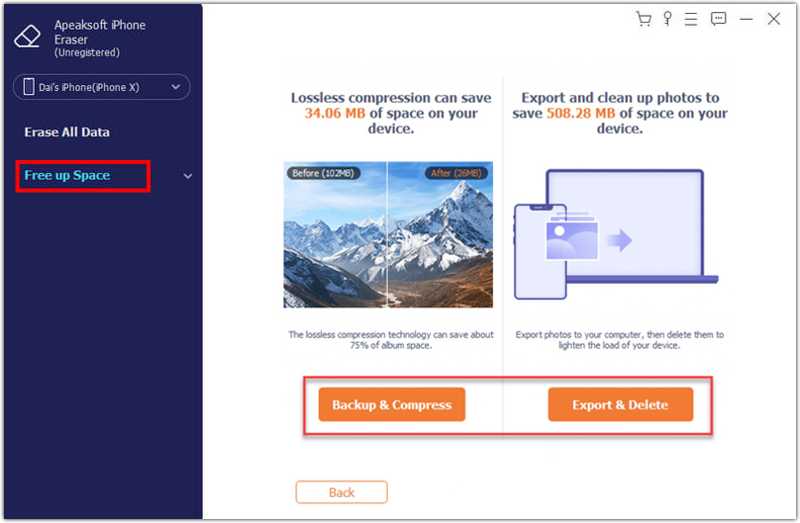
Next, click the Export & Delete button. Select all unwanted WhatsApp photos and click the Delete button. You can quickly locate photos by the Date filter. When it finishes, disconnect your iPhone and close the software.
Part 2: How to Delete One Photo from WhatsApp
You can delete one photo or multiple items from a single chat on WhatsApp. The workflow is a little different on iPhone and Android devices. We demonstrate the workflows respectively below:
On iPhone
Step 1. Go to the chat in WhatsApp.
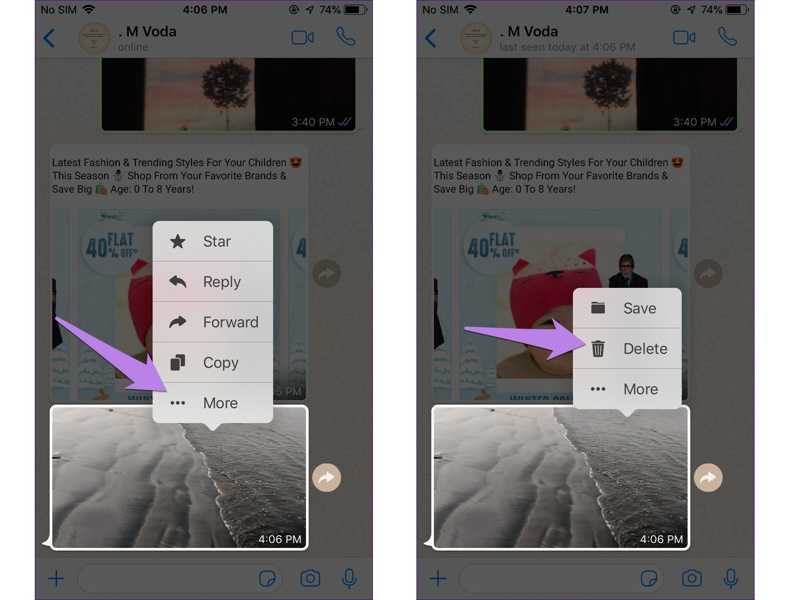
Step 2. Deeply press the unwanted photo or photos.
Step 3. Tap More and choose Delete.
On Android
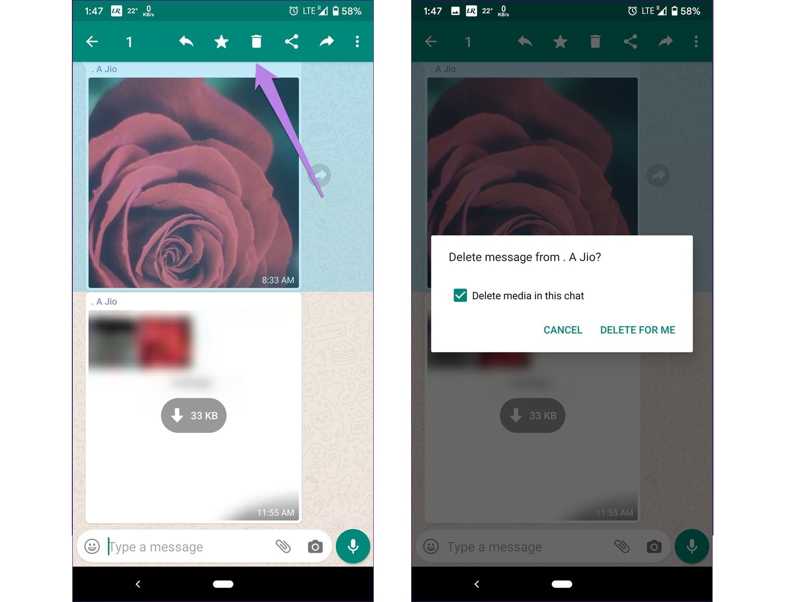
Step 1. Locate the unwanted image in WhatsApp.
Step 2. Press and hold the image, and tap the Delete button on the top ribbon.
Step 3. When prompted, tap Delete for me to confirm it.
Note: This way won’t delete WhatsApp photos from your iPhone or Android phone memory. Moreover, the recipient still keeps the deleted photos.
Part 3: How to Delete All Images from WhatsApp
WhatsApp allows you to delete all images and other media files. Moreover, you can remove large photos with a specific filter. The processes are complex, and you can follow the steps below:
How to Delete Large Photos from WhatsApp
Step 1. Tap the Menu button in the WhatsApp Chats tab.
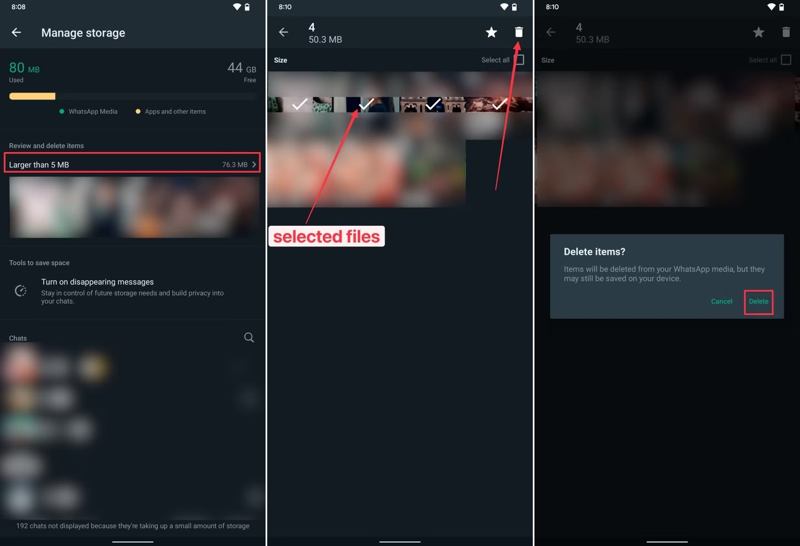
Step 2. Choose Settings, tap Storage and data, and pick Manage storage.
Step 3. Go into Larger than 5MB to find all large photos.
Step 4. Select unwanted photos or check Select all.
Step 5. Next, tap the Delete button, and hit Delete on the confirmation dialog.
How to Delete All Images from WhatsApp
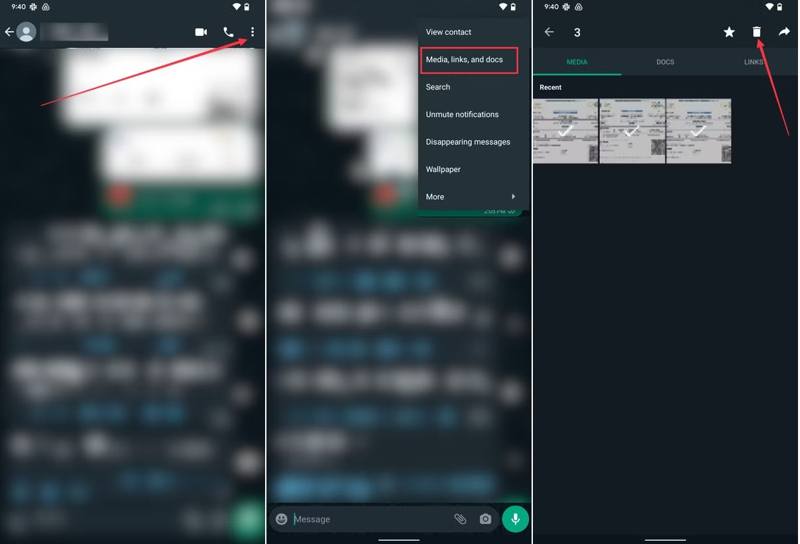
Step 1. Go to a large chat in WhatsApp.
Step 2. Tap the Menu button with a three-dot icon, and choose Media, links, and docs.
Step 3. Switch to the MEDIA tab to display all media files.
Step 4. Select all the unwanted images, and tap the Delete button.
Further Reading
Part 4: How to Delete WhatsApp Images on iPhone/Android
Besides, you also need to delete WhatsApp images from your memory if you have downloaded them. iPhone comes with a specific album for saving WhatsApp photos. Moreover, your image cache will be stored in Android memory.
How to Delete WhatsApp Images on iPhone
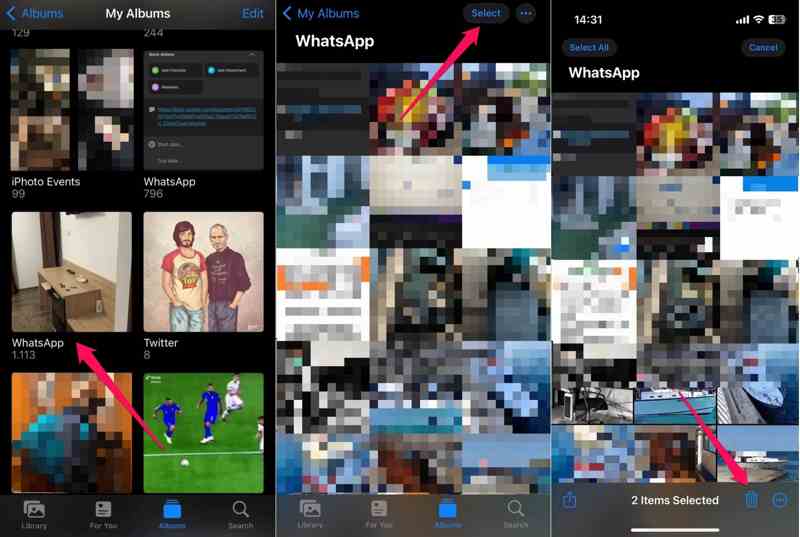
Step 1. Run the Photos app and go to the Albums tab.
Step 2. Find the WhatsApp album and open it.
Step 3. Tap the Select button, and touch unwanted photos or tap Select All.
Step 4. Hit the Delete button, and choose Delete N Photos.
Step 5. Finally, empty the Recently Deleted album in your Photos app.
How to Delete WhatsApp Photos on Android
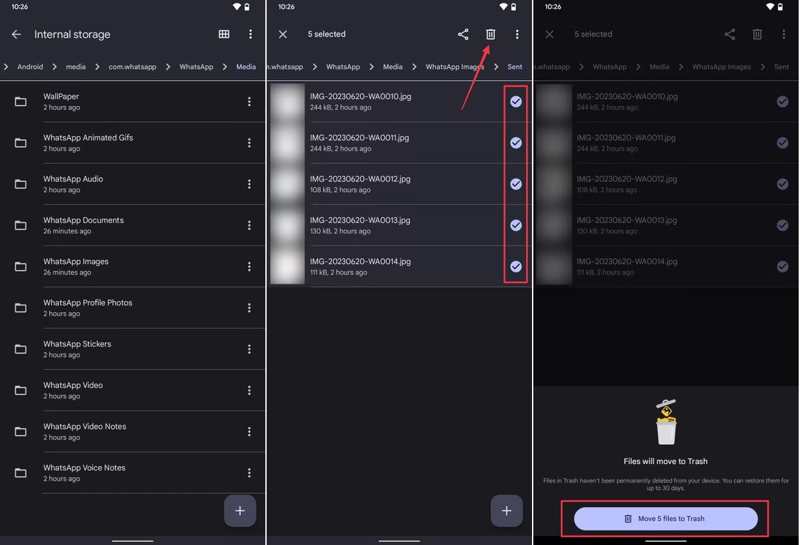
Step 1. Open the built-in file browser on your Android device.
Step 2. Go to Internal storage, Android, com.whatsapp, and WhatsApp.
Step 3. Head to the Media folder, and choose WhatsApp Images.
Step 4. Long-press a photo, and select unwanted items.
Step 5. Tap the Delete button, and confirm it.
Conclusion
This guide demonstrated how to delete images from WhatsApp on your iPhone or Android phone. You can follow our steps to remove a single photo, multiple photos, or all photos, according to your purpose. Apeaksoft iPhone Eraser is a quick way to erase WhatsApp images and free up your iPhone storage without technical skills.
Related Articles