


An Ultimate Tutorial to Access WhatsApp Web Service

What is the WhatsApp Web? It is a popular online service that enables you to use WhatsApp on any computer's browsers. In addition to directly accessing WhatsApp features on any browser for convenience, you can also download its desktop version on your Mac, Windows PC, or Linux computers. If you are unfamiliar with the WhatsApp Web thing, you can check its features, pros & cons and learn how to do a WhatsApp Web login with detailed steps provided in this article. Besides, you can use a recommended tool to transfer WhatsApp data between iOS devices.
PAGE CONTENT:
Part 1. Features, Pros & Cons of WhatsApp Web
What is WhatsApp Web
WhatsApp Web is a computer-based extension for WhatsApp app. This online service was first launched in 2015, allowing you to send messages via any browser, which is beneficial to cross-device multitasks. You can check its prominent features below.
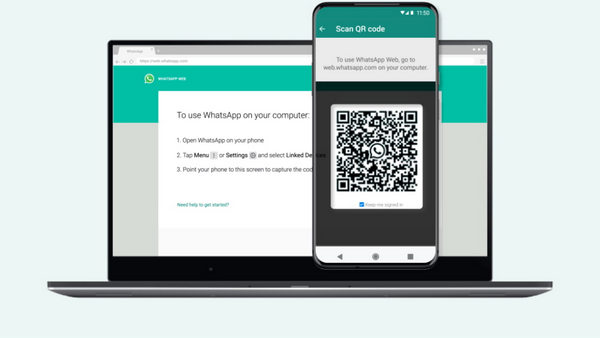
Beneficial Features of WhatsApp Web:
• Seamless Cross-device Data Transport - If you use WhatsApp on your phone while you are working with your computer, you will process the messages late, and frequent switching of devices will interrupt other task processes. With the WhatsApp Web, you can enjoy seamless cross-device data transport and sync on 4 linked computers.
• Improve Multitasking Efficiency - As we mentioned above, you can use the WhatsApp Web on your computer while juggling other tasks.
• Increase Productivity - With the big screen and the full-sized keyboard on your computer, you can start a new group chat and write a lengthy message with ease.
• Ensure Security and Facilitate Collaboration - In terms of privacy security, you can trust WhatsApp Web because of its end-to-end encryption. Moreover, you can easily share your images, PDF documents, and PPTs with your personal and professional circles.
- Enjoy the full-sized keyboard and a big screen for chats display.
- Facilitate the exchange of multimedia files.
- Without any download, you can effortlessly access WhatsApp online.
- 100% free to use, with no hidden costs.
- You should always keep your phone connected to the internet when using the WhatsApp Web.
- You cannot update your account's profile status or picture on WhatsApp Web browser.
- WhatsApp Web doesn't support voice or video calls via WhatsApp online browser.
Part 2. How to Access WhatsApp Web
If you want to access the WhatsApp Web, there are two methods for you. The first one is to use the WhatsApp Web QR code, the other one is to use your phone number.
1. WhatsApp Web QR Code
To access WhatsApp Web online, you can use your phone to scan WhatsApp Web QR code.
Step 1. Visit web.whatsapp.com on any secure browser on your computer. By default, you can locate the WhatsApp Web QR code on your screen.
Step 2. Back to the WhatsApp app on your phone. For Android users, tap the More or Three-dots option. For iOS users, tap the Settings section on the bottom right.
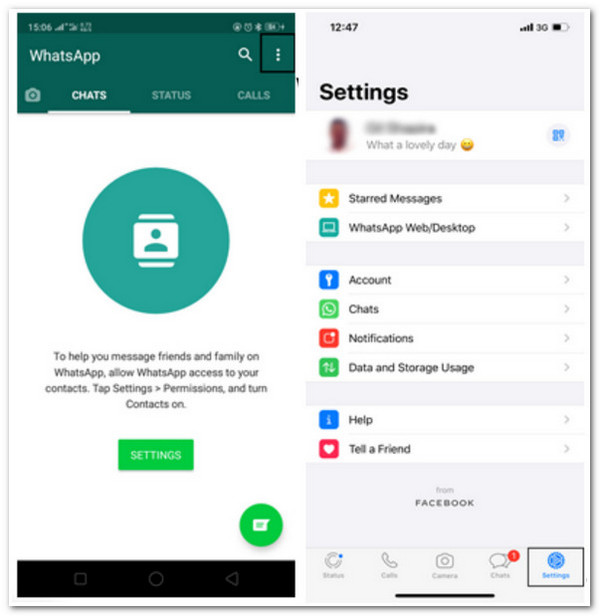
Step 3. Select the Linked Devices > Link A Device on your phone.
Step 4. Then, you can authorize your phone to scan the WhatsApp Web QR code on your computer's screen.
2. Link a Computer with Your Phone Number
There is another method to log in to WhatsApp Web.
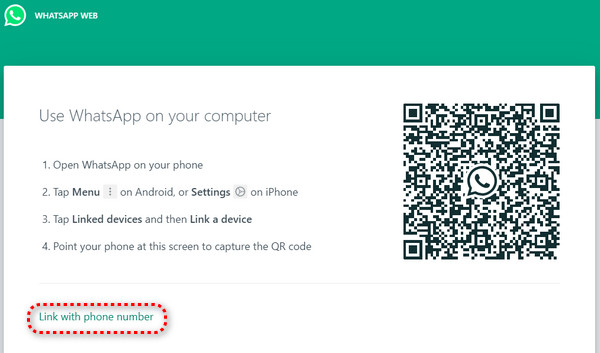
Step 1. Go to WhatsApp Web on your browser. Click the Link with phone number option.
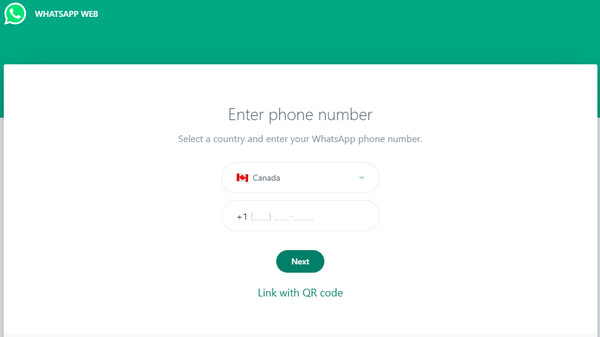
Step 2. In the new interface, enter your phone number and country, and click Next. You will then see the 8-character code.
Step 3. Go back to your WhatsApp app on your phone. Tap Three-dots on Android / Settings on iOS > Linked Devices > Link A Device > Link with phone number instead. Then, enter the 8-character code to log into WhatsApp Web.
Part 3. WhatsApp Web Online vs. WhatsApp Web Desktop
If you prefer a standalone desktop version of WhatsApp, you can also download the WhatsApp Web app on your Windows or Mac. Before you download, you can take an overview of the two versions in the following table.
| Aspects | Security | Function | Compatibility |
| WhatsApp Web Online | Secure | Lack of Voice/Video Calls | All Browsers (including Chrome, Safari, Firefox, etc.) |
| WhatsApp Desktop | More Secure | Support Voice/Video Calls | Windows 10 64-bit version 1903 and newer/macOS 11 and newer |
Part 4. How to Transfer WhatsApp Data Between iDevices
If you want to transfer WhatsApp to a new iPhone, you can use a WhatsApp data transfer tool to make it effortlessly. Apeaksoft WhatsApp Transfer is a product that allows you to transport WhatsApp data from an old iPhone to a new one.
Transfer WhatsApp Data Between iDevices
- Seamlessly transfer WhatsApp data between iDevices.
- Back up WhatsApp messages, attachments, pictures, etc., to your computer.
- Easily restore WhatsApp data from previous WhatsApp backups.
- Preview the WhatsApp data you want to transfer or back up.
Secure Download
Secure Download

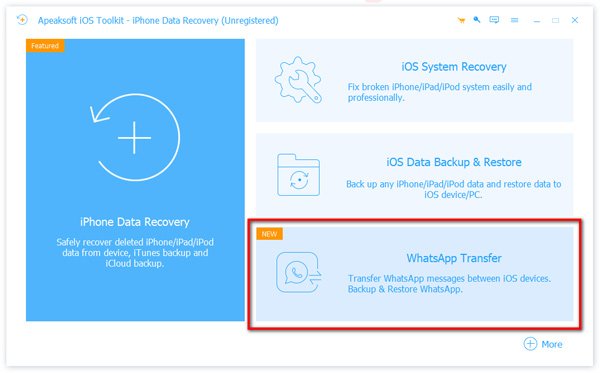
Step 1. Click the above download buttons to download and install this multi-functional WhatsApp transfer tool on your Mac or Windows PC. Run it on your computer and click the WhatsApp Transfer section in its main interface.
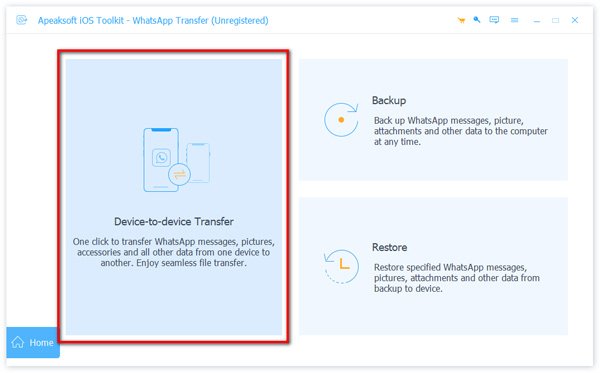
Step 2. To transfer your WhatsApp data, click the Device-to-device Transfer to start.
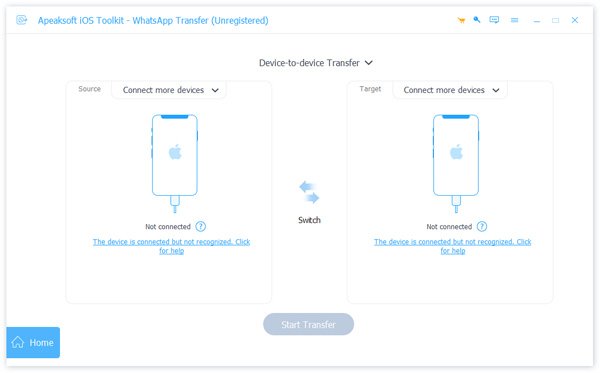
Step 3. In the following window, please plug your two iPhones into the same computer via USB cables. Remember to tap the Trust option when it prompts on your iPhones. Then, click the Next button on this program.
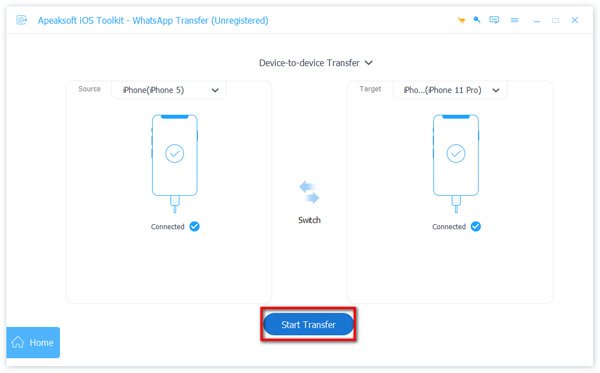
Step 4. Now, you can click the Start Transfer button to transfer the WhatsApp chats, videos, pictures, and attachments from your old iPhone to your new iPhone automatically.
Conclusion
By reading this article, you can have a comprehensive understanding of WhatsApp Web, including its features, pros and cons, WhatsApp Web login methods, etc. Furthermore, you can grasp an all-in-one tool to transfer all WhatsApp data between iOS devices.
 Apeaksoft WhatsApp Transfer
 Transfer and back up WhatsApp data for iOS devices.
Secure Download
Secure Download
Related Articles




