

How to Find & Delete Downloads on iPhone (2026 Version)

"I have the Plex lifetime membership, and I love it but I have content downloaded on my iPhone that I want to delete and I don't know how to do it."
You may have come across the same scenario like this. You are anxious about how to delete downloads on the iPhone to save more storage space for important data. This article is here to help you. We will provide the 5 best solutions for you to erase unnecessary downloads from your iPhone.
PAGE CONTENT:
Part 1: Where to Find Downloads on iPhone
To delete downloads on iPhone, you first need to find them. In most cases, you can find downloads in the Files app. But their precise locations depend on where you downloaded from, or, in other words, which app you used. Here, we list the three most common ways that you may use to download.
1. Downloads from browsers like Safari: If you have downloaded photos, videos, and other files from your browser, you can find them in your Download History.
2. Downloads in third-party apps: Apps like YouTube and Netflix will store your downloads inside their apps.
3. Downloaded apps from the App Store: iPhone users usually use it to download the app they want.
Part 2: How to Delete Downloads on iPhone Manually
Depending on where the downloads are stored, you can erase them on your iPhone. As we have discussed the possible locations in part 1, this part will break into four sections to show you how to remove downloads from the iPhone in detail.
Delete downloads on iPhone with the Files app
You can find almost all the files on your iPhone here. Your downloads are stored in this app, too.
Step 1. Open the Files app. Tap Browse at the bottom right of the page.
Step 2. Go to On My iPhone > Downloads.
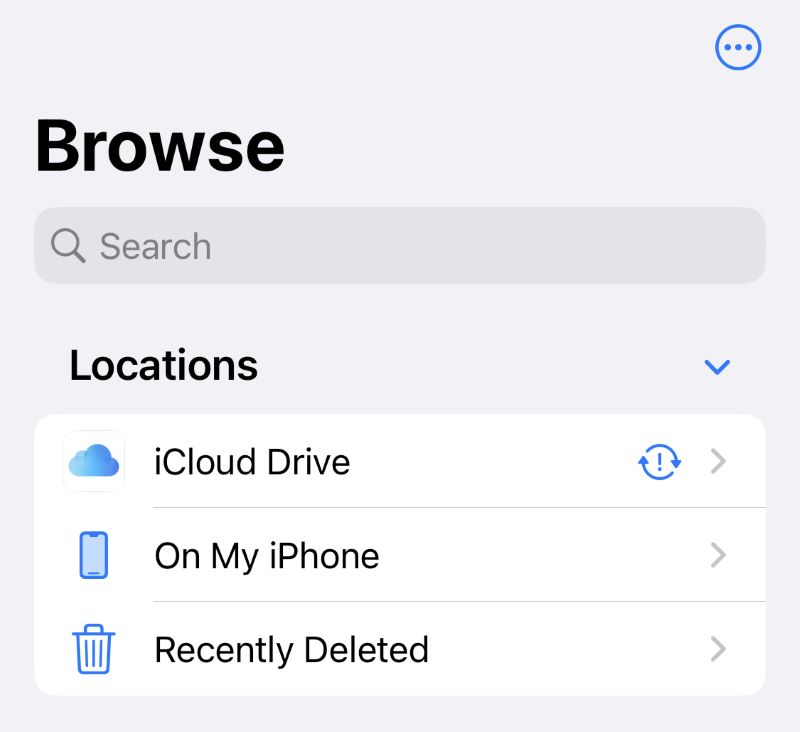
Step 3. Select the file you want to delete and hold it. Then, tap Delete.
Delete downloads on iPhone with browsers like Safari
For most iPhone users, they will use Safari to download things. So, here we take Safari as an example to show you how to use it to delete downloads if they are downloaded from Safari.
Step 1. Open Safari. Tap the Page Settings button at the left side of the web address bar.
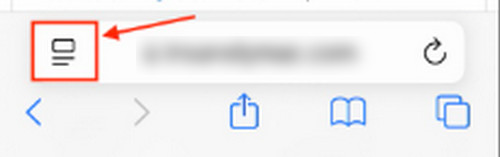
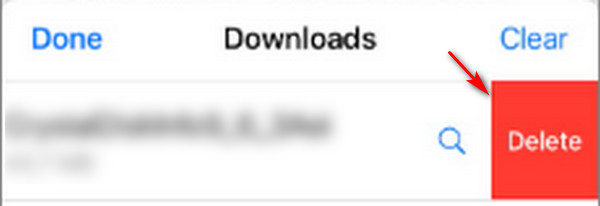
Step 2. Tap Downloads. Swipe left on the download you want to erase. Choose Delete.
Delete downloads on iPhone with third-party apps
If you use third-party apps like YouTube to download videos on your iPhone. This app will automatically store your downloads inside its app.
Step 1. Open the application (e.g., YouTube).
Step 2. Go to Downloads within the app.
Step 3. Tap and hold the download you want to erase, and then choose Delete.
Delete downloads on iPhone with the Settings app
If you have downloaded an app from the App Store before, and now you don't need this app anymore, you can use the Settings app to clear this app from your iPhone. The Settings app can also clear history on Safari.
Step 1. Go to Settings > General.
Step 2. Find and tap iPhone Storage.
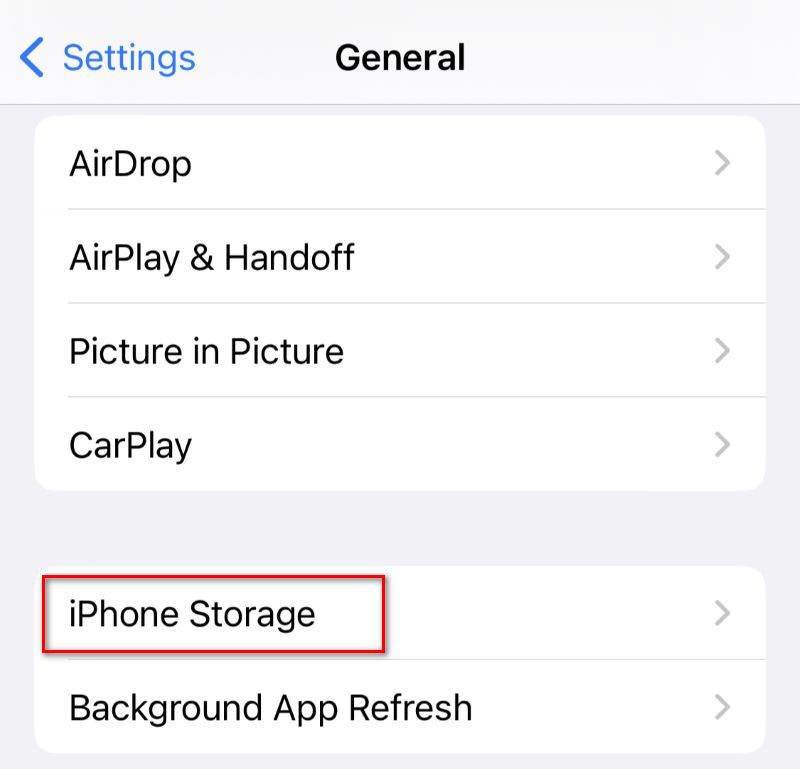
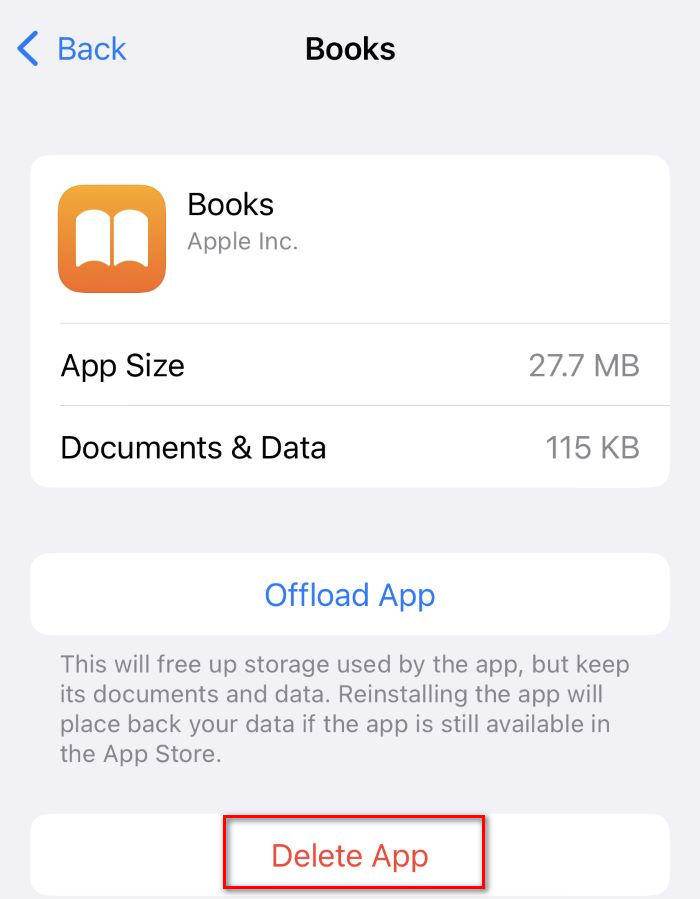
Step 3. Choose the app that you want to delete. Tap Delete App to erase the app and all related data from your iPhone.
Part 3. How to Delete Downloads on iPhone Automatically
Apeaksoft iPhone Eraser is the best software for erasing downloads on iPhone. It can erase all your data on your iPhone/iPad/iPod, ranging from photos, music, and apps to almost all kinds of data stored on your Apple device. It offers three different modes of erasing to meet your needs. This software is perfect for you to remove downloads from the iPhone. Now, we will show you how to use it.
Step 1. Download and install it for free. Connect your iPhone to the computer with a USB cable.
Secure Download
Secure Download
Step 2. Launch the software. Unlock your iPhone. Tap Trust on the pop-up window to allow access.
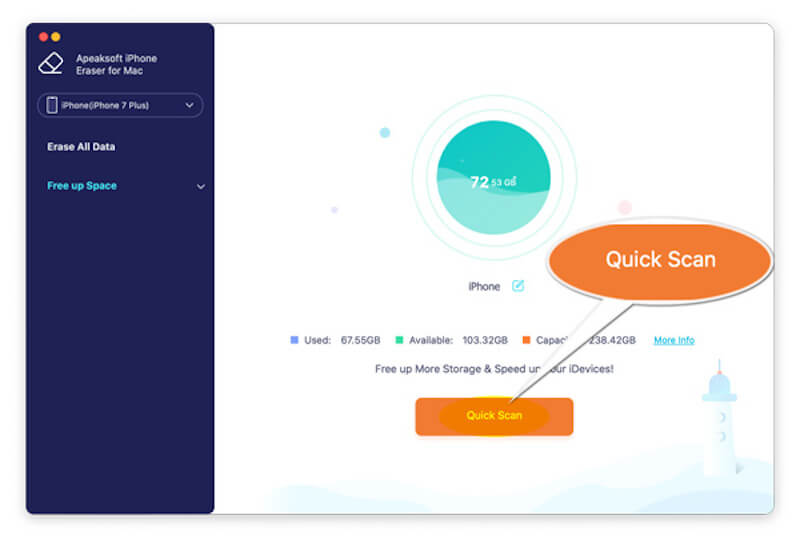
Step 3. Choose Free Up Space from the left sidebar. Then, click on Quick Scan to start scanning your iPhone.
Step 4. You will be presented with all the scanning results, including junk files, applications, large files, and photos.
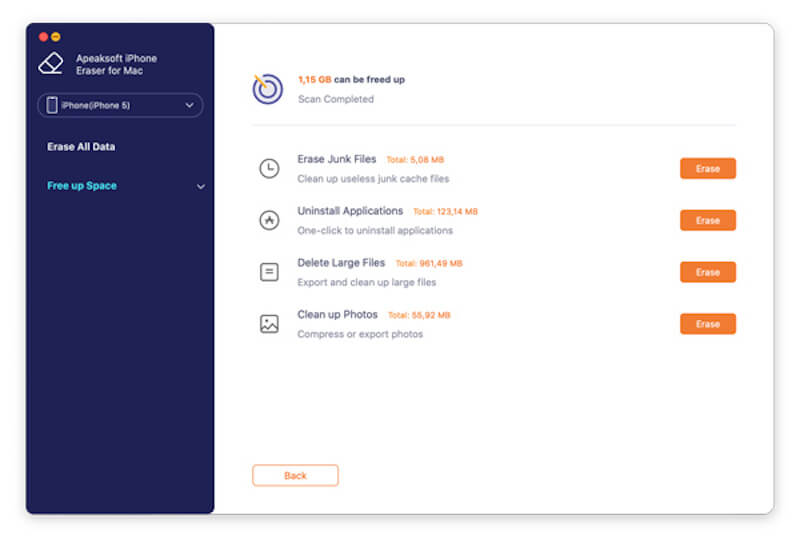
Step 5. Among these results, select your unwanted downloads. Click on Erase. Follow the instructions shown on the screen, and finally, this software will automatically erase downloads on the iPhone.
In addition to clearing downloads on the iPhone, the iPhone Eraser can also fix the cannot erase iPhone error and wipe all the data on it in a short time.
Conclusion
Remember to use iPhone Eraser if you want to erase downloads on iPhone conveniently, as it only requires a few clicks and then can automatically remove downloads. If you find this article helpful, please share it with other people in need.
Related Articles




