

Clean Up Mac: How to Delete Unwanted Documents Easily

Is your Mac messy, full of unused files, or running out of storage? Too many unnecessary documents can slow down your computer and make it hard to find what you need. This guide will show you simple ways to delete documents on Mac, from basic drag-and-drop and shortcuts to cleaner tools, and even advanced Terminal commands. Read on to learn how to quickly clear storage space and keep your Mac running at its best!
PAGE CONTENT:
Part 1: Quick Tips to Delete Documents on Mac
If you want to delete a document in Word or on the desktop, the simplest methods are dragging and dropping it to the Trash or using shortcut commands.
Drag and Drop to Trash Bin
The easiest way to delete documents on Mac is by dragging the item to the Trash in the Dock. However, the items are not permanently deleted; they will remain in the Trash unless you empty it.
How to empty the Trash:
Control-click the item you want to permanently delete, then select Delete Immediately. If you want to delete all of the Trash, click Finder in the Dock, then choose Finder > Empty Trash. Confirm your action to proceed with the removal.
Use Keyboard Shortcut Command
Select the document and press Command + Delete keys to move a document to Trash. If you want to empty the Trash, use the keyboard shortcut Command + Shift + Delete. A confirmation prompt will appear to ensure you want to delete everything. After confirming, all the documents in the Trash will be permanently erased from your Mac.
Part 2: How to Delete Documents on Mac Using Mac Cleaner
If you want to locate and erase all the unused documents on Mac, we suggest you use a professional cleaner tool. Apeaksoft Mac Cleaner is such a Mac data cleaning tool. It can scan your Mac thoroughly and provide a preview of them, then you can select the large, junk, and old files on your Mac and remove them within a few clicks.
Your Helpful Mac Data Manager
- Locate and remove large/old/junk files to clean up your Mac.
- Delete system cache, application cache, system logs, and user logs thoroughly.
- Monitor your Mac status and health in real time.
- Speed up the system performance to run smoothly.
Secure Download

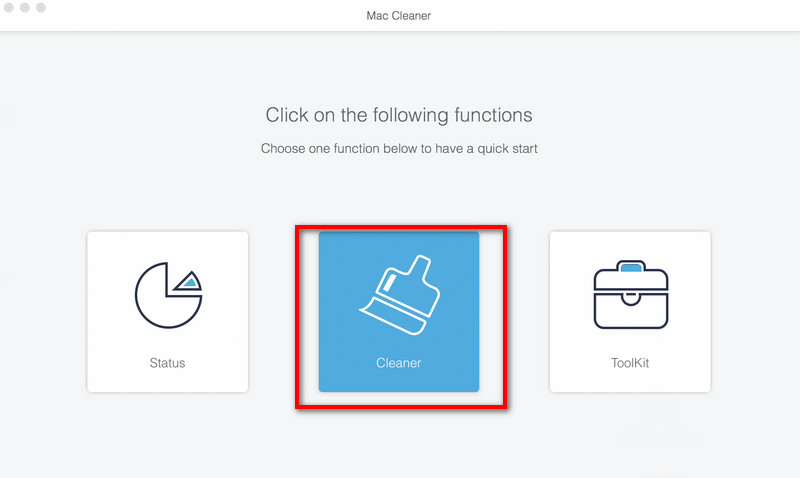
Step 1. Launch Mac Cleaner and click Cleaner in the interface.
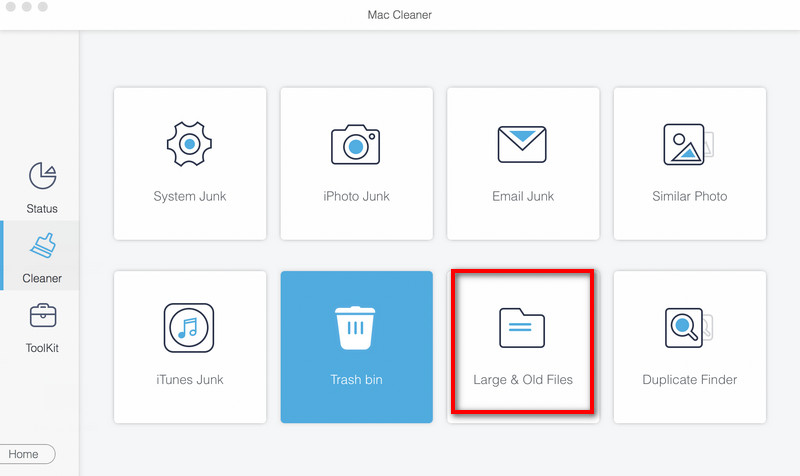
Step 2. Click Large & Old Files > Scan to scan all the documents or folders on your Mac.
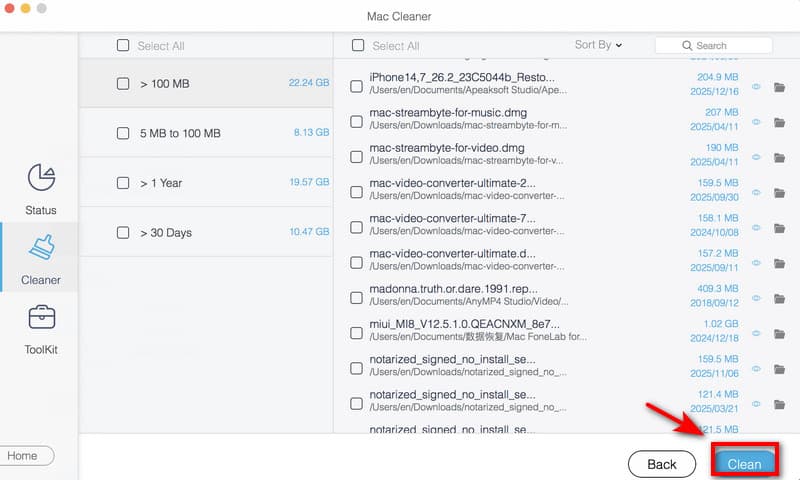
Step 3. Click View to preview the scan results. Select the documents you want to delete, and click Clean to remove them.
Part 3: How to Delete Documents on Mac Using System Tools
If you're looking for a method to delete documents without installing extra software, the two system tools can help you do it.
Delete Documents on Mac by Category
You can organize and view documents, photos, messages, backups, and other files on your Mac by using categories. What's more, you'll be able to see available storage space and delete documents to free up disk space on your Mac.
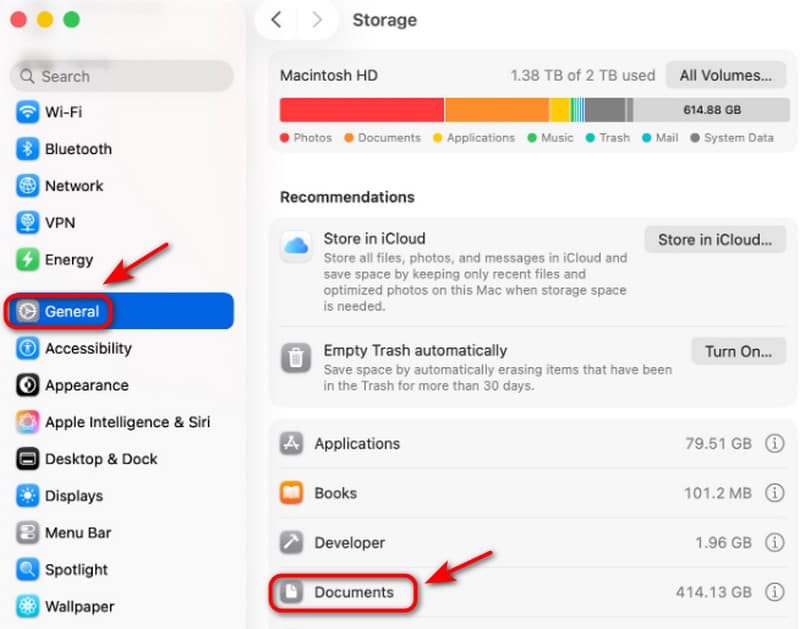
Step 1. Open the Apple Menu, click System Settings, then scroll down to select General in the sidebar.
Step 2. Click Storage, and you can see all categories. Click Documents, hit the Info button to open the folder, and then you can view all the documents on your Mac.
Step 3. Select the document you want to delete, then click Delete or use Command + Delete keys.
Delete Documents on Mac via Finder
Another official way to delete documents on a Mac is by using Finder. Finder is the built-in file management tool on macOS, allowing you to locate and manage your files easily.
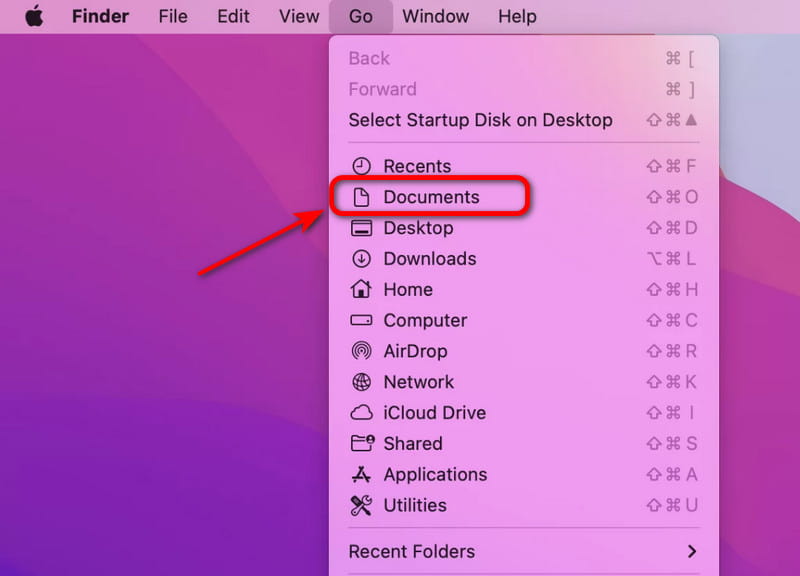
Step 1. Open Finder in the Dock. Click Go > Documents folder in the left-hand sidebar.
Step 2. You can drag the document you don't need to the Trash, or right-click it and choose Move to Trash.
Step 3. Navigate to the Trash Can, find the document you want to permanently delete, and select Delete Immediately.
Part 4: Advanced: Using Terminal to Delete Documents on Mac
For advanced users, using Terminal commands to delete a document or clear the cache on Mac is the most efficient way.
Step 1. Open Finder, click Applications > Utilities in the Menu bar to open Terminal. Alternatively, you can press Command + Space to open Spotlight, type terminal, and hit Enter.
Step 2. In the Terminal window, type rm followed by a space. Then, drag the file you want to delete into the Terminal window. You can also manually enter the full path to the document you wish to delete.
Note: The rm command permanently deletes files and cannot be undone, so make sure the file path is correct before pressing Enter.
You can also use rm for other deletion tasks, such as:
- Batch delete files: rm *.pdf (removes all PDF files in the current folder)
- Delete a folder: rm -r folder's name (removes a folder and everything inside it)
Step 3. Press Enter to delete a document on Mac. This step will bypass the Trash and delete the file immediately.
Conclusion
Now that you know how to delete documents on Mac, you can choose the right method for different situations. For quick and small deletions, basic tricks or system tools are enough. If you need a complete and safe cleanup, third-party software like Apeaksoft Mac Cleaner can help. For more advanced removal, you can use Terminal commands. By using these methods, you can free up storage space, keep your Mac well-organized, boost your work efficiency, and enjoy a smoother Mac every day!
Related Articles




