

How to Uninstall Safari on Mac Completely, Safely & Easily

Safari is the default browser built into macOS and iOS. Deeply integrated with the Apple ecosystem, Safari offers iCloud syncing, strong privacy protection, and a smooth browsing experience. But not everyone loves it - maybe you prefer another browser like Chrome or Firefox, want to reduce system clutter, or simply don't use Safari at all. If you're looking for how to uninstall Safari on Mac, this guide will show you several practical ways to do it!
PAGE CONTENT:
Part 1: Remove Safari from Mac's Dock
If you simply feel that your Dock is too crowded, the interface looks a bit cluttered, or you want to reduce online distractions to stay focused, you can choose to remove Safari from your Mac's Dock instead of uninstalling it. Here are two simple methods to tidy up your interface:
Method 1: Click and hold Safari in the Dock, then drag it out until Remove appears on the screen.
Method 2: Right-click Safari in the Dock, select Options, then click Remove from Dock.
Part 2: Disable Safari on Mac via Finder
If you want to use another browser and are searching for how to uninstall Safari on MacBook, it's recommended to keep Safari installed and restrict its permissions. On iOS devices, disabling Safari on iPad or iPhone is straightforward via Screen Time, but this option is not available on Mac. Therefore, the most effective way to disable Safari is by using Finder to adjust its permission settings, limiting access without removing the application entirely.
Step 1. Go to Finder, select Applications, and locate Safari.
Step 2. Right-click on Safari and select Get Info.
Step 3. Extend the Sharing & Permissions section, change the permissions to No Access, and click Apply to All.
Part 3: The Easiest Way to Uninstall Safari on Mac
It's hard to delete default apps on macOS because they're protected by Apple's SIP security feature. This feature helps prevent malware from tampering with the operating system and improves overall system stability and security. On older Macs, you could disable SIP to uninstall Safari. However, starting with macOS Catalina 10.15, system apps can no longer be deleted even if SIP is turned off. This change is part of Apple's enhanced system protection mechanism.
In that case, you may consider using a third-party tool to manage applications more conveniently. Apeaksoft Mac Cleaner is the ultimate choice to free up space on your Mac. It can scan your system to detect large/junk/old/files, remove unnecessary settings, and uninstall heavy consumers to boost your Mac. You can also easily monitor your Mac's status and manage storage space more efficiently with it.
All-Round Software to Monitor Your Mac Health
- Remove junk files, unused apps, and settings from your Mac.
- Speed up your Mac system to keep it running smoothly.
- Monitor disk utilization, memory usage, and CPU usage in real time.
- Supports all macOS versions, including the latest release.
Secure Download
How to uninstall Safari with Mac Cleaner:
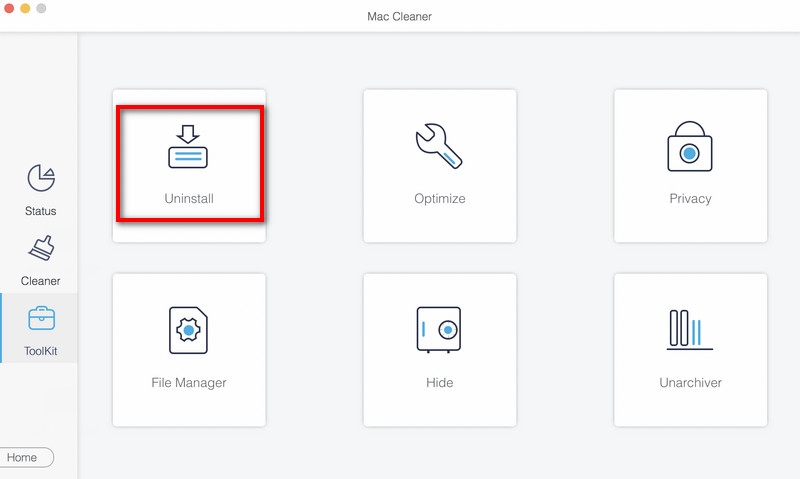
Step 1. Open Mac Cleaner, choose Toolkit from the interface, and select Uninstall.
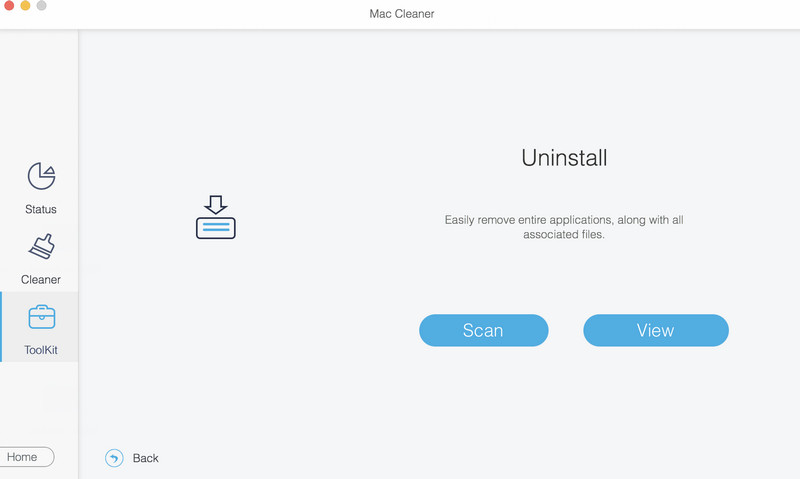
Step 2. Click Scan to quickly detect all applications installed on your Mac.
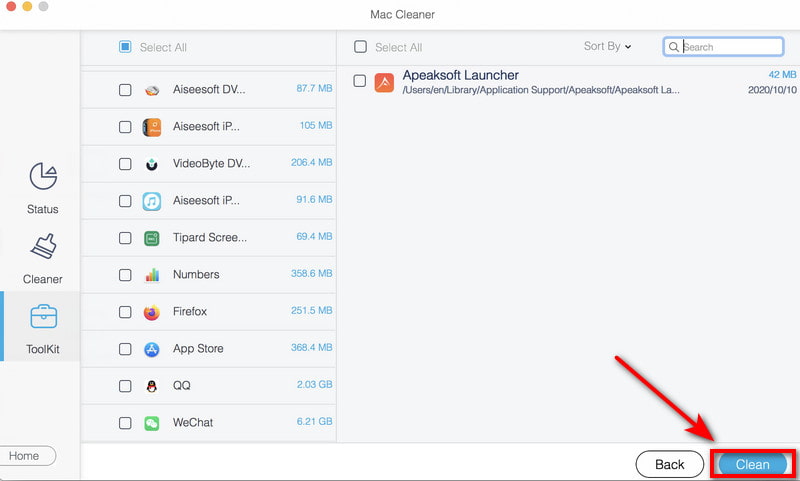
Step 3. Click View to browse the apps and select the ones you want to remove. Locate Safari and click Clean to remove it from your Mac.
Part 4: Uninstall Safari Using Terminal on Older macOS
If you want to get rid of Safari from your Mac, you can use Terminal commands to uninstall it completely on macOS Mojave 10.14 or older. Before uninstalling, you need to disable System Integrity Protection first. This step will lower your Mac's security defenses, so to avoid any potential risks, remember to back up your Mac. Then you can restore your Mac from Time Machine or iCloud if necessary.
Step 1. Turn off SIP.
Reboot your Mac and enter Recovery Mode.
For Apple Silicon:
- Press and hold the Power button until you see the startup options.
- Click Options > Continue. Enter your admin passcode if prompted.
For Intel Macs:
- Press and hold Command + R to enter the Recovery Mode.
- Open Finder, click Applications > Utilities in the Menu bar to open Terminal.
- Type csrutil disable to disable the Apple System Integrity Protection, then restart your Mac.
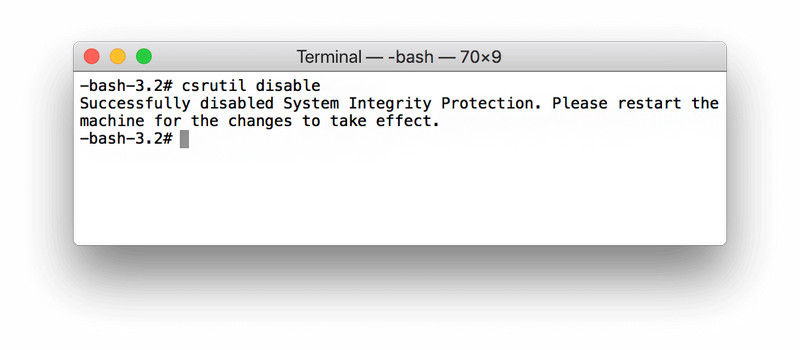
Note: Disabling SIP will reduce system security. After completing the uninstallation, be sure to re-enable SIP. It is not recommended to keep this protection feature turned off for a long time.
Step 2. Uninstall the Safari browser using Terminal commands.
Open Terminal and enter cd /Applications/ and press Return to open the Application folder from the Terminal.
Enter sudo rm -rf Safari.app/ in the window and press Return. Type your Mac administrator passcode to allow the removal process. Then, Safari will be uninstalled from your Mac soon.
Step 3. Enable SIP again.
Reboot your Mac and follow the steps above to open Terminal. Type csrutil enable in the command window, then press Return.
Conclusion
Although Safari is built into macOS and protected by system security, you can still manage or uninstall Safari on Mac in several ways. You can remove it from the Dock, disable it in Finder, use a third-party uninstaller like Apeaksoft Mac Cleaner to uninstall apps on Mac, or run Terminal commands on older macOS versions. For a simple cleanup, just removing Safari from the Dock may be enough. For deeper removal, proceed carefully and keep backups to avoid any risks!
Related Articles




