


How to Delete and Uninstall OpenClaw AI Agent Quickly

As a local AI agent, OpenClaw runs autonomous AI workers directly on computers. It connects to your everyday services and operates on your behalf. It is able to read and send emails, manage a calendar, access messaging apps, browse websites, and write files on your computer. Unlike normal desktop software, OpenClaw installs itself as a background service, so that normal uninstallation doesn't work. This guide shares how to uninstall OpenClaw from macOS, Windows, and Linux.
PAGE CONTENT:
Part 1: How to Uninstall OpenClaw on macOS
The agent comes with a built-in OpenClaw deletion command: openclaw uninstall –all –yes –non-interactive. However, it cannot remove the connected accounts, legacy config directories, or clean up custom config paths set.
Step 1. Open a Terminal app.

Step 2. input openclaw gateway stop and hit Return to stop the gateway process.
Tips: If the command is not found, input pkill -f "openclaw gateway".
Step 3. Next, perform the command below to remove the LaunchAgent:
launchctl bootout gui/$UID/ai.openclaw.gateway
rm -f ~/Library/LaunchAgents/ai.openclaw.gateway.plist
Step 4. Now, execute the uninstaller command: openclaw uninstall --all --yes.

Step 5. Then, delete remaining config directories with the command: rm -rf ~/.openclaw ~/.clawdbot ~/.moltbot ~/.molthub.
Step 6. Input npm uninstall -g openclaw and hit Return to remove the CLI package.
Step 7. Finally, verify uninstalling OpenClaw on Mac with the commands:
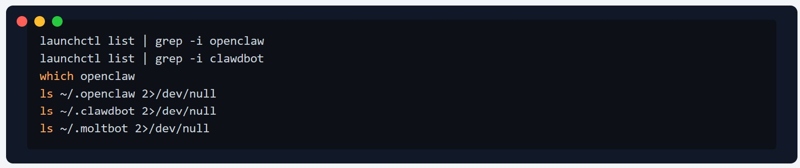
launchctl list | grep -i openclaw
launchctl list | grep -i clawdbot
which openclaw
ls ~/.openclaw 2>/dev/null
ls ~/.clawdbot 2>/dev/null
ls ~/.moltbot 2>/dev/null
Further Reading
Part 2: How to Uninstall OpenClaw on Windows
While the workflow of OpenClaw uninstallation on Windows is similar to that on Mac, the commands are a little different. We share how to uninstall OpenClaw from your Windows machine completely.
Step 1. Firstly, open Command Prompt.
Step 2. Run openclaw gateway stop to stop the Gateway process.
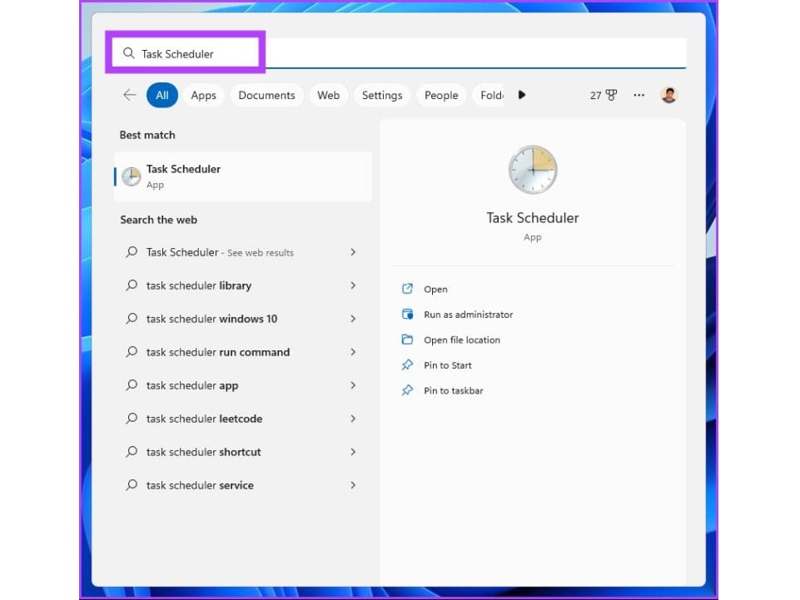
Step 3. Open Task Scheduler from the Start menu.
Step 4. Find any task related to OpenClaw, ClawdBot, or MoltBot.
Step 5. Right-click on each related test and choose Delete.
Step 6. Next, run the built-in uninstaller command: openclaw uninstall --all --yes.
Step 7. Open a File Explorer, search for files and folders named openclaw, and delete them.
Step 8. Then, delete the files and folders named clawbot, moltbot, and molthub.
Step 9. Back to Command Prompt and run npm uninstall -g openclaw to remove the CLI Package.
Step 10. To verify uninstalling OpenClaw on Windows, perform the commands below:
where openclaw
schtasks /Query /TN "OpenClaw Gateway" 2>$null
Test-Path "$env:USERPROFILE.openclaw"
Part 3: How to Uninstall OpenClaw on Linux
If you wish to get rid of the AI agent on Linux, you have to run OpenClaw uninstall commands to stop the Gateway Process, remove system services, and delete config directories:
Step 1. Run openclaw gateway stop in a command-line app.
Step 2. Remove the system service with commands:
systemctl --user disable --now openclaw-gateway.service
rm -f ~/.config/systemd/user/openclaw-gateway.service
systemctl --user daemon-reload
Step 3. Run the built-in uninstaller: openclaw uninstall --all --yes.
Step 4. Delete config directories with commands:
rm -rf ~/.config/openclaw
rm -rf ~/.local/share/openclaw
Step 5. Finally, run npm uninstall -g openclaw to remove the CLI package
Part 4: A Quick Way to Uninstall OpenClaw on Mac
If the workflow is too complicated for beginners, Apeaksoft Mac Cleaner is a good option. It allows you to uninstall unwanted apps and related files with a single click. Moreover, it comes with a user-friendly interface.

Downloaded by over 1,000,000 users
- Uninstall useless apps and files quickly.
- Work for almost all apps installed on your Mac.
- Offer bonus features, like freeing up space.
- Support macOS 10.11 and above.
Secure Download
How to Uninstall OpenClaw on Your MacBook
Step 1. Install Mac Cleaner
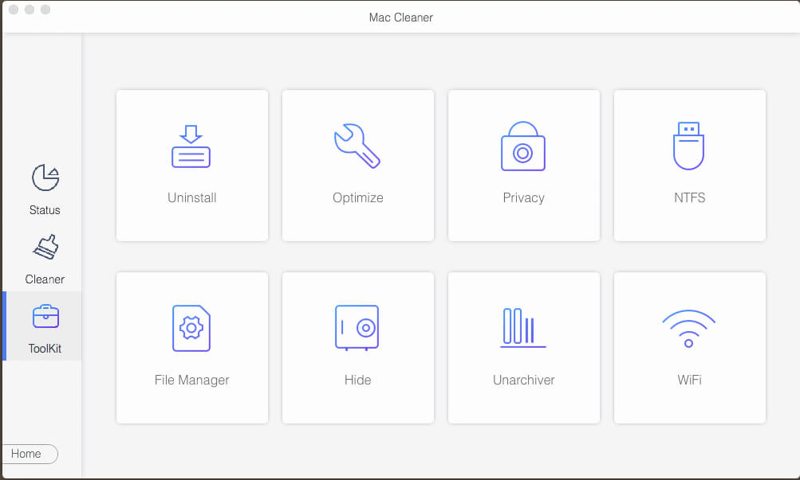
Launch the best app uninstalling program after you install it on your MacBook. Click the ToolKit button, and choose the Uninstall tool.
Step 2. Scan apps
Click the Scan button to begin finding all applications on your Mac, including apps in the background. When scanning is complete, click the View button to proceed.
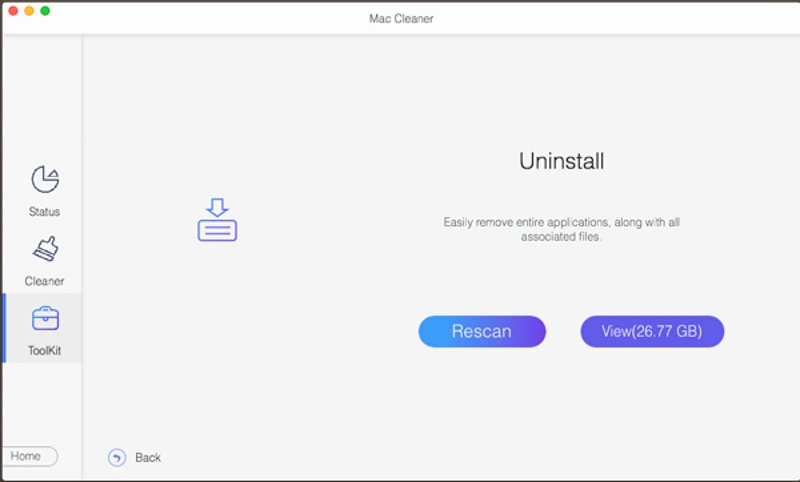
Step 3. Uninstall OpenClaw
Next, select the unwanted app and check all related files. Finally, click the Clean button and confirm the action.
Recommend: Best Mac Data Recovery Application
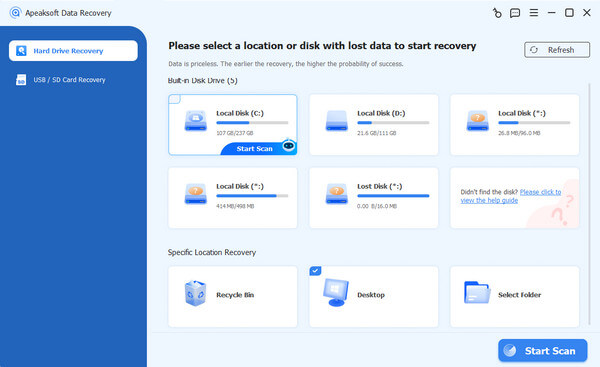
If you manually uninstall apps on a Mac, chances are that system or important files are deleted. That can lead to serious problems. Fortunately, Apeaksoft Data Recovery can help you get back lost files.
Downloaded by over 1,000,000 users
- Retrieve lost files from Mac quickly.
- Compatible with a wide range of file types.
- Work for internal and external hard drives.
- Preview lost files by type and path.
Secure Download
Secure Download

Conclusion
This guide explained how to uninstall the OpenClaw AI agent from your macOS, Windows, and Linux. The uninstalling commands are complicated, so you'd better follow our steps carefully to avoid data loss. Apeaksoft Mac Cleaner is a one-stop solution to uninstall unwanted apps easily. If you lose data during app uninstallation, Apeaksoft Data Recovery can help you retrieve it.
 Apeaksoft Mac Cleaner
 Clear data on Mac to free up space and monitor performance.
Secure Download
Related Articles




