

Everything You Need to Know About Other Storage on Mac

What is Other storage on your Mac? When checking Mac storage, you may be surprised to see a large portion occupied by a kind of data labeled Other. This vague category can make storage management confusing and lead to unnecessary anxiety about system performance or disk space. In this guide, you will learn everything you need to know about Other storage on Mac, covering what it really means, how to locate it, and the most effective methods to manage or reduce it safely.
PAGE CONTENT:
Part 1: What Does "Other" Storage Mean on Mac
Simply put, Other storage on your Mac is a system category used to group files that do not fit into the standard classifications that exist. It typically includes system files, caches, temporary data, application support files, plug-ins, extensions, disk images, archives, and various hidden files created by macOS and third-party apps. Some browser data, mail attachments, and virtual machine files may also be counted as Other. However, since the release of macOS Sierra, you may have noticed that in some new Mac models, the Other storage category has been changed to System Data.
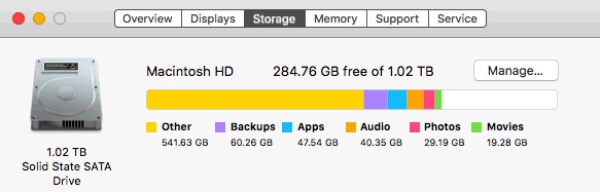
No matter what it is labeled, one can tell that it takes a considerable storage space on a Mac. The reason Other storage on your Mac often appears large is that many of these files accumulate quietly over time. For example, cached files are designed to speed up performance, but they won't be deleted automatically after the process. And since they are not clearly named, you may feel that Other storage is mysterious or uncontrollable. In reality, it reflects normal system behavior, but without proper management, it can gradually consume a significant amount of disk space.
Part 2: How to Check Other Storage on Mac
Before freeing up space occupied by Other storage, it is important to understand detailed information about the data and files inside. For your convenience, macOS provides a built-in way to review storage usage. By checking Other storage on your Mac properly, you can avoid blind cleanup and make more informed decisions about what should or should not be removed.
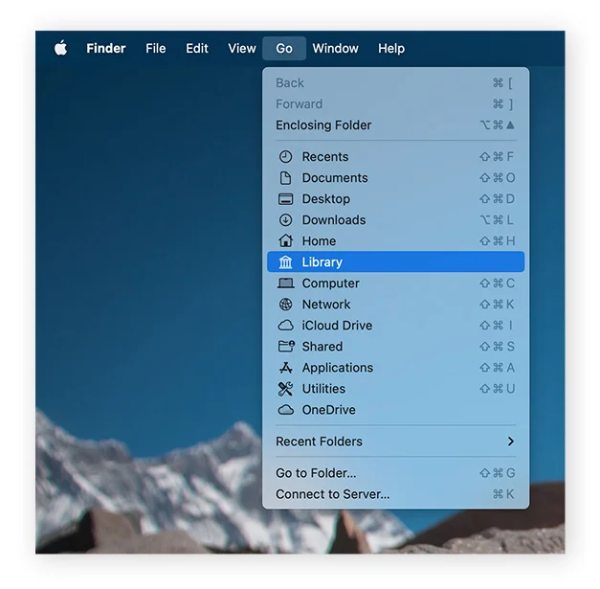
Step 1. On your Mac, click Go from Finder. Press Option on the keyboard. Then, a pop-up window will appear. When you see the options listed, click Library.
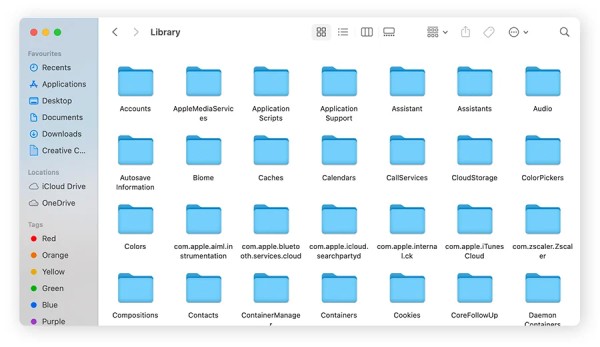
Step 2. After you open the Library, you can see loads of file folders. And most of them belong to the category of Other Storage.
Step 3. Here, you can select and delete the unwanted file folders to organize your storage space. However, unless you have a clear understanding and relevant knowledge to determine whether a specific folder is essential, it is highly recommended that you DO NOT delete it here.
Part 3: The Safest Way to Manage Other Storage on Mac
When Other storage on your Mac continues to grow despite manual cleanup, relying on a dedicated Mac cleaning solution becomes the safest and most efficient option. As a professional tool, Apeaksoft Mac Cleaner is designed to identify hidden caches, logs, and unnecessary system files. Its deep scan offers precise file categorization, helping you categorize data and files located in Other storage on your Mac without risking critical ones.
Step 1. Download and install the package you downloaded. Once finished, launch Apeaksoft Mac Cleaner on your Mac.
Secure Download
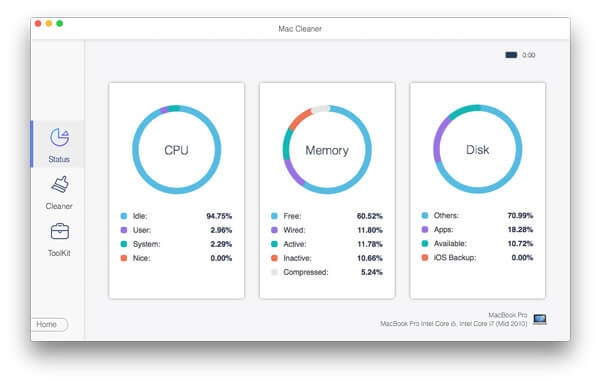
Step 2. Click Status to check the situation of your CPU, Memory, and disk usage. And Other indicates the storage space occupied by Other storage.
Step 3. To clean Other storage on your Mac, click Cleaner. Under this tab, click System Junk to remove unnecessary files, like System Cache from DNS, System Logs, and so on, from Other storage.
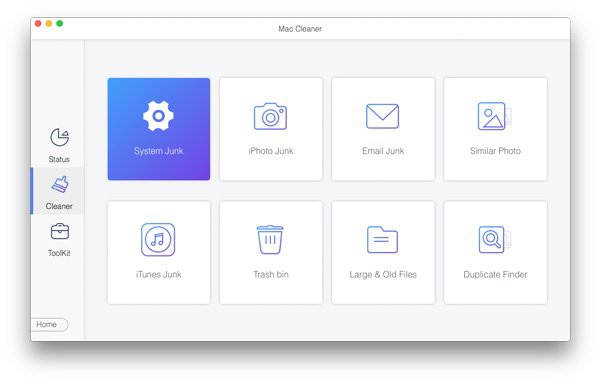
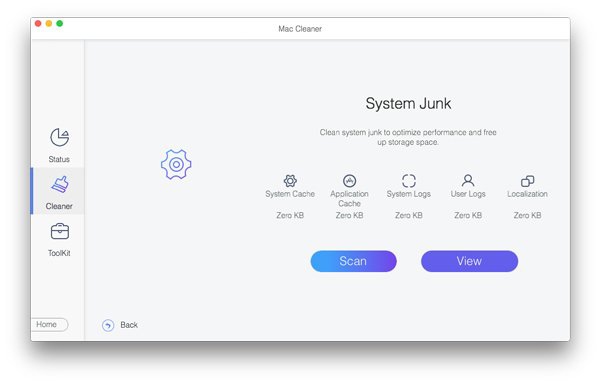
Step 4. In the pop-up window, click Scan, and all the unnecessary files from Other storage will be detected and listed. You can click View to check them.
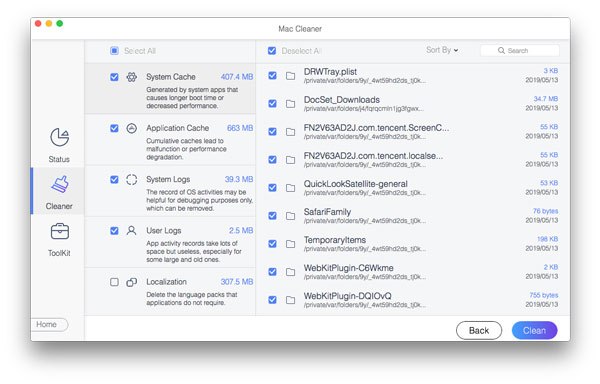
Step 5. All the types and significance of the files will be presented. You can select and delete the unnecessary files that take up a considerable storage space. Finally, click Clean and then Confirm to clean Other storage while maintaining your Mac running properly.
Conclusion
Clearing Other storage on Mac can manage and clean a collection of system data, caches, and miscellaneous files that gradually accumulate during everyday use. While macOS provides basic methods to deal with Other storage, the process can be time-consuming and risky if essential files are removed by mistake. To effectively reclaim disk space, Apeaksoft Mac Cleaner can help you with effective cleanup and solid data protection.
Secure Download
Related Articles




