

Jak obnovit smazané e-maily na iPhone pomocí 4 metod

„Omylem jsem smazal několik důležitých e-mailů.“ Jak obnovit smazané e-maily na iPhonu„Podle našeho výzkumu většina uživatelů iOS čte, přijímá a odesílá e-maily na svých zařízeních iOS. To s sebou nese nový problém: e-mail chybí. Naštěstí existují metody, jak v různých situacích získat zpět ztracené e-maily. Náš tutoriál sdílí osvědčené metody a demonstruje pracovní postupy, které vám pomohou najít důležité zprávy.
OBSAH STRÁNKY:
Část 1: Jak obnovit smazané e-maily na iPhone z koše
Aplikace Apple Mail i poštovní aplikace třetích stran mají složku Koš. Ukládá smazané e-maily po určitou dobu. Než budou trvale smazány, můžete smazané e-maily rychle obnovit ve svém iPhonu.
Jak obnovit smazané e-maily na iPhone v Apple Mail
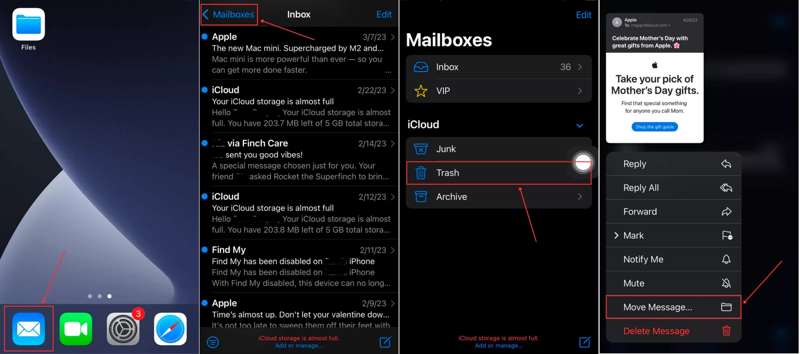
Krok 1. Otevřete iOS Poštovní zásilka app na vašem iPhone.
Krok 2. Využít Schránky A zvolte Koš na seznamu.
Krok 3. Zobrazte si nedávno smazané e-maily a dlouze stiskněte zprávu, kterou chcete obnovit.
Krok 4. Potom zvolte Přesunout zprávu v kontextovém menu.
Krok 5. Nastavte složku příjemce, například Doručené.
Krok 6. Nyní najdete smazané e-maily z iPhonu v umístění příjemce.
Jak obnovit smazané e-maily z Gmailu na iPhone
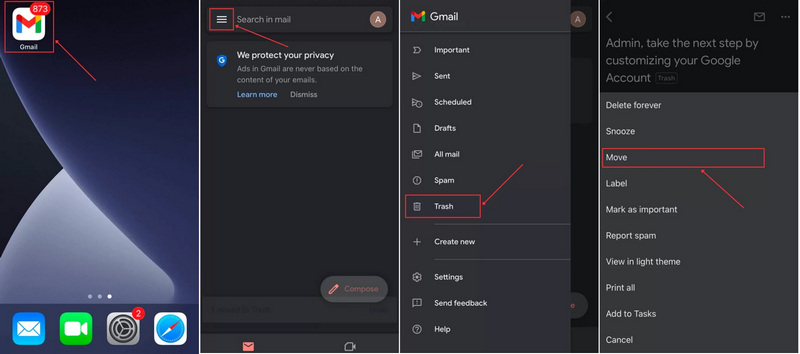
Krok 1. Spusť svůj Gmail app.
Krok 2. Klepněte na Tlačítko Hamburger a vyberte Koš.
Krok 3. Vyberte e-mail, který chcete načíst, a stiskněte tlačítko Více tlačítko s ikonou se třemi tečkami.
Krok 4. Vybrat Pohyb a vyberte umístění, kam chcete uložit obnovený e-mail z Gmailu na vašem iPhonu.
Jak obnovit smazané e-maily na iPhone z Yahoo
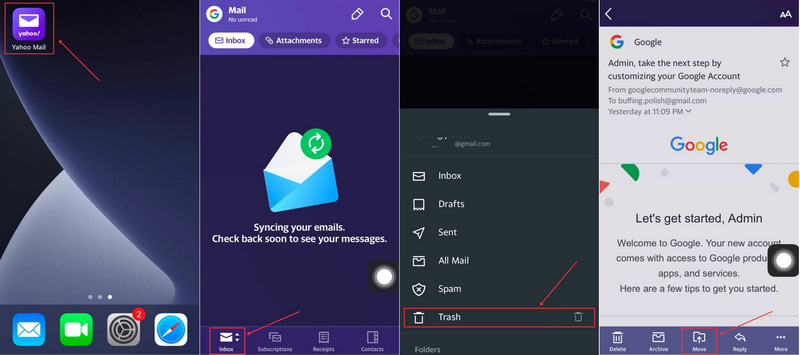
Krok 1. Spusť svůj Yahoo app.
Krok 2. Klepněte na Doručené tlačítko dole a vyberte Koš.
Krok 3. Klepnutím otevřete e-mail, který chcete obnovit.
Krok 4. Klepněte na Pohyb tlačítko dole a vyberte umístění pro uložení e-mailu. Pokud chcete obnovené e-maily spravovat samostatně, zvolte Vytvořit novou složku a zanechte jméno.
Část 2: Jak obnovit smazané e-maily na iPhone pomocí funkce Shake Undo
Od verze iOS 3 přidal Apple do iPhonů gesto Shake-to-undo (Zatřesení pro vrácení zpět). Umožňuje vám okamžitě obnovit smazané e-maily z iPhonu po jejich odstranění. Jinými slovy, funguje to pouze v případě, že jste právě smazali e-mail a nezavřeli aplikaci Mail.
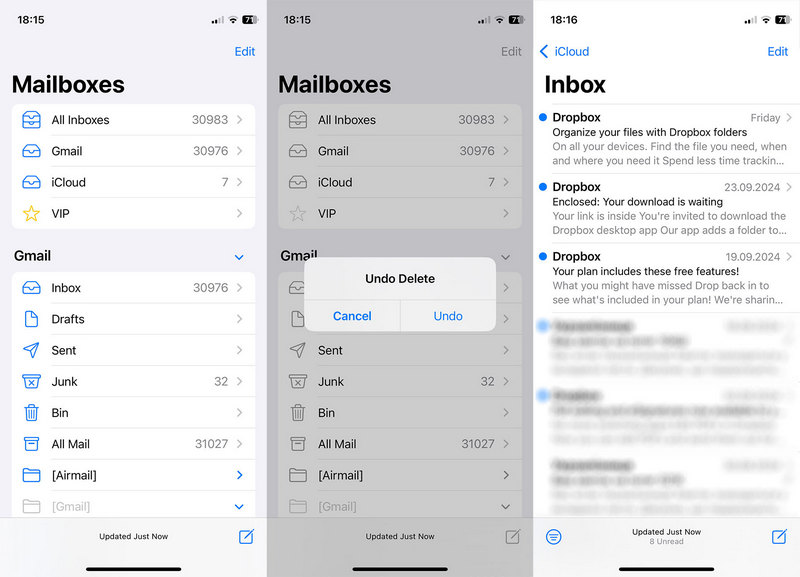
Krok 1. Pokud omylem smažete e-mail, okamžitě zatřeste iPhonem.
Krok 2. Poté klepněte na ikonu Zrušit ve vyskakovacím dialogu.
Krok 3. Nyní zjistíte, že se e-mail vrací do vaší schránky..
Část 3: Jak najít smazané e-maily na iPhone z iCloudu
Jako oficiální cloudová služba uchovává iCloud vaše e-maily buď ve vašem účtu, nebo v záloze. To znamená, že smazané e-maily na iPhonu můžete získat zpět z vašeho účtu iCloud nebo ze zálohy iCloud, v závislosti na vaší situaci.
Jak najít smazaný e-mail z iPhonu z iCloud.com
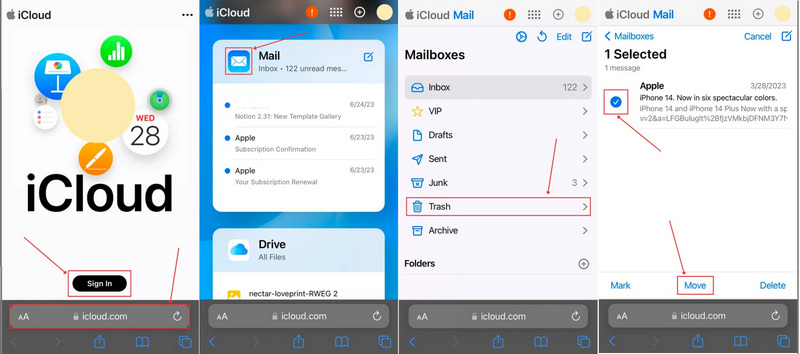
Krok 1. Otevřete webový prohlížeč, přejděte na www.icloud.com a přihlaste se pomocí svého účtu.
Krok 2. Vyberte maiaplikace l.
Krok 3. Využít Schránky A zvolte Koš.
Krok 4. Zaškrtněte požadované e-maily a klepněte na Pohyb .
Krok 5. Nastavte požadované místo a stiskněte Pohyb.
Jak obnovit smazané e-maily na iPhone ze zálohy iCloud
Krok 1. Pokud na iCloud.com nemůžete najít smazané e-maily, spusťte Nastavení app.
Krok 2. přejděte na obecně, a Přeneste nebo resetujte iPhone.
Krok 3. Vybrat Vymazat veškerý obsah a nastaveníTento proces bude vymazat váš iPhone.
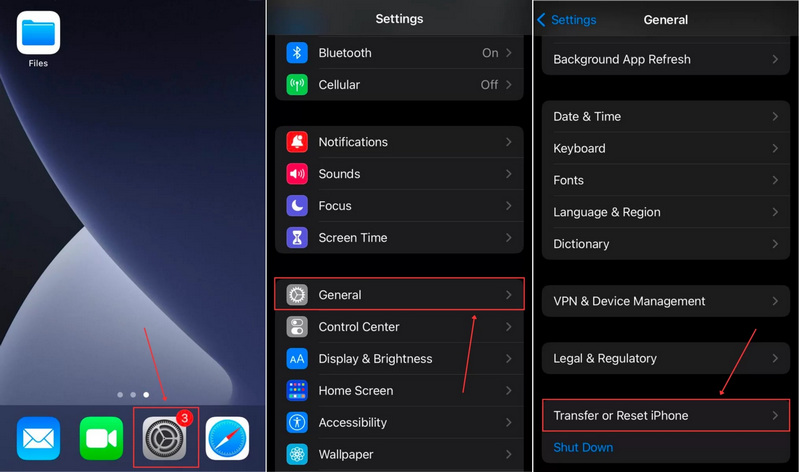
Krok 4. Pokud se zobrazí výzva, zadejte přístupový kód pro iPhone nebo heslo pro Apple ID.
Krok 5. Postupujte podle pokynů na obrazovce a vymažte zařízení.
Krok 6. Po restartování iPhonu jej nastavte a připojte k síti Wi-Fi.
Krok 7. Vybrat Ze zálohy iCloud na Aplikace a data obrazovka.
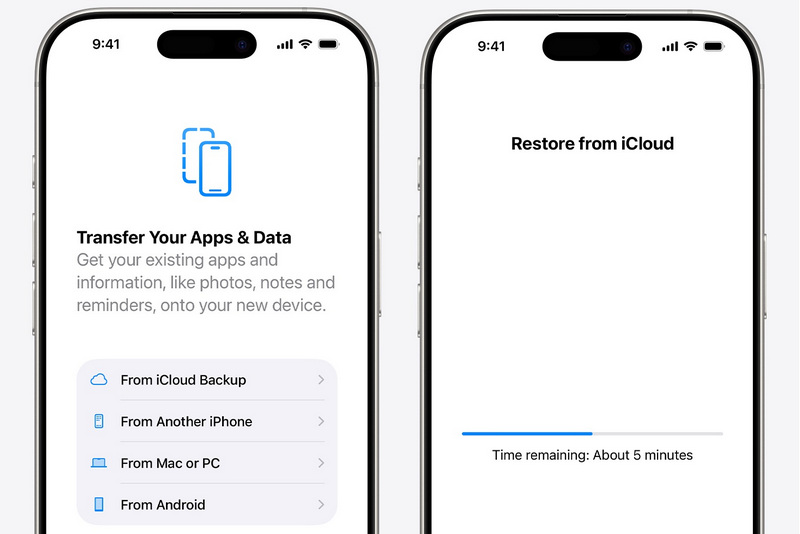
Krok 8. Zadejte své Apple ID a heslo.
Krok 9. Vyberte zálohu, která může obsahovat ztracené e-maily.
Krok 10. Po dokončení dokončete nastavení.
Poznámka: Obnovení trvale smazaných e-mailů na iPhonu ze zálohy iCloud vyžaduje nejprve vymazání zařízení.
Část 4: Jak obnovit smazané e-maily na iPhone bez zálohy
I když nemáte zálohu, je možné obnovit trvale smazané e-maily na vašem iPhonu. Vše, co potřebujete, je výkonný nástroj pro obnovu dat pro iPhony, jako například Apeaksoft iPhone Obnova datNabízí tři režimy pro obnovu e-mailů na vašem iPhonu, zálohování iTunes a zálohování iCloudu. A co je důležitější, je snadno použitelný, zejména pro začínající uživatele.
Nejlepší způsob, jak obnovit smazané e-maily na iPhonech bez zálohy
- Obnovte smazané e-maily z paměti vašeho iPhonu.
- Extrahujte e-maily ze záloh bez nutnosti vymazat zařízení.
- Zobrazte si náhled ztracených dat na vašem iPhone.
- Podpora širokého rozsahu datových typů.
- Kompatibilní s nejnovějšími verzemi iOS a iPadOS.
Bezpečné stahování
Bezpečné stahování

Jak obnovit smazané e-maily na vašem iPhone bez zálohy
Krok 1. Skenujte svůj iPhone
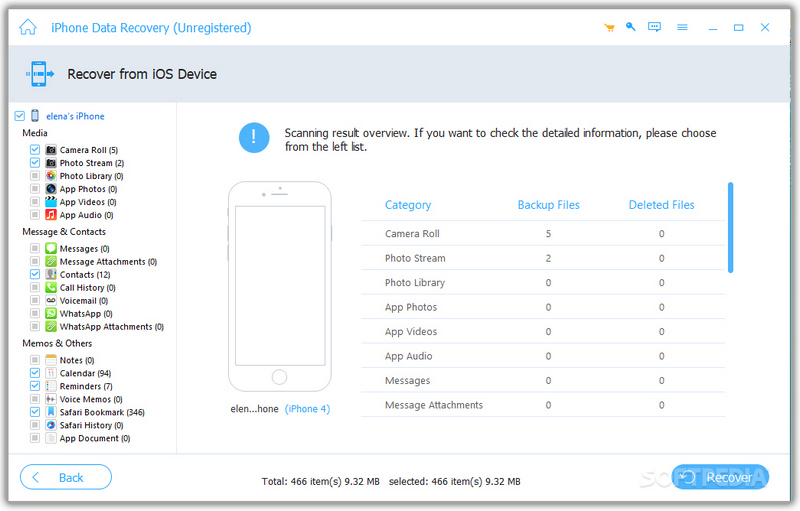
Spusťte nejlepší software pro obnovu dat pro iPhone po jeho instalaci do počítače. Připojte iPhone k počítači pomocí kabelu Lightning. Jakmile je zařízení detekováno, přejděte na Obnovení z zařízení iOS a klepněte na tlačítko Spustit skenování tlačítko pro zahájení skenování paměti.
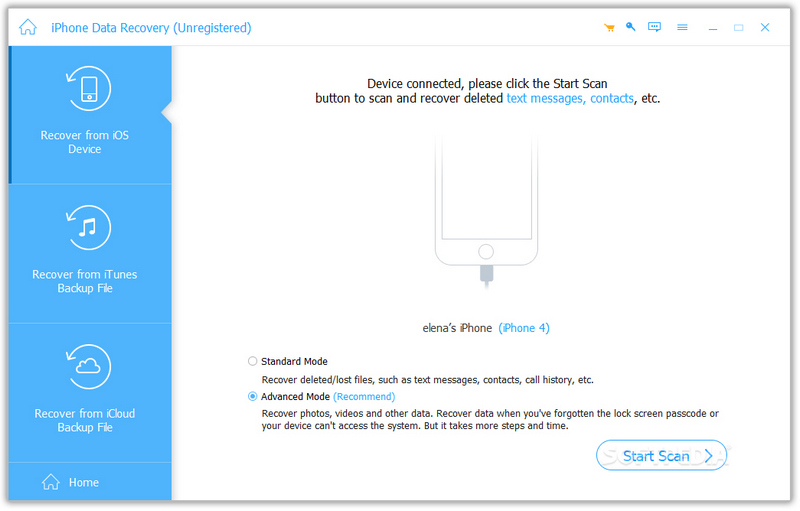
Krok 2. Náhled ztracených dat
Po dokončení skenování vyberte typy dat, které chcete obnovit. Poté si prohlédněte ztracené soubory, například smazané e-mailové přílohy.
Krok 3. Obnova dat iPhone
Vyberte soubory a položky, které chcete obnovit, a klikněte na tlačítko Zotavit se tlačítko. Poté nastavte výstupní složku a stiskněte Zotavit se znovu pro potvrzení. Můžete také obnovit smazané fotografie na iPhonu.
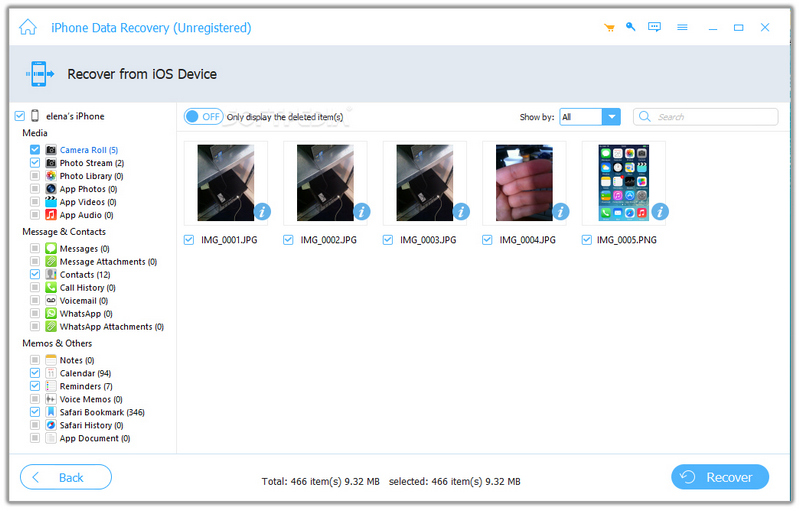
Poznámka: Software obnoví smazané e-maily a přílohy na váš pevný disk. Nepřeruší to stávající data ve vašem zařízení.
Závěr
Teď bys to měl pochopit jak obnovit smazané e-maily na vašem iPhonuSložka Koš v aplikaci Apple Mail nebo v e-mailových aplikacích třetích stran vám umožňuje rychle najít ztracené e-maily. Navíc můžete přistupovat ke svému účtu iCloud nebo k záloze iCloud a obnovit své e-maily. Apeaksoft iPhone Data Recovery je nejjednodušší způsob, jak obnovit ztracené e-maily z vašeho iPhonu. Je snadno ovladatelný a nevyžaduje žádné technické dovednosti.
Související články
Hledáte způsob, jak zobrazit smazanou historii na iPhonu? Pojďte se podívat, jak najít smazanou historii na iPhonu 6 způsoby, a to i bez záloh!
Tato příručka vám poví, jak obnovit iPhone ze zálohy iCloud nebo iTunes a jak obnovit tovární nastavení iPhonu.
Chcete obnovit smazané hlasové poznámky z vašeho iPhone bez omezení? Pokud tak učiníte, tato příručka pro vás prozkoumá 3 metody.
Chcete-li najít smazané zprávy Viber na iPhone, můžete použít zálohu Viber/iCloud/iTunes. Pokud zálohu nemáte, můžete použít Apeaksoft iPhone data recovery.



