

Jak exportovat kontakty z iPhonu do jiného zařízení

Existují situace, kdy potřebujete exportovat kontakty z iPhonu. Například byste si měli zálohovat kontakty z iPhonu, než uvolníte místo nebo prodáte zařízení na trhu s použitým zbožím. Navíc může být nutné export kontaktů z iPhonu na jiné mobilní zařízení, pokud upgradujete na nový iPhone nebo telefon Android. V každém případě tento článek sdílí osvědčené metody a krok za krokem ukazuje pracovní postup.
OBSAH STRÁNKY:
Část 1: Flexibilní způsob exportu kontaktů z iPhone
V současné době stále více lidí používá více zařízení. Mají více než jedno digitální zařízení, například iPhone, iPad, telefon s Androidem, tablet, počítač, notebook, Chromebook a další. Proto doporučujeme flexibilní způsob exportu kontaktů z iPhonu: Apeaksoft iPhone TransferDokáže rychle přesunout kontakty z iPhonu do jiného mobilního zařízení nebo počítače.
Flexibilní metoda exportu kontaktů z vašeho iPhonu
- Rychlý export kontaktů z iPhonu.
- Přesun kontaktů z iPhonu do libovolného zařízení.
- Náhled a správa kontaktů v iPhonu.
- Export kontaktů z iPhonu ve formátu CSV, vCard a dalších formátech.
- Podpora široké škály modelů iPhone.
Bezpečné stahování
Bezpečné stahování

Jak exportovat kontakty z iPhonu
Krok 1. Propojte svůj iPhone
Pokud potřebujete exportovat kontakty z iPhonu, nainstalujte si do počítače aplikaci iPhone Transfer a spusťte ji. Pro uživatele Maců je k dispozici další verze. Propojte iPhone s počítačem pomocí kabelu Lightning.
Tip: Pokud chcete exportovat kontakty z iPhonu do iPadu nebo jiného iPhonu, připojte obě zařízení k počítači.
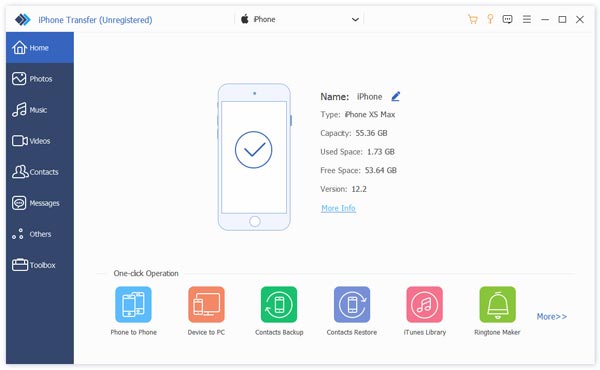
Krok 2. Náhled iPhone kontakty
Po zjištění vašeho zařízení přejděte na Kontakty na postranním panelu. Poté si můžete zobrazit všechny kontakty v zařízení. Zde můžete spravovat, seskupovat nebo mazat kontakty z iPhonu.
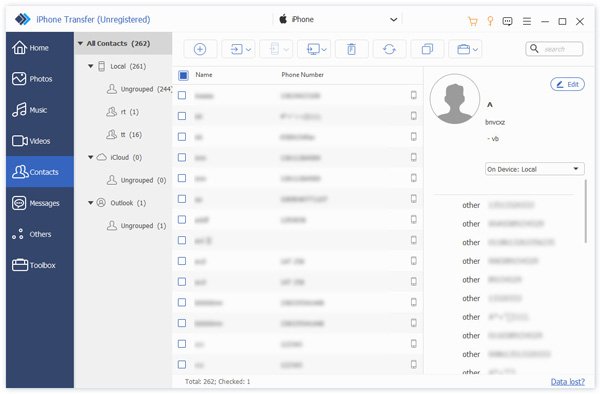
Krok 3. Export kontaktů na iPhonu
Vyberte kontakty, které chcete exportovat. Chcete-li exportovat kontakty z iPhonu do počítače, klikněte na PC tlačítko na horním pásu karet, vyberte Export do počítačea nastavte výstupní složku. Pokud chcete exportovat kontakty do jiného zařízení se systémem iOS, klikněte na Telefon a vyberte cílové zařízení.
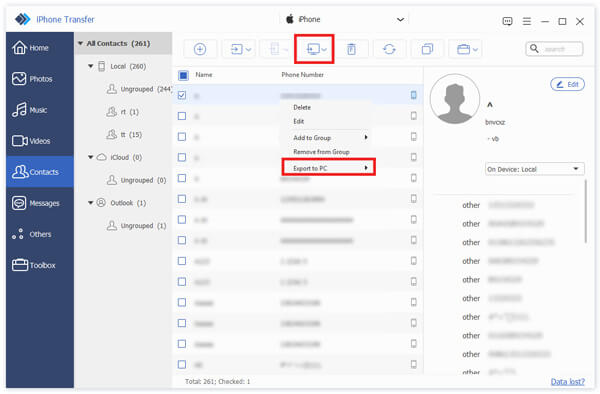
Část 2: Jak exportovat kontakty z aplikace Kontakty pro iPhone
Vestavěná aplikace Kontakty ve vašem iPhonu umožňuje exportovat kontakty z iPhonu do zařízení s Androidem, jiného iPhonu nebo iPadu. Tato metoda nevyžaduje žádný další software ani hardware.
Krok 1. Otevřete Kontakty app na vašem iPhone.
Krok 2. Klepněte na Zpět a stiskněte Přidejte seznam.
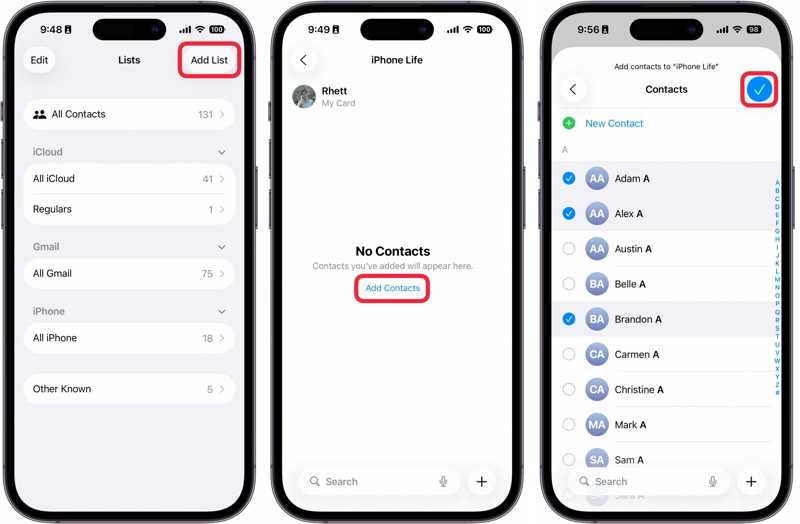
Krok 3. Vybrat iPhone or iClouda zanechte název pro novou skupinu.
Krok 4. Klepněte na novou skupinu, stiskněte Přidat kontaktya vyberte kontakty, které chcete exportovat.
Krok 5. Po dokončení klepněte na Hotovo .
Krok 6. Stiskněte a podržte skupinu, dokud se nezobrazí kontextová nabídka, a vyberte Vývoz.
Nyní budete čelit dvěma scénářům:
Scénář 1: Export kontaktů z iPhonu do počítače
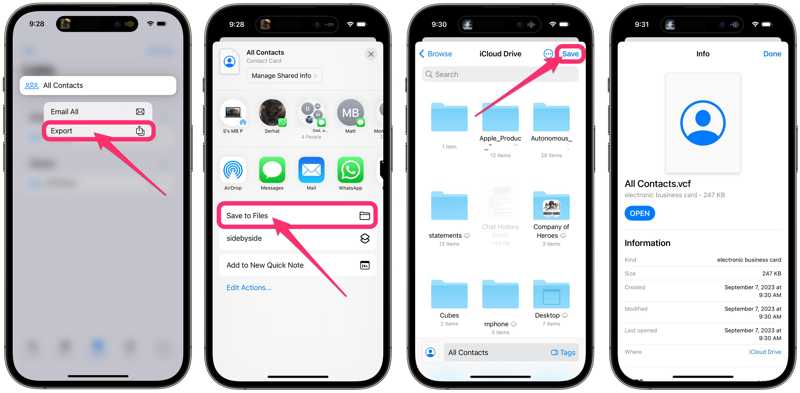
Krok 7. Vybrat Uložit do souborů, přístup iCloud Pohona klepněte na tlačítko Uložit.
Krok 8. V prohlížeči přejděte na www.icloud.com a přihlaste se pomocí svých přihlašovacích údajů Apple.
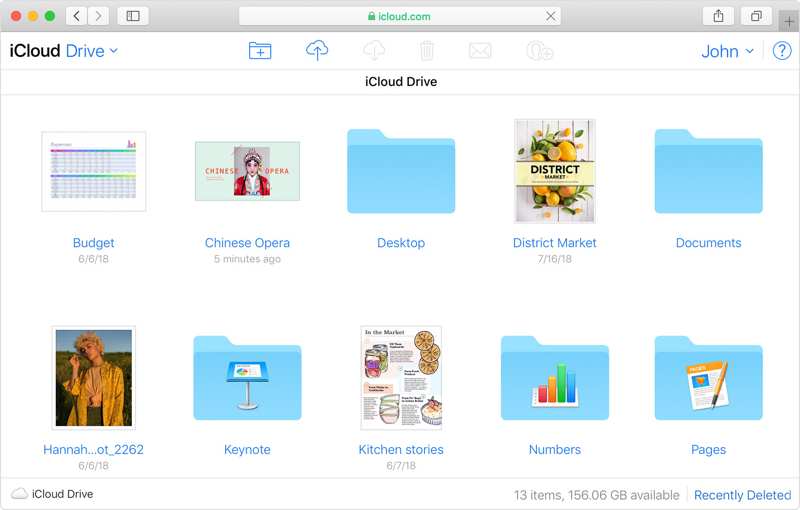
Krok 9. Vyberte iCloud Drive a stáhněte si soubor VCF.
Scénář 2: Export kontaktů z iPhonu do Samsungu nebo jiného iPhonu
Krok 7. Vyberte si aplikaci pro rychlé zasílání zpráv, například WhatsApp.
Krok 8. Příjemce poté obdrží exportované kontakty z iPhonu.
Část 3: Jak exportovat kontakty z iPhone pomocí iCloudu
iCloud je další způsob, jak bezdrátově exportovat kontakty z iPhonu do počítače. Můžete synchronizovat všechny kontakty z iPhonu do iCloudu a poté je exportovat jako soubor vCard. Tento způsob se používá k exportu všech kontaktů v zařízení. Samozřejmě můžete přesunout konkrétní kontakty nebo seznamy.
Krok 1. Spusťte Nastavení app na vašem iPhone.
Krok 2. Klepněte na svůj profil a poté na Zobrazit vše pod Aplikace Použití iCloud sekce.
Krok 3. Přepněte na Kontakty volba.
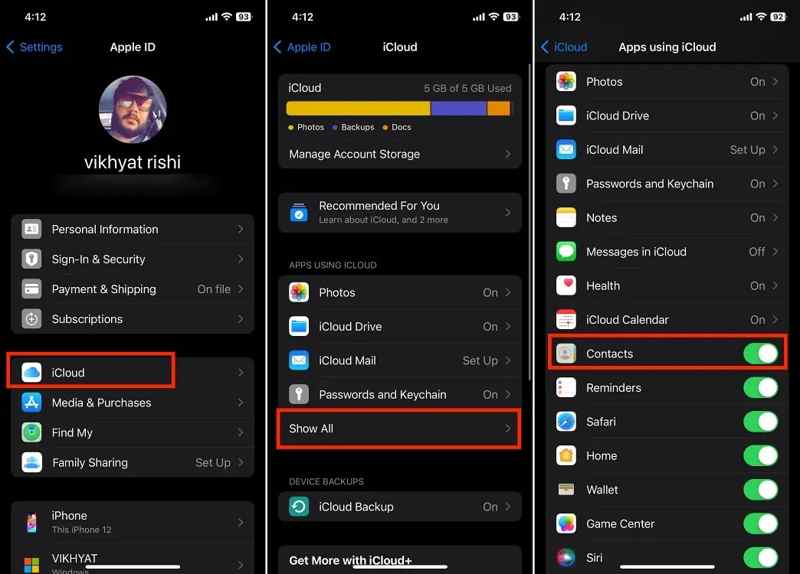
Krok 4. Připojte svůj iPhone k internetovému připojení.
Krok 5. Po synchronizaci kontaktů s iCloudem se připojte k počítači.
Krok 6. V prohlížeči přejděte na www.icloud.com a přihlaste se pomocí svého Apple ID a hesla.
Krok 7. Rozbalte aplikace panel a vyberte Kontakty.
Krok 8. Vyberte všechny kontakty, které chcete exportovat, a klikněte na Sdílet .
Tip: Stiskněte Ctrl na PC nebo Příkaz klávesa na Macu a vyberte nesouvislé kontakty. Chcete-li vybrat více souvislých kontaktů, stiskněte klávesu směna na klávesnici.
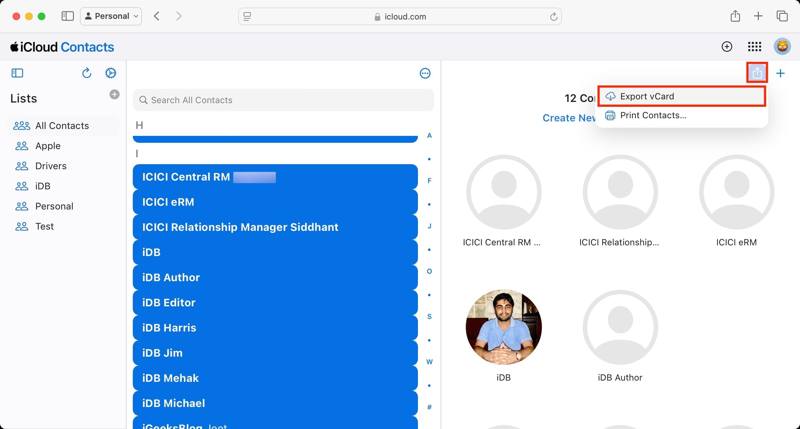
Krok 9. Vyberte Export vCard možnost, vyberte výstupní složku a exportujte ji.
Pokud chcete exportovat kontakty z iPhonu do Macu, systém se vás zeptá, zda chcete kontakty přidat do Macu. Kontakty aplikace. Klikněte na přidat tlačítko pro potvrzení. Pokud chcete exportovat kontakty z iPhonu jako soubor, vyberte Zrušit.
Další čtení
Část 4: Jak exportovat kontakty z iPhonu do Excelu
Pokud potřebujete exportovat kontakty z iPhonu do Excelu, je k dispozici iTunes. Umožňuje synchronizovat kontakty z iPhonu s Kontakty systému Windows. Poté můžete exportovat kontakty ve formátu CSV. MS Excel dokáže otevírat soubory CSV.
Krok 1. Připojte svůj iPhone k počítači pomocí kabelu USB.
Krok 2. Klepněte na tlačítko Telefon tlačítko na levé horní straně.
Krok 3. Přejít na Informace záložku na postranním panelu.
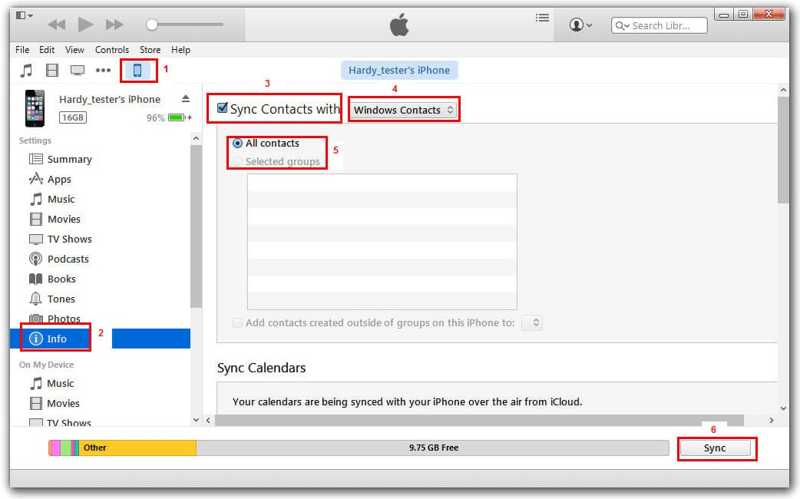
Krok 4. Kontrola synchronizovat kontakty s a vybrat si Kontakty systému Windows z rozevírací možnosti.
Krok 5. Vyberte požadované skupiny nebo Všechny kontakty.
Krok 6. Klepněte na tlačítko Sync or Přihláška pro potvrzení.
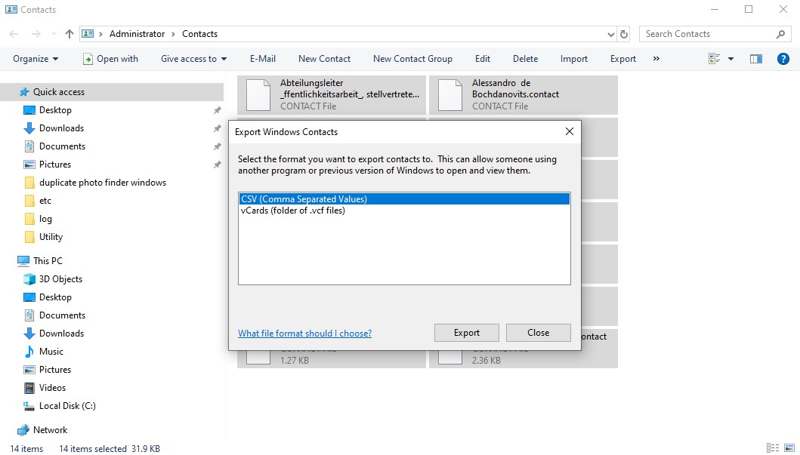
Krok 7. Otevřete File Explorer a přístup k internetu Kontakty složka.
Krok 8. Vyberte kontakty z iPhonu a klikněte na Vývoz menu.
Krok 9. Vybrat CSV a hit Vývoz.
Krok 10. Nastavte výstupní složku a uložte soubor CSV.
Krok 11. Spusťte MS Excel z počítače a otevřete soubor CSV přímo.
Závěr
Tato příručka ukázala čtyři způsoby, jak export kontaktů z iPhonuPředinstalovaná aplikace Kontakty umožňuje exportovat kontakty do jiného mobilního zařízení nebo počítače. Můžete také synchronizovat kontakty z iPhonu s iCloudem a exportovat své kontakty. iTunes umožňuje synchronizovat kontakty s Kontakty systému Windows a exportovat je do Excelu. Apeaksoft iPhone Transfer je flexibilní způsob exportu kontaktů na vašem zařízení se systémem iOS.
Související články




