

So stellen Sie schnell frühere Versionen von Excel-Dateien wieder her

Verstehen, wie es geht Frühere Versionen von Excel-Dateien wiederherstellen Dies ist besonders wichtig, wenn Excel oder Ihr PC unerwartet abstürzt, ohne Ihre Arbeitsmappe zu speichern. Die integrierten Funktionen „Automatische Wiederherstellung“ und „Automatisches Speichern“ sichern Ihre Arbeit regelmäßig, je nach Ihren Einstellungen. Glücklicherweise ist der Workflow einfacher als gedacht. Dieser Artikel führt Sie durch den gesamten Prozess unter Windows, Mac und online.
SEITENINHALT:
- Teil 1: So stellen Sie die vorherige Version einer Excel-Datei auf einem PC wieder her
- Teil 2: So stellen Sie die vorherige Version einer Excel-Datei auf dem Mac wieder her
- Teil 3: So stellen Sie die vorherige Version einer Excel-Datei über OneDrive wieder her
- Teil 4: So stellen Sie die vorherige Version einer Excel-Datei aus SharePoint wieder her
- Teil 5: So stellen Sie Excel-Dateien ohne vorherige Version wieder her
Teil 1: So stellen Sie die vorherige Version einer Excel-Datei auf einem PC wieder her
Sobald Sie den automatischen Speichermodus aktivieren oder die automatische Wiederherstellung einrichten, speichert Microsoft Excel Ihre Arbeitsmappe regelmäßig. Wenn Sie die Datei schließen, ohne sie zu speichern, oder Excel unerwartet beendet wird, können Sie eine frühere Version der Excel-Datei wiederherstellen.
Schritt 1: Öffnen Sie die aktuellste Version Ihrer Excel-Datei.
Schritt 2: Gehen Sie zur Reichen Sie das Menü.
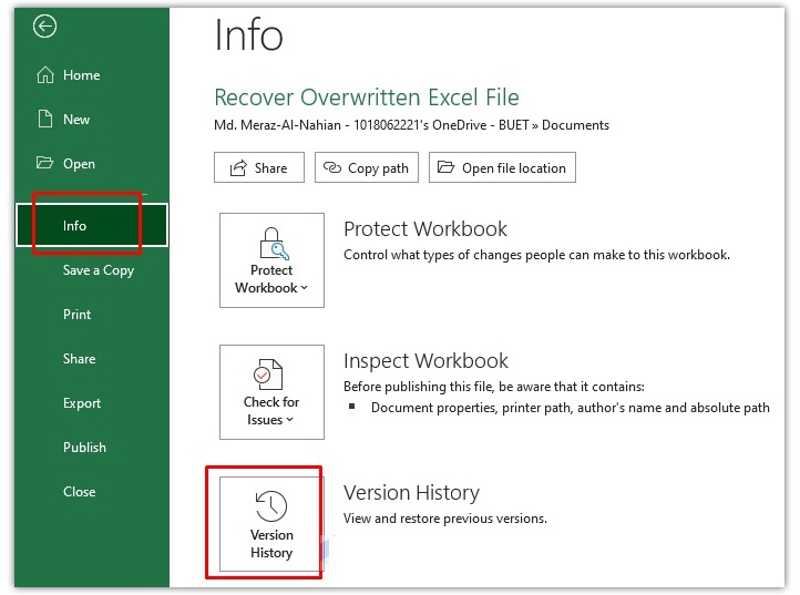
Schritt 3: Klicken Sie auf die Infos Option und wählen Sie Versionsgeschichte.
Schritt 4: Anschließend erhalten Sie alle vorherigen Versionen der Datei auf der Versionsgeschichte Feld.
Schritt 5: Wählen Sie die richtige Version zum Öffnen aus.
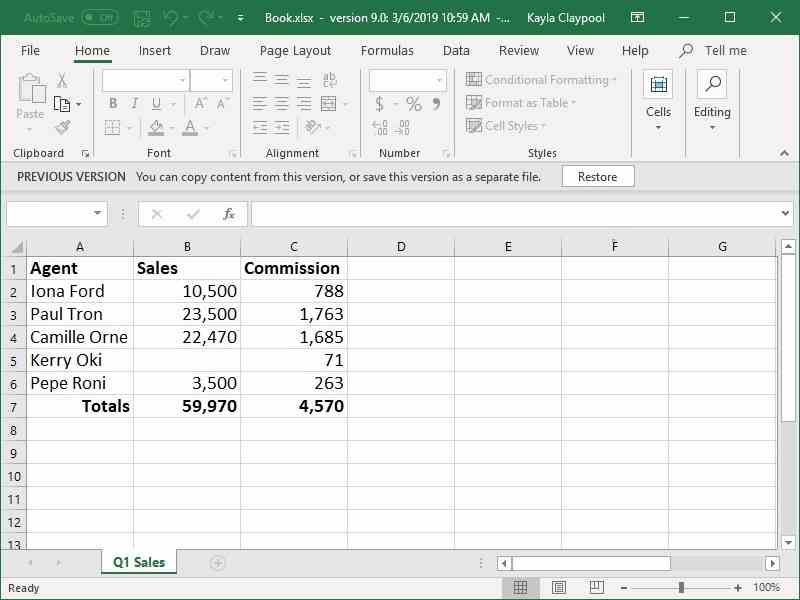
Schritt 6: Überprüfen Sie die Datei und klicken Sie auf die Schaltfläche Wiederherstellen .
Hinweis: Falls Sie die Excel-Datei noch nie gespeichert haben, klicken Sie auf den Link. Sie können Inhalte aus dieser Version kopieren oder diese Version als separate Datei speichern. anstatt der Wiederherstellen .
Teil 2: So stellen Sie die vorherige Version einer Excel-Datei auf dem Mac wieder her
Die Funktion „Automatische Wiederherstellung“ ist in Microsoft Excel für Mac verfügbar. Damit können Sie in verschiedenen Situationen die vorherige Version einer Excel-Datei auf Ihrem MacBook wiederherstellen. Der Ablauf ist etwas anders. Hier ist die vollständige Anleitung:
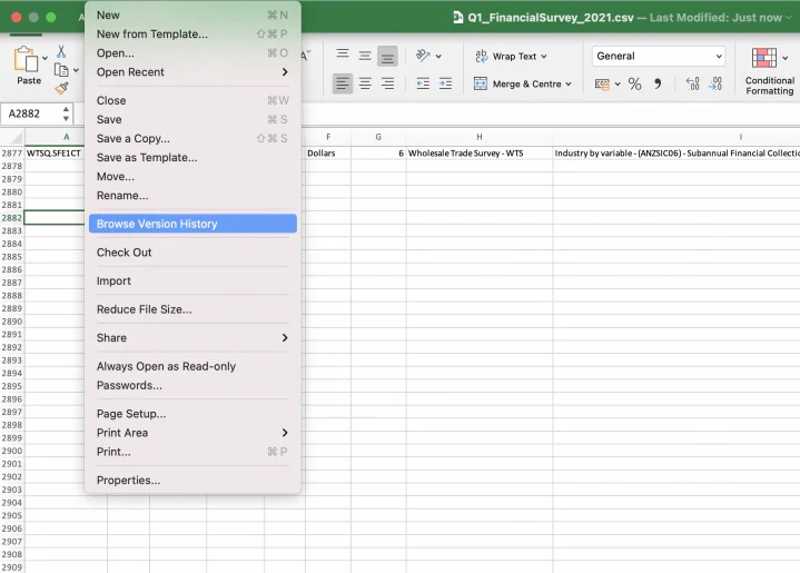
Schritt 1: Öffnen Sie die Excel-Datei, die Sie wiederherstellen möchten.
Schritt 2: Gehen Sie zur Reichen Sie das Menü und wählen Sie Durchsuchen Sie den Versionsverlauf.
Schritt 3: Als Nächstes klicken Sie auf Offene Version um die Versionshistorie der Dateien anzuzeigen.
Schritt 4: Klicken Sie auf eine Version auf der Versionsgeschichte Feld.
Schritt 5: Wenn die Version stimmt, klicken Sie auf Wiederherstellen Schaltfläche. Falls nicht, klicken Sie auf eine andere Version.
Teil 3: So stellen Sie die vorherige Version einer Excel-Datei über OneDrive wieder her
Manche Benutzer melden sich mit ihrem Microsoft-Konto bei Office an. Dadurch können sie Dokumente und Arbeitsmappen online in OneDrive sichern. Die gute Nachricht: Sie können auch frühere Versionen von Excel-Dateien online wiederherstellen.
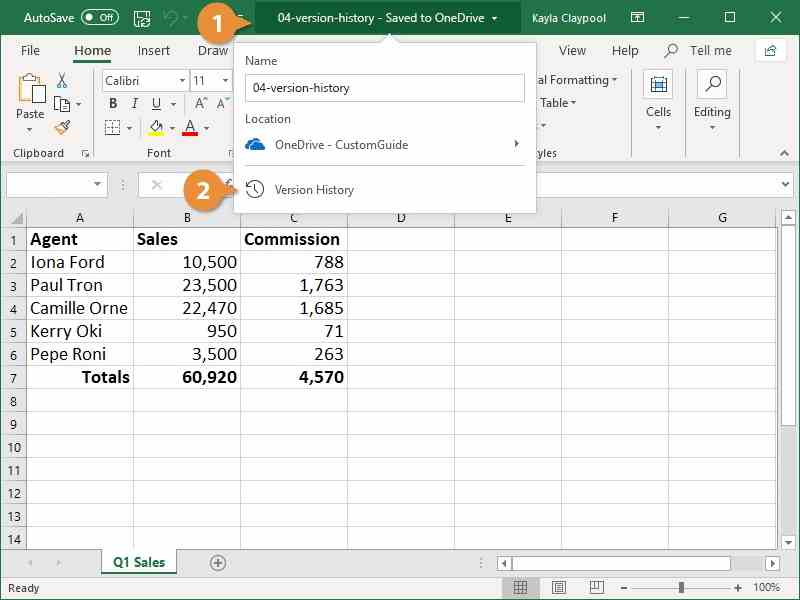
Schritt 1: Öffnen Sie Microsoft Excel.
Schritt 2: Klicken Sie auf die Titelleiste und wählen Sie aus Versionsgeschichte.
Schritt 3: Wählen Sie die passende Version für die gewünschte Datei aus.
Schritt 4: Als nächstes klicken Sie auf die Wiederherstellen Schaltfläche oder Link auf der Vorherige Version bar.
Weiterführende Literatur
Teil 4: So stellen Sie die vorherige Version einer Excel-Datei aus SharePoint wieder her
SharePoint ist ein eigenständiges Microsoft-Produkt zur Erstellung von Websites und zur Inhaltsverwaltung. Es ermöglicht Ihnen aber auch, frühere Versionen von Excel-Dateien wiederherzustellen. Im Folgenden finden Sie die Schritte, um eine frühere Version Ihrer Arbeitsmappe zu finden.
Schritt 1: Führen Sie SharePoint aus und klicken Sie auf die Reichen Sie das .
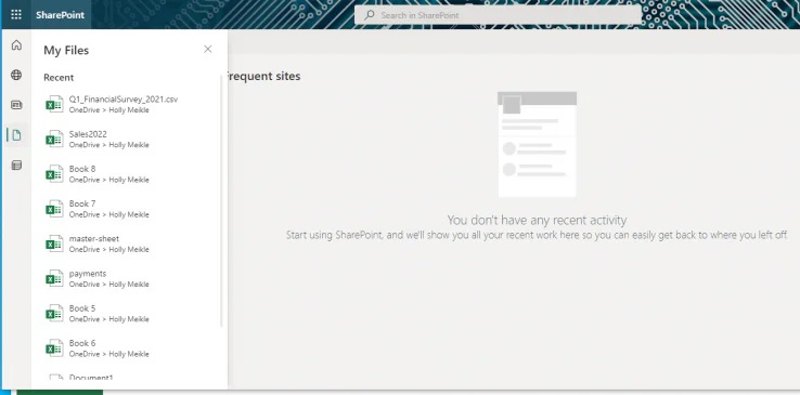
Schritt 2: Doppelklicken Sie auf die Excel-Datei, die Sie wiederherstellen möchten.
Schritt 3: Klicken Sie oben auf den Dateinamen und wählen Sie aus Versionsgeschichte.
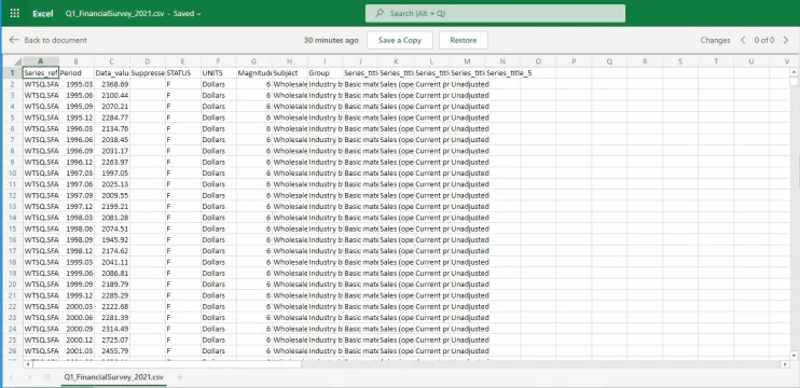
Schritt 4: Wählen Sie als Nächstes eine Version im Fenster aus.
Schritt 5: Dann klick Wiederherstellen um die Datei wiederherzustellen oder klicken Sie Speichere eine Kopie um es als andere Datei zu speichern.
Teil 5: So stellen Sie Excel-Dateien ohne vorherige Version wieder her
Falls Sie die Excel-Datei nicht im Versionsverlauf finden können, versuchen Sie Folgendes: Apeaksoft DatenwiederherstellungEs kann überschriebene Excel-Dateien ohne vorherige Version wiederherstellen. Noch wichtiger ist jedoch die benutzerfreundliche Oberfläche, die die Bedienung vereinfacht.
- Stellen Sie beliebige Excel-Dateien mit einem einzigen Klick wieder her.
- Arbeiten Sie an überschriebenen und beschädigten Excel-Dateien.
- Vorschau der verlorenen Excel-Dateien vor der Wiederherstellung.
- Unterstützt eine breite Palette von Dateitypen und -formaten.
Sicherer Download
Sicherer Download

So stellen Sie Excel-Dateien ohne vorherige Version wieder her
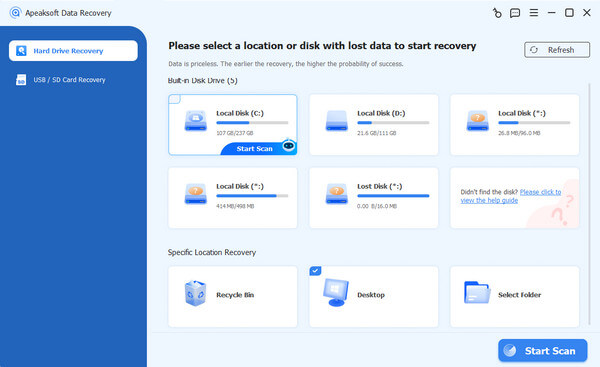
Schritt 1: Scannen Sie Ihre Festplatte
Starten Sie die Excel-Dateiwiederherstellungssoftware nach der Installation auf Ihrem PC. Es gibt auch eine Version für Mac. Wählen Sie die Wiederherstellung der Festplatte Im Modus die richtige Disk auswählen und klicken Scan startenWenn Ihre Excel-Datei auf einer externen Festplatte gespeichert ist, wählen Sie die Option „Excel-Datei“. USB-/SD-Kartenwiederherstellung Modus und klicken Datenträger scannen.
Schritt 2: Vorschau von Excel-Dateien
Sobald der Festplattenscan abgeschlossen ist, gehen Sie zu Typenliste Tab und wählen DokumentAAASie können nun alle wiederherstellbaren Excel-Dateien anzeigen. Mithilfe der Filteroption können Sie schnell eine bestimmte Excel-Datei finden.
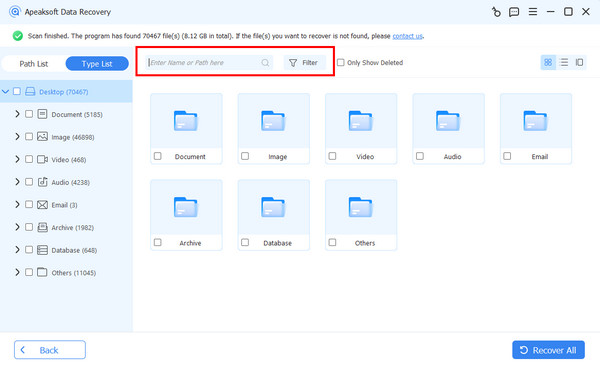
Schritt 3: Excel-Dateien wiederherstellen
Wählen Sie die Dateien aus, die Sie wiederherstellen möchten, und klicken Sie auf die Schaltfläche. Entspannung Schaltfläche. Legen Sie einen Ausgabeordner fest und bestätigen Sie die Excel-Wiederherstellung.

Fazit
In diesem Handbuch wird erklärt, wie Sie Eine frühere Version einer Excel-Datei wiederherstellen Unter Windows, macOS und online. Mit unserer konkreten Anleitung können Sie verlorene Arbeitsmappen wiederherstellen, nachdem Sie die automatische Speicherung oder Wiederherstellung eingerichtet haben. Apeaksoft Datenwiederherstellung ist die ultimative Option, um verlorene Excel-Dateien ohne Backup oder frühere Versionen wiederherzustellen.
Ähnliche Artikel




