

So stellen Sie schnell Videodateien von Ihrer SD-Karte wieder her

„Ich habe meine SD-Karte formatiert und vergessen, meine Videos zu sichern. Wie kann ich …“ Videos von einer SD-Karte wiederherstellenSD-Karten und Speicherkarten werden häufig zum Speichern von Mediendateien und zur Erweiterung des Speichers von Digitalkameras verwendet. Videoverlust ist jedoch aufgrund der Anfälligkeit von SD-Karten ein häufiges Problem. Die gute Nachricht ist, dass es in verschiedenen Situationen mehrere Möglichkeiten gibt, verlorene Mediendaten von der SD-Karte wiederherzustellen.
SEITENINHALT:
- Teil 1: So stellen Sie verlorene Videos von einer SD-Karte wieder her
- Teil 2: So stellen Sie gelöschte Videos von der SD-Karte im Papierkorb oder im Papierkorb wieder her.
- Teil 3: So stellen Sie Videos von einer formatierten SD-Karte mithilfe eines Backups wieder her.
- Teil 4: So stellen Sie beschädigte Videos von einer SD-Karte mit PhotoRec wieder her
Teil 1: So stellen Sie verlorene Videos von einer SD-Karte wieder her
Apeaksoft Datenwiederherstellung Dies ist die optimale Lösung, um verlorene Videos von einer SD-Karte wiederherzustellen, nachdem Sie sie versehentlich gelöscht, die Karte formatiert oder Ihre Videodateien beschädigt haben. Noch wichtiger ist, dass es einfach zu bedienen ist und keine technischen Kenntnisse erfordert.
- Videos schnell von der SD-Karte wiederherstellen.
- Unterstützt nahezu alle Videoformate, darunter MP4, MKV, MOV, ProRes, AVI und viele mehr.
- Vorschau verlorener Videos zur selektiven Wiederherstellung.
- Funktioniert sowohl für interne als auch für externe Festplatten.
- Kompatibel mit Windows und macOS.
Sicherer Download
Sicherer Download

So stellen Sie verlorene Videos von Ihrer SD-Karte wieder her
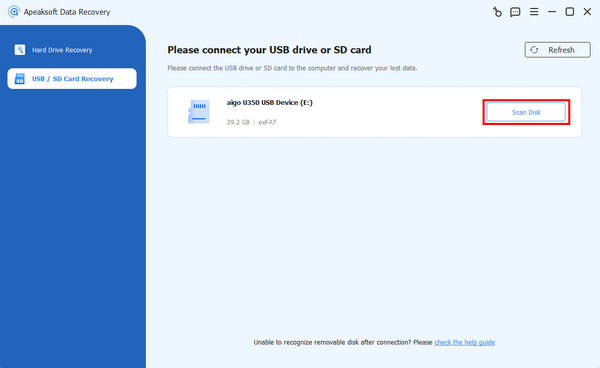
Schritt 1: Scannen Sie Ihre SD-Karte
Starten Sie die Videowiederherstellungssoftware, nachdem Sie sie auf Ihrem PC installiert haben. Es gibt auch eine Version für Mac. Gehen Sie zu USB-/SD-Kartenwiederherstellung Modus. Legen Sie die SD-Karte in Ihren Computer ein, wählen Sie sie aus der Dropdown-Option aus und klicken Sie auf die Schaltfläche. Datenträger scannen .
Schritt 2: Videos in der Vorschau ansehen
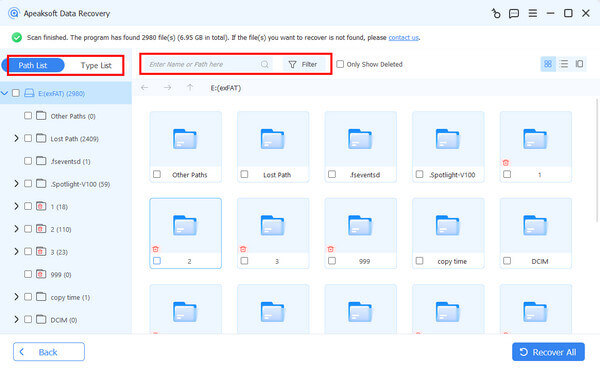
Nach einem Schnellscan führt die Software automatisch einen Tiefenscan durch. Gehen Sie dann zum Typenliste Tab und wählen VideoSie können nun alle Videos auf Ihrer SD-Karte ansehen. Nutzen Sie die Filterfunktion, um bestimmte Videos schnell zu finden.
Schritt 3: Verlorene Videos wiederherstellen
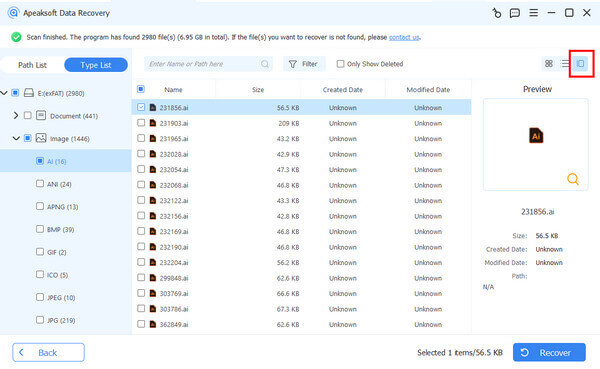
Wählen Sie die Videodateien aus, die Sie abrufen möchten, und klicken Sie auf die Schaltfläche. Entspannung Klicken Sie auf die Schaltfläche. Legen Sie anschließend einen Ausgabeordner fest und bestätigen Sie die Videowiederherstellung von der SD-Karte.
Teil 2: So stellen Sie gelöschte Videos von der SD-Karte im Papierkorb oder im Papierkorb wieder her.
Wenn Sie beim Öffnen Ihrer SD-Karte am Computer versehentlich Videos löschen, können Sie diese höchstwahrscheinlich aus dem Papierkorb wiederherstellen. Es lohnt sich, die einfachen Methoden auszuprobieren.
So stellen Sie gelöschte Videos von einer SD-Karte im Papierkorb wieder her
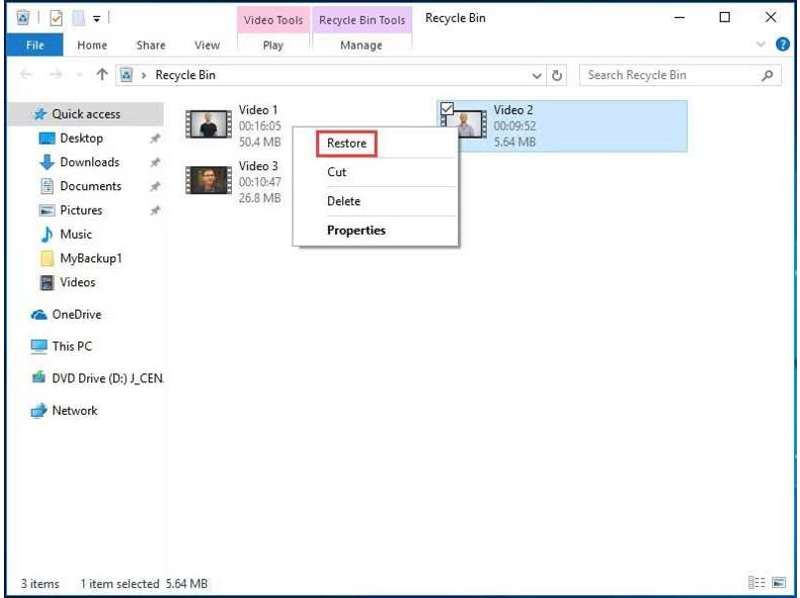
Schritt 1: Öffnen Sie den Papierkorb über Ihren Desktop oder den Datei-Explorer.
Schritt 2: Suchen Sie nach dem Video, das Sie wiederherstellen möchten.
Schritt 3: Klicken Sie mit der rechten Maustaste auf die Datei und wählen Sie Wiederherstellen.
So stellen Sie gelöschte Videos von einer SD-Karte im Papierkorb wieder her
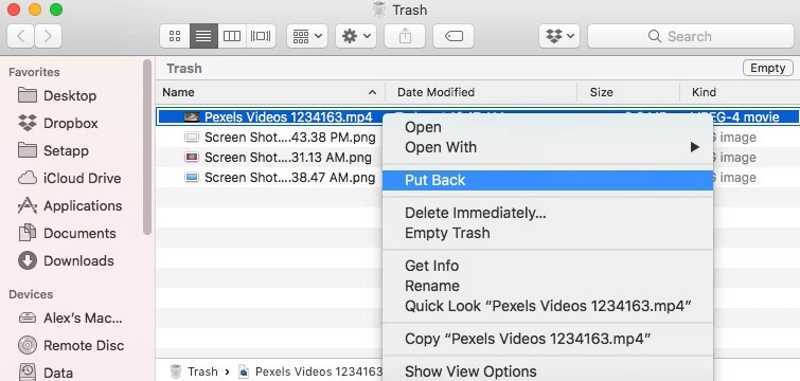
Schritt 1: Öffne Müll von der Dock bar.
Schritt 2: Suchen Sie die Videodatei, die Sie wiederherstellen möchten.
Schritt 3: Klicken Sie mit der rechten Maustaste auf die Videodatei und wählen Sie Zurück geben.
Hinweis: Mit diesen Methoden können gelöschte Videos an ihrem ursprünglichen Speicherort wiederhergestellt werden. Alternativ können Sie die Videos auswählen und auf Ihren Desktop ziehen, falls Ihre SD-Karte nicht zugänglich ist.
Teil 3: So stellen Sie Videos von einer formatierten SD-Karte mithilfe eines Backups wieder her.
Datensicherung ist eine gute Möglichkeit, Datenverlust zu vermeiden. Das heißt, Sie können Videos von einer formatierten SD-Karte wiederherstellen, wenn Sie Ihre Videos zuvor mit den integrierten Funktionen „Dateiversionsverlauf“ und „Time Machine“ gesichert haben.
So stellen Sie Videos von einer SD-Karte über den Dateiversionsverlauf wieder her
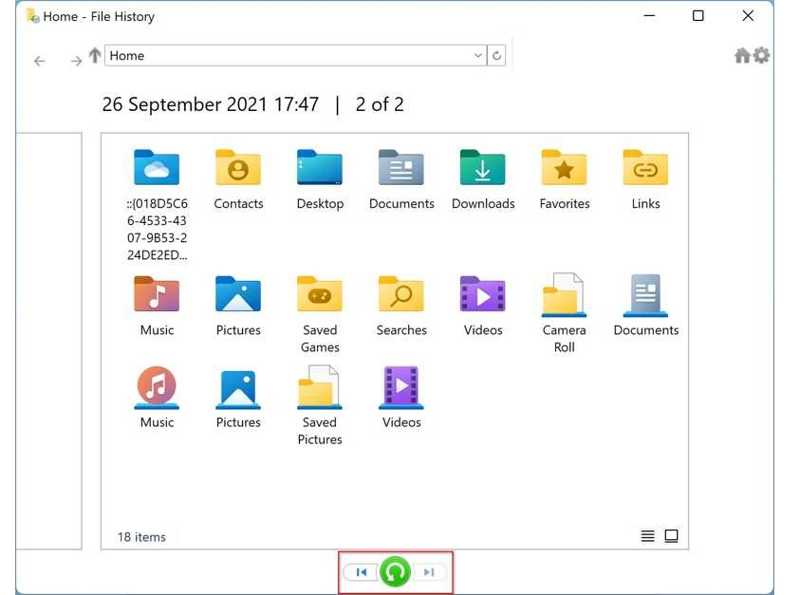
Schritt 1: Öffnen Sie den Datei-Explorer und suchen Sie die SD-Karte.
Schritt 2: Klicken Sie mit der rechten Maustaste auf Ihre Karte und wählen Sie Eigenschaften im Vergleich.
Schritt 3: Wechseln Sie auf die Vorgängerversionen Tab.
Schritt 4: Wählen Sie die richtige Version aus und klicken Sie auf die Schaltfläche. Pfeil Schaltfläche neben Öffne, und wähle Im Dateiverlauf öffnen.
Schritt 5: Klicken Sie auf die Videodatei und ziehen Sie sie auf Ihren Desktop.
So stellen Sie Videos von einer SD-Karte mit Time Machine wieder her
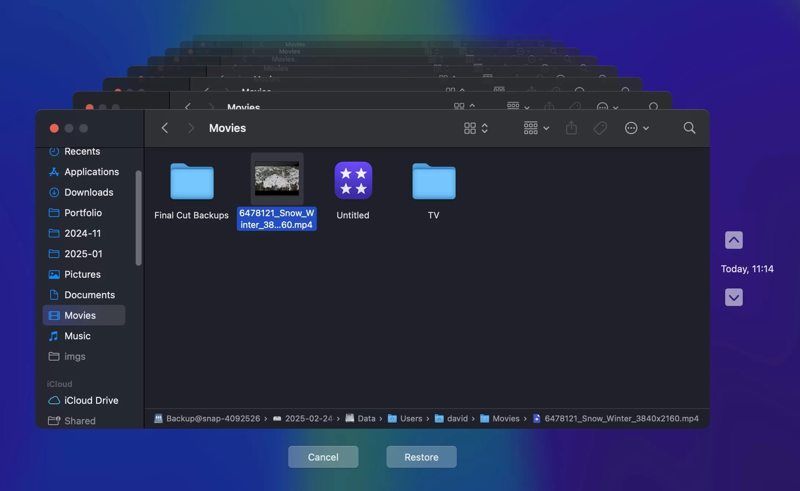
Schritt 1: Legen Sie das Sicherungsmedium in Ihren Mac ein.
Schritt 2: Öffne deine Finder und finden Sie heraus, wo Ihr Video gespeichert ist.
Schritt 3: Klicken Sie auf die Time Machine Klicken Sie auf das obere Menüband und wählen Sie Geben Sie Time Machine.
Schritt 4: Drücken Sie auf Nach oben und Nach unten Klicken Sie so lange, bis Sie die richtige Version gefunden haben.
Schritt 5: Wählen Sie die gewünschte Videodatei aus, kopieren Sie sie und fügen Sie sie in den Zielordner ein.
Weiterführende Literatur
Teil 4: So stellen Sie beschädigte Videos von einer SD-Karte mit PhotoRec wieder her
PhotoRec ist ein kostenloses Open-Source-Programm zur Datenrettung. Es kann beschädigte Videos von der SD-Karte reparieren und wiederherstellen. Allerdings arbeitet es mit der Kommandozeile und erfordert technische Kenntnisse.
Schritt 1: Laden Sie TestDisk auf Ihre Festplatte herunter.
Schritt 2: Öffnen Sie das Archiv, klicken Sie mit der rechten Maustaste auf die photorec.exe Datei und wählen Sie Als Administrator ausführen.
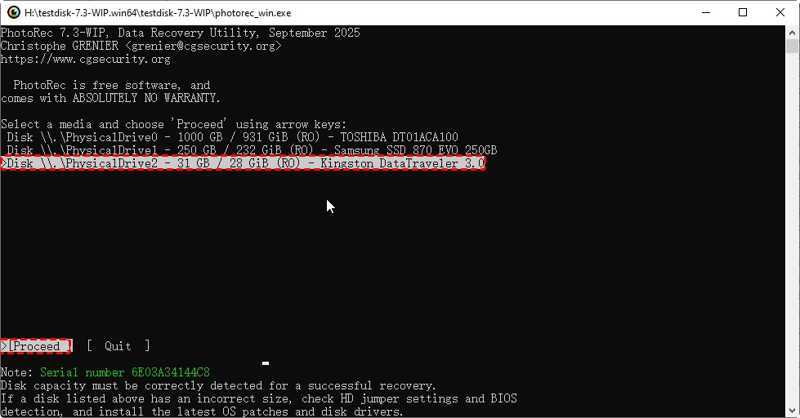
Schritt 3: Verwenden Sie die Pfeiltasten auf Ihrer Tastatur, um Ihre SD-Karte auszuwählen.
Schritt 4: Drücken Sie auf Enter or Return Taste halten.
Schritt 5: Als Nächstes auswählen und ausführen Weiter.
Schritt 6: Wählen Sie anschließend das Dateisystem Ihrer SD-Karte aus.
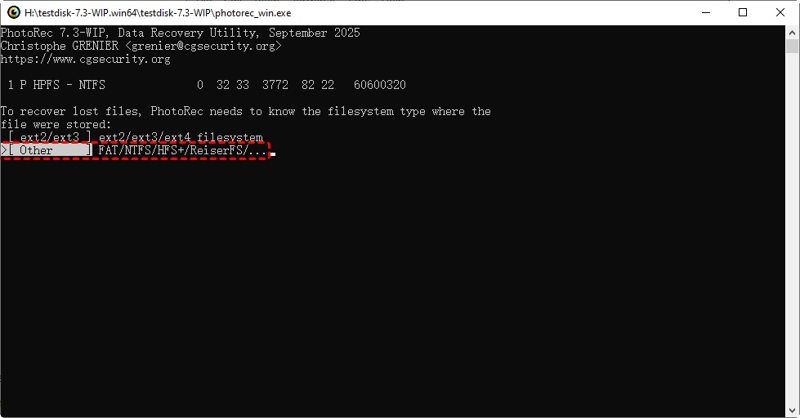
Schritt 7: Wählen Frei or Ganze nach Ihren Bedürfnissen.
Schritt 8: Wählen Sie den Zielordner aus und starten Sie die Dateiwiederherstellung.
Fazit
In diesem Handbuch werden mehrere Möglichkeiten beschrieben, Gelöschte Videos von einer SD-Karte wiederherstellen In verschiedenen Situationen können Sie die passende Methode auswählen und unseren Schritten folgen, um Ihre Videodateien schnell wiederherzustellen. Apeaksoft Datenwiederherstellung ist die ultimative Methode, um Videodateien von internen und externen Festplatten abzurufen.
Ähnliche Artikel




