

4 detaillierte Methoden zur einfachen Wiederherstellung beschädigter ZIP-Dateien

ZIP-Dateien spielen eine wichtige Rolle in unserem Alltag. Ob zum Verpacken von Materialien oder zum Übertragen großer Dateien – es kann sehr ärgerlich sein, wenn eine ZIP-Datei beschädigt ist, sich nicht entpacken lässt oder ihr Inhalt verloren geht. Aber keine Sorge – sie lässt sich reparieren! Dieser Beitrag hilft Ihnen dabei. ZIP-Dateien wiederherstellen In 4 nützlichen Anwendungsfällen. Weiterlesen!
SEITENINHALT:
- Teil 1: Warum werden ZIP-Dateien beschädigt?
- Teil 2: Universelle Methode zur Wiederherstellung beschädigter ZIP-Dateien
- Teil 3: Beschädigte ZIP-Dateien mithilfe alternativer Dekomprimierungstools wiederherstellen
- Teil 4: Beschädigte ZIP-Dateien mit professionellen Reparaturprogrammen wiederherstellen
- Teil 5: Wiederherstellung einer beschädigten ZIP-Datei aus einem Backup
Teil 1: Warum werden ZIP-Dateien beschädigt?
Bevor wir uns damit befassen, wie man eine beschädigte ZIP-Datei wiederherstellt, ist es wichtig, zunächst die Ursache der Beschädigung zu ermitteln. Die Struktur einer ZIP-Datei ist relativ komplex. Wenn ein Teil davon beschädigt ist, kann dies dazu führen, dass das gesamte komprimierte Paket nicht mehr normal geöffnet werden kann. Im Folgenden sind häufige Ursachen aufgeführt:
Der Übertragungsprozess wurde unterbrochen: Instabile Netzwerke oder plötzliche Unterbrechungen während der Übertragung können zu unvollständigen ZIP-Dateien führen, wodurch deren Extraktion unmöglich wird.
Speichergeräteausfall: Defekte Sektoren, Alterung oder plötzlicher Stromausfall können die Dateistruktur von USB-Laufwerken, Festplatten oder Speicherkarten beschädigen.
Komprimierungs- oder Extraktionsfehler: Softwareabstürze, Einfrieren oder unterbrochene Vorgänge können zu beschädigten ZIP-Dateien führen.
Virusinfektion: Manche Viren können ZIP-Dateien beschädigen.
Beschädigtes Dateisystem: Systemabstürze, fehlerhafte Formatierung oder Festplattenbeschädigung können ebenfalls ZIP-Archive beschädigen.
Inkompatible Softwareversionen: Die Verwendung veralteter Komprimierungstools kann dazu führen, dass ZIP-Dateien nicht korrekt geöffnet werden.
Teil 2: Universelle Methode zur Wiederherstellung beschädigter ZIP-Dateien
Es ist von großer Bedeutung, eine universelle und effiziente Methode zur Wiederherstellung beschädigter ZIP-Dateien zu finden. Die Verwendung professioneller Tools wie Apeaksoft Datenwiederherstellung kann die Erfolgsquote deutlich erhöhen.
Bestes universelles Tool zur Wiederherstellung beschädigter ZIP-Dateien
- Es bietet einen Tiefenscan-Modus zum effektiven Auffinden von ZIP-Dateien.
- Wiederherstellung von ZIP-Dateien nach Löschung, Virenbefall, Systemabstürzen usw.
- Während des Vorgangs werden keine Daten überschrieben oder beschädigt.
- Benutzerfreundliche Oberfläche und eine Erfolgsquote von 99.98 %.
Sicherer Download
Sicherer Download

Schritt 1: Drücken Sie die obige Schaltfläche, um diese Software kostenlos herunterzuladen.
Schritt 2: Starten Sie das Programm und wählen Sie den Speicherort Ihrer beschädigten ZIP-Dateien. Drücken Sie die Taste. Scan starten .
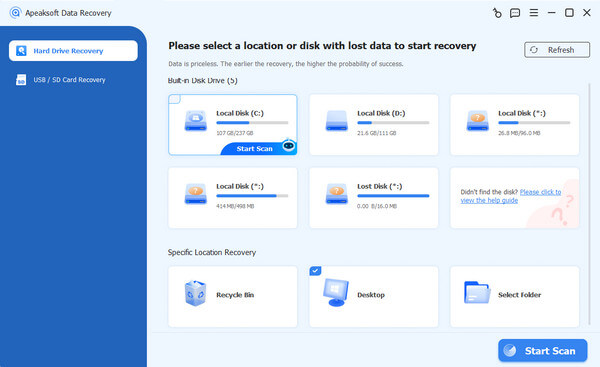
Schritt 3: Warten Sie geduldig, dann werden alle Dateien in der Benutzeroberfläche angezeigt. Gehen Sie zum linken Bereich, um auszuwählen. Archiv.
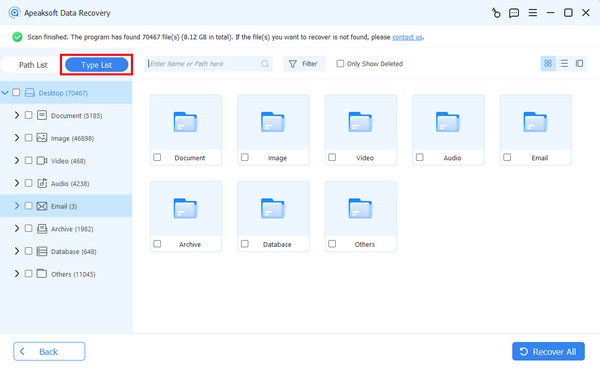
Schritt 4: Überprüfen Sie die Ergebnisse und drücken Sie dann die Taste Alle wiederherstellen Schaltfläche in der unteren rechten Ecke.
Tipps: Dieses Tool hilft Ihnen auch Daten von einer defekten Festplatte wiederherstellen.
Teil 3: Beschädigte ZIP-Dateien mithilfe alternativer Dekomprimierungstools wiederherstellen
Manchmal lassen sich mit alternativen Dekomprimierungstools Teile oder der gesamte Inhalt wiederherstellen, wenn die ZIP-Datei nur leicht beschädigt ist. Viele integrierte Entpacker stellen ihre Funktion ein, sobald sie Fehler erkennen, während Drittanbieter-Tools oft toleranter gegenüber kleineren Beschädigungen sind. Hier zeigen wir Ihnen anhand von 7-Zip, wie Sie gelöschte ZIP-Dateien kostenlos wiederherstellen können.
Schritt 1: Laden Sie 7-Zip herunter und installieren Sie es.
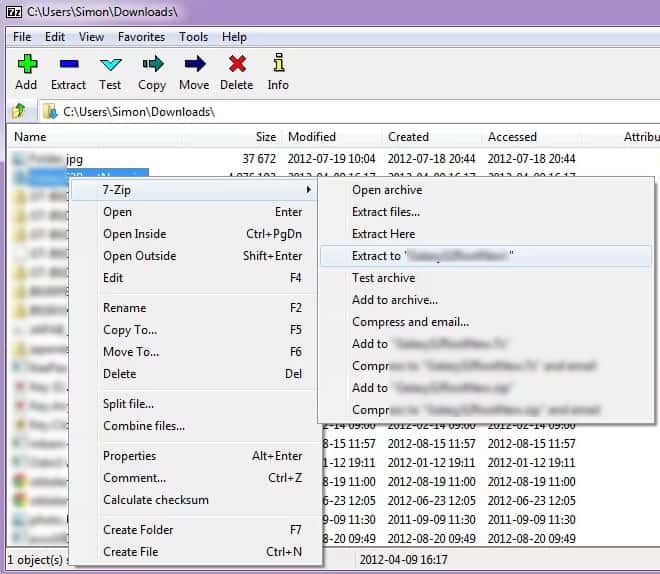
Schritt 2: Suchen Sie die beschädigte ZIP-Datei und klicken Sie mit der rechten Maustaste darauf.
Schritt 3: Klicken Sie auf Offenes Archiv Zunächst muss geprüft werden, ob 7-Zip die Dateistruktur lesen kann.
Schritt 4: Prüfen Sie die Dateien und klicken Sie ExtrahierenManchmal kann 7-Zip auch dann noch brauchbare Inhalte extrahieren, wenn Fehler auftreten.
Teil 4: Beschädigte ZIP-Dateien mit professionellen Reparaturprogrammen wiederherstellen
Wenn eine ZIP-Datei stark beschädigt ist, können herkömmliche Dekomprimierungsprogramme ihren Inhalt möglicherweise nicht mehr lesen. In solchen Fällen ist die Verwendung eines professionellen Reparaturprogramms erforderlich. WinRAR-Reparatur ist eines der am häufigsten verwendeten Programme. Es bietet eine integrierte Funktion zur Archivreparatur, mit der die Struktur einer beschädigten ZIP-Datei wiederhergestellt werden kann.
Schritt 1: Laden Sie WinRAR auf Ihren Computer herunter und starten Sie es.
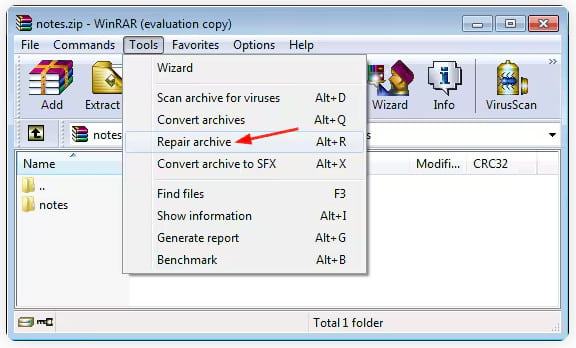
Schritt 2: Navigieren Sie zu den beschädigten ZIP-Dateien und klicken Sie auf Zubehör oben.
Schritt 3: Wählen Reparaturarchiv und klicken auf OK um den Reparaturprozess zu starten.
Teil 5: Wiederherstellung einer beschädigten ZIP-Datei aus einem Backup
Sollte keine der Reparaturmethoden funktionieren, können Sie versuchen, die ZIP-Datei aus einer Sicherung wiederherzustellen. Möglicherweise existiert eine intakte Version der ZIP-Datei, sei es eine Systemsicherung, der Versionsverlauf im Cloud-Speicher oder eine manuell gespeicherte Kopie.
Befolgen Sie die folgenden Schritte, um gelöschte ZIP-Dateien aus der vorherigen Version wiederherzustellen.
Hier nehmen wir einen Windows-Computer als Beispiel.
Schritt 1: Suchen Sie die beschädigte ZIP-Datei.
Schritt 2: Klicken Sie mit der rechten Maustaste darauf und wählen Sie Eigenschaften im Vergleich.
Schritt 3: Gehen Sie zur Vorgängerversionen Tab. Windows speichert automatisch Kopien, wenn Datei-History or Systemwiederherstellung aktiviert.
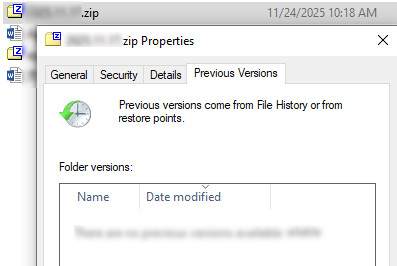
Schritt 4: Wählen Sie eine Version aus, von der Sie glauben, dass sie eine intakte ZIP-Datei enthält.
Schritt 5: Drücken Sie auf Wiederherstellen .
Schritt 6: Prüfen Sie, ob die ZIP-Dateien wiederhergestellt wurden.
Tipps: Sie können diese Methode auch verwenden, um gelöschte PDF-Dateien wiederherstellen.
Fazit
Wie für Wie man beschädigte ZIP-Dateien wiederherstelltVielleicht haben Sie die Antwort bereits im Kopf. Ob Sie professionelle Software verwenden wie Apeaksoft DatenwiederherstellungOb alternative Dekomprimierungstools, Reparaturprogramme oder Backups – wir hoffen, dass Sie Ihre beschädigten/gelöschten ZIP-Dateien erfolgreich wiederherstellen können!
Ähnliche Artikel
Warum kann ich eine Datei auf meinem Mac nicht komprimieren? Wie erstelle ich kostenlos eine Zip-Datei auf dem Mac? Wie öffne ich Mac-Zip-Dateien? Hier erfahren Sie, wie Sie Mac-Dateien komprimieren oder zippen.
Wenn der Fehler „DLL-Dateien fehlen“ auftritt, geraten Sie nicht in Panik. Es gibt verschiedene Möglichkeiten, gelöschte DLL-Dateien zu finden und wiederherzustellen.
Unabhängig davon, ob Sie Ihren Papierkorb geleert haben, können Sie mithilfe unserer konkreten Anleitung Dateien aus dem Papierkorb unter Windows und Mac wiederherstellen.
Sie können fünf effektive Methoden erlernen, um verlorene Fotos von einer SD-Karte wiederherzustellen, einschließlich beschädigter, abgestürzter oder defekter SD-Karten.



