4 Free Ways to Enlarge a PNG Image File Without Losing Quality

Sometimes, you may find that a PNG image is too small to see more details. Whether it’s for printing, web design, or presentations, enlarging the image without losing quality is important.
For different reasons, you may want to enlarge a PNG image. This post shares three useful methods to help you enlarge PNG files, even without losing quality. When the PNG file resizing is required, you can use your preferred way to enlarge a PNG image with ease.
PAGE CONTENT:
Part 1: Enlarge PNG Online Free
When you want to enlarge a PNG image file, you can rely on some free online image editors. Here, we strongly recommend an easy-to-use photo resizing and enlarging tool, Apeaksoft Free Image Upscaler, for you. It can help you enlarge PNG and JPG images, fix old or low-resolution pictures, enhance image quality, and more.
With the adoption of advanced AI technology and deep learning algorithms, it can ensure a good image editing experience.
How to Enlarge PNG Online for Free
Step 1. Open your web browser and navigate to this Free Image Upscaler website. Click on the Upload your photo button to browse and add your PNG file. Besides the PNG format, this free image enlarger also supports JPG, JPEG, BMP, TIF, and TIFF. You can also drag and drop your picture for uploading.
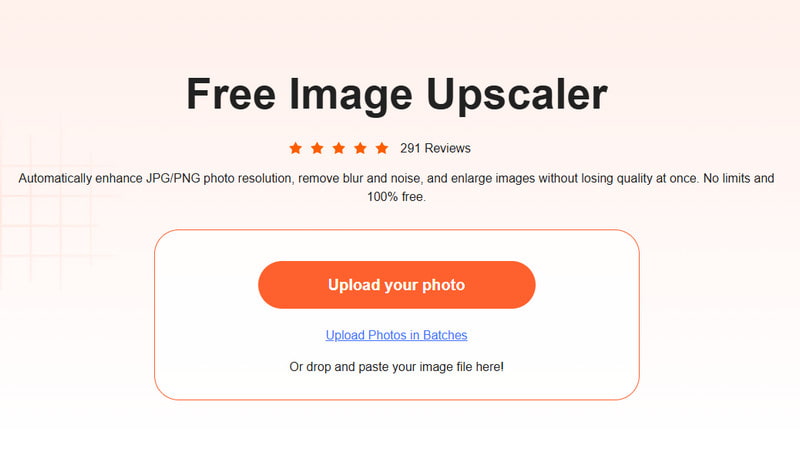
Step 2. By default, your uploaded PNG image will be enlarged to 2x. As soon as your PNG file is uploaded, this online image resizer will automatically enlarge the PNG, increase image resolution, remove blur and noise from the image, enhance its quality, and do other operations to optimize it.
Step 3. You can view both the source PNG file and the enlarged image. You are allowed to hover your mouse over the picture to check the details and differences. If you want to enlarge a PNG image to another size, you can select 4x, 6x, or 8x from the Magnification according to your need.
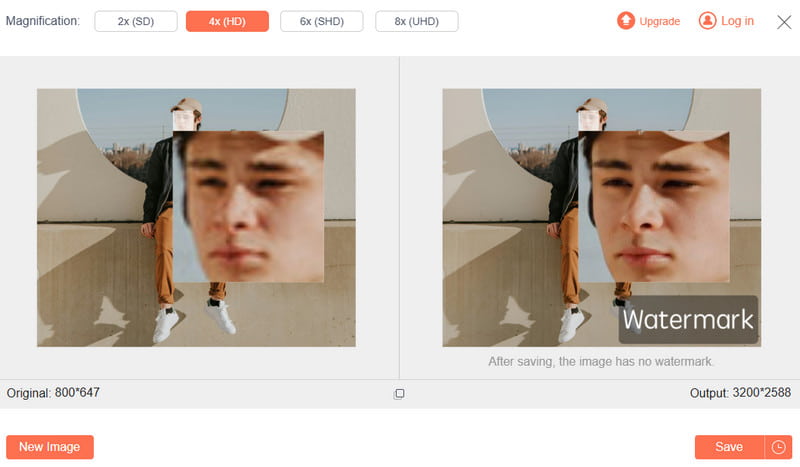
Step 4. After you enlarge your PNG image to a suitable size, you can click the Save button to save the picture on your device. This free image enlarger enables you to enlarge a PNG file on Mac, Windows PC, iPhone, iPad, and Android devices. You can also use this tool to enlarge a picture to print.
- It is an online AI PNG enlarger for free.
- You can batch enlarge PNG files.
- You can enlarge a PNG without losing quality.
- You cannot set a specific width and height.
Part 2: Enlarge PNG Files via Microsoft Paint
The Paint app is pre-installed in Windows as the default photo viewer for different image types. It can work as a Windows built-in image resizing tool to help you enlarge a PNG image.
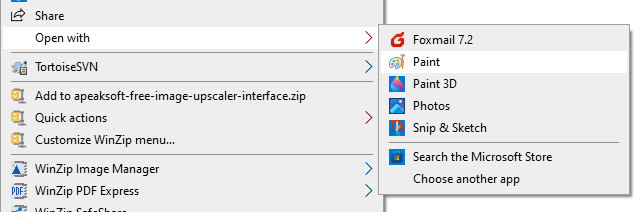
Step 1. Right-click on the PNG file you want to enlarge and choose to open it in Paint.
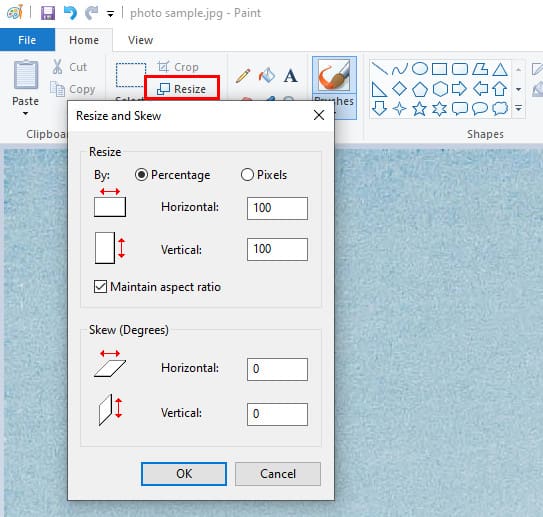
Step 2. Select the Resize option in the top bar. That will raise a small Resize and Skew popup. You can enter values freely to enlarge your PNG picture.
- Intuitive interface and simple steps.
- Built-in on Windows. No need to install extra software.
- Support manual input of exact pixel dimensions.
- No AI or enhancement features to keep the original quality when enlarging.
Part 3: Enlarge PNG Images Using Mac Preview
As a Mac user, when you want to enlarge a PNG picture, you can do it directly in Preview. It is pre-installed on any Mac for viewing various image files. It can help you resize a PNG image easily.
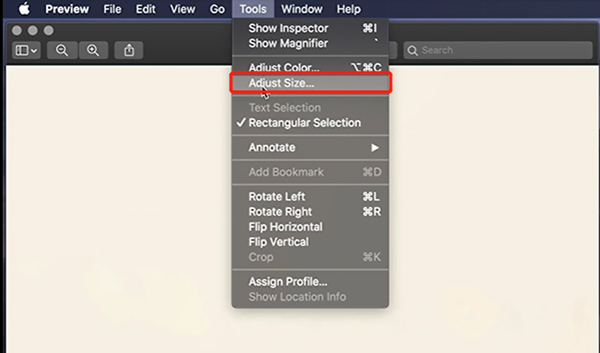
Step 1. Open your PNG image in Preview. Click on the Tools menu in the top menu bar, and then choose the Adjust Size option from its dropdown.
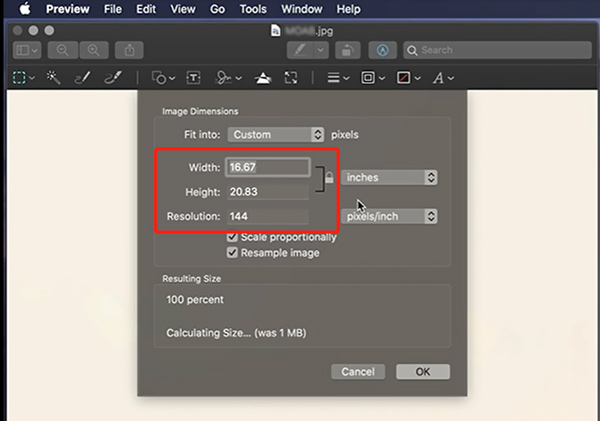
Step 2. You can freely enlarge the PNG file in the new Image Dimensions window. Here, you are allowed to reset the Width, Height, and Resolution of your image, which means that it’s also very easy to compress the PNG file. Make sure you have checked the Scale Proportionally option to keep its original ratio.
- Built-in on macOS. No need to download or install anything.
- Set exact pixel dimensions for resizing.
- Support batch enlarging.
- The image quality drops noticeably beyond 2-3×.
Part 4: Enlarge a PNG with Adobe Express
Adobe Express provides a simple way to enlarge a PNG image online. You can resize your image within the tool with just a few clicks to make it ideal for social media, presentations, or design projects.
Step 1. Visit the Adobe Express (https://new.express.adobe.com/tools/resize-image) website in your browser.
Step 2. Click the Add button or directly drag and drop your PNG image to upload it.
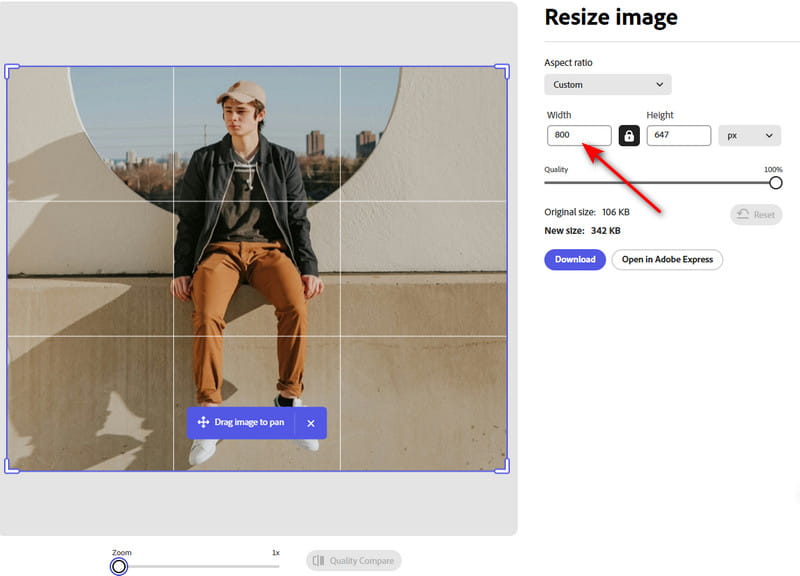
Step 3. Enter your desired value in the box and press the download button.
- Online tool. No installation required.
- User-friendly interface.
- Support multiple formats and social media sizes.
- You need to log in if you want to download the output images.
- You need to upgrade to their pro version if you want to enlarge a PNG file losslessly.
Part 5: FAQs About How to Enlarge a PNG File
Does PNG lose quality when enlarged?
Yes. When enlarging a PNG file, the quality will be affected more or less. If you want to enlarge PNG files without losing quality, it’s recommended to use professional AI tools like Apeaksoft Free Image Upscaler.
Can you directly enlarge a PNG file on your iPhone?
iPhone has many image editing features in the Photos app. But it does not offer an image resizer tool for you. You have to rely on some third-party image editing apps to help you enlarge a PNG image.
How do I shrink a PNG image?
When you want to compress PNG files, you can also use the recommended image resizer tools above. They can help you enlarge and decrease a PNG file based on your needs.
Conclusion
After reading this post, you can learn 4 useful methods to enlarge a PNG image for free. You can select your preferred way to resize your pictures. If you want to enlarge PNG online for free, don’t miss Apeaksoft Free Image Upscaler.
Related Articles