What Is Minecraft Motion Blur and How to Turn it on

As a visual effect, Minecraft introduced motion blur, which impacts the overall gaming experience for players. The motion blur is designed for Minecraft players to change the game's distinctive blocky and pixel-art-inspired aesthetics. However, if not carefully implemented, this effect will clash with the visual design, introducing some blurriness that detracts from the game's pixel look and feel. This article shares how to use the motion blur mod in Minecraft.
PAGE CONTENT:
Part 1: Understanding Motion Blur in Minecraft
Motion blur is not unique to Minecraft. Instead, a lot of games integrate this visual effect that simulates the blurring of fast-moving objects or camera movements. By applying motion blur, games can create a more cinematic and visually appealing presentation, conveying a greater sense of speed and fluidity.
The downside is that poorly implemented motion blur can reduce visual clarity, impact gameplay precision, and lead to eye strain. For instance, the effect may clash with Minecraft's blocky visual style and reduce clarity.
Does Minecraft have motion blur? Yes. While Minecraft is a sandbox game and well known for its distinctive blocky visuals and minimalist aesthetic, you can add the motion blur mod to the core Minecraft experience. However, you must ensure that your device has the ability to control and manage the change and smoothness.
Part 2: How to Turn on or off Motion Blur in Minecraft
As mentioned previously, you can enable motion blur in Minecraft natively. Moreover, you have other techniques to go along with motion blur in your game. We demonstrate the processes respectively.
How to Get Motion Blur in Minecraft
Step 1. Open Minecraft on your computer.
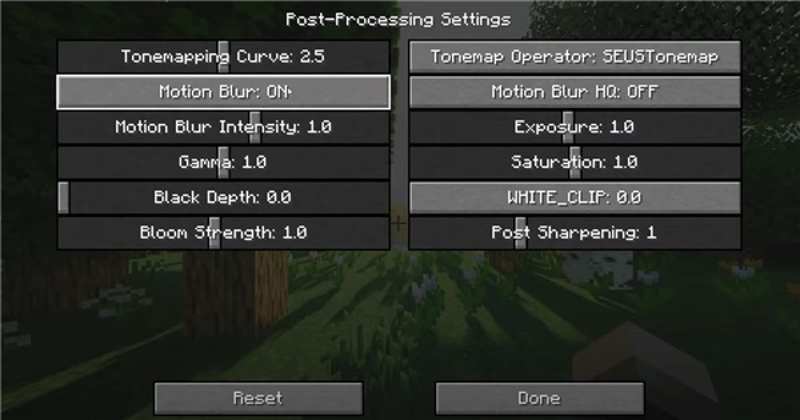
Step 2. Click Options and choose Video Settings.
Step 3. Click the Shader Options option and choose Post-Processing Settings.
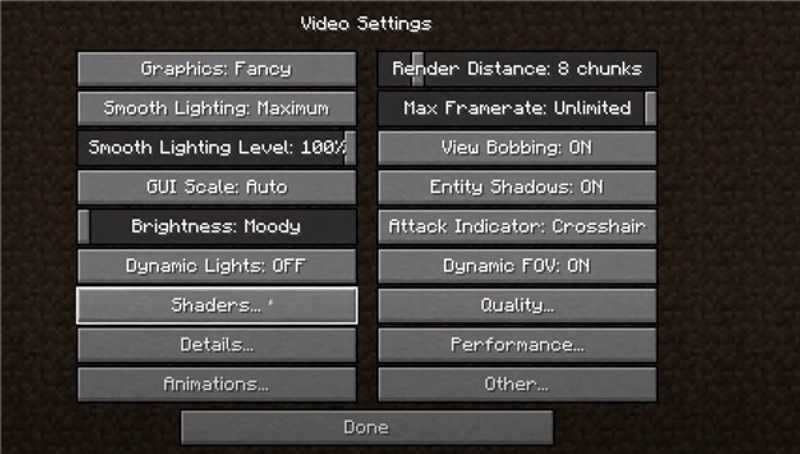
Step 4. Find the Motion Blur option, and turn motion blur on or off in Minecraft.
Further Reading
How to Add Motion Blur in Minecraft with Motion Blur FX
Step 1. Download and install Optifine or Fabric from the official website.
Step 2. Download the Motion Blur FX shader pack.
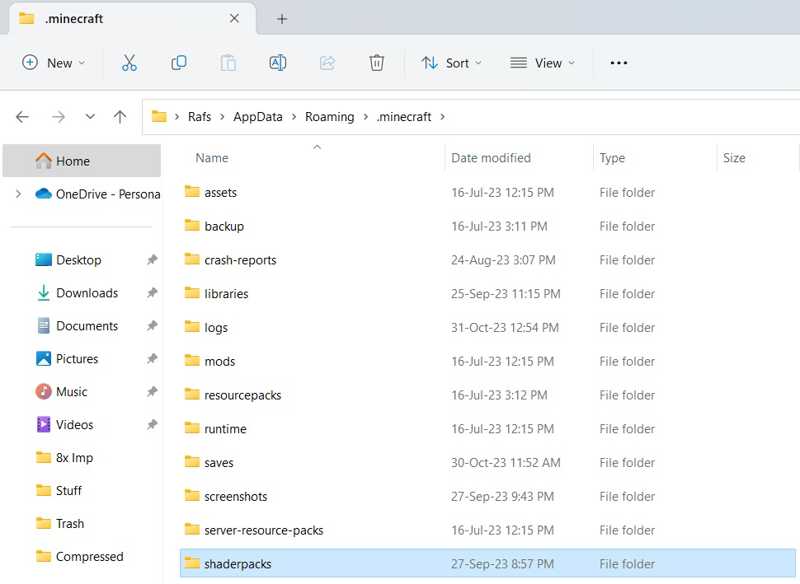
Step 3. Move the shader-pack.zip file to the shaderpacks folder in your Minecraft directory.
Step 4. Open Minecraft on your computer.
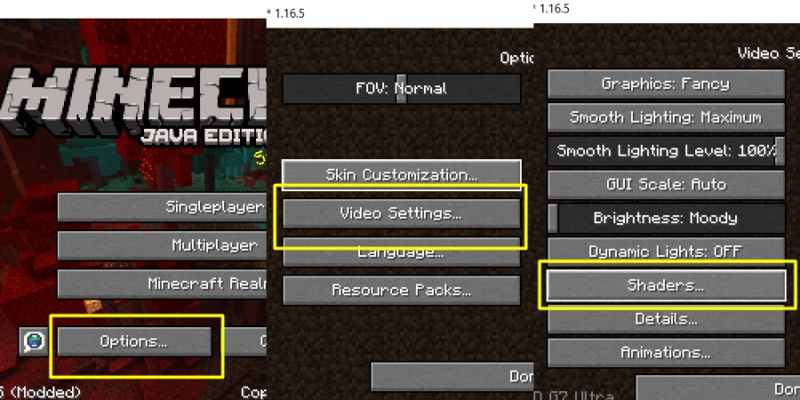
Step 5. Click Options, Video Settings, and Shaders.
Step 6. Choose the shader pack.zip file to add motion blur in Minecraft.
How to Turn on Motion Blur in Minecraft Using PVP Clients
Step 1. Install a PVP client on your computer, like Lunar Client or Badlion.
Step 2. Open the client and select the version of Minecraft.
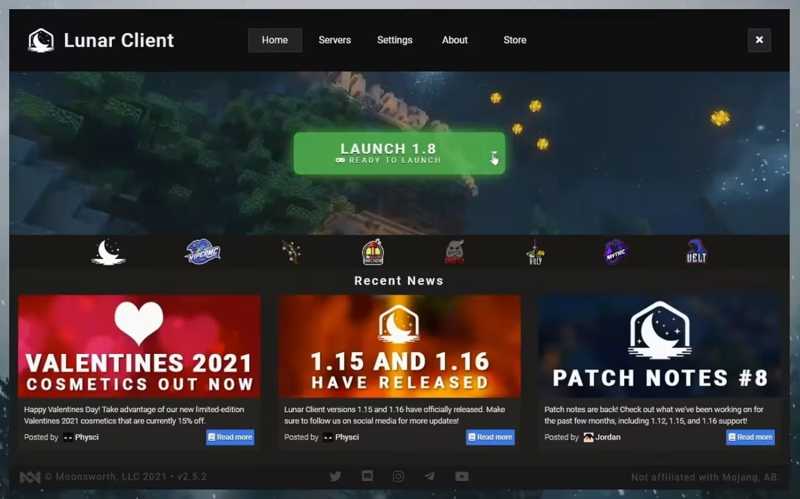
Step 3. Move to Options and Video Settings.
Step 4. Choose the Performance option and turn off Fast Render.
Step 5. Press the right Shift key on your keyboard to access the client menu.
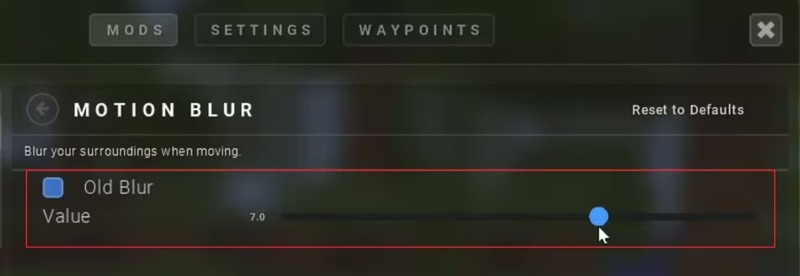
Step 6. Set the intensity of the visual effect.
Tips: If you want to disable motion blur in Minecraft, downscale the intensity.
Part 3: How to Remove Motion Blur in Minecraft Gameplay Video
As mentioned previously, the Minecraft motion blur mod can generate unclear gameplay. Fortunately, Apeaksoft Video Converter Ultimate can help you enhance your gameplay videos and reduce blurriness. The intuitive interface lets you retouch your gameplay videos easily.

Downloaded by over 1,000,000 users
- Reduce and remove motion blur from Minecraft gameplay videos.
- Protect your video quality during the process.
- Support almost all video formats.
- Preview retouched videos with the media player.
- Offer bonus features, like video format converting.
Secure Download
Secure Download
How to Remove Motion Blur from a Minecraft Gameplay Video
Step 1. Import a video
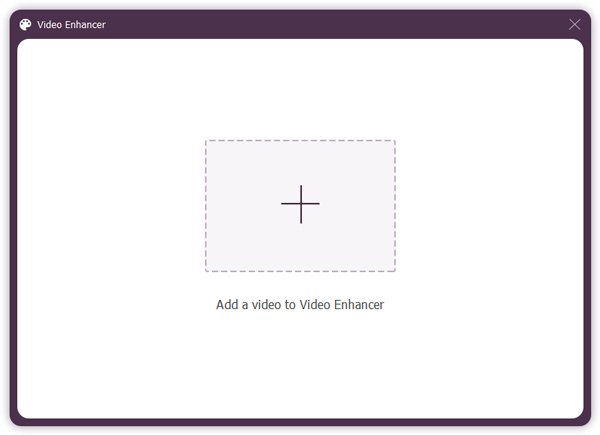
Launch the video editor software once you install it on your PC. It is compatible with Windows 11/10/8/7/XP/Vista. There is another version for Mac OS X 10.12 or above. Switch to the Toolbox tab at the top and choose the Video Enhancer tool. Click the Add button to import a Minecraft gameplay video.
Step 2. Reduce motion blur
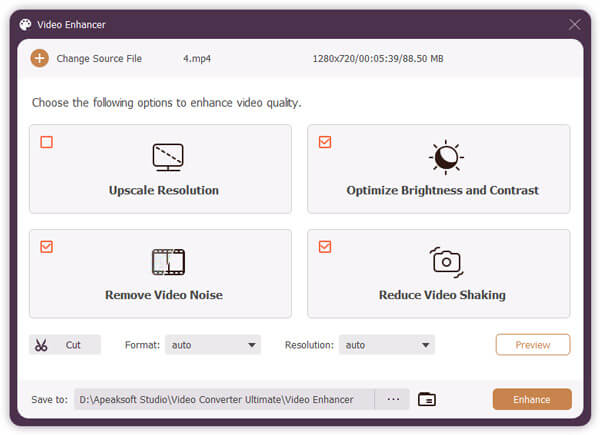
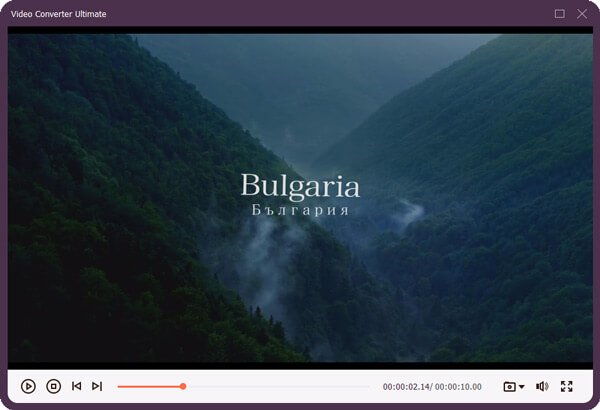
After the video loads, tick the checkboxes of Reduce Video Shaking and other options. Next, click the Preview button to view the result. If you are satisfied with it, close the built-in media player.
Step 3. Export gameplay video
Click the Folder button at the bottom and select an output folder for saving the enhanced video. Finally, click on the Enhance button at the bottom right corner to export the Minecraft video without motion blur.
Tips: There are several video editing tools on the Toolbox window, waiting for you to explore.
Conclusion
This guide explained what the Minecraft motion blur mod is, how it works, and how to turn the effect on. You can follow our methods and detailed steps to use the visual effect when playing your Minecraft game. The built-in effect is limited to specific versions. The third-party client offers custom options. Apeaksoft Video Converter Ultimate is a simple way to remove motion blur from your gameplay videos and enhance your videos without technical skills.
Related Articles