


Az iPhone üzenetek indexelésének befejezése: 8 bevált javítás

Sok iPhone-felhasználó azt tapasztalja, hogy az üzeneteik frissítés után is indexelődnek, és egy „További találatok jelennek meg, amint az üzenet befejezte az indexelést." üzenet. Ez különösen jellemző a régebbi iPhone modellekre, amelyek újabb iOS verzióra frissítenek. Ha azon tűnődsz, hogyan oldhatod meg az üzenetek indexelésével kapcsolatos problémát, olvasd el ezt az útmutatót, amely hatékony megoldásokat kínál.
OLDAL TARTALMA:
1. rész: Mit jelent az üzenetek indexelése iPhone-on?
Ha iPhone-odon üzenetet keresel, és a „További találatok jelennek meg, amint az Üzenet befejezte az indexelést” értesítést látod, az azt jelenti, hogy az eszközöd az összes szöveges üzenetet, mellékletet és szöveges üzenetet beolvassa, és a háttérben kereshető adatbázist hoz létre. Ezt a folyamatot indexelésnek nevezik. Az iPhone-üzenetek indexelése általában az iPhone biztonsági mentésből történő visszaállítása vagy egy újabb iOS-verzióra való frissítés után történik. Jelenleg, ha nem találsz bizonyos üzeneteket, az nem jelenti azt, hogy véglegesen elvesztek, az indexelés befejezése után megjelenhetnek.
2. rész: Miért indexelődnek folyamatosan az üzeneteim iPhone-on?
Az indexelési folyamat általában csak néhány másodperctől több percig tart. Ha az iPhone órákig vagy akár napokig indexeli az üzeneteket, akkor lehetnek mögöttes problémák. Gyakori problémák a következők:
- Hálózati problémák: A gyenge hálózat megszakítja az üzenetek szinkronizálását és késlelteti az indexelést.
- Nem elegendő tárhely: Ha a tárhely majdnem megtelt, a folyamat elakadhat.
- Nagy mennyiségű adat: A túl sok üzenet vagy médiamelléklet lelassíthatja az indexelési folyamatot.
- Nem kompatibilis biztonsági mentés: Az iPhone visszaállítása egy inkompatibilis biztonsági mentésből, különösen, ha az egy régebbi iOS verzióból származik, indexelési problémákhoz vezethet.
3. rész: Az üzenetek indexelésének befejezése iPhone-on - 8 javítás
Hogyan lehet felgyorsítani az üzenetek indexelését iPhone-on?
1. megoldás. Indítsa újra iPhone-ját
A legegyszerűbb módszer mindig a leghatékonyabb megoldás. Az első dolog, amit tenned kell, az iPhone újraindítása. Egy gyors újraindítás frissítheti a rendszert és megoldhatja a kisebb hibákat.
- Face ID-vel rendelkező iPhone-ok: Nyomja meg és tartsa lenyomva az oldalsó és a hangerőszabályzó gombokat egyszerre, majd húzza a csúszkát az iPhone kikapcsolásához.
- Touch ID-val rendelkező iPhone-ok: Tartsa lenyomva az Oldalsó gombot, majd húzza a csúszkát az iPhone kikapcsolásához.
Miután az iPhone kikapcsolt, várjon 20-30 másodpercet, majd kapcsolja be újra a készüléket.
2. megoldás. Módosítsa a keresési indexelési beállításokat
A keresési indexelési beállítások szorosan kapcsolódnak az üzenetek indexelési eredményeihez. Ha letilt bizonyos beállításokat, az azt okozhatja, hogy az iPhone nem indexeli az üzeneteket.
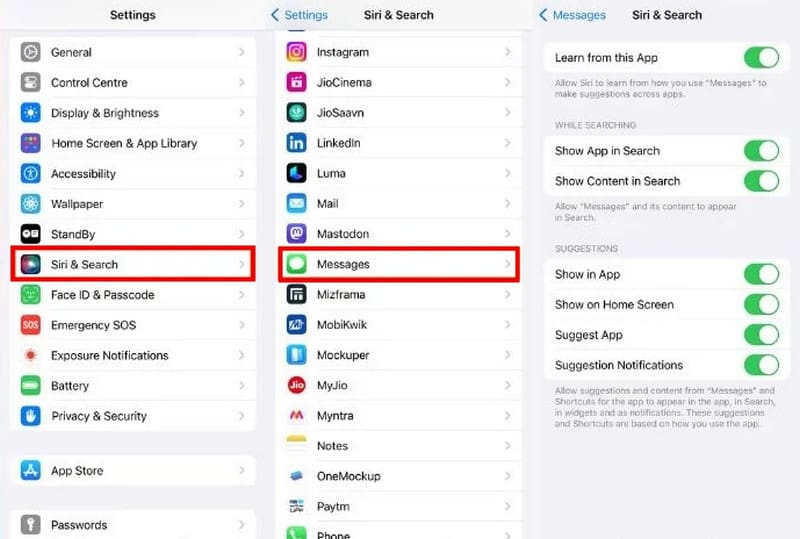
Lépés 1. Tovább beállítások > Siri & Search.
Lépés 2. Görgessen lejjebb a kereséshez és kiválasztáshoz Üzenetek.
Lépés 3. Kapcsolja be az összes lehetőséget ezen az oldalon. Ha bármelyik beállítás le van tiltva, engedélyeznie kell azt.
3. javítás. Kapcsolja ki és be az iCloud üzeneteket
Ha az Üzenetek az iCloudban funkciót használja, iCloud szinkronizálás Az iPhone üzenetindexelésének elakadásának fő okai lehetnek az „üzenetek indexelése” problémák. Az iCloudban tárolt üzenetek ki- és bekapcsolása megoldhatja a problémát.
Lépés 1. Tovább beállítások > [A neved] > iCloud.
Lépés 2. Találjon Üzenetek és kapcsold ki. Várj néhány másodpercet, majd kapcsold be újra.
Lépés 3. Győződjön meg arról, hogy iPhone-ja csatlakozik a Wi-Fi-hez, és várja meg, amíg a szinkronizálás befejeződik.
4. javítás. Frissítse a legújabb iOS verziót
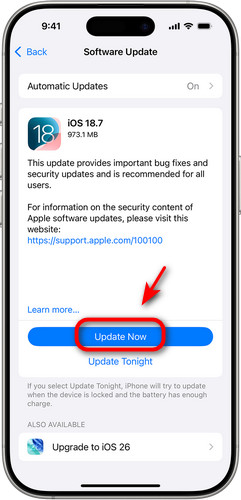
Az üzenetek indexelésével kapcsolatos probléma megoldásához frissítheti iPhone-ját a legújabb verzióra. Ehhez nyissa meg a következőt: beállítások és válassza ki a Általános. Koppintson a szoftver frissítése elemre, hogy ellenőrizze, van-e elérhető frissítés, majd koppintson a Letöltése és telepítése A folytatáshoz.
5. javítás. Az iCloud biztonsági mentés letiltása és engedélyezése
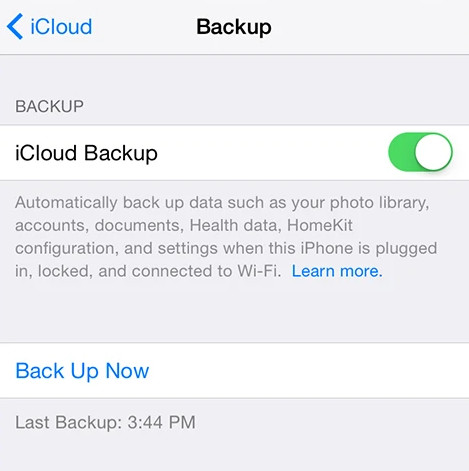
Ideiglenesen kikapcsolhatja az iCloud biztonsági mentést, hogy megtudja, megoldódott-e az iPhone üzenetek indexelésével kapcsolatos probléma. Látogasson el a következőre: beállítások > [A neved] > iCloud. Letiltás iCloud biztonsági mentés és indítsa újra az iPhone-t. Ha a problémák megoldódtak, engedélyezze iCloud biztonsági mentés ismét a véletlen adatvesztés elkerülése érdekében.
6. javítás. Ellenőrizze az iPhone nyelvi beállításait
A helytelen nyelvi beállítások megakadályozhatják az iPhone-üzenetek indexelését.
Lépés 1. Nyisd ki beállítások > Általános > Nyelv és régió.
Lépés 2. Ellenőrizd, hogy az iPhone aktuális nyelve helyesen van-e beállítva.
Lépés 3. Visszatérés a beállítások oldalt, és koppintson Siri & SearchKoppintson a Nyelvek elemre, és győződjön meg arról, hogy a Siri ugyanazt a nyelvet használja, mint az iPhone.
7. javítás. Ellenőrizze az iPhone és az iCloud tárhelyét
Ha az iPhone memóriája lassú, az befolyásolhatja az iPhone üzenetindexelési folyamatát. Az iPhone tárhelyének ellenőrzéséhez nyissa meg a beállítások > Általános > iPhone tárolásHa megtelt a tárhelyed, érdemes lehet nagy vagy nem használt fájlokat, fényképeket és alkalmazásokat törölni a tárhely felszabadítása érdekében.
Azt is ellenőrizd, hogy mennyi iCloud tárhelyed van. Látogass el a következőre: beállítások > [A neved] > iCloudLátni fogsz egy sávot, amely mutatja, hogy mennyi iCloud-tárhelyet használtál fel és mennyi van még rendelkezésre. Töröld az iCloud tárhelyed ha az elégtelen.
8. javítás. Minden beállítás visszaállítása
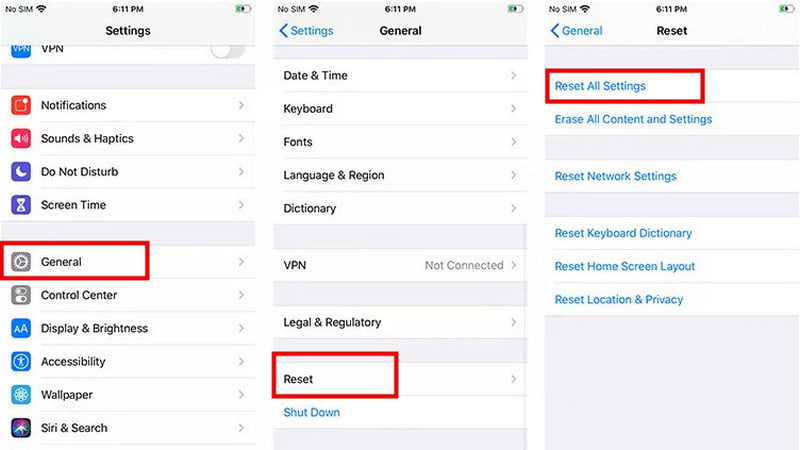
A beállítások visszaállítása segíthet a probléma megoldásában. Ez a folyamat törli az összes beállítást, beleértve a hálózati beállításokat, a billentyűzetbeállításokat és az adatvédelmi konfigurációkat.
Lépés 1. Nyisd ki beállítások > Általános > vissza.
Lépés 2. A pop-art design, négy időzóna kijelzése egyszerre és méretének arányai azok az érvek, amelyek a NeXtime Time Zones-t kiváló választássá teszik. Válassza a Reset All Settings.
Lépés 3. Lehetséges, hogy a művelet megerősítéséhez meg kell adnia a jelszavát.
4. rész: Hogyan lehet visszaállítani az indexelés után meg nem jelenő üzeneteket
Ha bizonyos üzenetek nem jelennek meg az iPhone-on lévő üzenetek indexelésének befejezése után, az azt jelenti, hogy örökre elvesztették az üzeneteiket? Még nem! Apeaksoft iPhone Data Recovery segíthet az elveszett üzenetek indexelés utáni visszaállításában! Akár gyári beállítások visszaállítása, véletlen törlés vagy rendszerhiba miatt veszett el az adat, ez a hatékony eszköz biztonságosan helyreállítja azt iPhone, iPad vagy iPod készülékéről.

Letöltötte több mint 1,000,000 Felhasználók
- Elveszett vagy törölt üzenetek helyreállítása különböző forgatókönyvekben.
- Adatok visszaállítása iOS-eszközökről vagy iTunes/iCloud biztonsági mentésből.
- Fényképek, dokumentumok, jegyzetek és egyéb adattípusok lekérése.
- Szinte az összes iOS rendszer verziót és modellt támogatja.
Biztonságos letöltés
Biztonságos letöltés

Lépés 1. Nyisd meg a programot, és válaszd ki Visszaszerezni az iOS eszközökről a felületről, majd csatlakoztassa iOS-eszközeit USB-n keresztül. Koppintson a Bízzon hogy megbízz a számítógépedben.
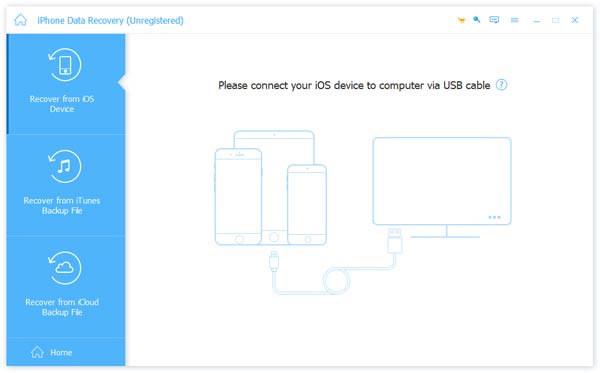
Lépés 2. Kattintson az Lapolvasás indítása gombra, és az összes adatot beolvassa az iPhone-ján.

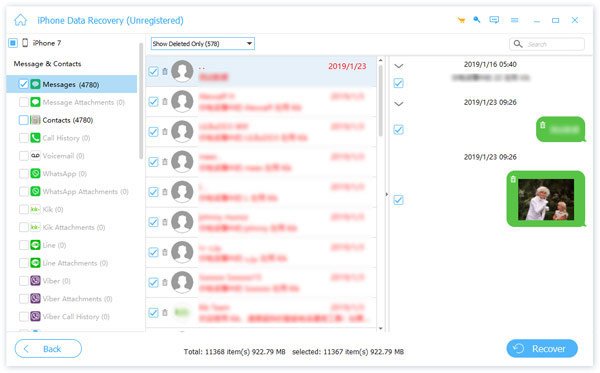
Lépés 3. A szkennelés után megtekintheti az összes helyreállítható adatot. Jelölje ki a helyreállítani kívánt adatokat, majd kattintson a Meggyógyul gombot a jobb alsó sarokban.
Összegzés
Amikor üzenetek indexelése iPhone-on Ha túl sokáig tart, nagyon frusztráló lehet, és úgy érezheti, mintha egyes üzenetek örökre eltűntek volna. A legtöbb esetben azonban a probléma megoldható az ebben az útmutatóban ismertetett 8 javítás kipróbálásával. Ha kipróbálta őket, és még mindig nem talál bizonyos üzeneteket, az Apeaksoft iPhone Data Recovery segítségével helyreállíthatja az elveszett üzeneteket!
 Apeaksoft iPhone Data Recovery
 Helyezze vissza a törölt vagy elveszett adatokat iOS-eszközökről, iTunes-ból és iCloud biztonsági mentésből.
Biztonságos letöltés
Biztonságos letöltés
Kapcsolódó cikkek




