


Why Apple ID Is Not Active and How to Fix the Error

"I open my iPhone and suddenly get the message that says this person is not active. How to fix this message?" This error usually occurs when you try to sign in to or verify your Apple account. If you or someone else inputs Apple account credentials, answers to security questions, or related information incorrectly too many times, the account will be locked. As a result, you will see the error: Apple ID Not Active. This article helps you fix the error.
PAGE CONTENT:
Part 1: Why Is My Apple ID Not Active
Before walking through the solutions, let's learn why it says my Apple ID is not active. It means you cannot log in to iCloud, the App Store, or Apple Services. The main causes of the message include:
- 1.Your Apple Account has been disabled for security reasons.
- 2.Your account is locked due to typing the wrong password too many times.
- 3.There has been a violation of Apple's terms and conditions associated with your Apple ID.
- 4.Apple servers are down.
- 5.Software glitches.
Part 2: How to Fix Apple ID Not Active
Solution 1: Check Apple Servers' Status
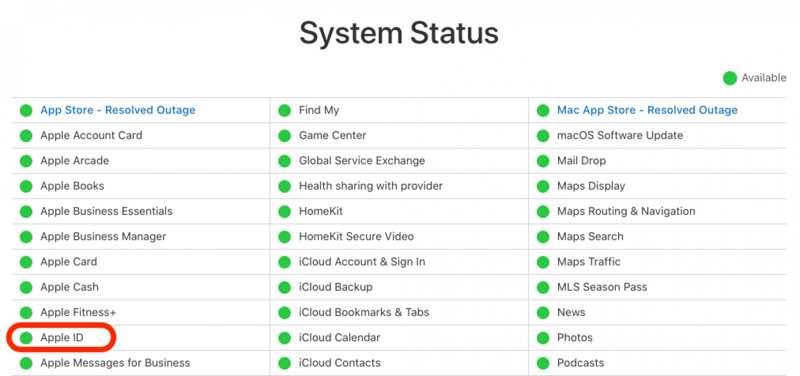
As long as you are alerted this Apple ID account is not active, the first thing you need to do is checking Apple servers. Go to https://www.apple.com/support/systemstatus/ in a browser. Check the relative servers. If any item is down and marked with a yellow or red icon, all you can do is wait for the server to work again.
Solution 2: Restart Your Device
Why is my Apple ID not active? Chances are that your device gets stuck when logging in to your Apple Account. The solution is simple: restart your device. This solution won't remove your data.
On iPhone/iPad
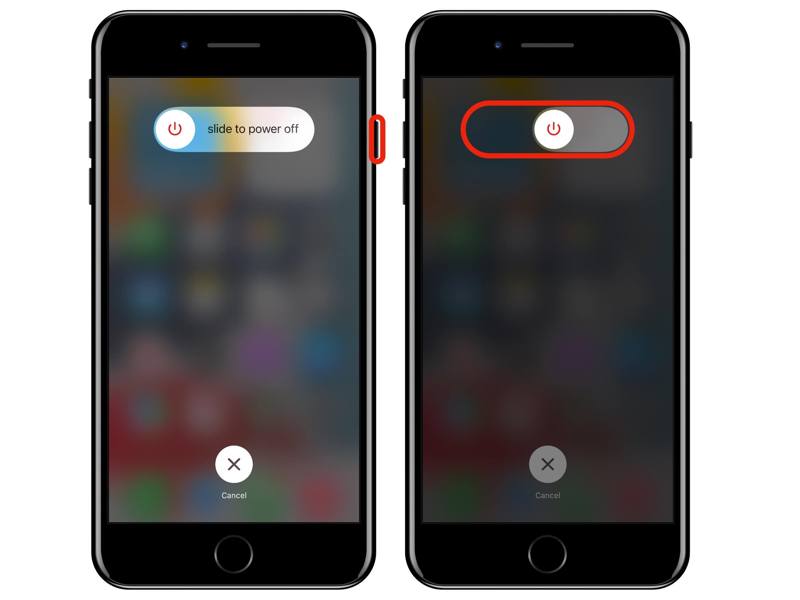
Step 1. Hold down either Volume + Side button on an iPhone with Face ID.
Hold down the Side or Power button.
Step 2. When the power-off screen appears, release the buttons or button.
Step 3. Move the slider to shut it down.
Step 4. A few minutes later, hold down the Side or Power button until you see the Apple logo.
On Mac
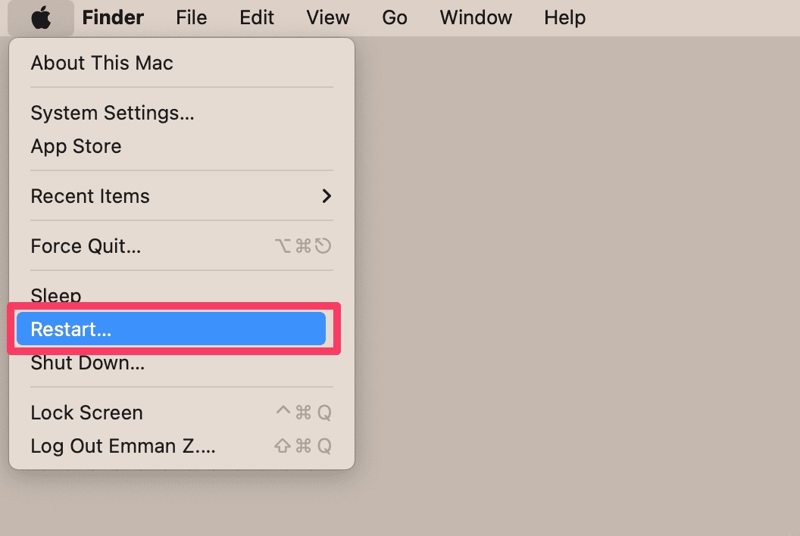
Step 1. Click the Apple menu and choose Restart.
Step 2. When prompted, click the Restart button.
Step 3. Wait for the Mac to restart, then check whether the Apple ID Not Activated error is fixed.
Solution 3: Verify Your Account Information
Your Apple Account is not about the email address and password. It is also associated with your personal information and payment. If you have changed the information and forgotten to update it on your device, your Apple ID will not be activated.
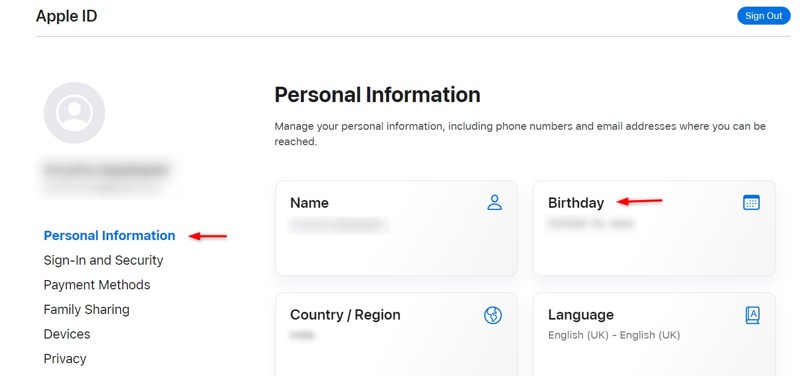
Step 1. Go to https://account.apple.com/ in a browser.
Step 2. Sign in with your Apple Account and password.
Step 3. Navigate to the Personal Information tab.
Step 4. Check your personal information.
Step 5. Next, turn on your Apple device and check your account information.
Solution 4: Reset Apple ID Password
How to fix this Apple ID is not active error? According to Apple, you have to reset or change your Apple ID password to unlock your account. This solution requires a trusted Apple device and your lock screen password.
Step 1. Run the Settings or System Settings app on your Apple device.
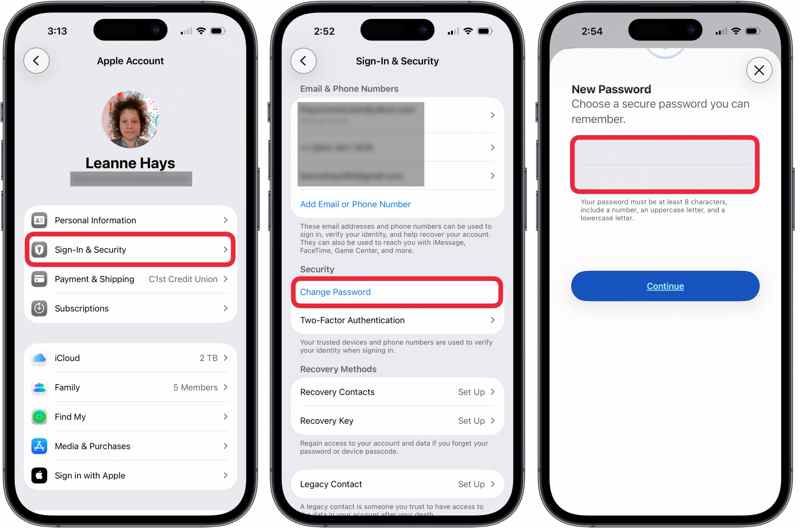
Step 2. Tap on your profile or click Apple ID.
Step 3. Hit the Change Password button.
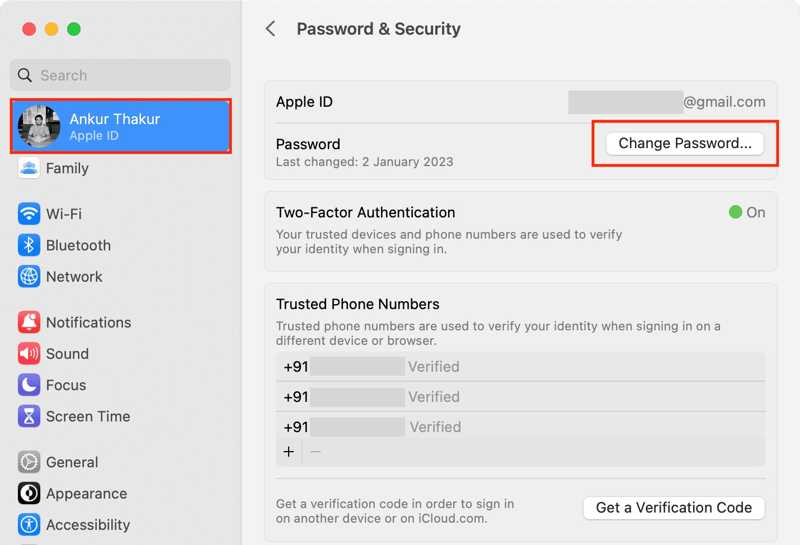
Step 4. Enter your iPhone passcode or Mac login password.
Step 5. Next, type a new password and verify it.
Step 6. Finally, hit the Continue button to confirm the change.
Solution 5: Update Payment Information
If your payment method is outdated, you will see an error that your Apple ID is not activated. Therefore, you'd better keep your associated payment method up to date. Here are the steps:
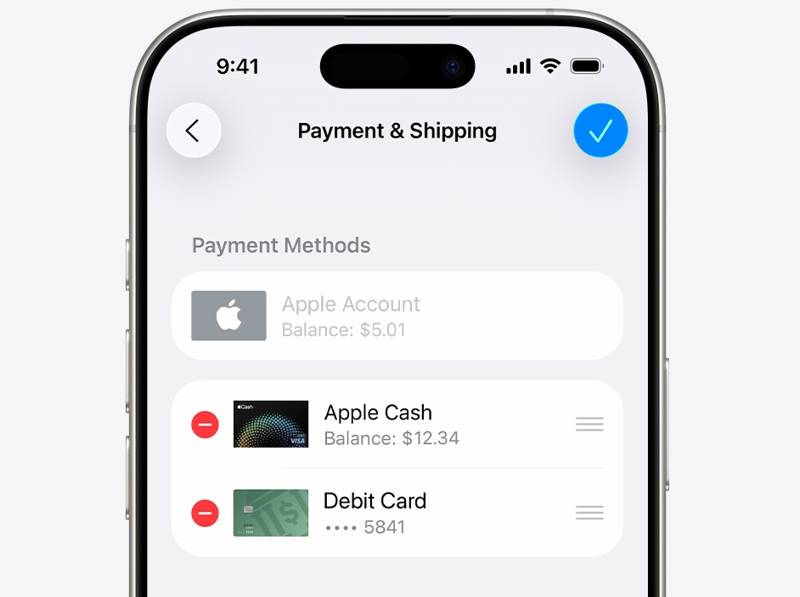
Step 1. Open the App Store app.
Step 2. Tap on your profile or click your name.
Step 3. Go to Account Settings.
Step 4. If prompted, enter your Apple Account password.
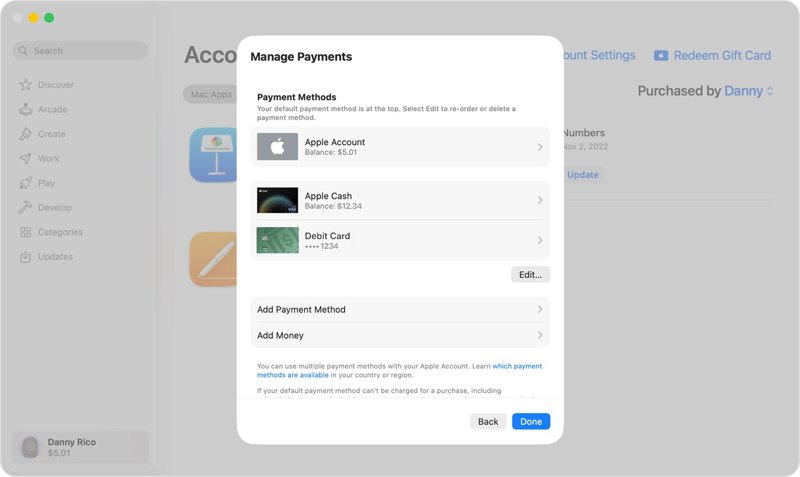
Step 5. Select Payment Information and choose Manage Payments.
Step 6. Remove the outdated payment method and add the new one.
Part 3: Ultimate Solution to Fix Apple ID Not Active
If you have followed the solutions above but the Apple ID is still not activated, you will need a powerful tool, such as Apeaksoft iFoneKit iOS Unlocker. It can remove the malfunctioning Apple Account from your iOS device without a password.

Downloaded by over 1,000,000 users
- Remove a malfunctioning Apple ID without the password.
- Work for a locked or disabled Apple Account.
- Offer bonus features, like SIM unlocker and MDM removal.
- Support a wide range of iPhones and iPad devices.
Secure Download
Secure Download

How to Fix Apple ID Not Active on Your iPhone
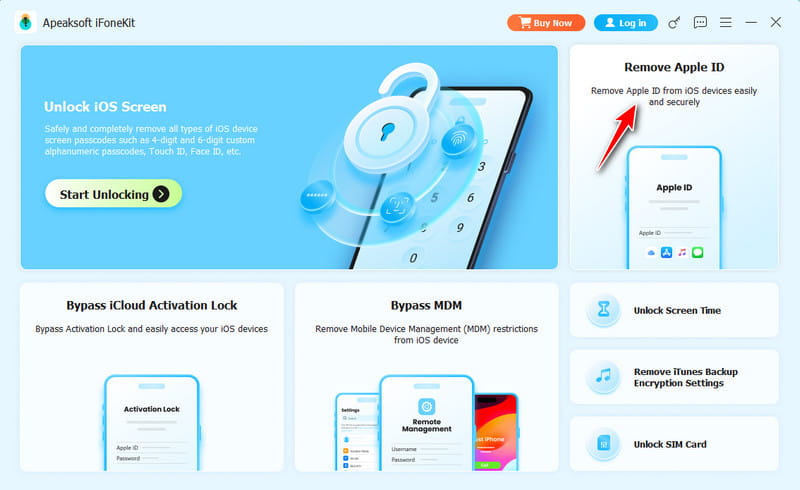
Step 1. Install the Apple ID removal tool
Launch the Apple ID removal software after you install it on your PC. There is another version for Mac. Choose the Remove Apple ID mode to proceed.
Step 2. Connect to your iPhone
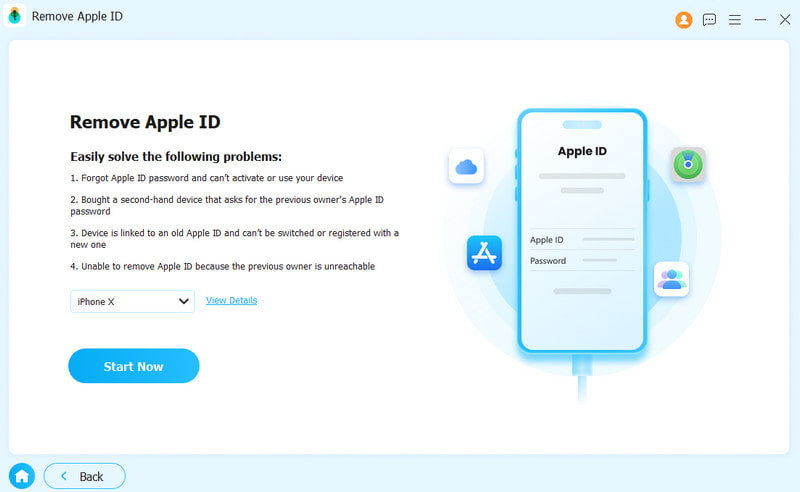
Plug your iPhone into your PC with a Lightning cable. Once your device is detected, click the Start Now button.
Step 3. Remove Apple ID
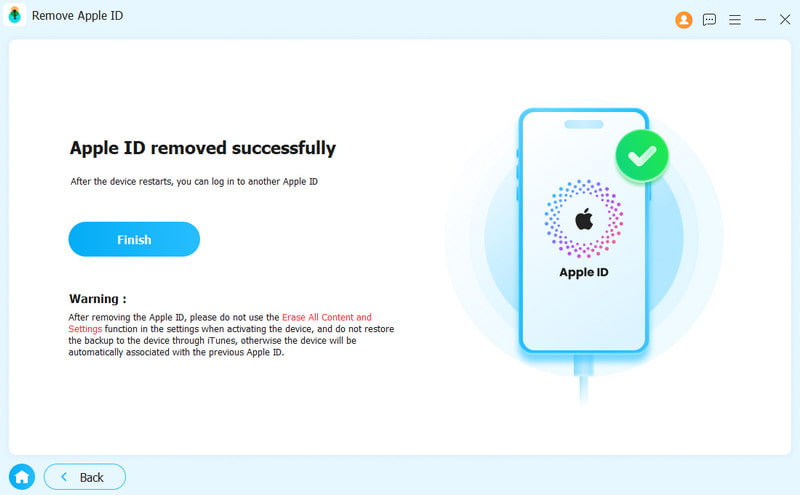
If Find My is disabled, the software will begin removing your Apple Account immediately. If Find My is enabled, reset all settings on your device. Then click the OK button and hit Confirm Again to initiate the process.
Conclusion
This guide explained what to do if your Apple ID is not active. You should understand the main causes of the error. More importantly, you can follow proven solutions to get rid of the error. Apeaksoft iFoneKit iOS Unlocker is the ultimate solution for fixing a malfunctioning Apple Account on your iPhone or iPad.
 Apeaksoft iFoneKit
 Unlock all types of iOS passwords from iPhone, iPad and iPod.
Secure Download
Secure Download
Related Articles




