

What You Should Do If You Forgot Your iPhone Password

It cannot be denied that the iPhone has become an essential part of our daily lives. It completely reshapes the way we communicate. In order to protect users’ data and information, Apple added the lock screen and passcode to lock iOS devices. However, every coin has two sides. A forgotten iPhone passcode can lock you out of your device and block you from accessing everything. This guide explains what you can do if you encounter this problem.
PAGE CONTENT:
Part 1: What to Do If You Forgot iPhone Passcode
What happens if I forgot my iPhone password? The first thing you should do is try the passwords you have used, like your birthday, phone number, and more. Moreover, you can try your Face ID or Touch ID. However, there are a few scenarios where you cannot unlock your iPhone with biometric, such as unlocking your device after charging or powering on.Bear in mind that you can try 6 incorrect passcode attempts in a row. After 6 wrong tries, your iPhone will be locked for one minute. After 10 wrong tries, your iPhone will be disabled permanently.
To unlock an iPhone when you forgot your password, you may need to reset or restore your device. Therefore, you’d better back up your iPhone first to avoid data loss.
How to Back up iPhone to iCloud
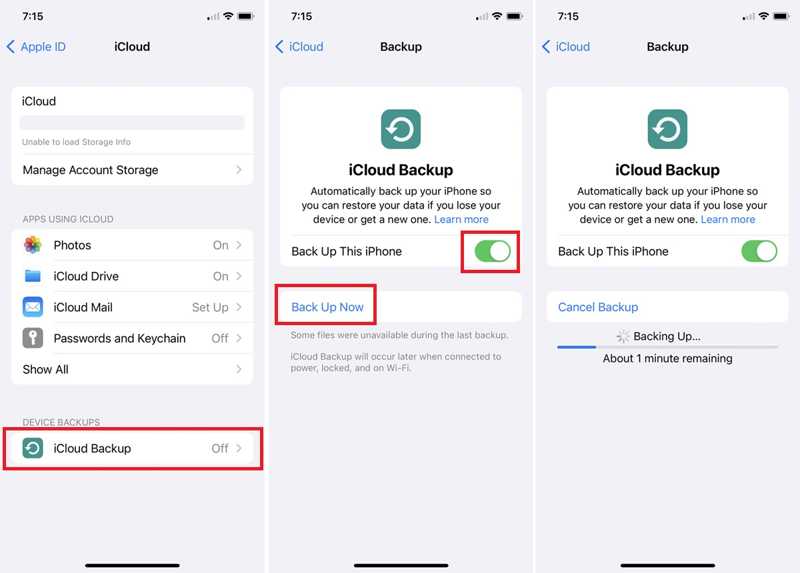
Step 1. Run the Settings app on your iPhone.
Step 2. Connect to a Wi-Fi or cellular data.
Step 3. Tap on your profile, choose iCloud, and tap iCloud Backup.
Step 4. Toggle on Back Up This iPhone to automatically back up your device. If it doesn’t start, tap the Back Up Now button.
How to Back up an iPhone to a Computer
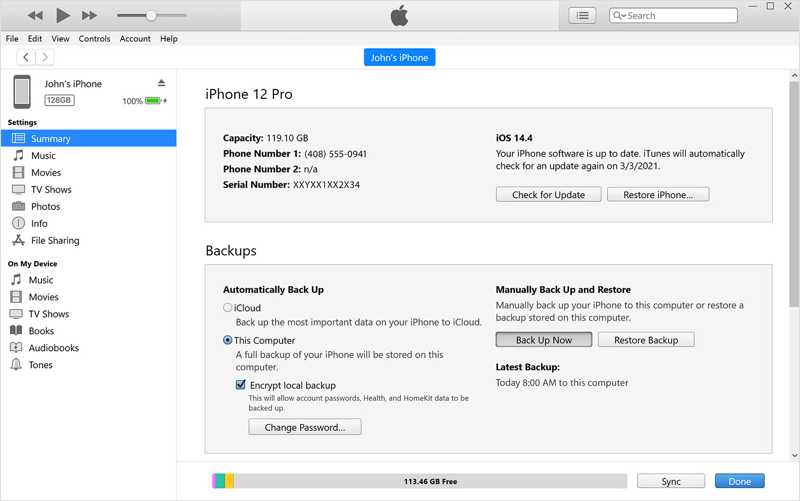
Step 1. Connect your iPhone to your computer with a USB cable.
Step 2. Open iTunes on Windows or macOS Mojave and earlier. Or run Finder on macOS Catalina and later.
Step 3. Click the Phone button or your device name.
Step 4. Go to the Summary or General tab.
Step 5. Click the Back Up Now button in the Backups section.
Part 2: How to Get into iPhone When Forgot Password
Apple rolled out Security Lockout when releasing iOS 15.2. It provides an option to get into an iPhone when you forgot your password. This method requires your device to enter Security Lockout and your Apple ID password.
On iOS 17 and later
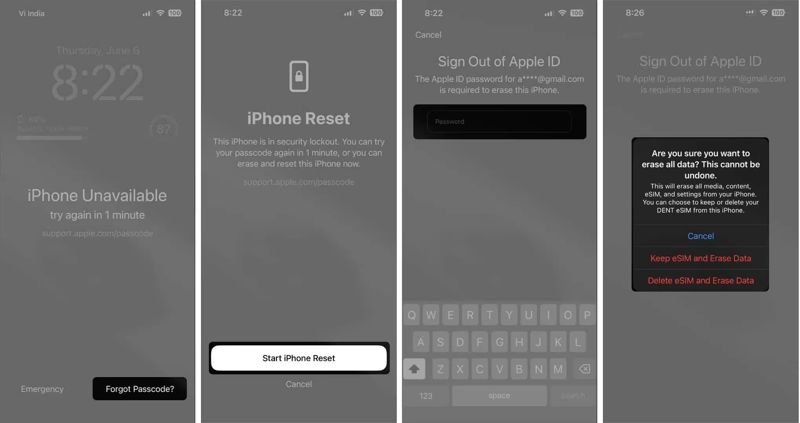
Step 1. Continuously enter incorrect passcodes until the iPhone Unavailable or Security Lockout screen pops up.
Step 2. Tap the Forgot Passcode button and choose Start iPhone Reset.
Step 3. Enter your Apple ID password.
Step 4. Tap Keep eSIM and Erase Data or Erase Device on the alert.
On iOS 15.2 and later
Step 1. Tap Erase iPhone on the iPhone Unavailable or Security Lockout screen.
Step 2. Read the message, and tap Erase iPhone.
Step 3. Type in your Apple ID password, and confirm erasing.
Step 4. When you regain access to your device, reset the forgotten iPhone passcode.
Part 3: How to Unlock Old iPhone Forgot Password
How to Unlock an Old iPhone in Find My App When You Forgot the Password
Even if your old iPhone is not in your hand currently, you can unlock a forgotten iPhone password on another Apple device. The prerequisite is that Find My iPhone is enabled on your old device, and you can unlock iPhone without passcode or Face ID.
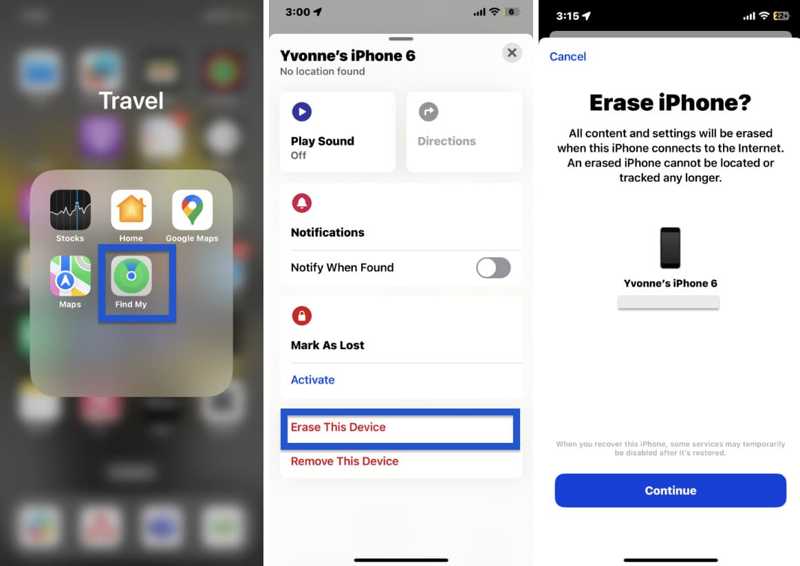
Step 1. Run the Find My app on another iPhone or Mac.
Step 2. Go to the Devices tab at the bottom and choose your iPhone name from the list.
Tip: If you cannot find it, tap Add next to Devices, and choose Add AirTag to add your device.
Step 3. Tap and expand the bottom toolbar, and choose Erase This Device.
Step 4. Tap Continue, enter your Apple ID password again, and confirm erasing iPhone.
Note: If your iPhone is online, your device is factory resetting immediately.
How to Unlock Forgotten iPhone PIN Online
If you don’t have another Apple device, you can unlock a forgotten iPhone passcode without restoring it online. The prerequisite is that you must have enabled Find My iPhone on your device. Plus, you must remember your Apple ID and password.
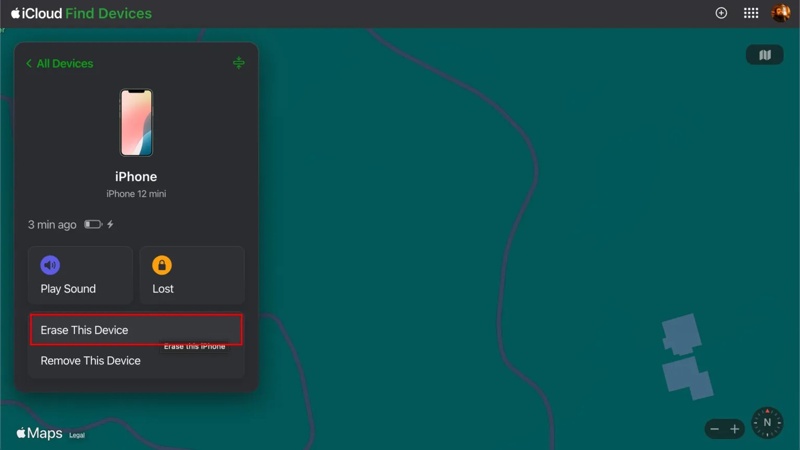
Step 1. Go to www.icloud.com/find/ in a browser and log in with your Apple ID and password.
Step 2. Expand the All Devices option and pick your iPhone..
Step 3. By default, Find My will track your device on the map.
Step 4. Click the Erase This Device button on the pop-up dialog.
Step 5. Hit Continue, enter your phone number or ignore it, and confirm erasing your iPhone.
How to Get into iPhone in Recovery Mode When You Forgot the Passcode
Without your Apple ID password, you have to unlock the forgotten passcode on your iPhone in Recovery Mode. This method requires a computer, the latest version of iTunes or Finder, and a compatible cable.
Step 1. Run iTunes, Finder, or Apple Devices according to your operating system.
Step 2. Plug your iPhone into your computer with a USB cable.
Step 3. Put your device in Recovery Mode:
On an iPhone 6s and earlier
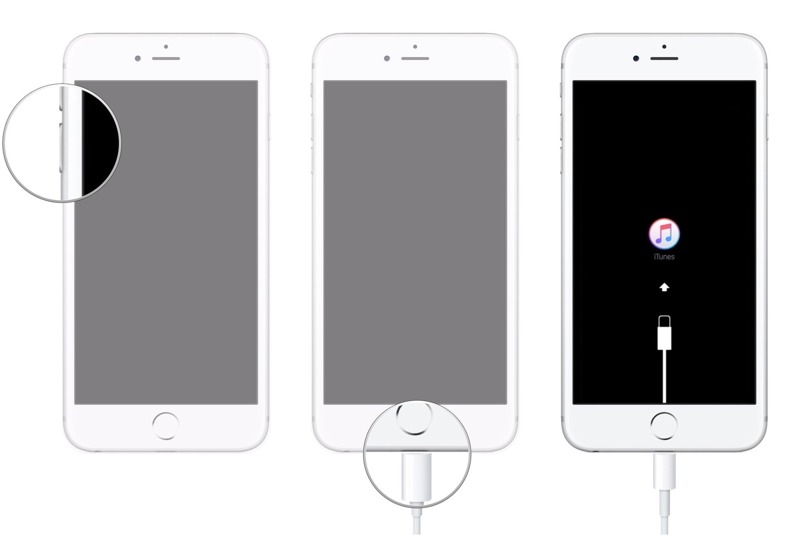
Hold down the Home + Sleep/Wake buttons together.
Release them once you see the Recovery Mode screen.
On an iPhone 7/7 Plus
Long-press the Volume Down + Side buttons simultaneously.
Let them go until your iPhone enters Recovery Mode.
On an iPhone 8 and later
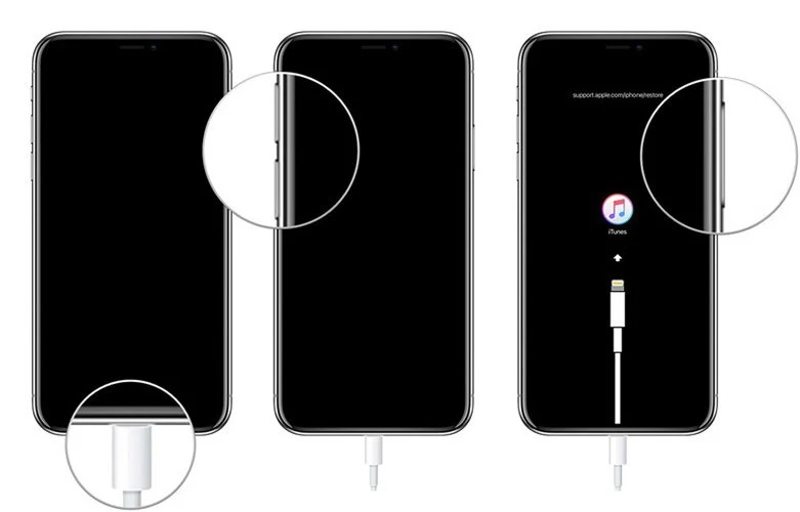
Quickly press and release the Volume Up button.
Do the same thing to the Volume Down button.
Hold down the Side button until the Recovery Mode pops up.
Step 4. When iTunes or Finder detects your device in Recovery Mode, a dialog will appear.
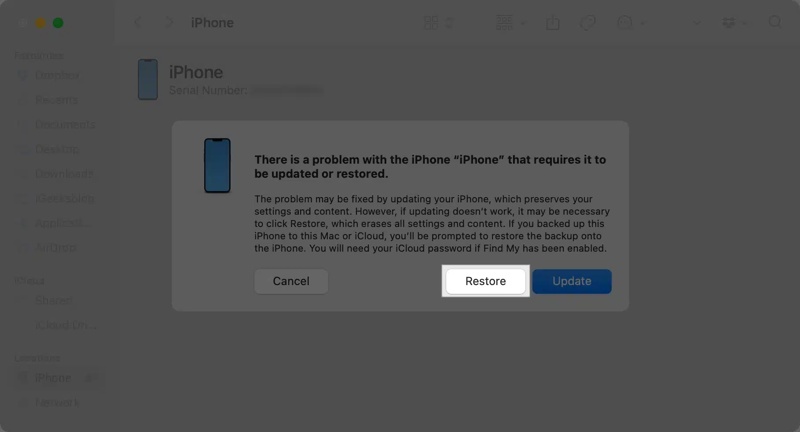
Step 5. Click the Restore button to initiate unlocking the forgotten iPhone passcode.
Part 4: Ultimate Option to Reset Forgotten iPhone Passcode
If the methods above are unavailable to your forgotten iPhone password, you will need a powerful unlocking tool, such as Apeaksoft iOS Unlocker. It is able to remove your iPhone passcode without any requirements.
Ultimate Way to Reset Forgotten iPhone Password
- Remove iPhone passcode without a password.
- Work for digital passcodes, Face IDs, and Touch IDs.
- Available to any iOS device, including a disabled iPhone.
- Support the latest versions of iPhones and iPad.
Secure Download
Secure Download

How to Unlock Forgotten iPhone Password
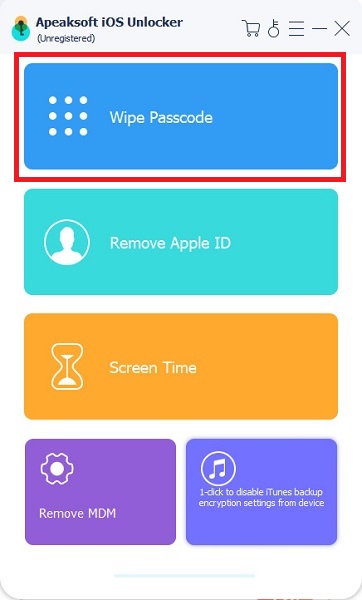
Step 1. Link your iPhone
Launch the iOS unlocking software after installing it on your computer. Link your iPhone to your computer using a Lightning cable. Choose the Unlock iOS Screen mode to proceed.
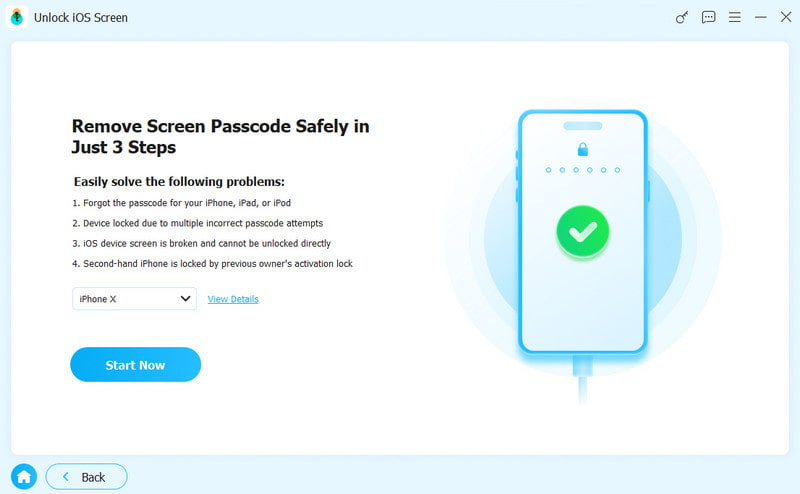
Step 2. Check your information
Once your device is recognized, your iPhone information will be loaded. Click the Start Now button to begin downloading the firmware package. It may take a while and you must be patient.
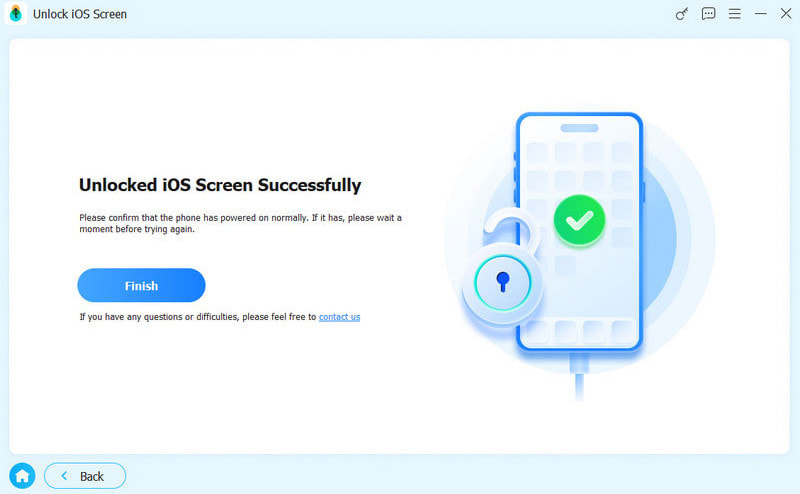
Step 3. Unlock your iPhone
Click the OK button on the confirmation dialog. Then, confirm it again on the verification dialog. When the download is complete, the software will unlock your iPhone immediately. After your password is removed, your iPhone will restart, and you can set it up as a new device or restore from a backup.
Conclusion
This guide explained what to do if you forgot your iPhone password. First of all, you should back up your device to avoid data loss. If you cannot remember your password, you can regain access to your device after erasing, resetting, or restoring your iPhone. Apeaksoft iOS Unlocker is the ultimate option to remove your iPhone passcode when you forgot it. Then, you can unlock your device without any trouble.
Related Articles




